Discussion units
A Discussion unit inside a course prompts a threaded conversation as part of the syllabus. This article covers adding one.
Before you start
You need the Admin or Instructor role. The course's Discussion feature must be enabled.
Step 1 — Add a Discussion unit
Open the course editor and add a new unit. Pick Discussion from the type picker. The unit collects a prompt (the seed question) and options like 'must post before completing' and 'must reply to a peer'.
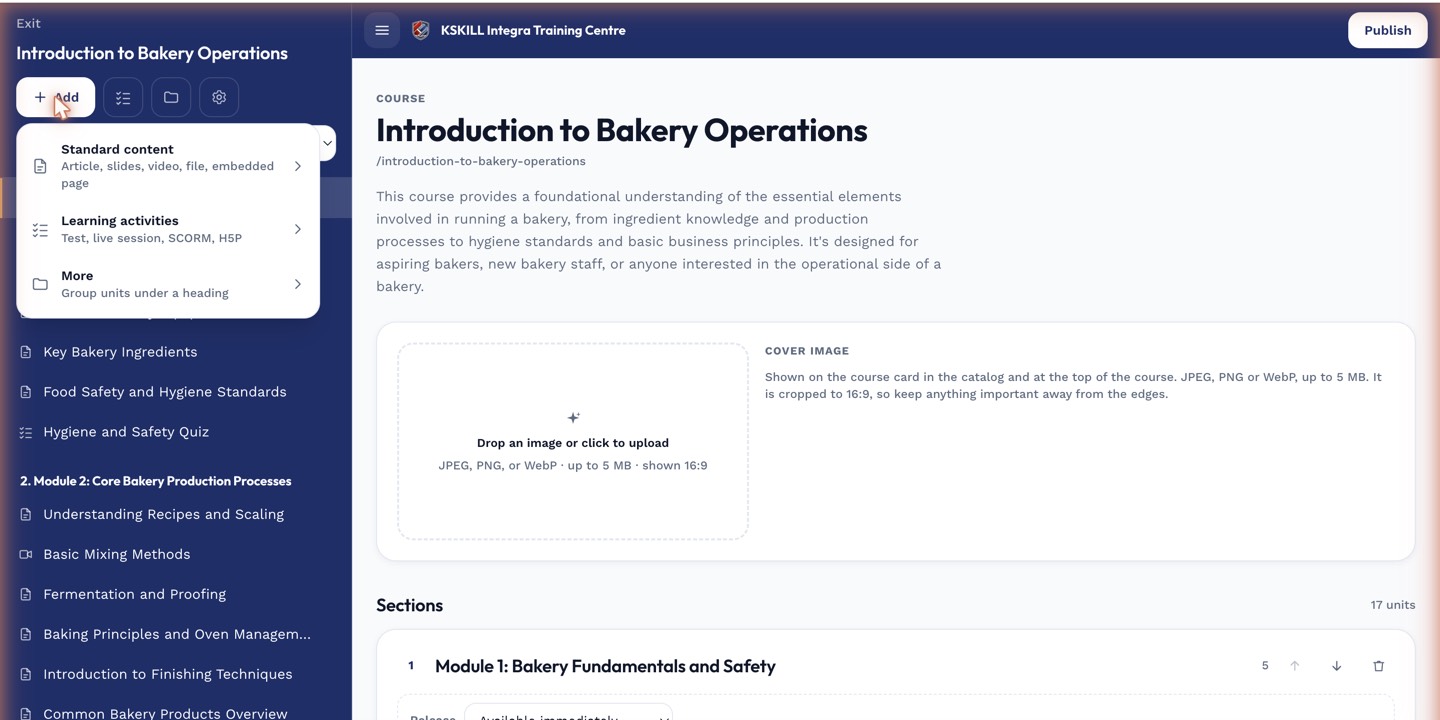
The lesson-type picker is the same one whichever section you add into.
Step 2 — Set completion rules
Discussion units count toward completion via one of two rules — post a comment, or post plus reply to at least one peer. Pick the rule that matches the pedagogical intent. Save. Learners who don't participate won't complete the course.
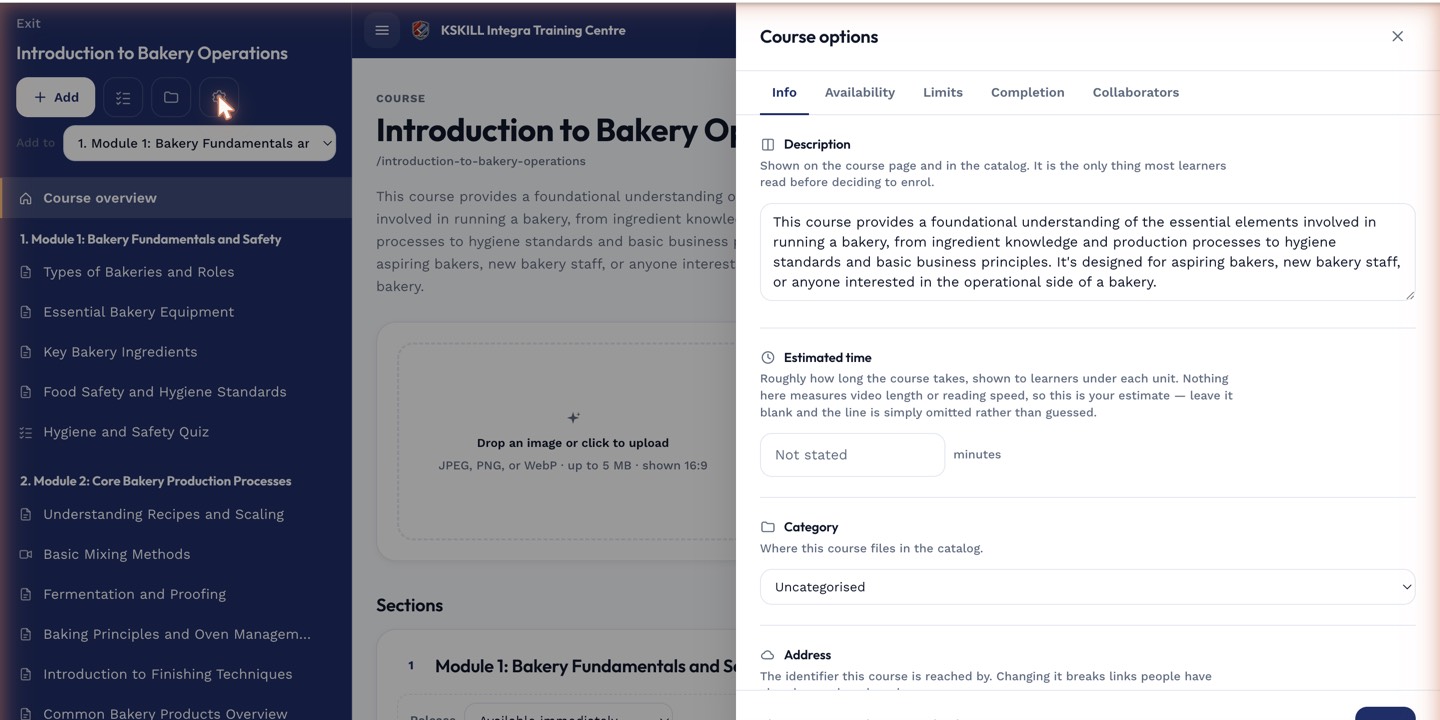
The options drawer is where every per-course rule lives — visibility, price, completion criteria, expiration.
Step 3 — Moderate the thread
As with the course's general Discussion tab, moderators can pin threads and delete violations. Instructors typically prompt the conversation early and step back to let learners engage each other.
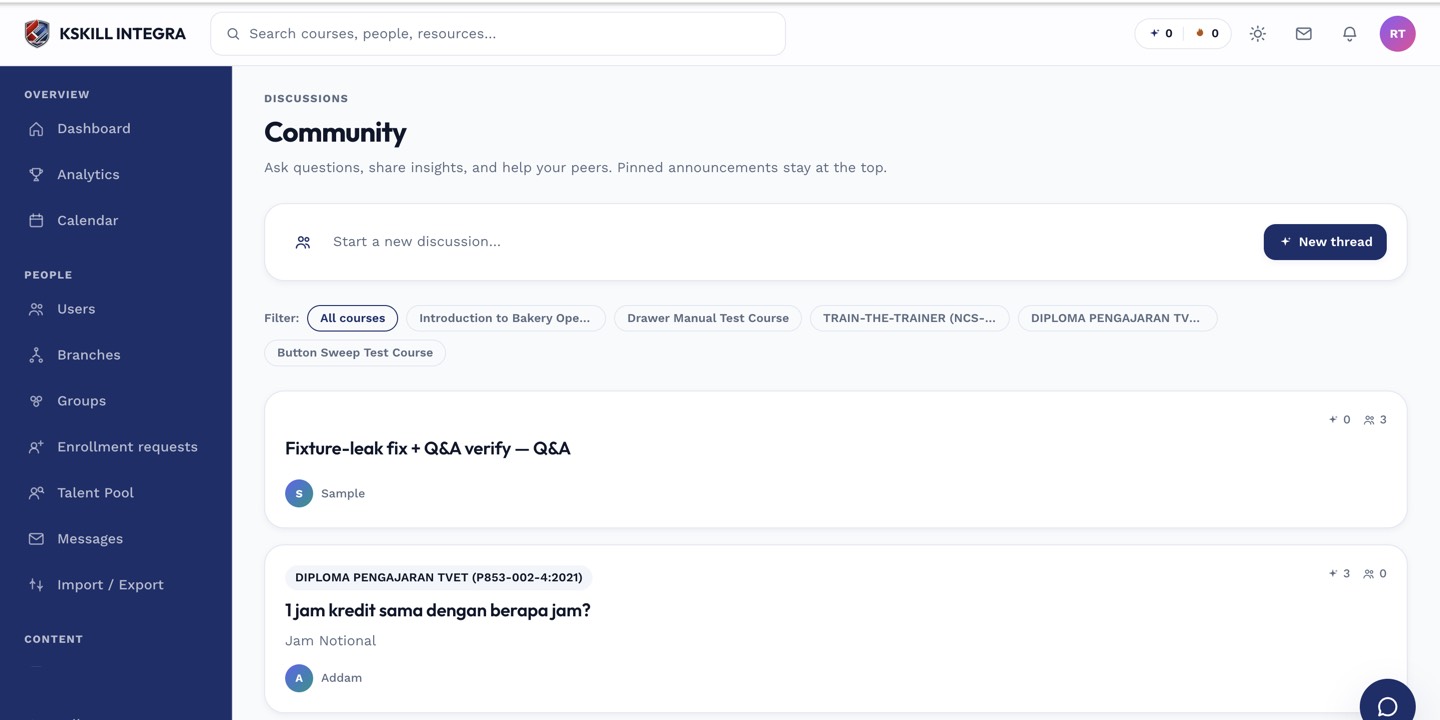
The community surface hosts open-ended discussion outside any single course.
Notes
- Discussion units are especially useful in cohort-scheduled courses where the shared conversation is part of the learning.
- For open-ended tenant-wide chat, use the Community surface instead.