Grading exams and quizzes with the per-question grader
CoursesUpdated September 24, 2026
Multiple-choice and true/false questions grade themselves the instant a learner submits. Short answer and essay questions don't — they wait for a human in the per-question grader, reached from the Exams and Quizzes tabs of the Grading Hub.
Before you start
You need the Instructor or Admin role and access to the course the assessment belongs to.
Open the grader
- Go to Manage → Grading and choose the Exams or Quizzes tab depending on the assessment type.
- The status table lists assessments with ungraded manual questions. Click one to enter the per-question grader.
- The grader steps through each learner's manually-graded answers one question at a time, showing the question prompt, any model answer or rubric notes, and the learner's response.
- Score the answer, add feedback if needed, and move to the next.
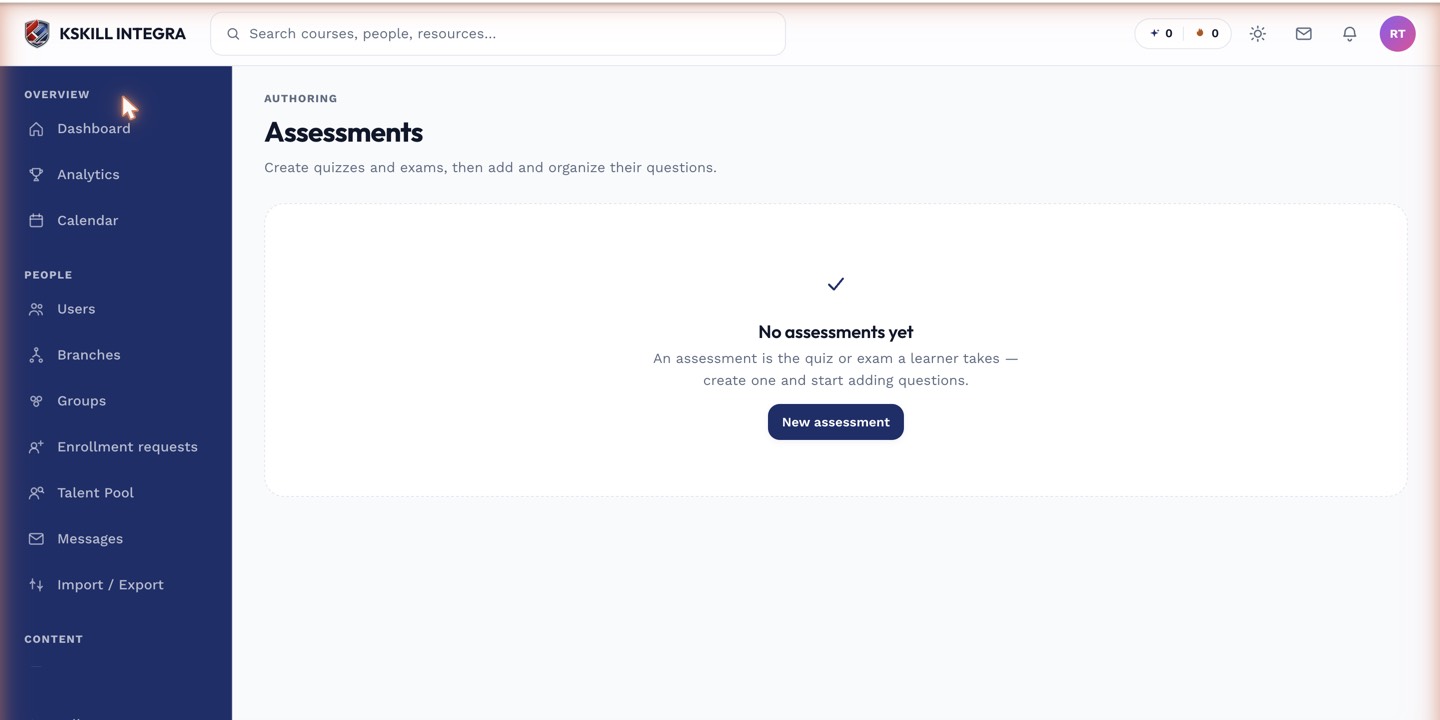 Assessments with outstanding manual grading are flagged here before you drill in.
Why grading is per-question, not per-learner
Grading one question across every learner at a time (rather than one learner's whole exam at a time) keeps your judgment consistent — you're comparing answers to the same prompt side by side instead of re-reading the rubric fresh for every learner.
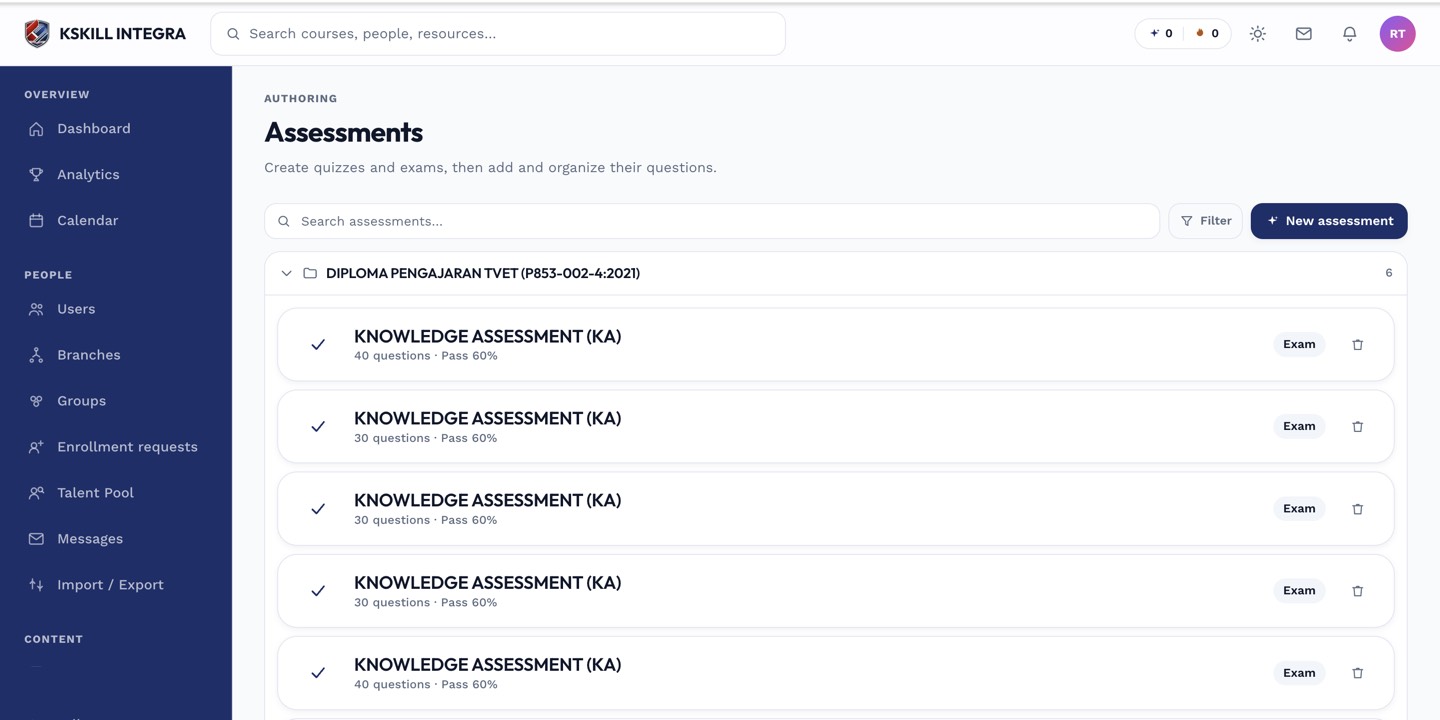 Once every manual question on an assessment is scored, the learner's final result is calculated automatically.
Notes
A learner's overall exam score won't finalize until all of their manually-graded questions are scored — the auto-graded portion is held pending alongside it.
What next?
#grading#exams#quizzes#assessments#manual-grading