Grading Hub: your single queue for everything that needs a human
Anything a computer can't score automatically ends up in one place: Manage → Grading. Essays, file-upload assignments, live-session attendance, and short-answer questions all land here until an instructor or admin reviews them.
The four tabs
The Grading Hub is organized into four tabs, each scoped to a different kind of work:
- Assignments — file or text submissions from course assignment units, waiting for a score and feedback.
- ILT sessions — instructor-led training sessions where attendance or a facilitator score needs to be recorded.
- Exams — manually-graded questions inside exam-type assessments, opened one at a time in the per-question grader.
- Quizzes — the same per-question grading experience, scoped to quiz-type assessments.
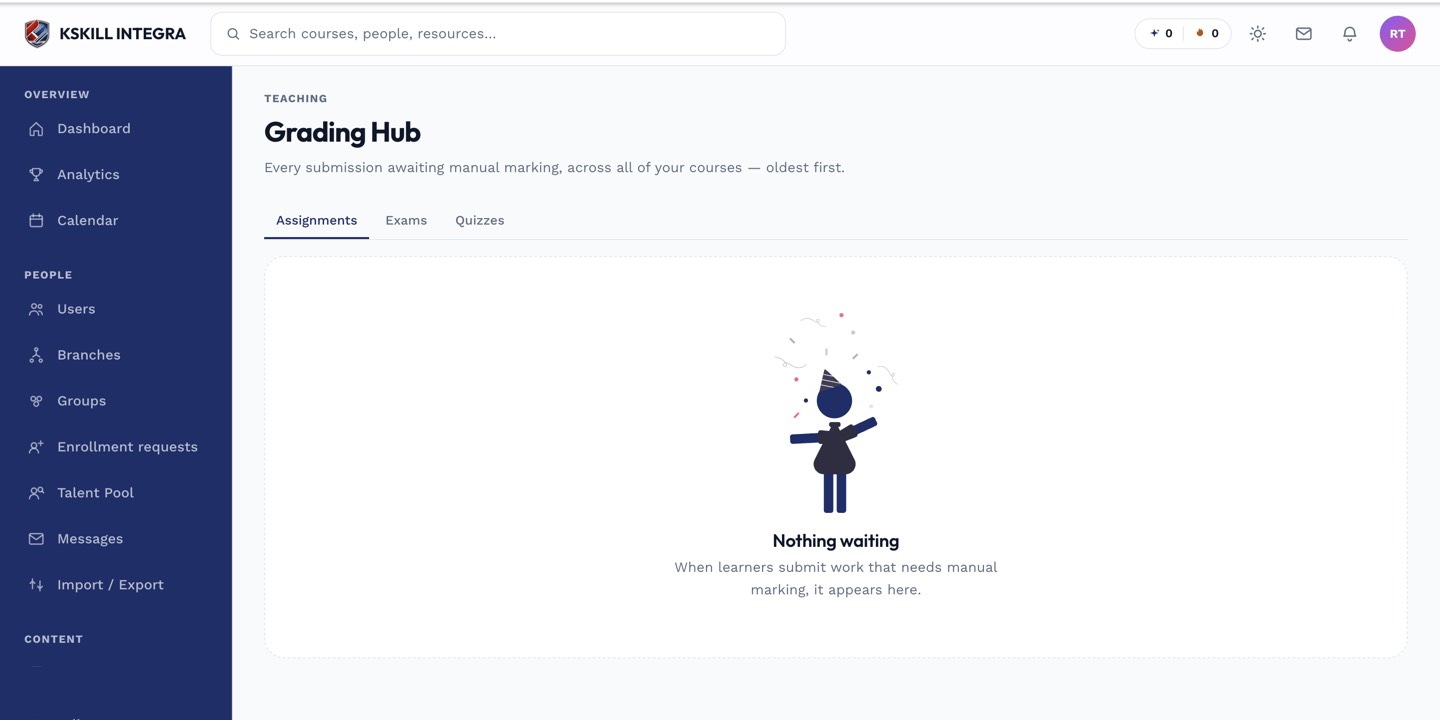 Each tab opens on a status table so you can see what's outstanding at a glance.
Reading the status table
Every tab shows the same shape of table: learner, course or session, submitted date, and a status chip (Pending, Graded, or Needs review). Click any row to open the grade drawer for that submission without leaving the list.
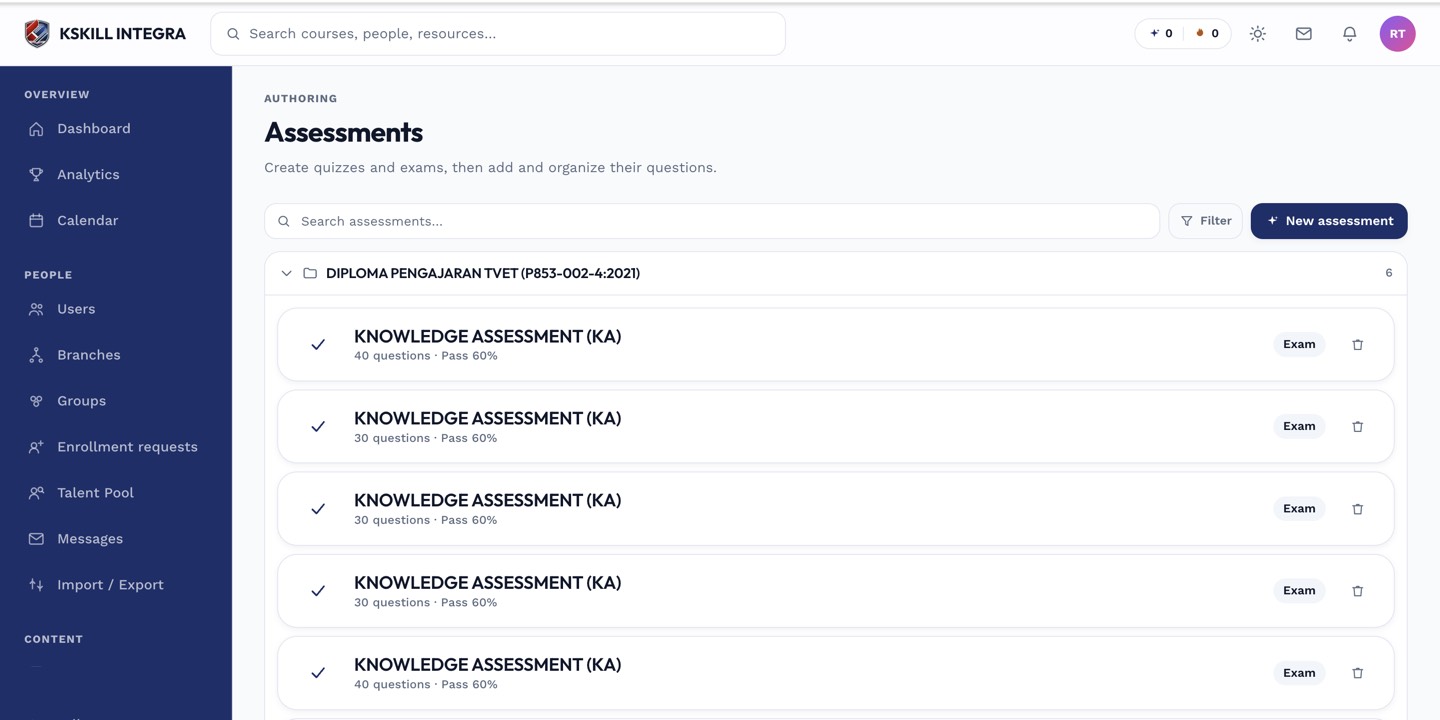 The Exams and Quizzes tabs link straight into the per-question grader for that assessment.
Who sees this
Instructors see only the submissions for courses they teach. Admins with the Grading capability see everything across the tenant, which is useful for coverage during busy periods or when an instructor is out.
Notes
Nothing in the Grading Hub auto-refreshes background counts — refresh the page or switch tabs to pick up submissions that arrived while you were working. A submission stays Pending until someone opens it and saves a grade, even if the learner has since completed the rest of the course.