Grading ILT (instructor-led training) sessions
CoursesUpdated September 24, 2026
Instructor-led training units — live classroom or webinar sessions attached to a course — need a facilitator to record who showed up and how they did. That work lives on its own tab in the Grading Hub.
Before you start
You need the Instructor or Admin role. The ILT session must have already taken place — you can't grade attendance for a session that hasn't happened yet.
Grade a session
- Go to Manage → Grading and switch to the ILT sessions tab.
- The status table lists sessions with learners still pending a score, grouped by course and session date.
- Click a row to open the grade drawer for that learner's participation in the session.
- Mark attendance and, if the session is scored rather than pass/fail, enter a facilitator score with optional notes.
- Save. The learner's status updates to Graded and, if attendance is a completion requirement, their course progress moves forward.
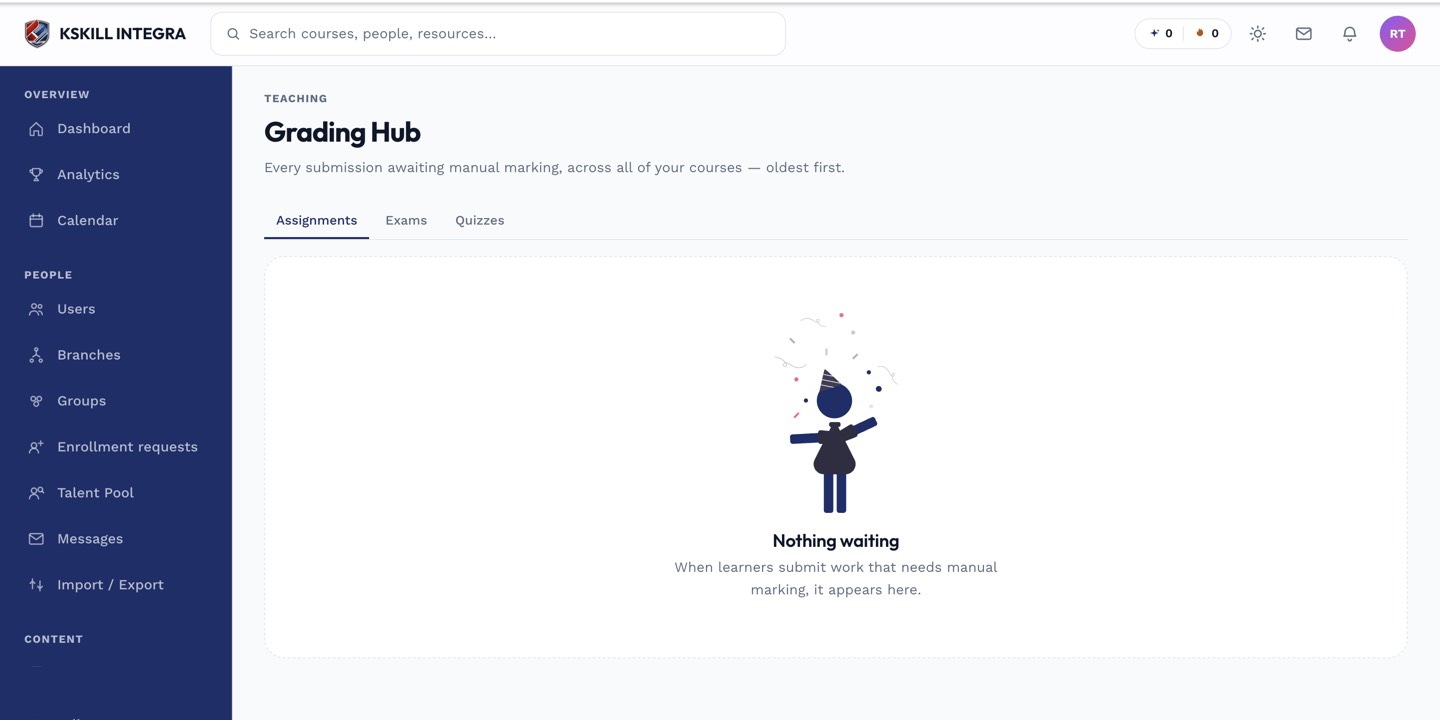 The ILT tab groups pending grading by session, so you can clear an entire class in one pass.
Scheduling context
If you need to confirm when a session ran before grading it, the session's date and time are also visible from the course calendar.
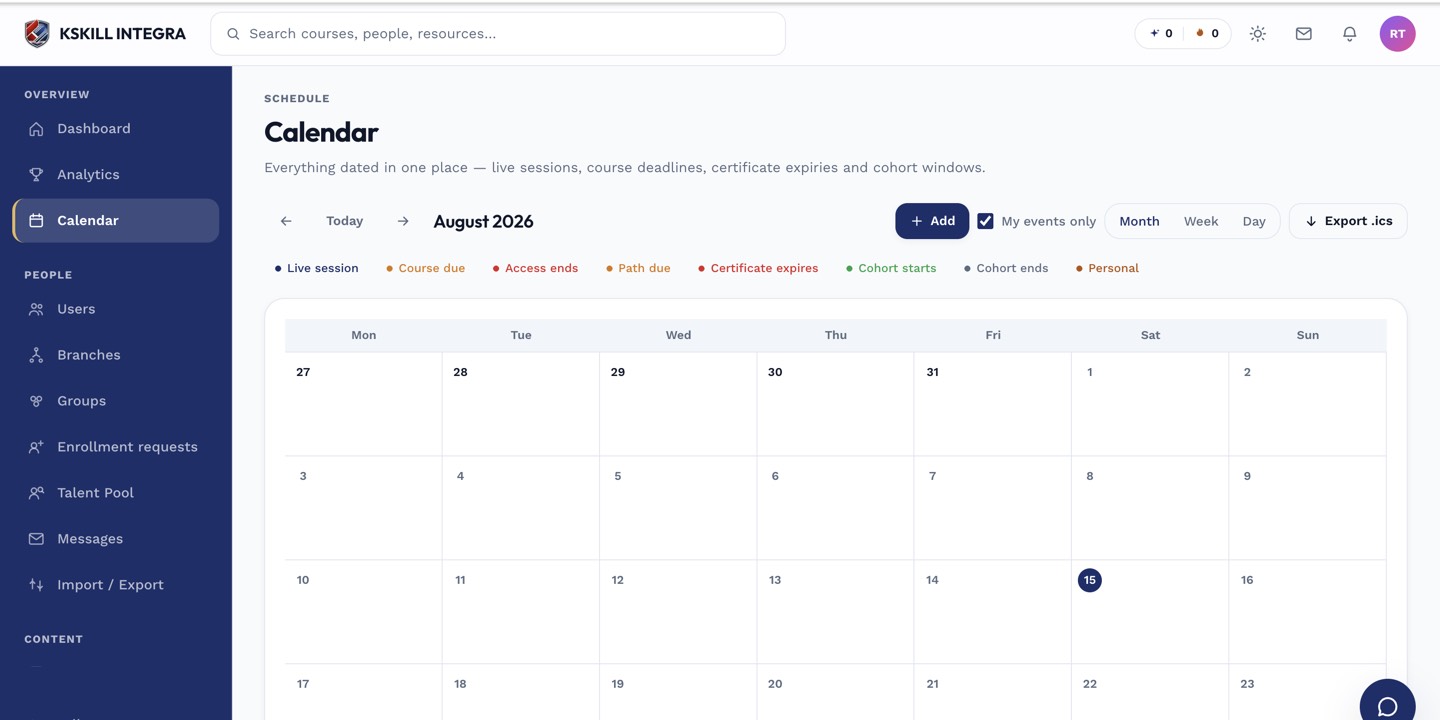 Cross-check the session date here if attendance records look off.
Notes
Multiple learners in the same session can be graded faster with mass actions rather than opening each one individually.
What next?
#grading#ilt#instructor-led#attendance