H5P units
H5P units host interactive content built with the H5P editor — branching scenarios, interactive video, drag-and-drop. This article covers adding one.
Before you start
You need the Admin or Instructor role. The interactive content library is where authored H5P packages live.
Step 1 — Author or upload the H5P
Open Content → Interactive content. Either author a new H5P package inline (the editor supports every H5P content type) or upload an existing H5P ZIP. Save.
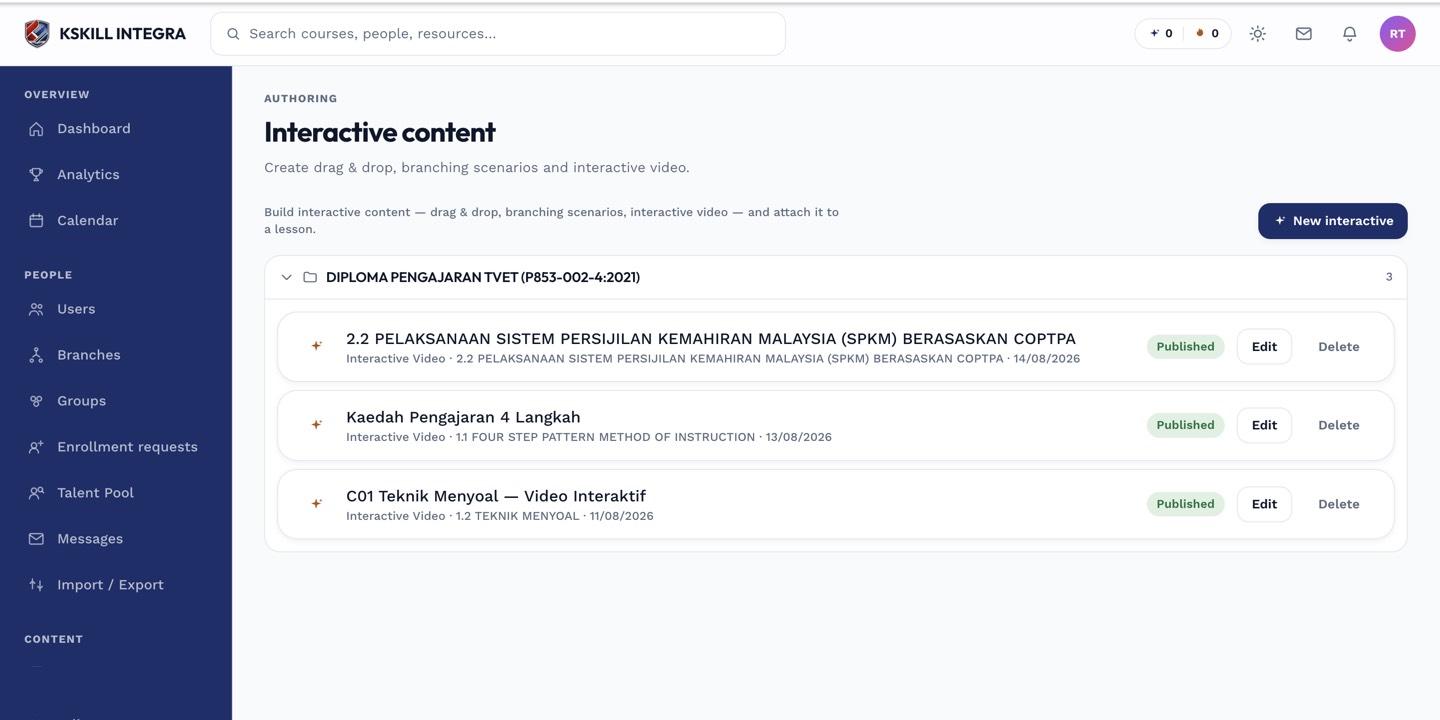
The interactive-content library is where uploaded H5P and SCORM packages are managed.
Step 2 — Add an H5P unit to a course
Open the course editor and add a unit. Pick H5P. Select the interactive package from your library. Save. The unit plays the package inline in the course.
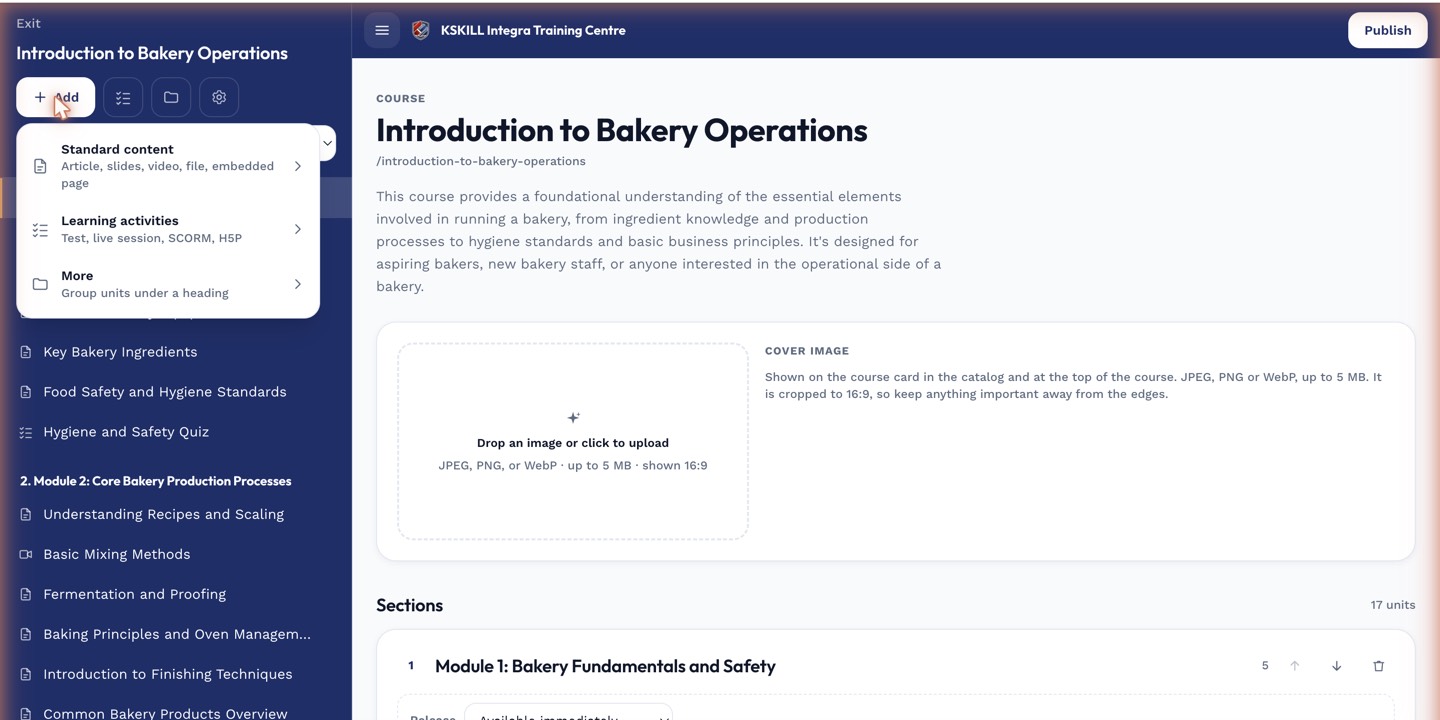
The lesson-type picker is the same one whichever section you add into.
Step 3 — Progress and scoring
H5P reports progress and score to the LMS via xAPI. The unit completes when the learner's interaction meets the completion rule in the package (typically 'answered all questions correctly').
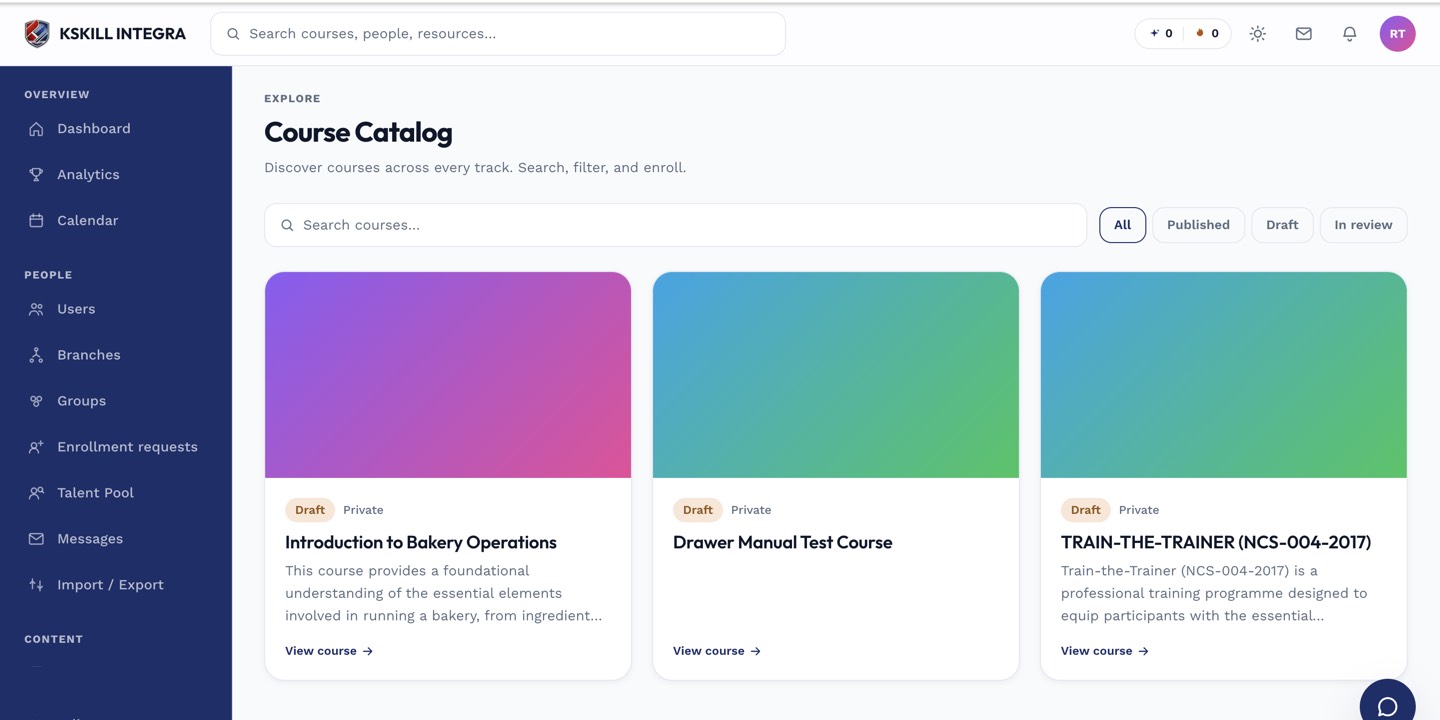
My Courses is the learner's grid of everything they are currently enrolled in.
Notes
- H5P authored inline is easier to update than uploaded ZIPs.
- For very large H5P packages, load times can bite on slow connections.