Branch analytics
Analytics scoped to one branch let branch admins measure their own book of business. This article covers reading it.
Before you start
You need the Admin role or Branch admin role.
Step 1 — Open branch-scoped analytics
Open Configuration → Analytics. If you're a branch admin, the whole page is auto-scoped to your branch. Full admins can pick a branch from the filter to scope temporarily.
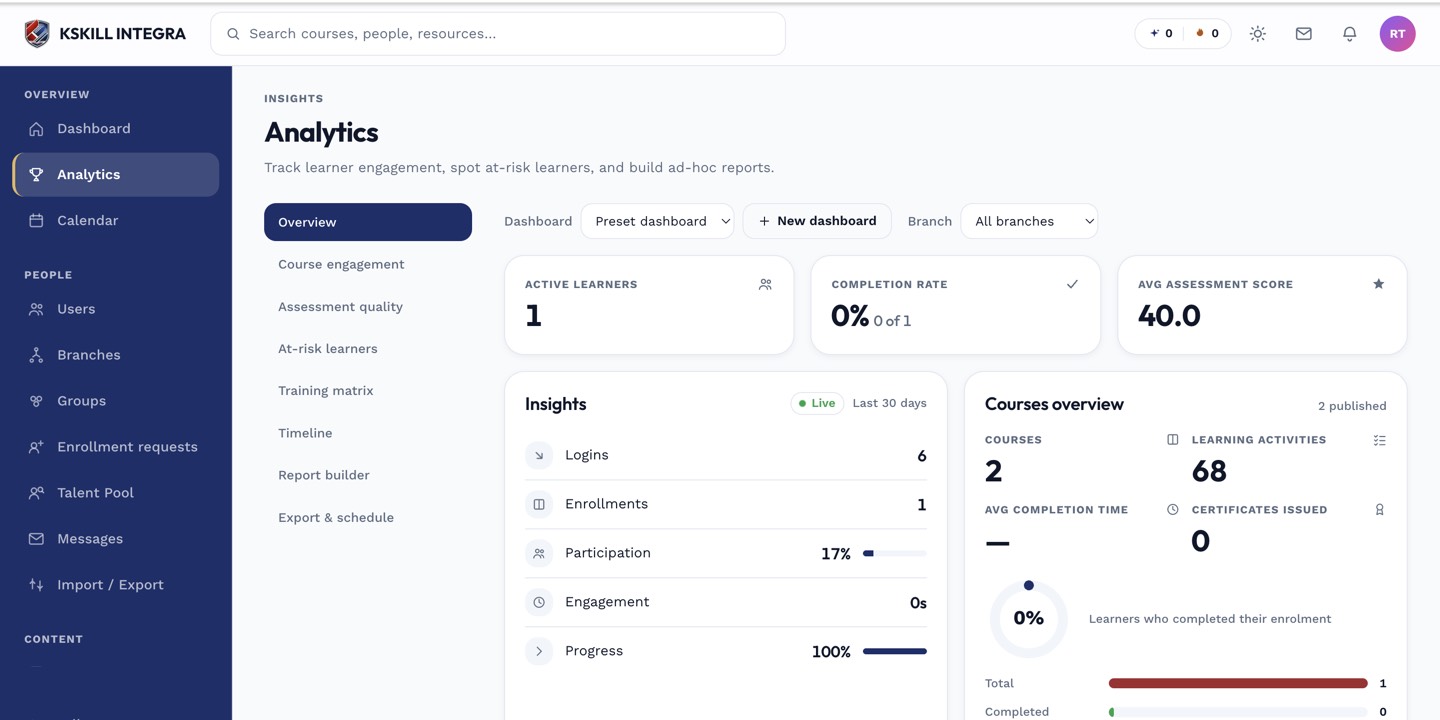
The Overview tab is the one everyone lives in — the deeper tabs answer sharper questions.
Step 2 — Compare across branches
Full admins can use the branch dimension in the Report builder to compare branches side-by-side. Useful for identifying which branches lead on engagement and which need help.
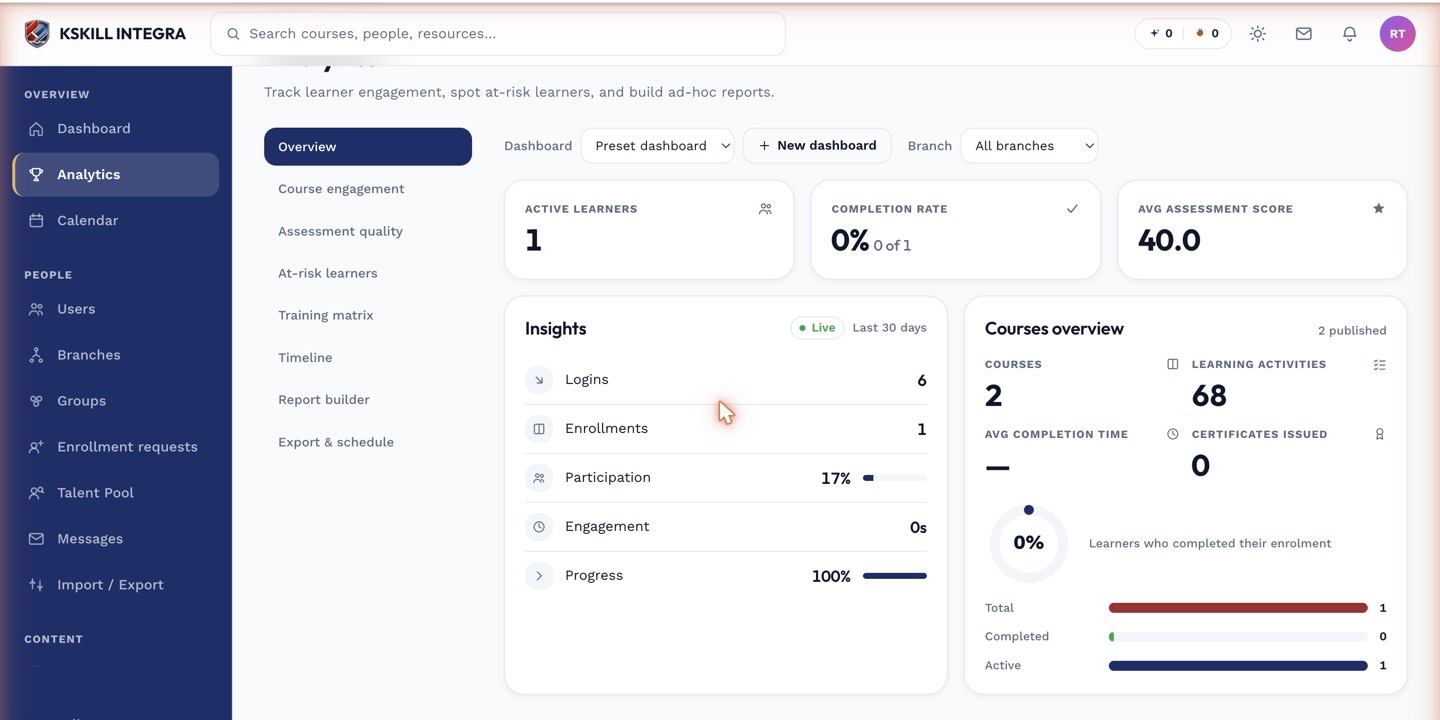
The detail panels give you the breakdown behind each KPI tile.
Step 3 — Schedule a branch digest
For each branch admin, schedule a weekly digest of their branch's KPIs. This keeps them looking at the numbers without expecting them to open the LMS every week. Recipients don't need admin privileges to receive emailed reports.
The Overview tab is the one everyone lives in — the deeper tabs answer sharper questions.
Notes
- Branch-scoped analytics never leak across branches — the scope is enforced server-side.
- For cross-branch cross-tenant analytics, use the platform-level analytics (available only to super-admins).