Enrol users in a course
There are three ways to get a user into a course. Which one fits depends on how many learners you have and how much control you want.
Before you start
You need the Admin role for options 1 and 2. Self-enrol works for any user but only on courses set to Public in catalog.
Step 1 — Manual, one at a time
Open People → Users and click a learner's name. Switch to their Courses tab and click Enrol in courses. Pick from the list and confirm. Use this when you have one or two people to add and want to double-check first.
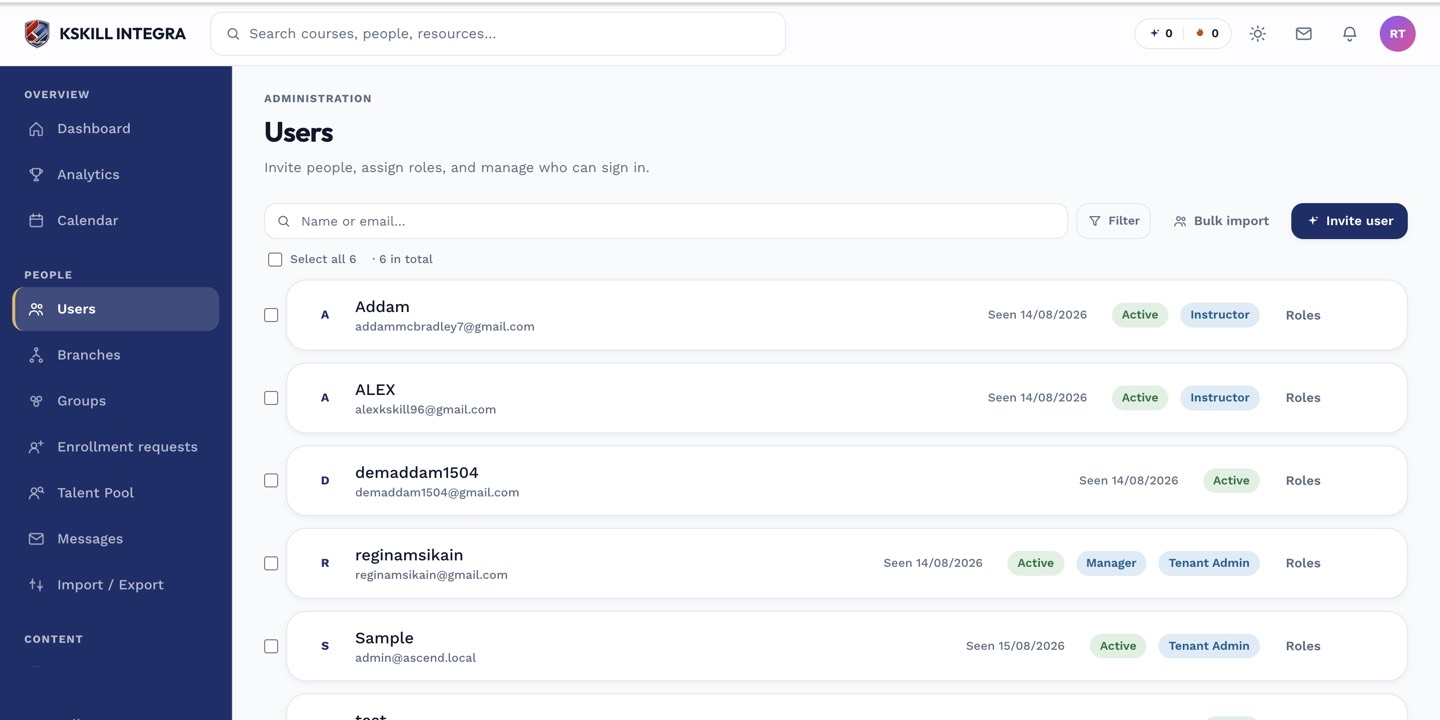
The Users list is the entry point for every person-related admin task.
Step 2 — Auto-enrol via a Group
Open People → Groups, pick the group, and attach a course from the Courses tab. Make sure Auto-enrol is on in the group's Info tab. From now on every user added to the group is automatically enrolled in every attached course — the fastest way to bulk-enrol a department.
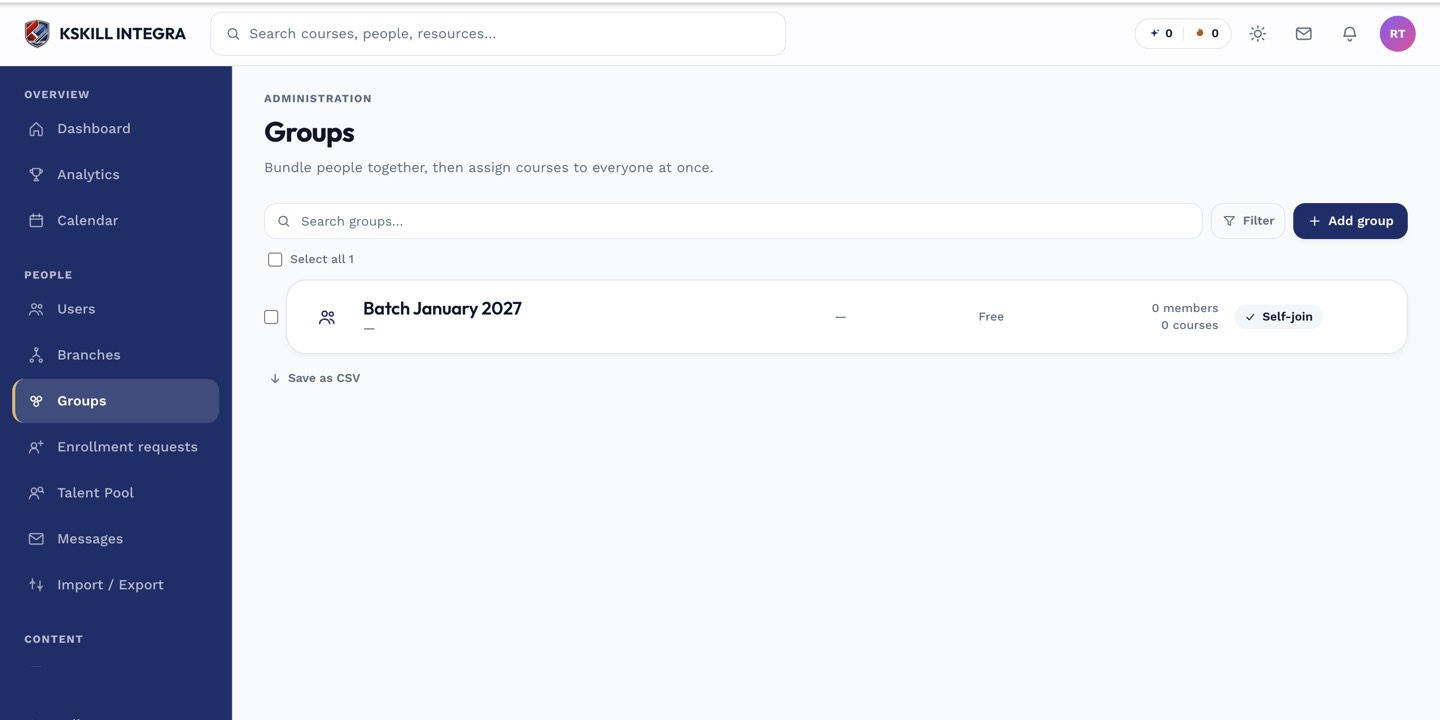
Every group management task starts from this list.
Step 3 — Self-enrol via the catalog
Open the course editor and set Visibility to Public in catalog. Learners open Catalog in their sidebar and click Enrol on anything they want. Use this for optional learning where you would rather offer than assign.
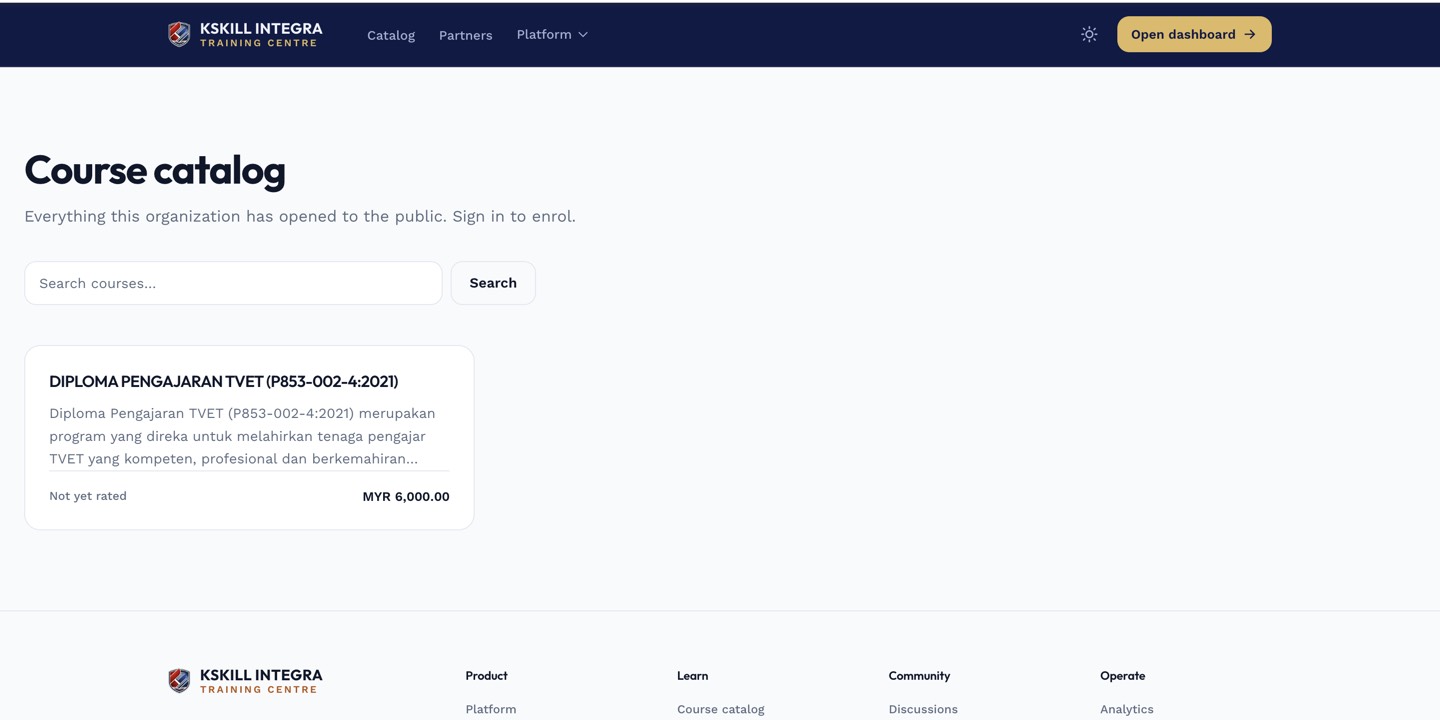
The catalog is the learner-facing shelf of everything a learner is allowed to self-enrol into.
Notes
- A course with a prerequisite enrols the learner but blocks the start button until the prerequisite is done.
- Cohort-scheduled courses ask which intake to place the learner in at enrol time.