Add animations and click-to-reveal
Animations and click-to-reveal add narrative pacing to a slide. This article covers wiring them up without overdoing it.
Before you start
You need to be in the Slide Builder.
Step 1 — Add an entrance animation
Select a block and open the Animation tab in the right rail. Pick an entrance style (fade, slide, scale) and a delay. Preview with the play icon. Keep entrance delays under 500ms — anything longer feels like a bug to the learner.
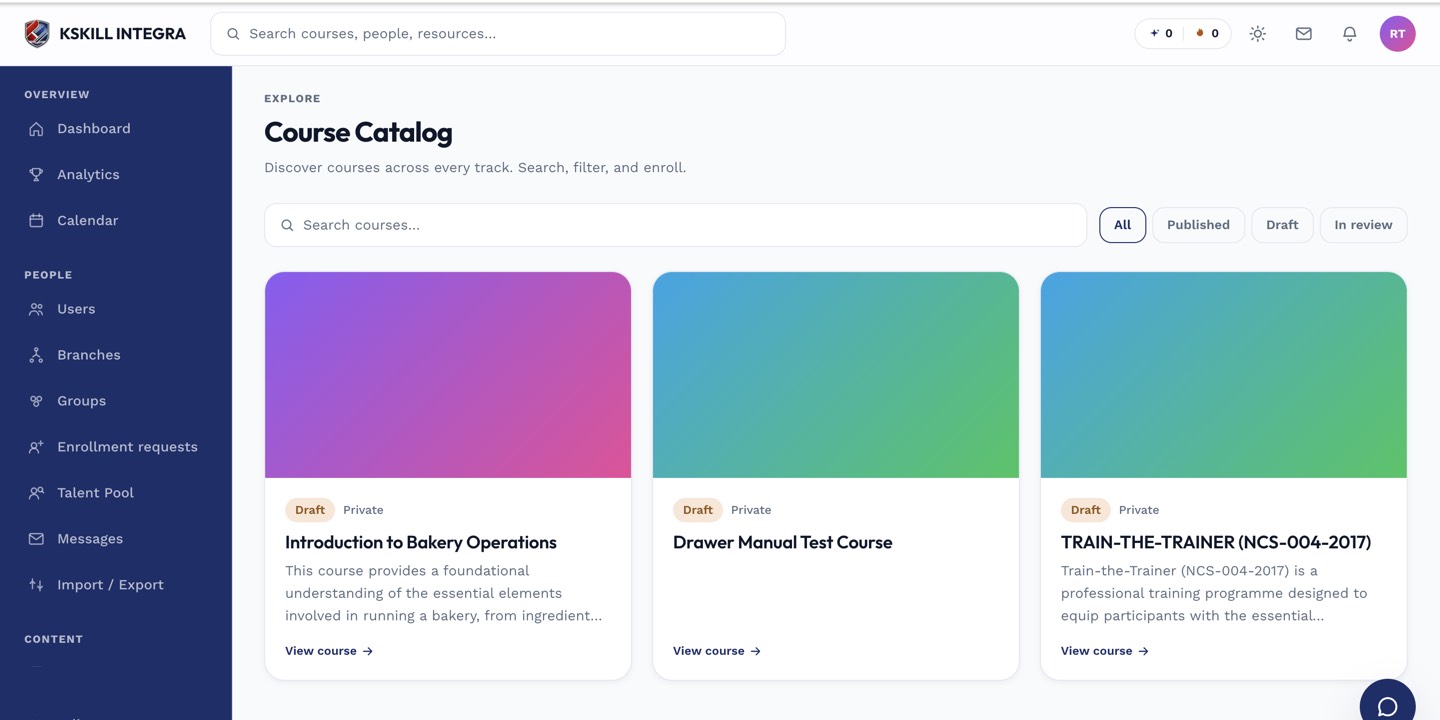
My Courses is the learner's grid of everything they are currently enrolled in.
Step 2 — Use click-to-reveal for pacing
Add a Reveal block and drop content inside it. The learner sees a placeholder until they click; the content then appears with the animation you picked. Useful for stepped explanations and comparison slides.
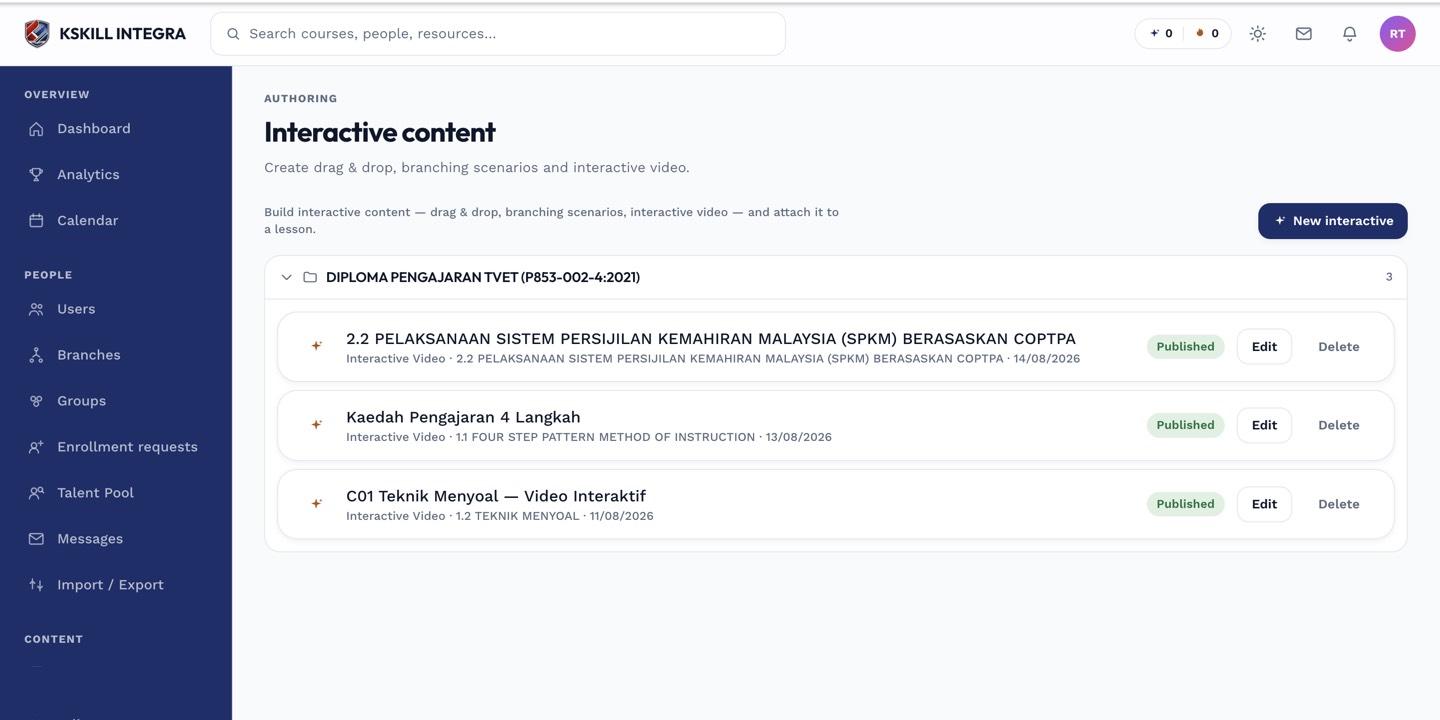
The interactive-content library is where uploaded H5P and SCORM packages are managed.
Step 3 — Test on real hardware
Preview on the slowest device your learners use — a mid-range Android phone is a good baseline. Animations that feel snappy on your laptop can stutter badly on a low-end device. Simplify or remove if that happens.
My Learning is the learner's default landing page — every enrolled course is one click away.
Notes
- Respect prefers-reduced-motion — the platform disables animations for users who set it.
- Too many animations feel amateur. One or two per slide is plenty.