Generate Skill definitions with AI
The AI generator drafts a whole skill or a batch of skills from a short prompt. This article covers using it responsibly.
Before you start
You need the Admin role and an AI provider configured. The generator reads the tenant's AI instruction from Skills settings.
Step 1 — Open the generator
Open Content → Skills and click Generate with AI. The drawer collects a prompt (e.g. Draft five skills a modern data analyst needs) and shows the AI instruction currently in effect.
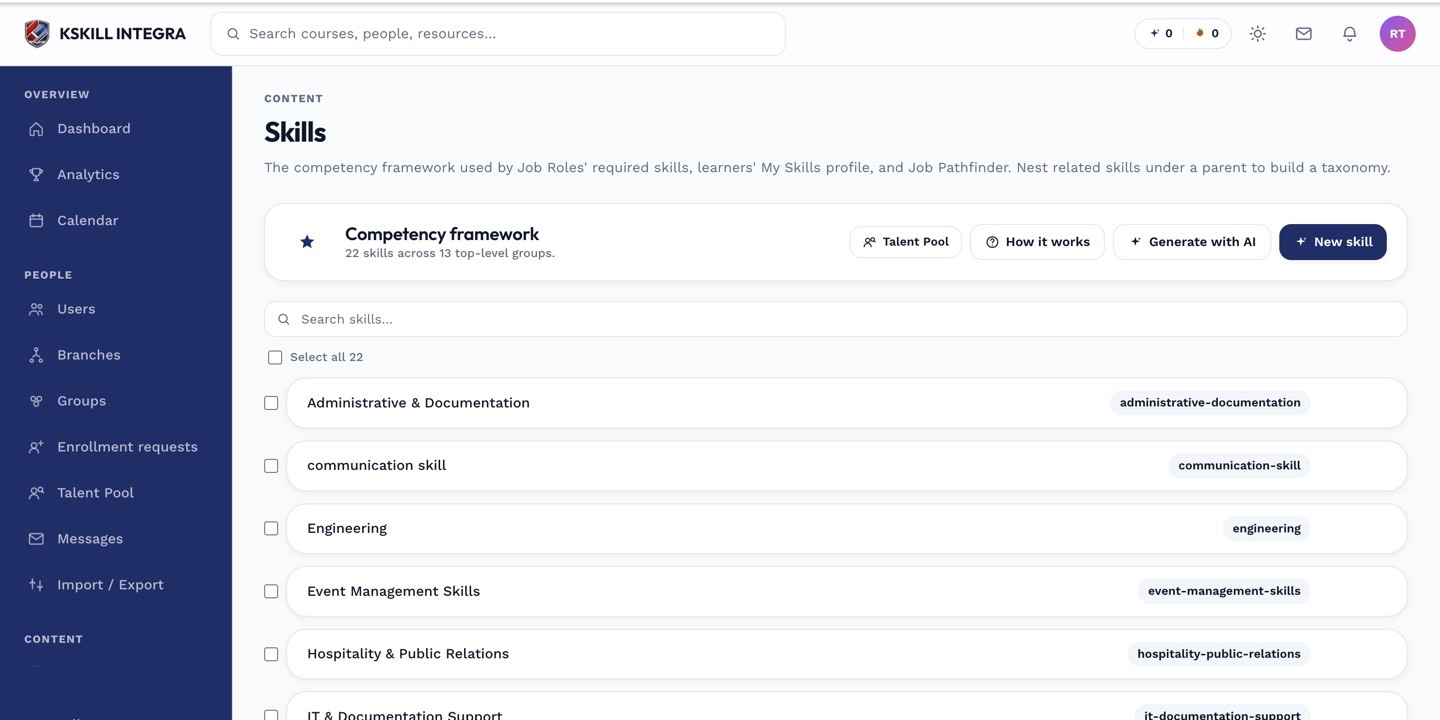
The Skills manager is the source of truth for every skill your tenant tracks.
Step 2 — Review before applying
The generator returns proposed skills as a list with names, descriptions and suggested categories. Nothing is written yet — review, edit inline, uncheck anything you do not want. Click Apply to create the selected skills.
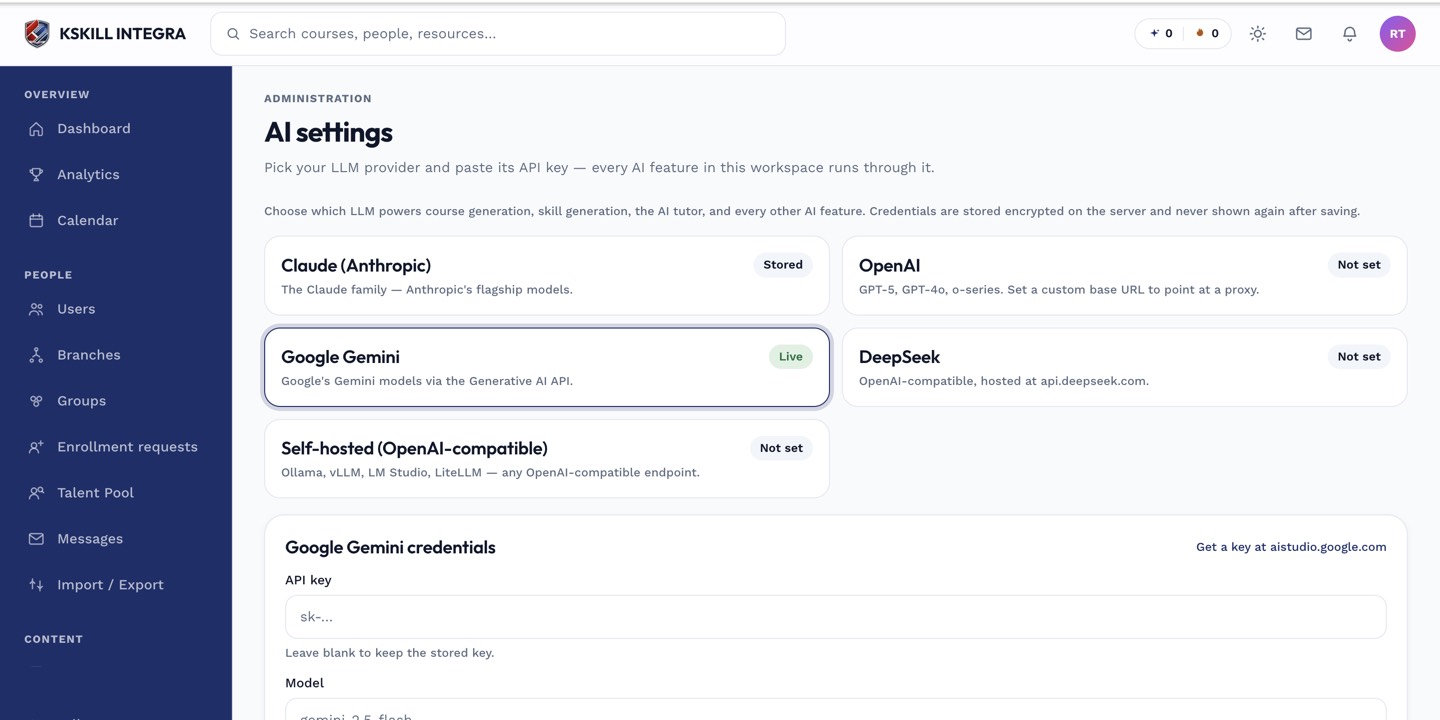
The AI settings page is where every AI-powered feature gets its credentials.
Step 3 — Tune the instruction
The AI instruction lives in Configuration → Settings → Skills. It is the standing prompt every generation uses on top of your one-off prompt. Encode your taxonomy conventions there and the generator will follow them.
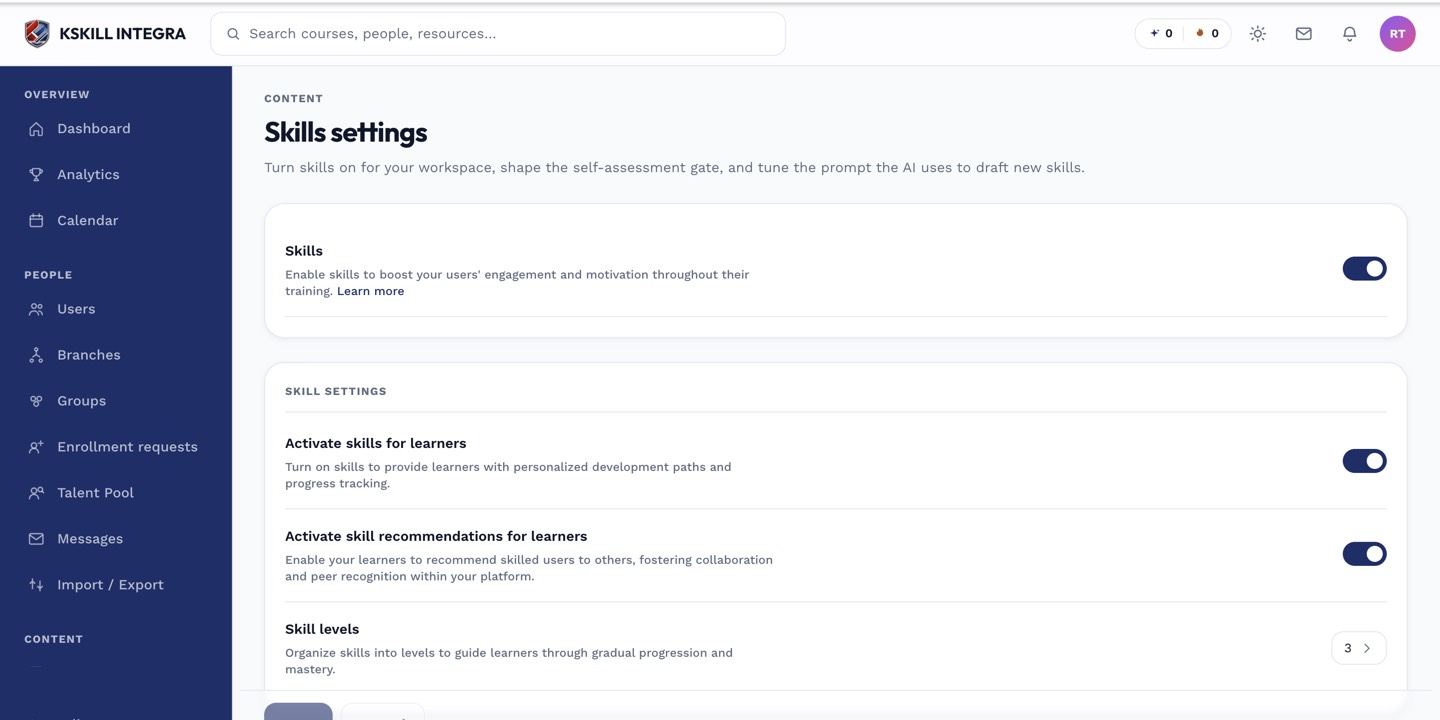
The Skills settings page controls the AI instruction, expiration defaults and taxonomy rules.
Notes
- Nothing is created until you click Apply — the drawer is a preview, not a commit.
- Async: large batches queue via the
ai.generateworker and land when ready.