Attach a Skill to a course
A skill is granted when something on the platform decides the learner has demonstrated it. Attaching a skill to a course is the most common grant path.
Before you start
You need the Admin or Instructor role and an existing skill.
Step 1 — Open the course's Skills tab
Open Content → Courses, click the course, and switch to the Skills tab in the editor. The list shows every skill currently attached to this course.
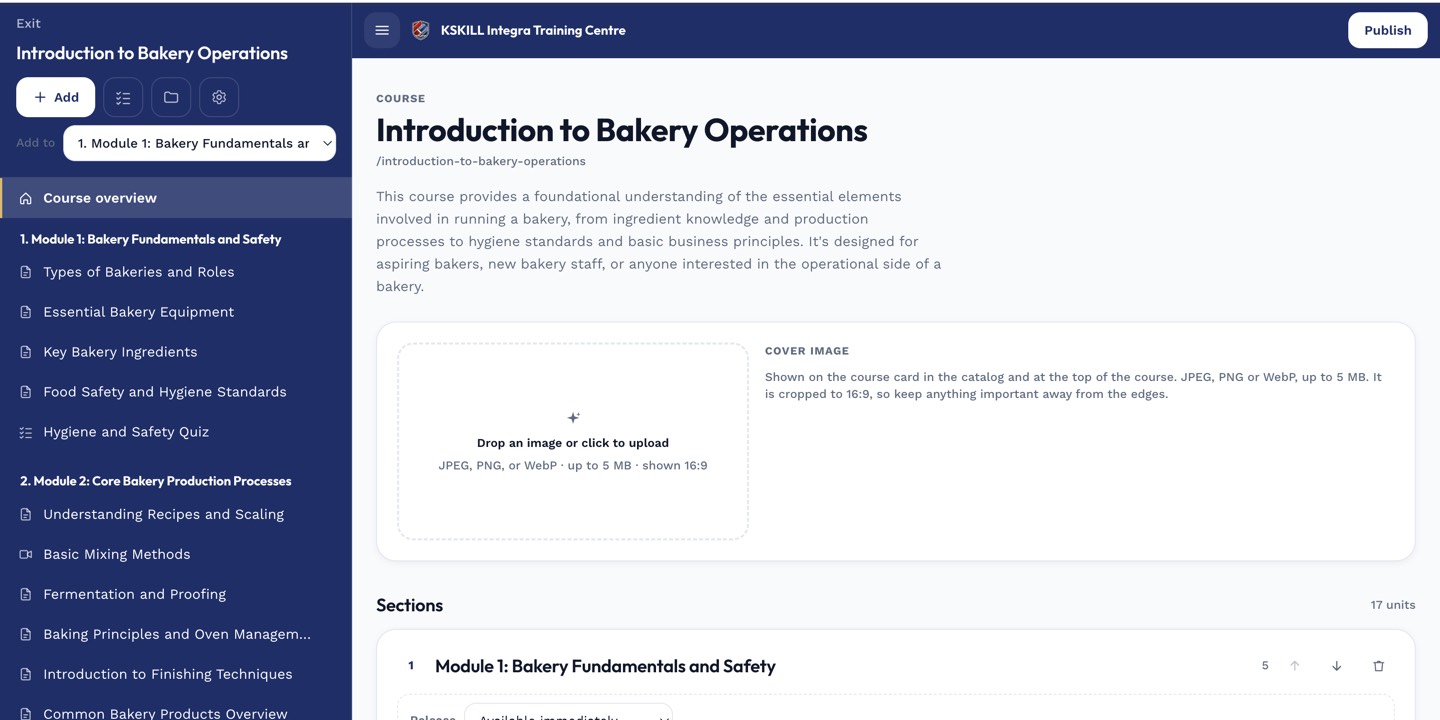
The editor shows sections and units together so you can drag either one to reorder.
Step 2 — Attach one or more skills
Click Add skill and pick from the tenant's taxonomy. Attaching a skill means completing this course grants it. Multiple skills can be attached to one course when the course teaches several capabilities.
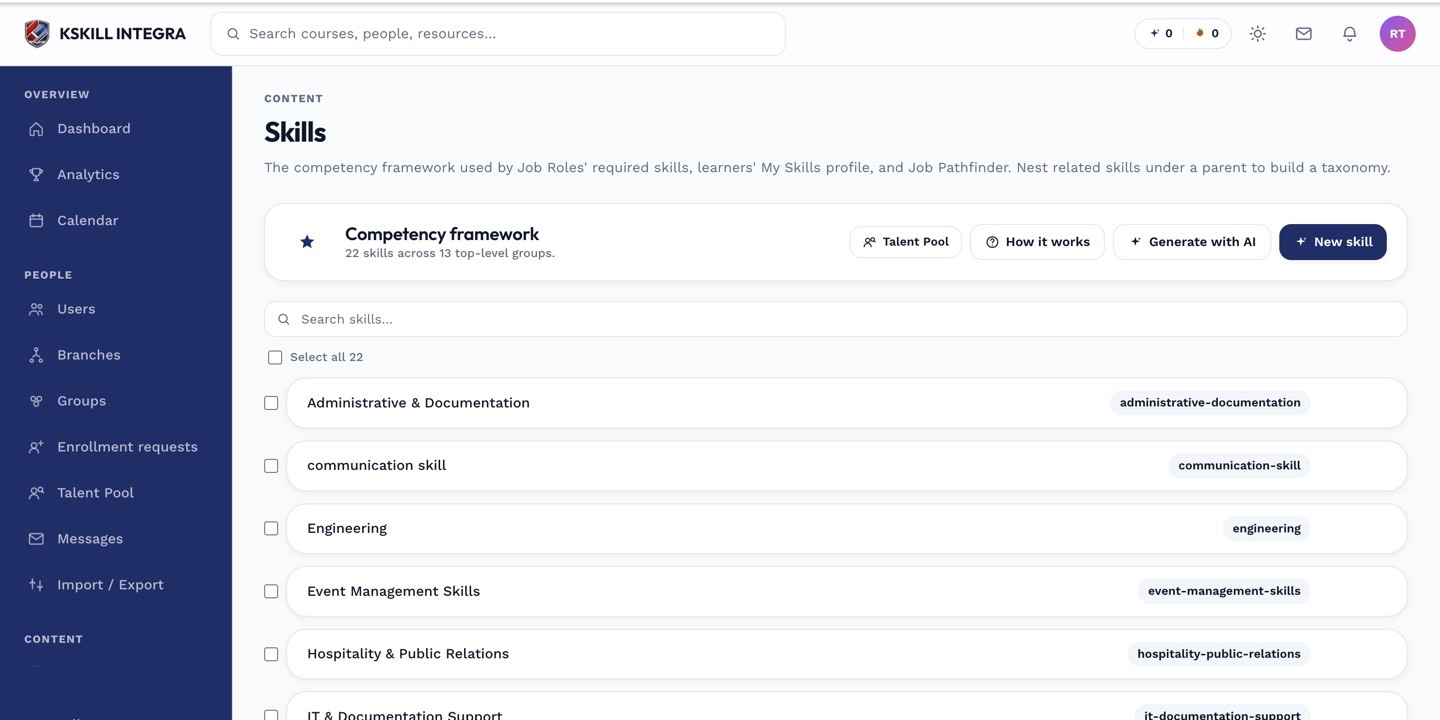
The Skills manager is the source of truth for every skill your tenant tracks.
Step 3 — Verify with a test learner
Enrol a test account, complete the course, then check the learner's My Skills page. The attached skills should appear immediately after completion, sourced as course-granted. If they do not, check that the course actually marked complete in the audit log.
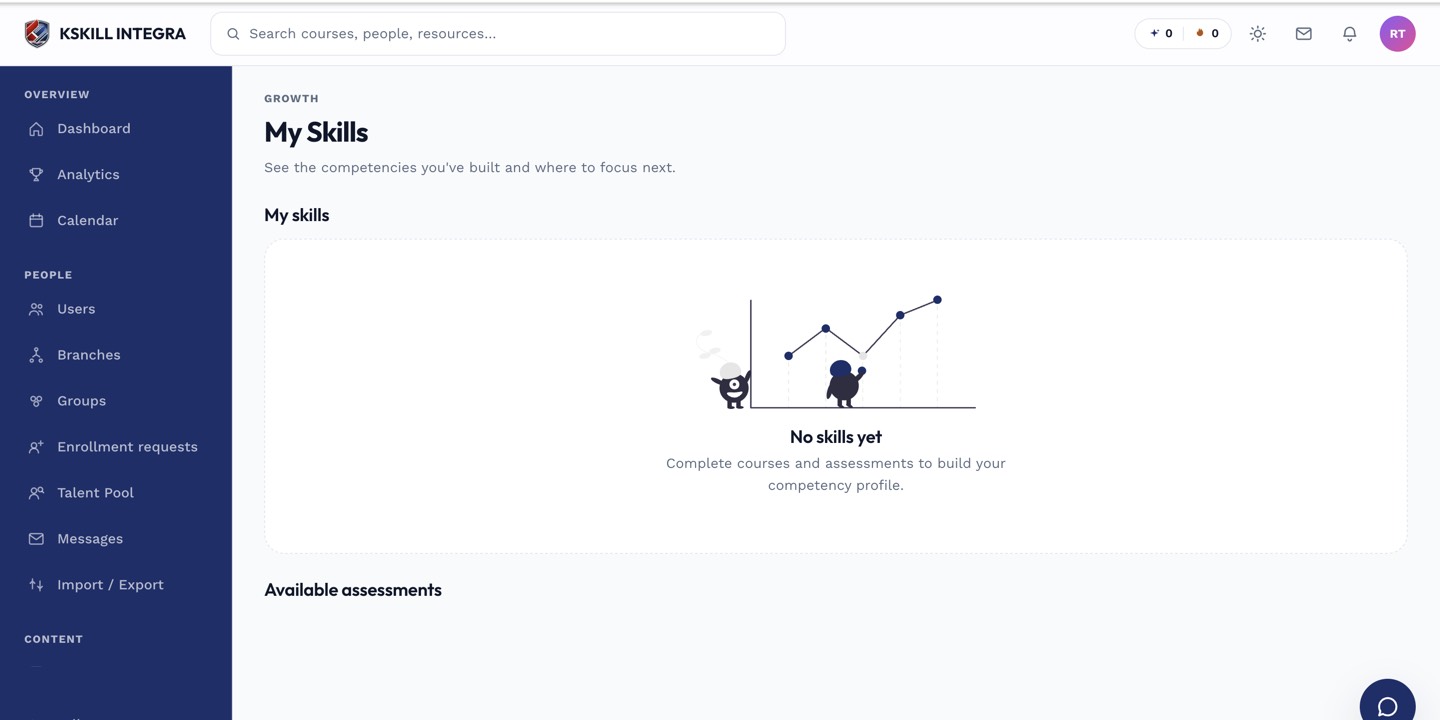
My Skills is the learner's own view of what they have proven so far.
Notes
- Course-granted skills are durable — they do not expire.
- For exam-based awards, use the awards-skill-level flag on the assessment instead.