Setting up a question bank
Content authoringUpdated September 24, 2026
A question bank is the pool of questions an assessment draws from. Build the bank first, then attach it to whichever quiz or exam units need it — the same bank can feed several assessments across different courses.
Before you start
You need the Instructor or Admin role and the content authoring permissions for the course (or a standalone bank not tied to a single course, if your tenant allows shared banks).
Create a bank
- From the course editor, open the test builder for the assessment unit, or go to a standalone question bank manager if you're building a reusable bank.
- Click New question and choose a type — multiple choice, true/false, match, short answer, or essay.
- Fill in the prompt, options or pairs, and the correct answer (skip this for essay questions, which are always manually graded).
- Repeat until the bank has enough questions to draw from. Assessments can pull a random subset per attempt if the bank has more questions than the assessment needs.
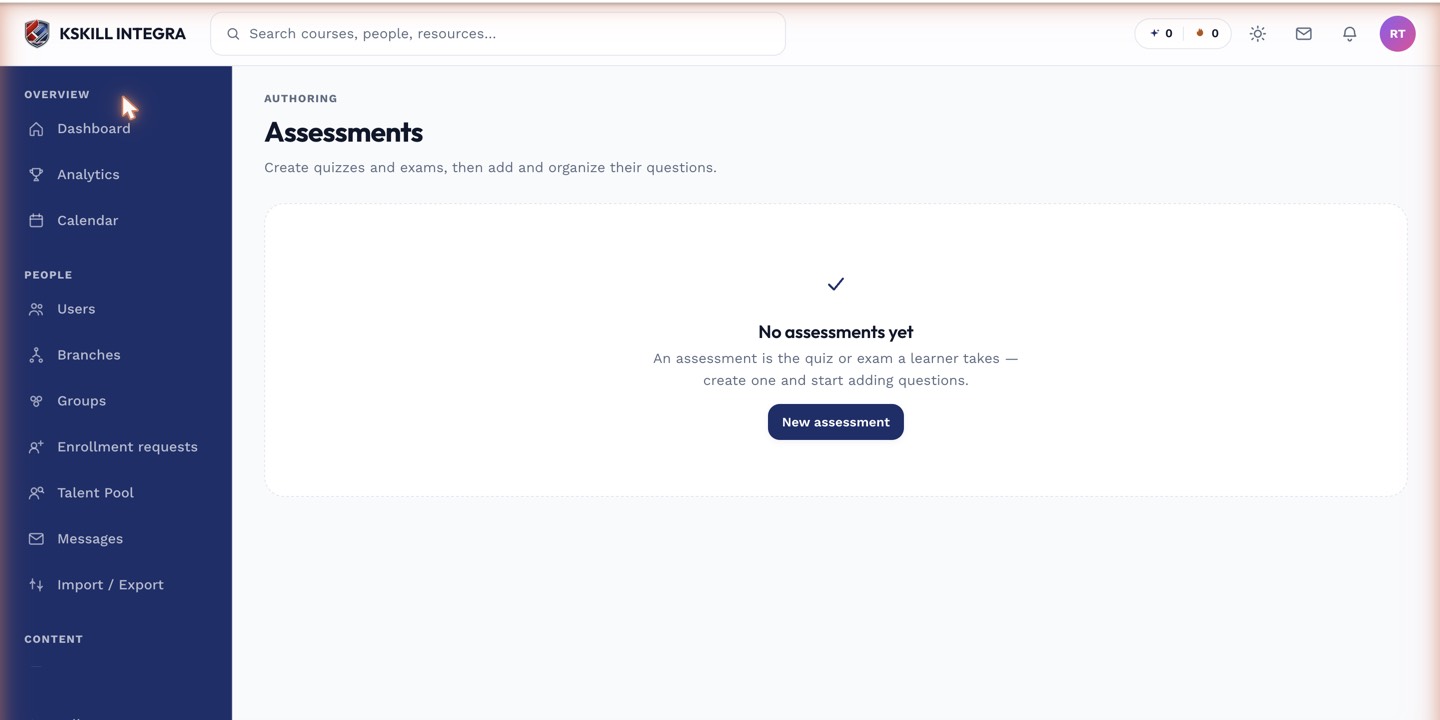 Each bank shows how many questions it holds and which assessments currently draw from it.
Mixing auto- and manually-graded questions
A single bank can hold a mix of question types. An assessment built from a mixed bank will grade the auto-gradable portion instantly and queue the rest into the Grading Hub once a learner submits.
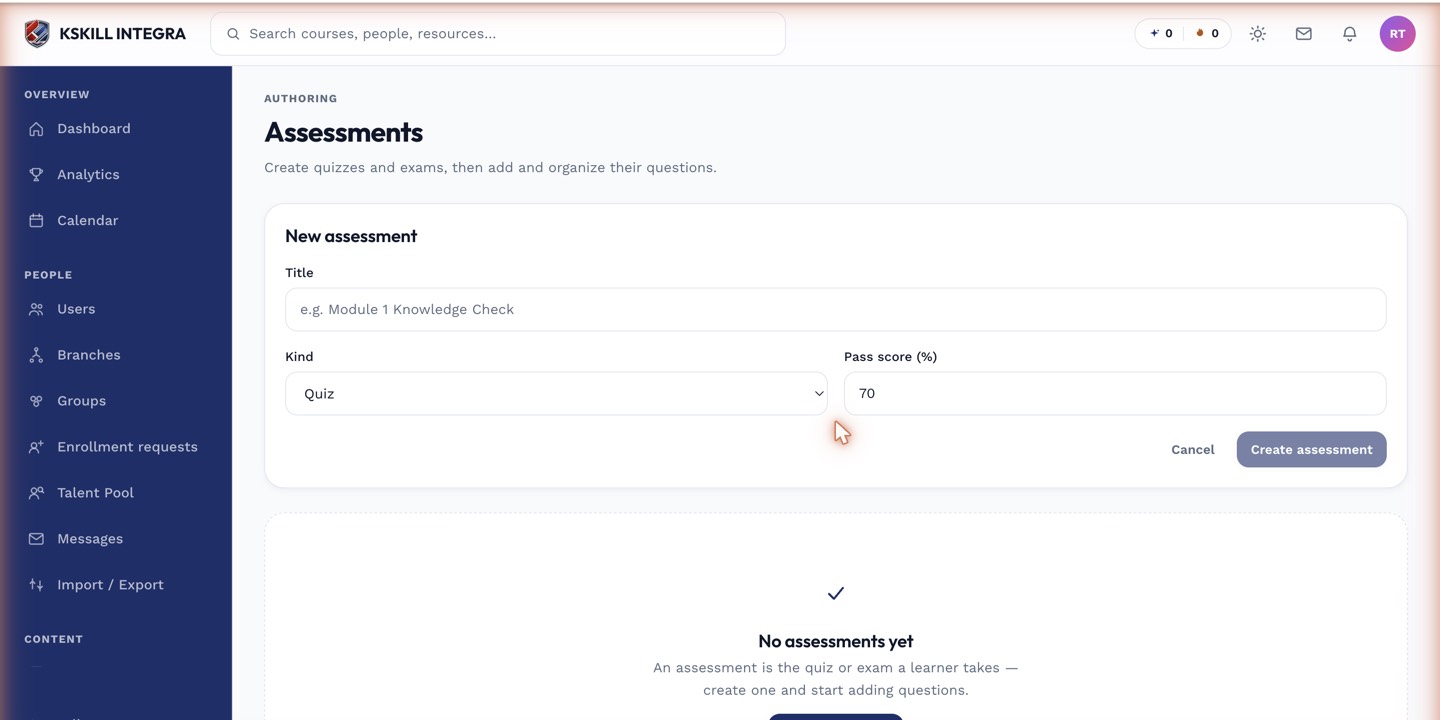 The type column in the builder makes it easy to see the auto/manual mix before you publish.
Notes
If a bank is tied to a skill, passing an assessment drawn from it can automatically grant that skill to the learner — see the linked article below.
What next?
#question-bank#assessments#authoring#quizzes#exams