Assignment submissions history
Every assignment submission is preserved and viewable. This article covers finding your history.
Before you start
You need to be signed in. You see only your own submissions.
Step 1 — Open the assignment
Open the course, navigate to the assignment unit, and switch to My submissions. Every submission you've made is listed with a timestamp, status and grade if graded.
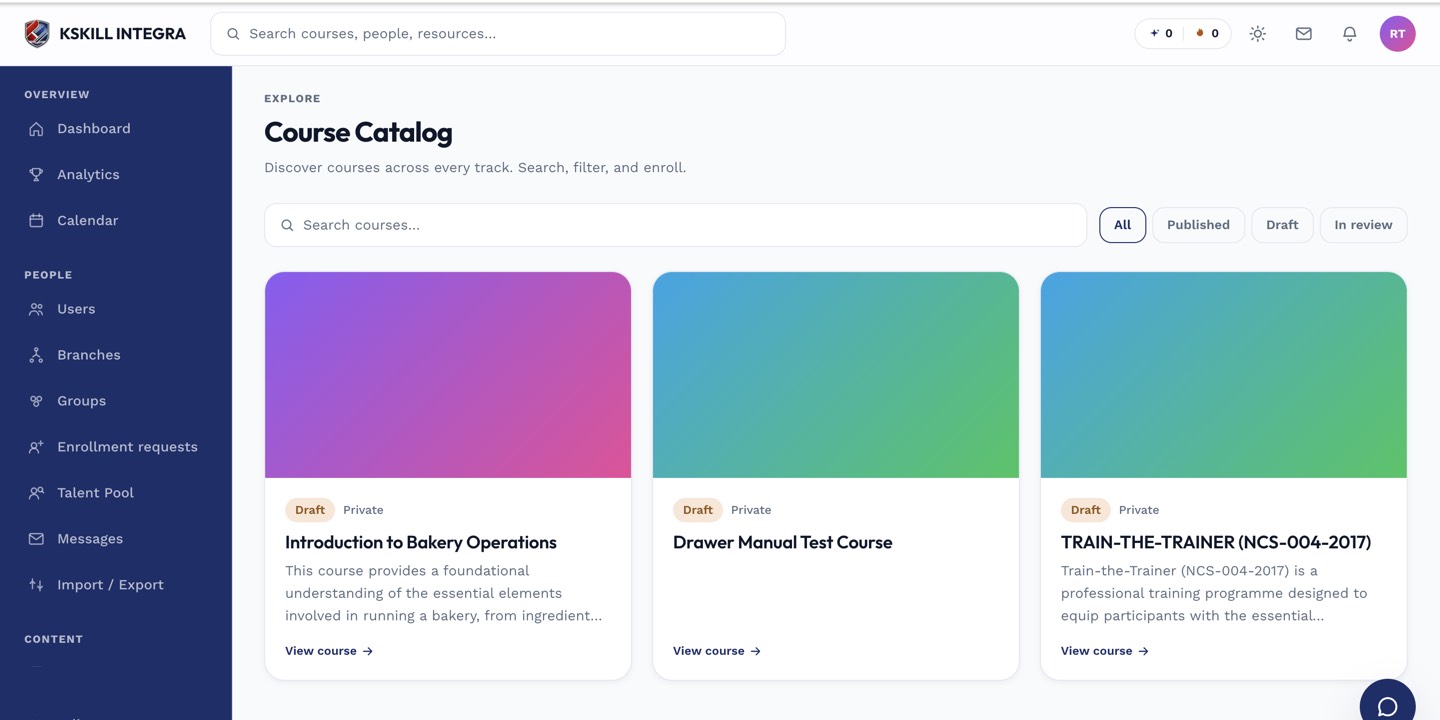
My Courses is the learner's grid of everything they are currently enrolled in.
Step 2 — Open a past submission
Click any submission to see the files you uploaded, any note you added, and the instructor's feedback. The full history is preserved even after the assignment is graded and the course completes.
My Learning is the learner's default landing page — every enrolled course is one click away.
Step 3 — Resubmit if allowed
If the assignment allows multiple attempts and you have attempts remaining, a Resubmit button appears. Upload fresh files and submit. The previous submission stays in history; the new one becomes the current one.
The admin queue is where every open ticket for the tenant lands.
Notes
- The instructor may lock a submission after grading — you can request it be unlocked if you need to redo.
- Grades on resubmitted assignments overwrite the previous grade.