Bulk skill assignment
Grant one skill to many users at once via CSV. This article covers the workflow.
Before you start
You need the Admin role. The skill and users must exist first.
Step 1 — Download the template
Open Configuration → Settings → CSV templates and grab the Bulk skill grants template. Columns are user email, skill slug and level (if applicable).
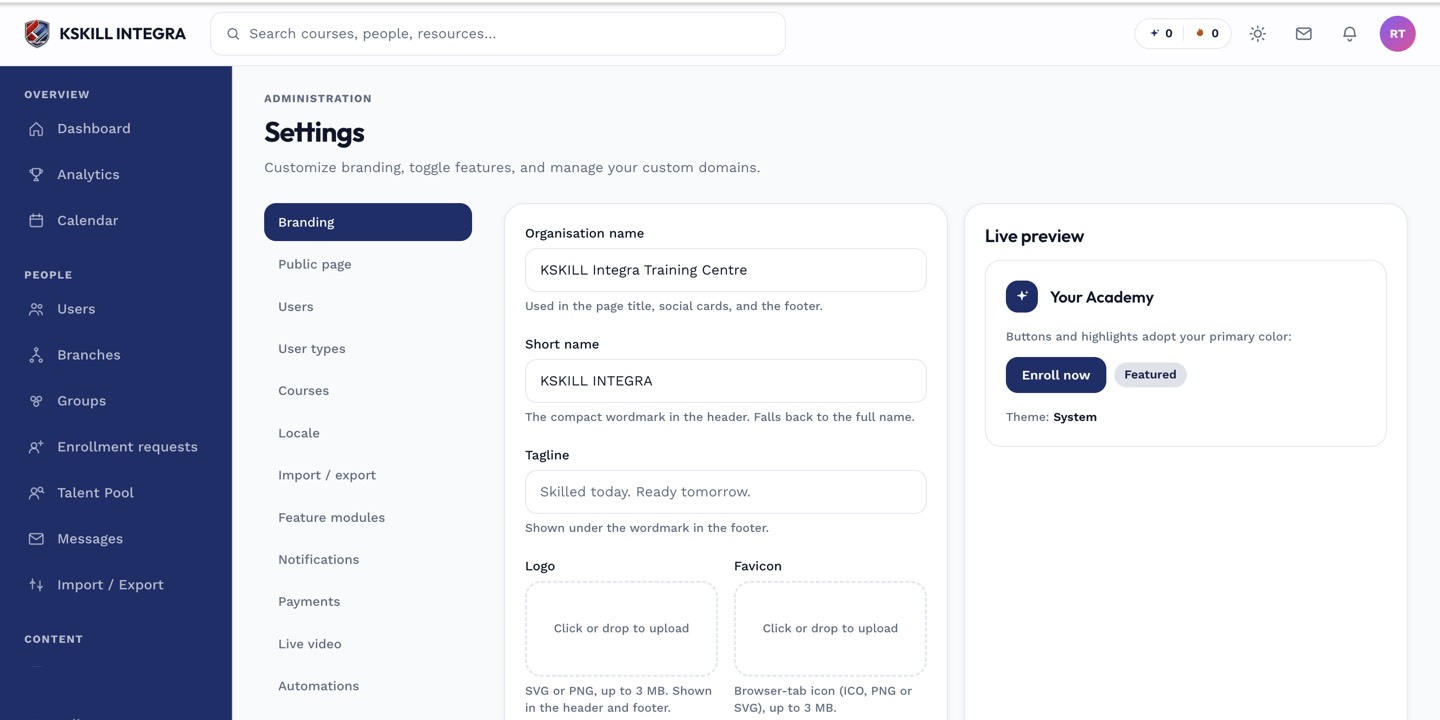
The Settings page is the single home for every tenant-level toggle.
Step 2 — Fill and upload
Populate one row per grant. Open Content → Skills and click Bulk assign. Drop the CSV. The importer creates grants in the background and returns a summary.
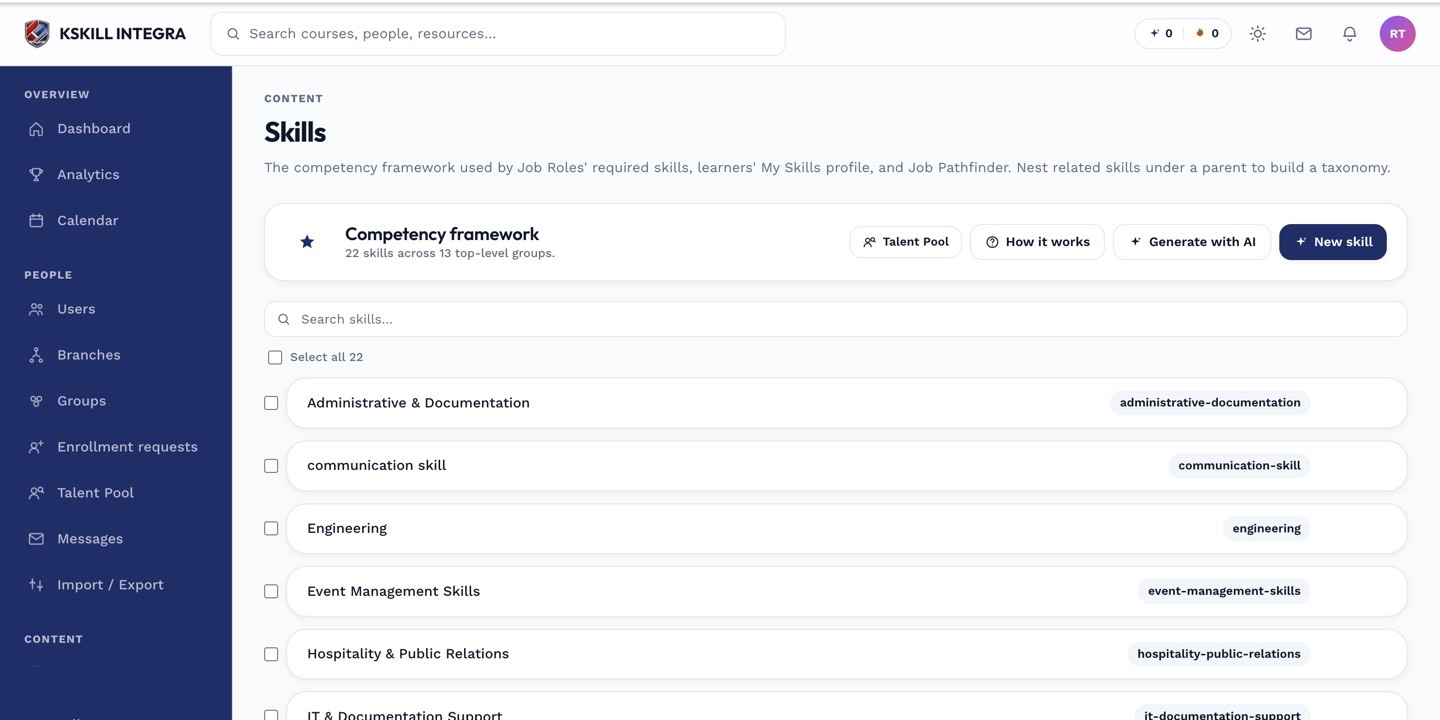
The Skills manager is the source of truth for every skill your tenant tracks.
Step 3 — Verify and reconcile
Spot-check a few users' Skills tabs to confirm the grants landed. The error report lists failures — usually a bad email or a missing skill slug. Fix and re-upload only the failed rows.
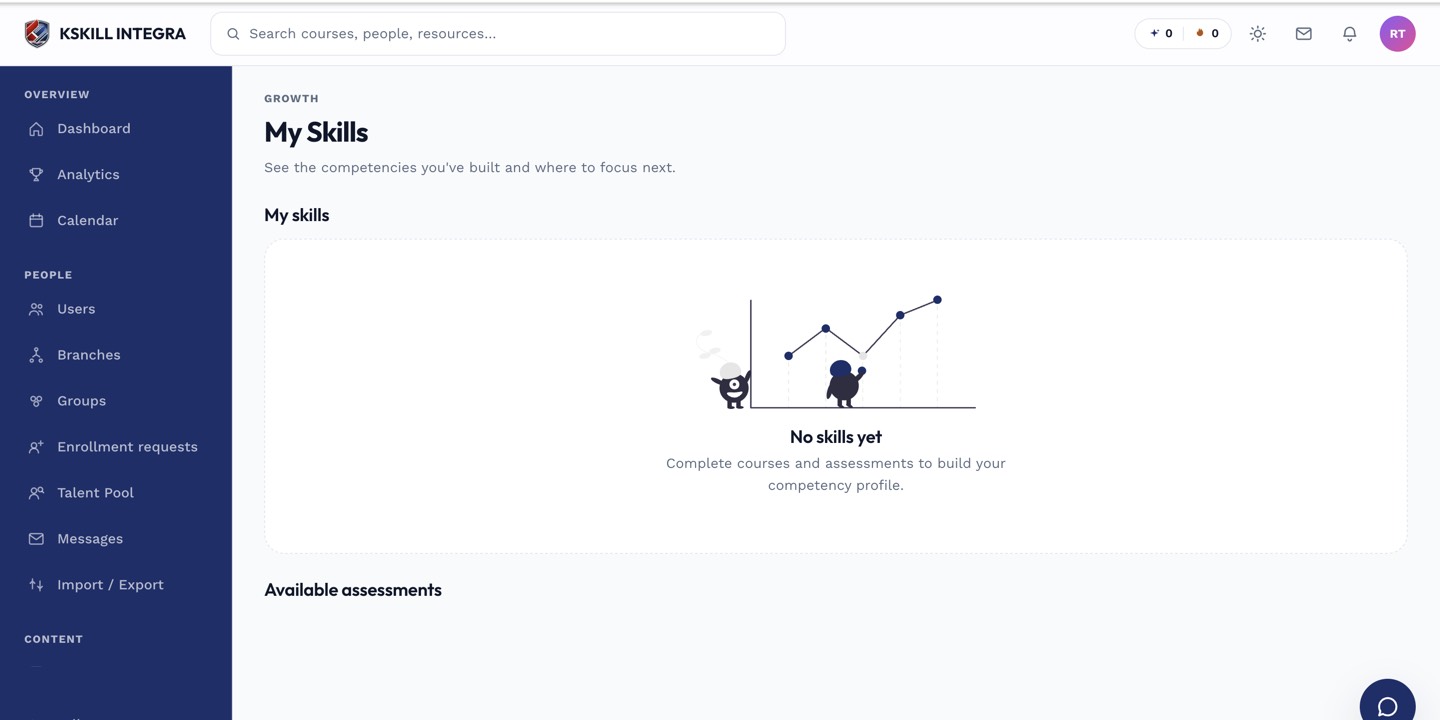
My Skills is the learner's own view of what they have proven so far.
Notes
- Bulk grants land as reviewer-source grants — durable, no expiration.
- Every grant is audited so compliance evidence is preserved.