Compliance reports
Compliance reports roll up certifications, expirations and gaps for auditors. This article covers reading and exporting them.
Before you start
You need the Admin role.
Step 1 — Open the compliance report
Open Configuration → Analytics and switch to the Compliance tab. The report lists every learner with their compliance state — current, expiring soon, or expired — across every course flagged as compliance training.
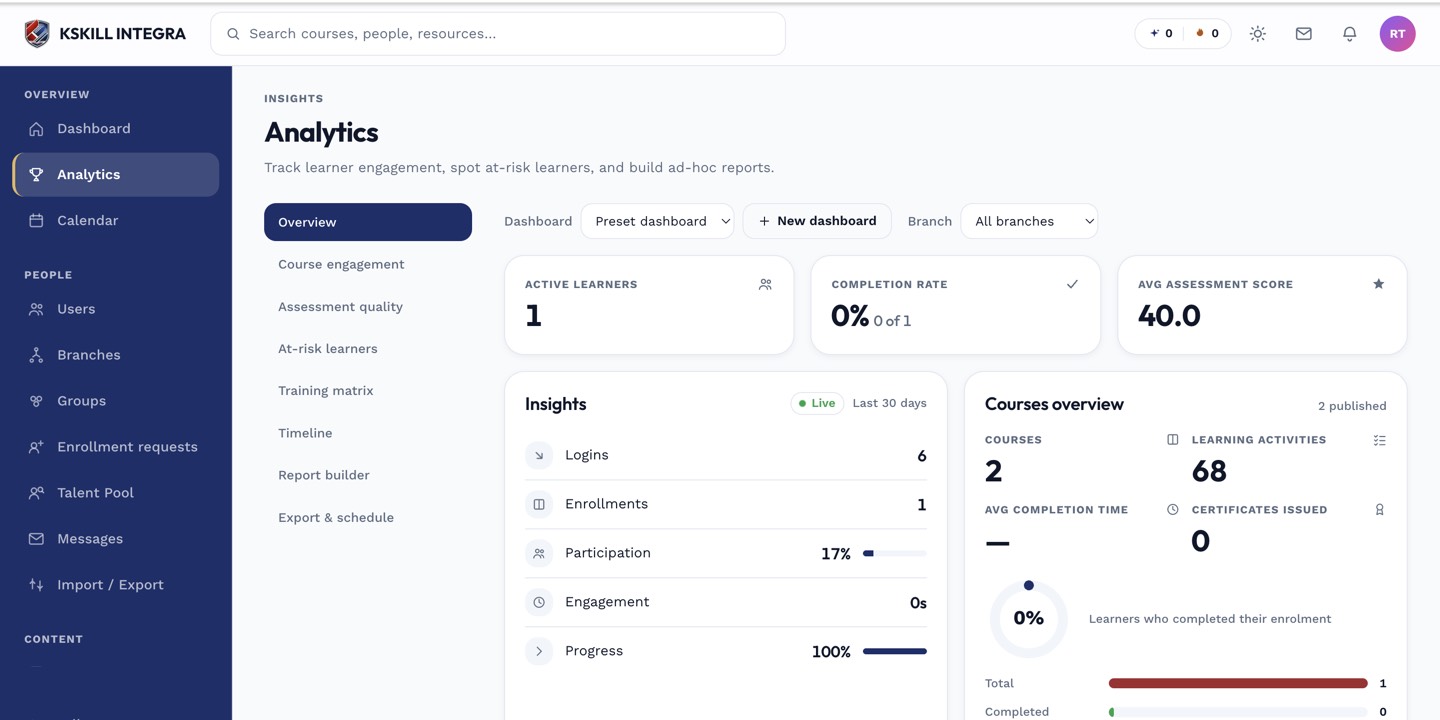
The Overview tab is the one everyone lives in — the deeper tabs answer sharper questions.
Step 2 — Filter and drill
Filter by branch, department (via group) or specific compliance program. Click any learner to see per-course detail. Export the filtered view as PDF for the auditor.
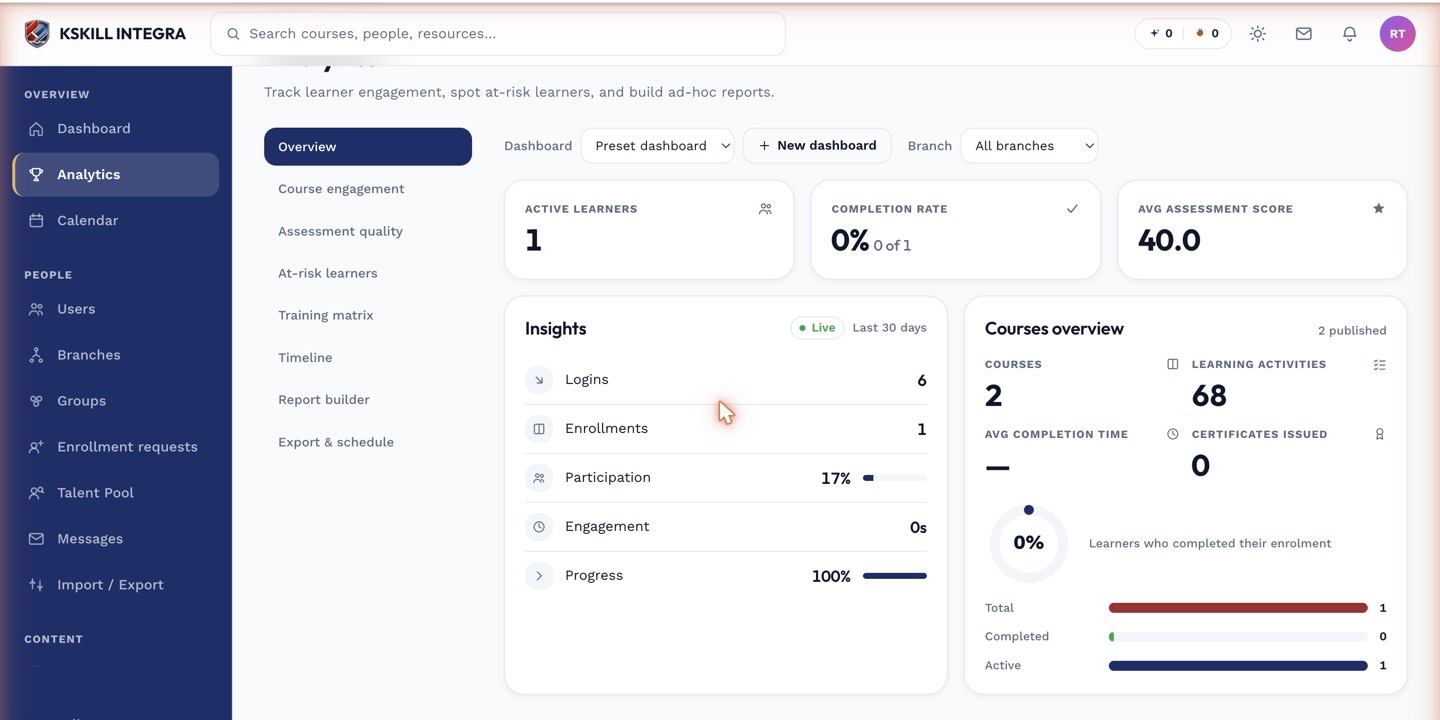
The detail panels give you the breakdown behind each KPI tile.
Step 3 — Automate the digest
Schedule the compliance report to email the compliance officer weekly. Add a smaller monthly view to the CFO's inbox. Nobody chases certification expirations manually when the platform does it for them.
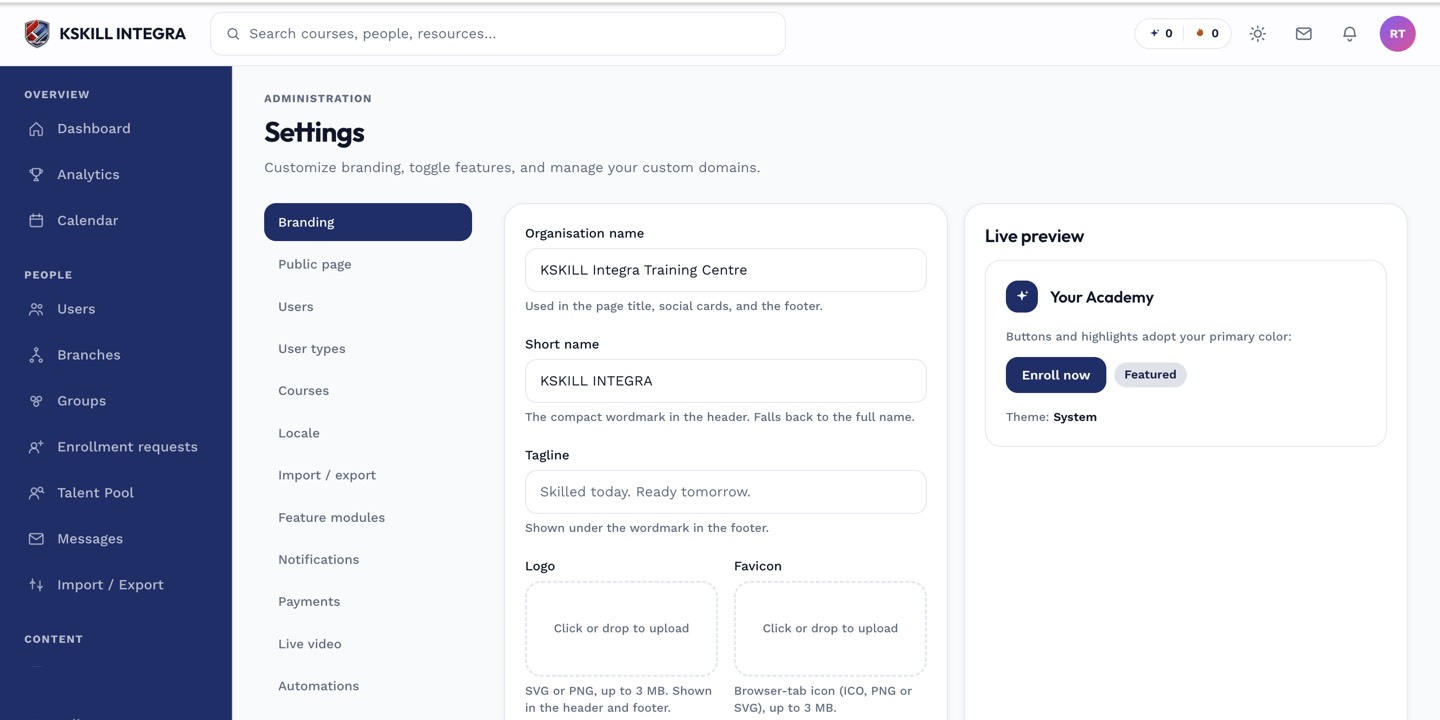
The Settings page is the single home for every tenant-level toggle.
Notes
- Mark courses as compliance training in their options drawer to include them in this report.
- Historical completions imported via CSV count toward compliance state.