Handle skill upgrade requests
Learners can request that a reviewer verify a claimed skill. This article covers the admin queue for those requests.
Before you start
You need the Admin role. The upgrade-requests feature must be enabled in Skills settings.
Step 1 — Open the Talent Pool
Open People → Talent Pool and switch to the Upgrade requests tab. Every pending request appears with the requesting learner, the skill, the target level, and any evidence they attached.
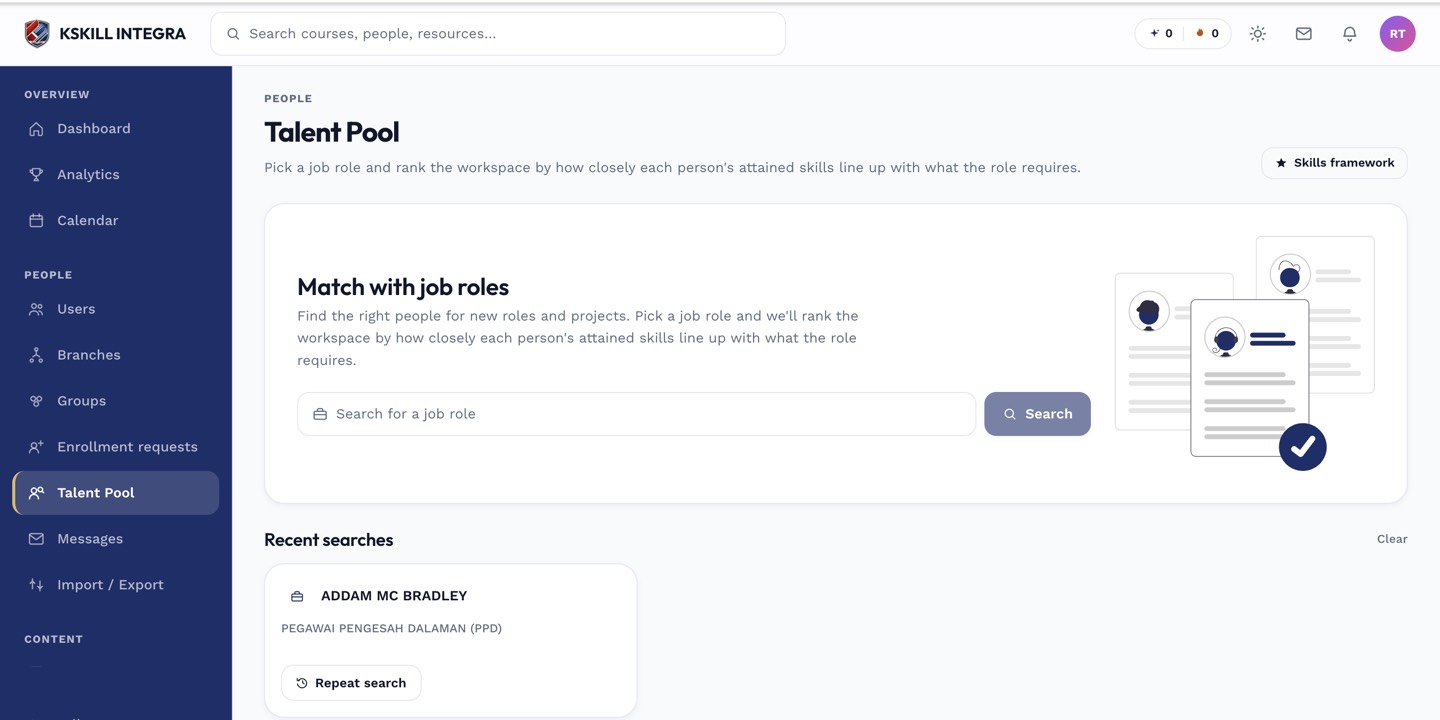
The Talent Pool is the one place to hunt for people by capability.
Step 2 — Review the request
Click the request to open the drawer. Read the learner's justification, look at any attached files, and check their historical skill grants for context. Approve, reject with a note, or ask for more evidence — the learner is notified either way.
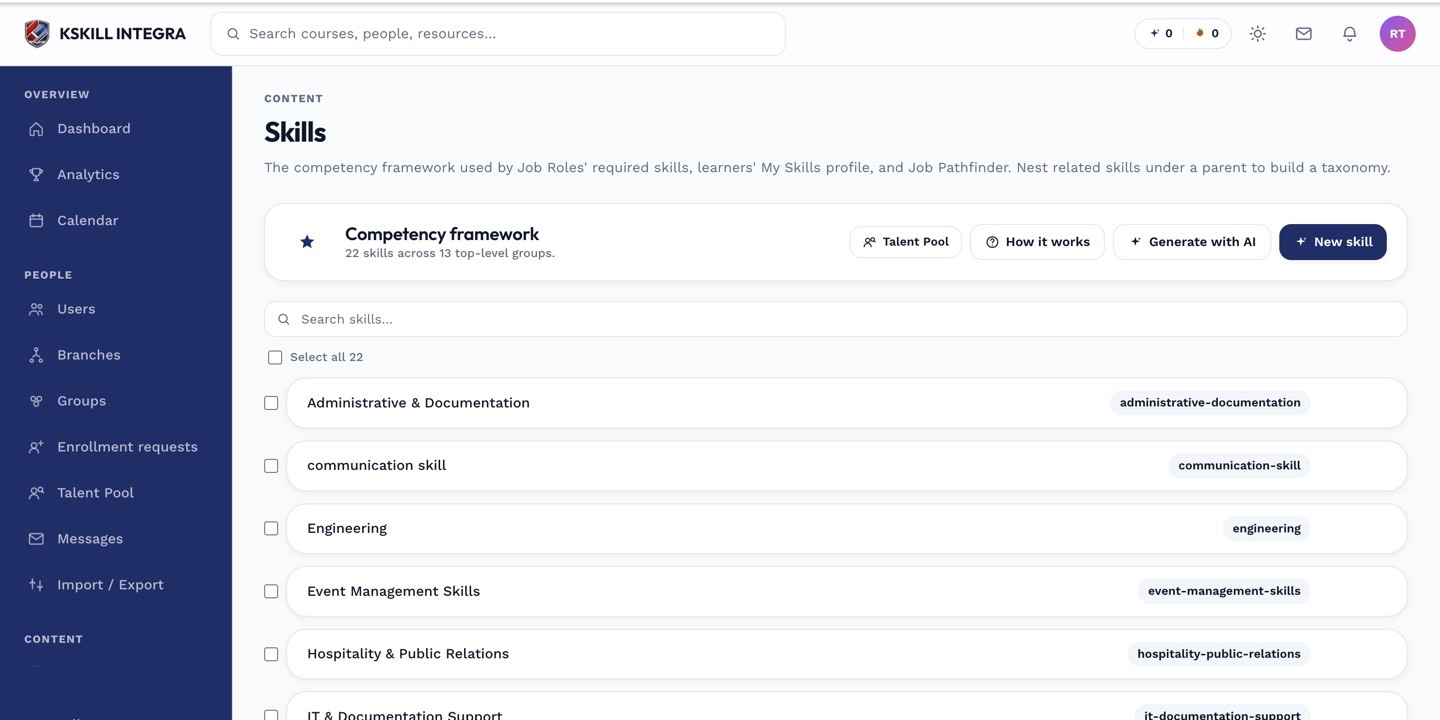
The Skills manager is the source of truth for every skill your tenant tracks.
Step 3 — What happens on approval
Approval grants the skill at the requested level and records the reviewer's identity. The learner sees the new skill on My Skills. Rejections keep the previous state and record the reviewer's reason so patterns can be spotted.
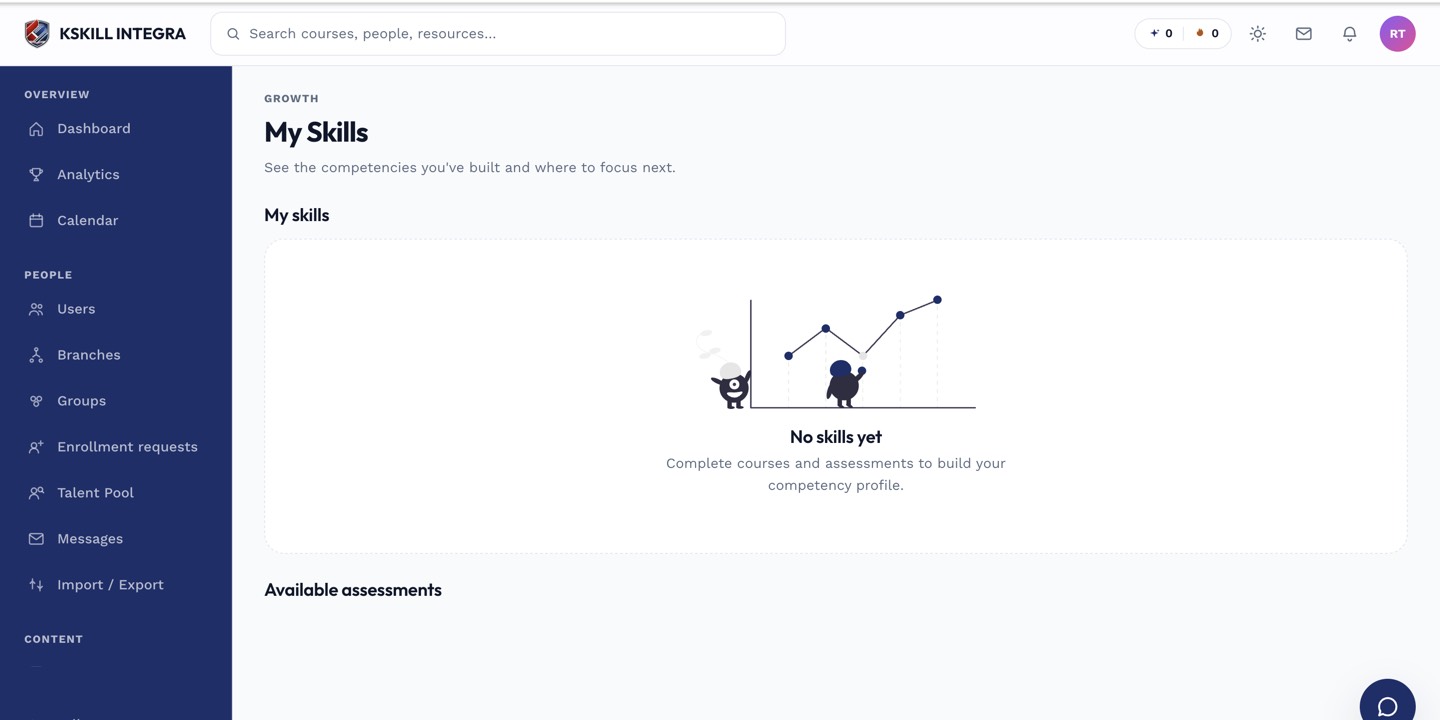
My Skills is the learner's own view of what they have proven so far.
Notes
- Auto-fulfil triggers on every grant path — a request pending for a skill the learner later earns organically is auto-approved.
- The unique constraint on requests uses the status column, so multiple historical requests for the same skill can coexist.