Import PDF or PPTX to slides
You can start a Slide Builder deck from a PDF or PPTX. This article covers the import step and the post-import cleanup.
Before you start
You need the Admin or Instructor role and a source file (PDF, PPT, PPTX). Google Slides exports as PPTX cleanly.
Step 1 — Start the import
Add a Slide Deck unit. In the empty builder, click Import. Drop your PDF or PPTX and confirm. The platform runs the import in the background — big decks can take a minute.
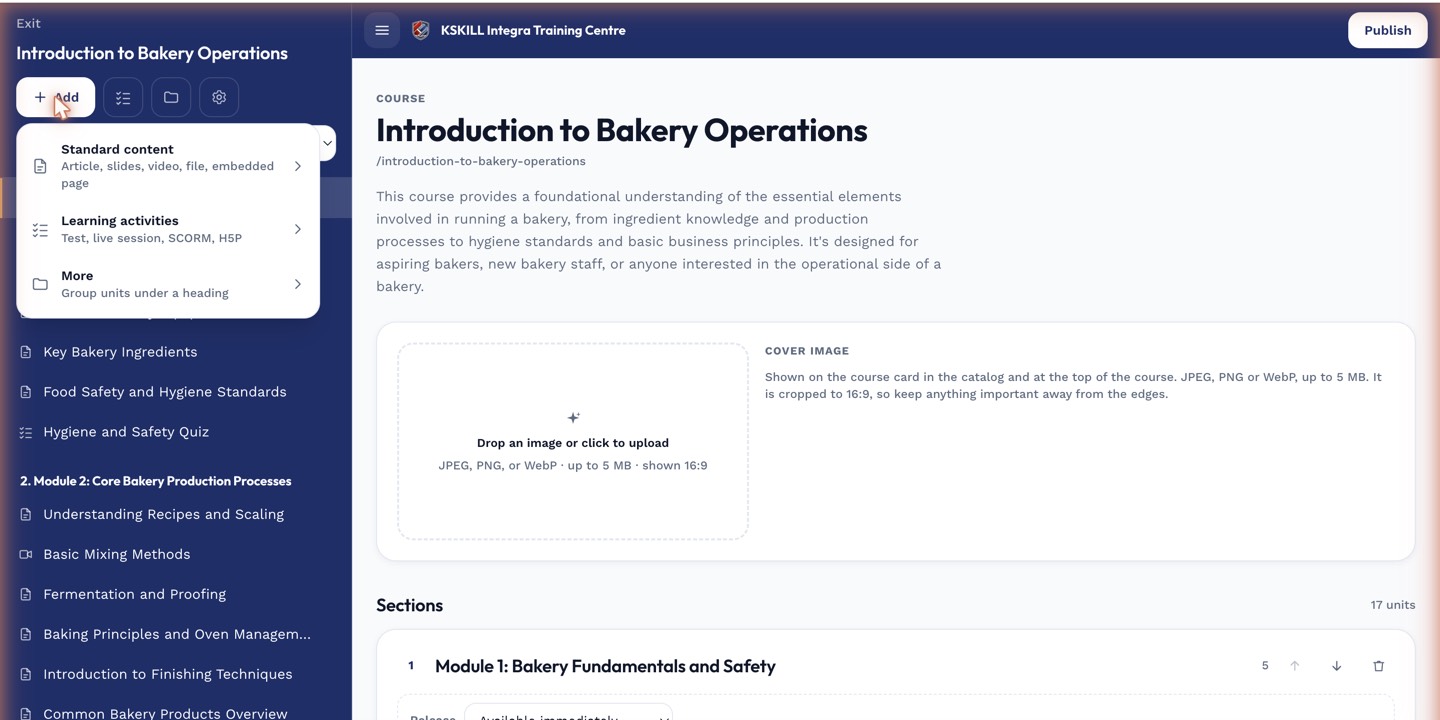
The lesson-type picker is the same one whichever section you add into.
Step 2 — Review imported slides
Each source slide becomes one Slide Builder slide, with text and images extracted as separate blocks. Fonts and exact positioning may drift a little — this is a starting point, not a pixel-perfect clone.
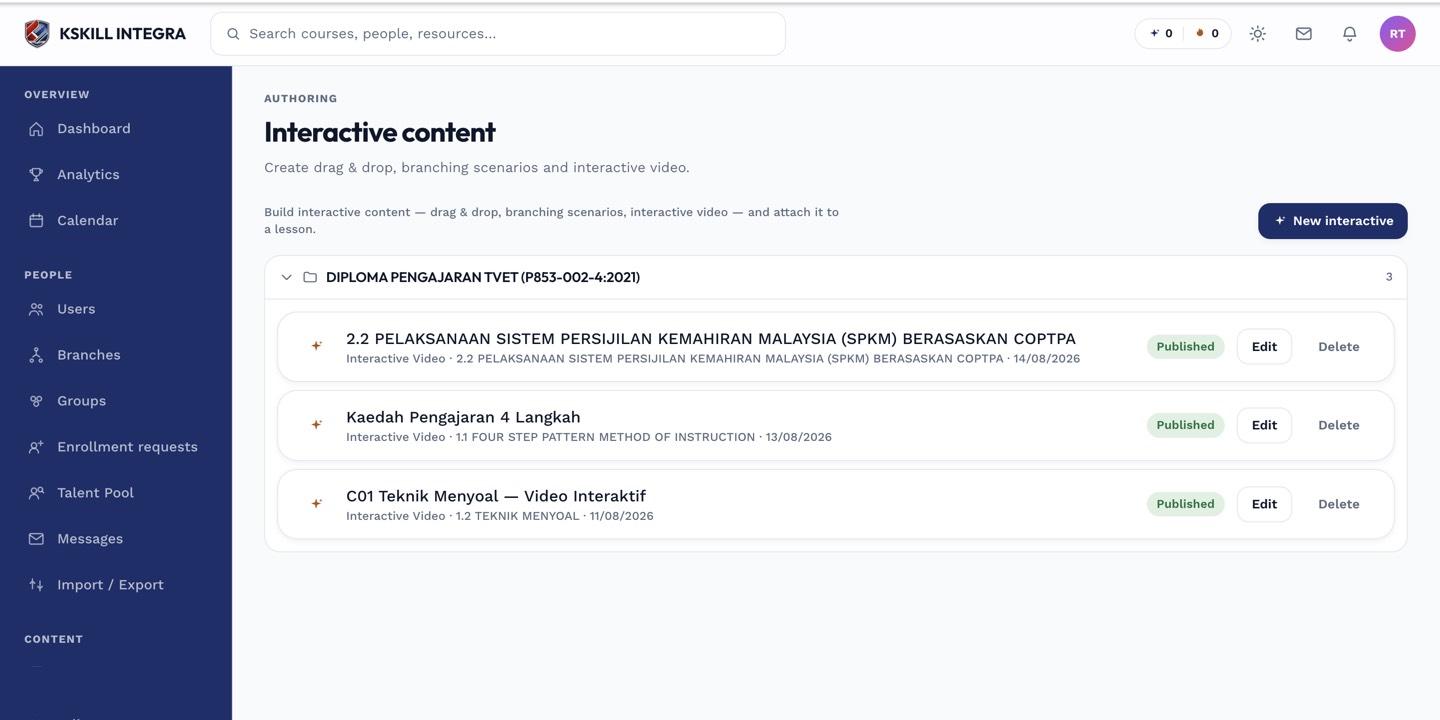
The interactive-content library is where uploaded H5P and SCORM packages are managed.
Step 3 — Clean up and enhance
Fix any text-flow issues, replace low-res images if needed, and add interactive blocks where the original was static. Interactive slides beat static ones for engagement, so use this as an opportunity to upgrade.
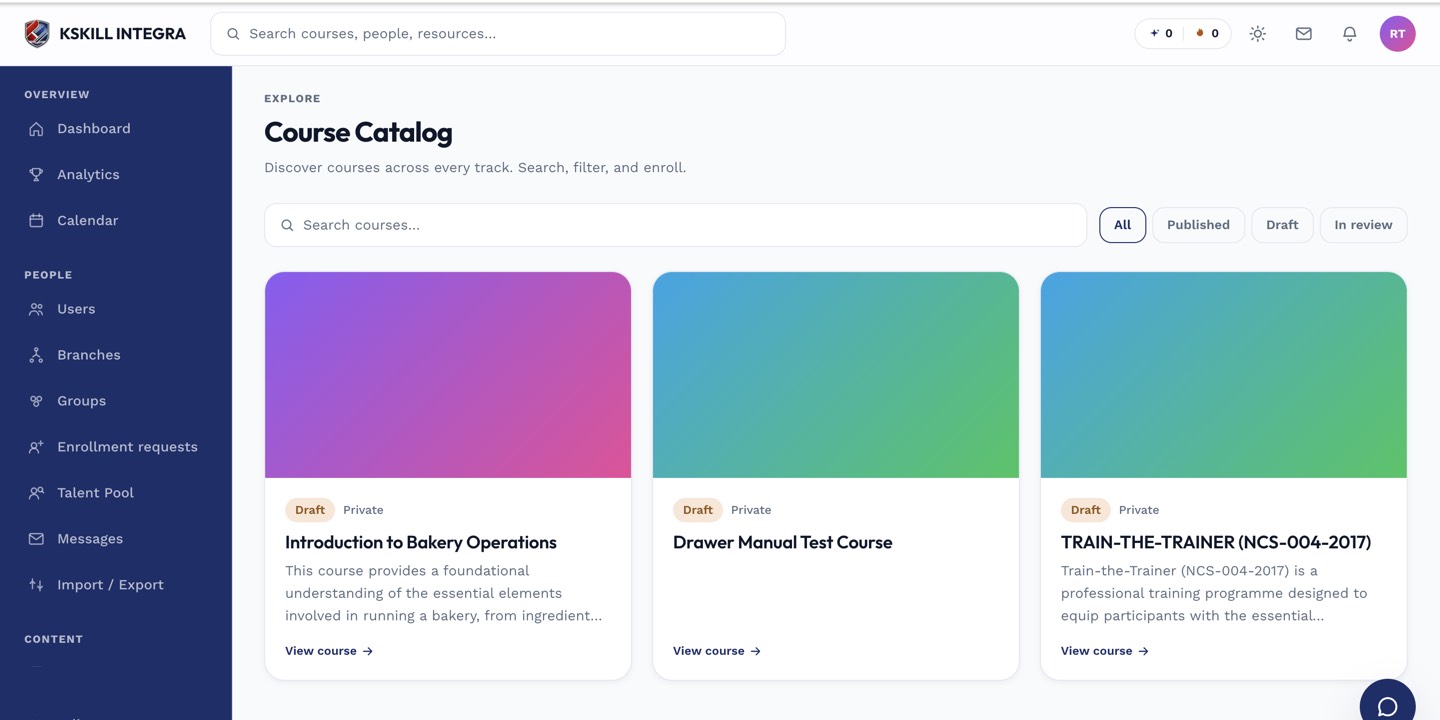
My Courses is the learner's grid of everything they are currently enrolled in.
Notes
- PDFs with vector art convert best; scanned images may look pixelated at scale.
- For truly complex source decks, sometimes rebuilding by hand is faster than fixing the import.