Bulk-assigning a target job role
SkillsUpdated September 24, 2026
Setting a target job role one learner at a time does not scale for a whole team working toward the same position. From the Job Roles admin page you can apply a target role to many learners at once, so each of them sees their own Pathfinder gap view against it.
Before you start
You need the Admin role and a job role already defined (see defining a job role).
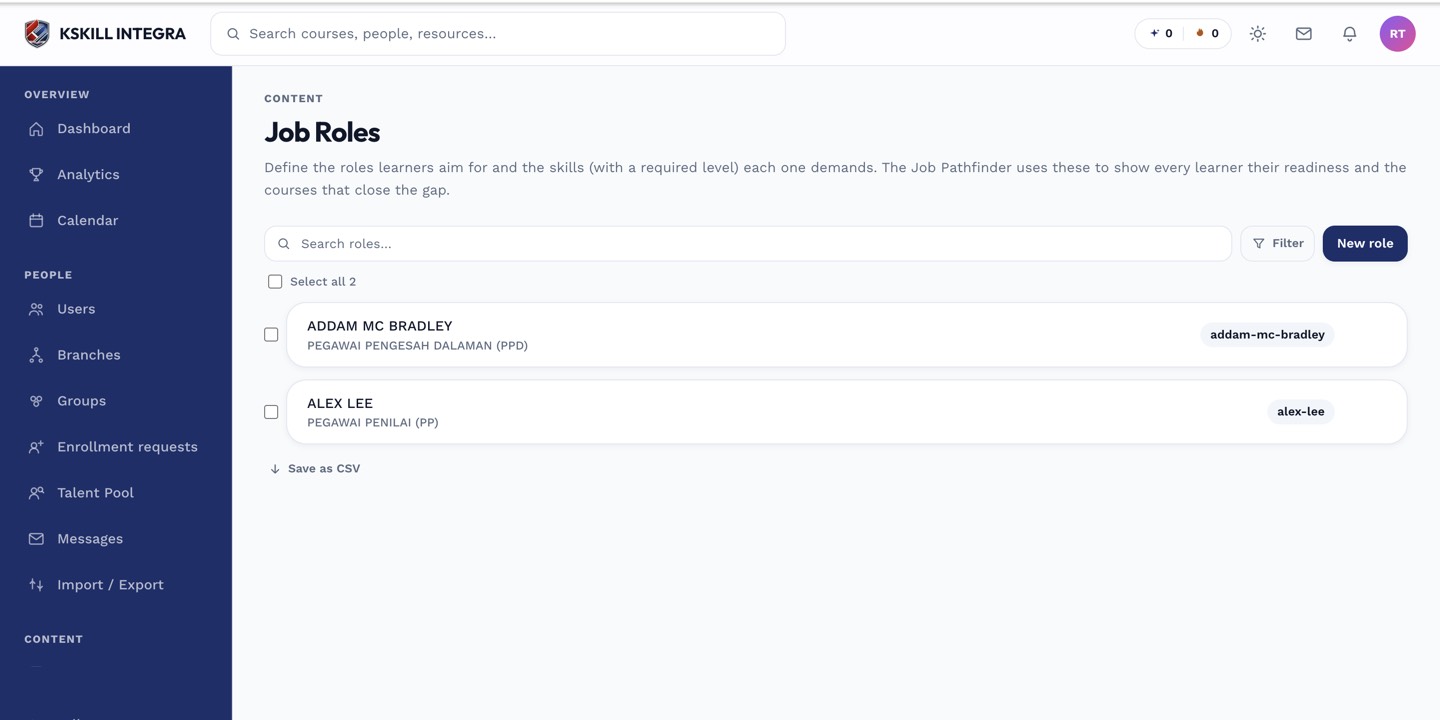 A defined role offers a mass-assign action alongside its individual details.
Assigning to a group
- Open Manage → Job Roles and select the role.
- Choose the mass-assign action.
- Pick the learners, a group, or a branch to target.
- Confirm.
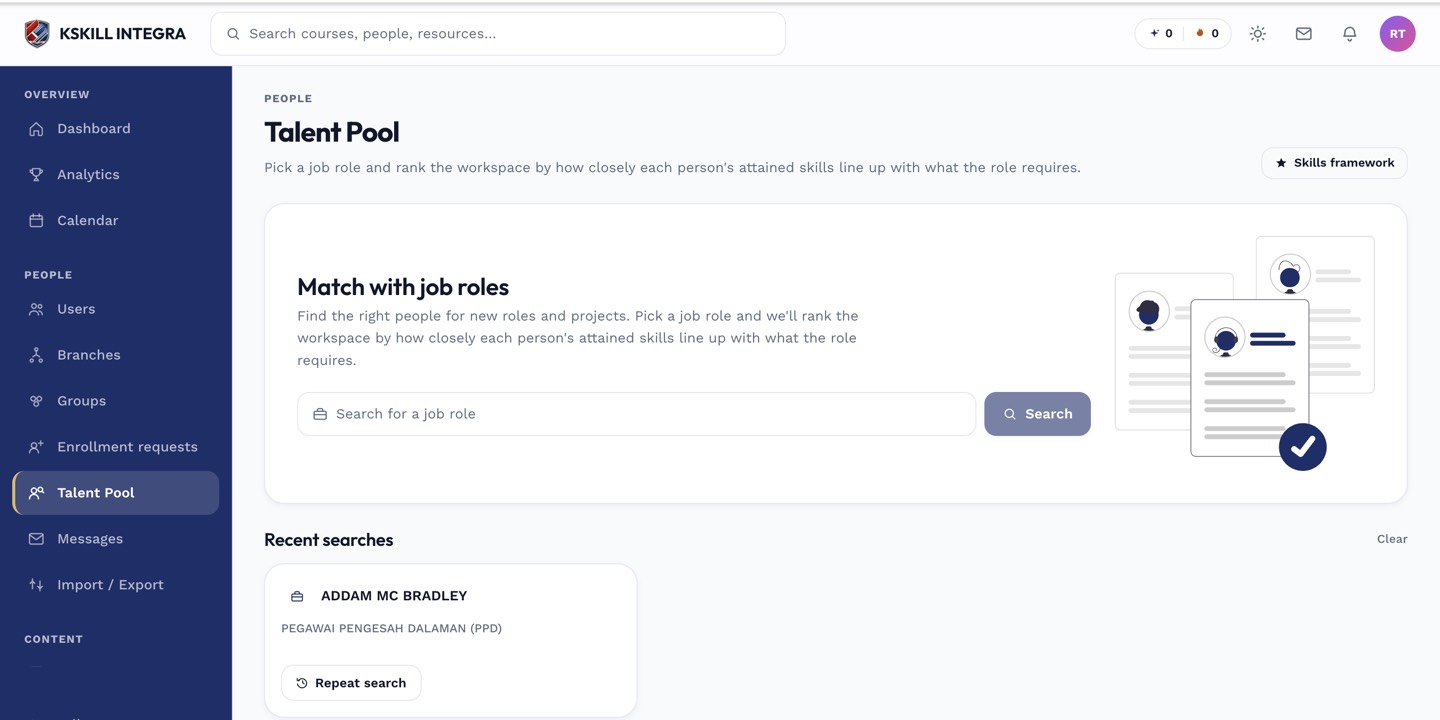 Once assigned, targeted learners appear against the role inside the Talent Pool as well as on their own Pathfinder view.
Notes
Assigning a target role does not grant any skills — it only sets the reference point learners are measured against. Each learner still earns the underlying skills the normal way, through self-assessment, a reviewer grant, or a course exam.
What next?
#job roles#skills#bulk actions#how-to