LTI grade passback via AGS
AGS (Assignment and Grade Services) sends grades back from the LMS to a peer tool. This article covers configuring it.
Before you start
You need the Admin role and an LTI 1.3 handshake already working.
Step 1 — Enable AGS on the platform side
Open Configuration → Settings → LTI and switch to the Services tab. Toggle Assignment and Grade Services on. Save. The service endpoint appears alongside the other LTI URLs.
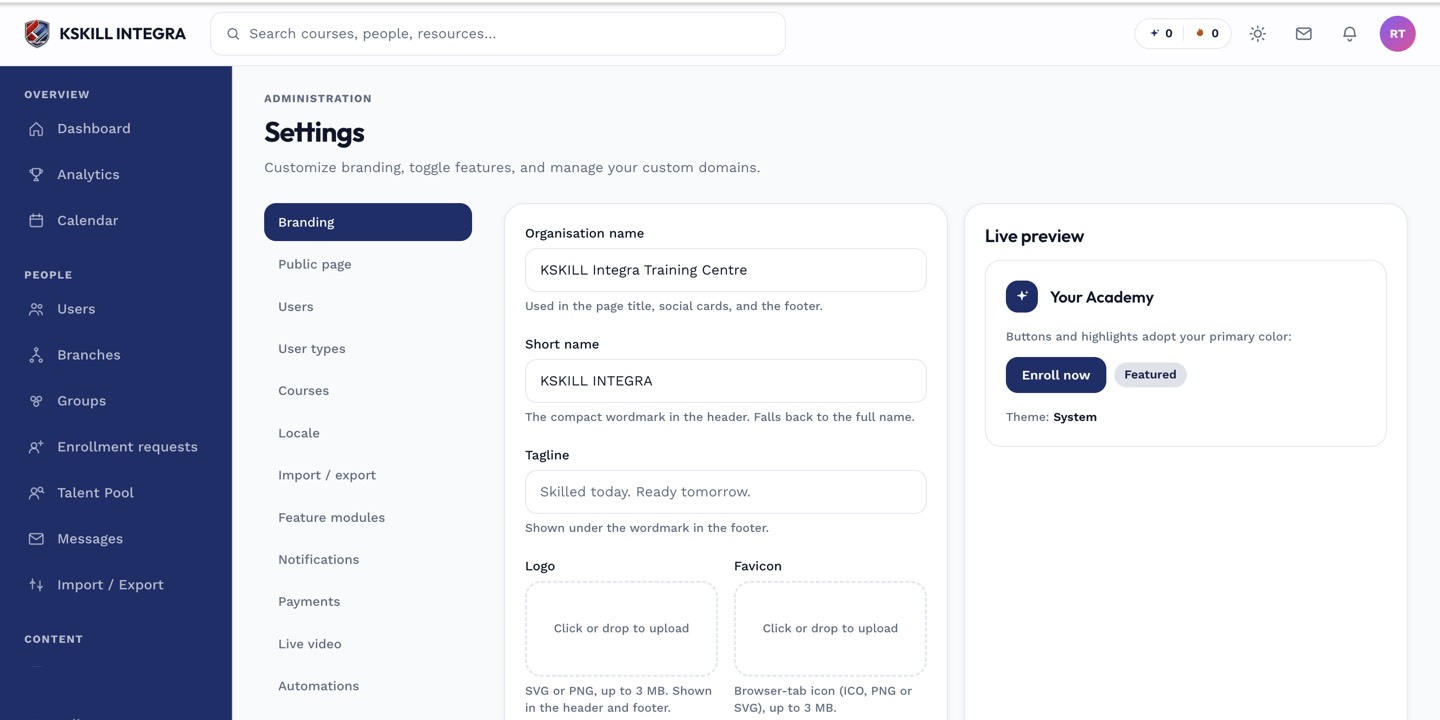
The Settings page is the single home for every tenant-level toggle.
Step 2 — Wire on the peer tool
In the peer tool's LTI registration, accept the AGS scopes — score, lineitem, result. Save. The peer can now query for lineitems (assignment slots) and push scores against them.
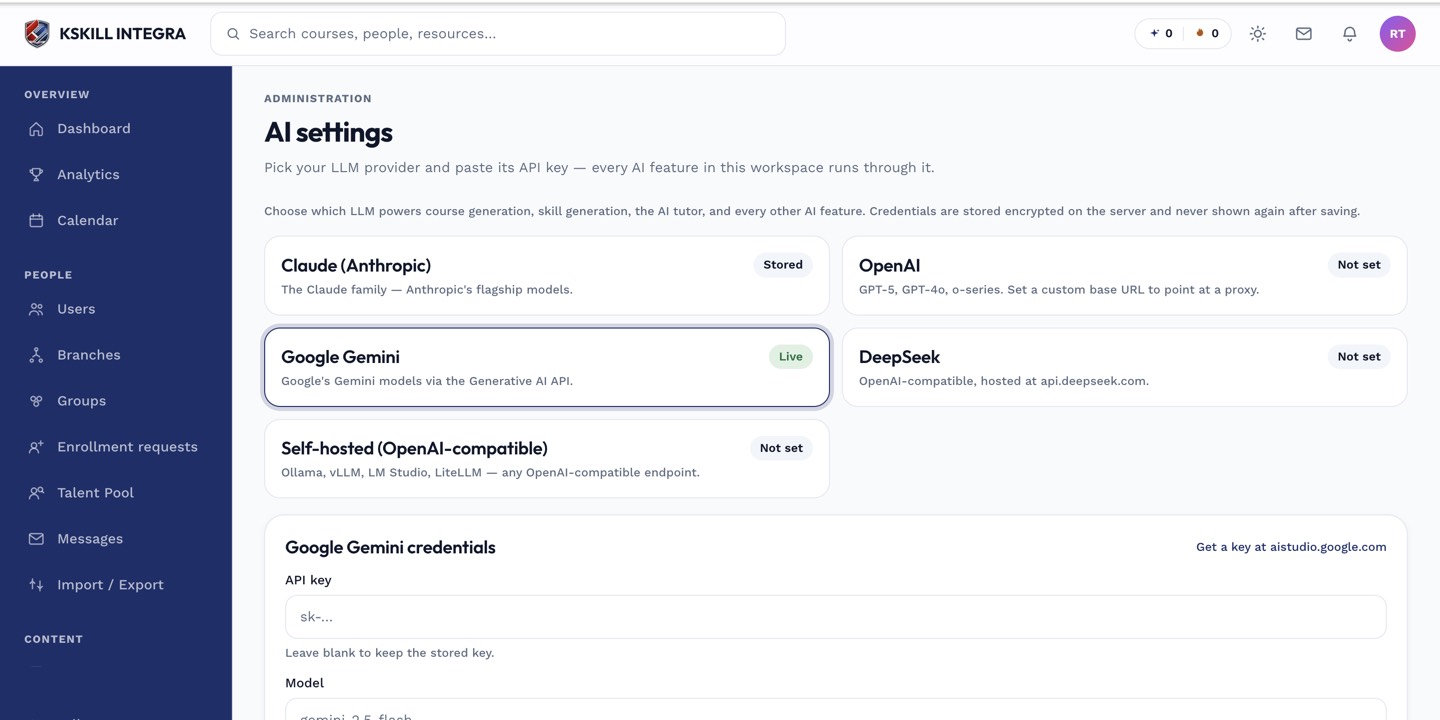
The AI settings page is where every AI-powered feature gets its credentials.
Step 3 — Verify grades flow
Have a test learner take a graded assessment on the peer tool. Confirm the grade appears in the LMS's grade book for the corresponding assignment. If it doesn't, check the peer's outbound HTTP logs — most AGS failures happen on the peer side.
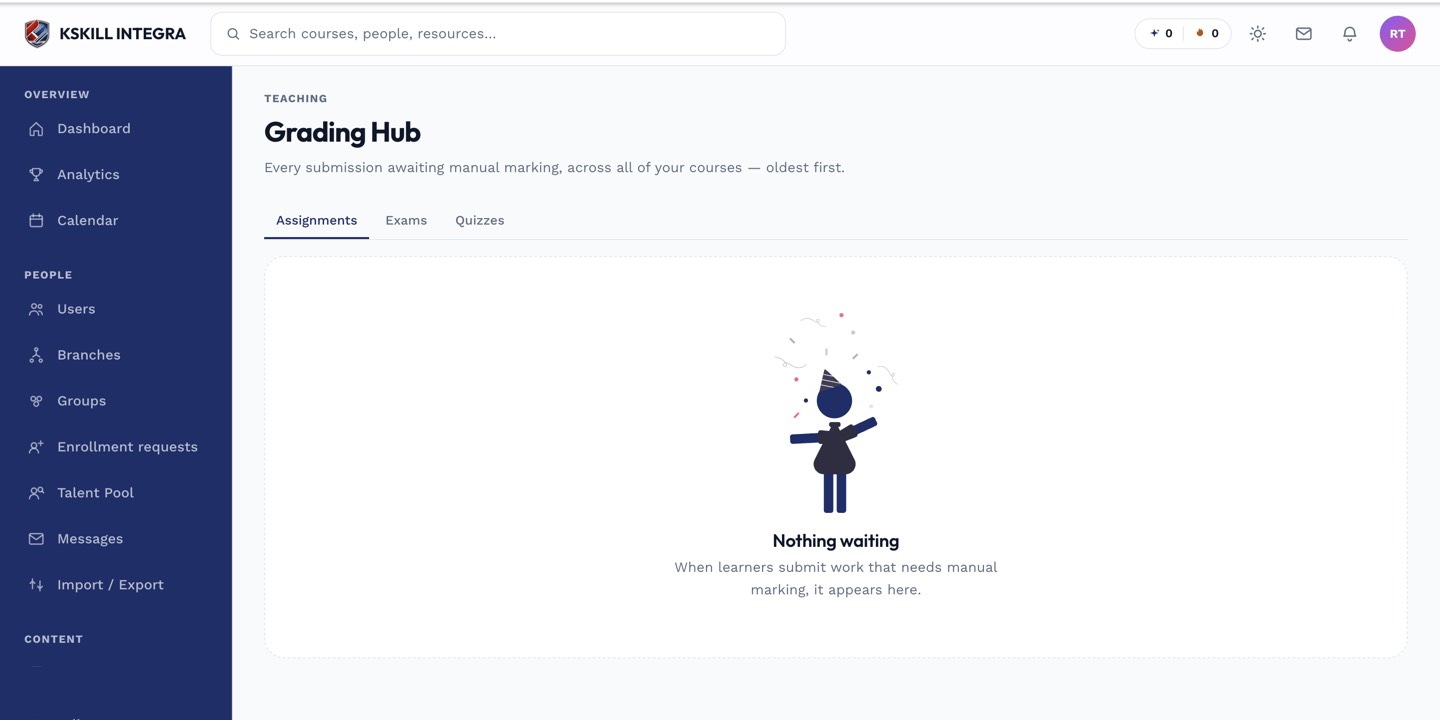
The Grading Hub is one place to grade every free-text answer and assignment across every course.
Notes
- Historically the LMS's LTI grade passback had zero callers; the wiring is now solid but always test end-to-end.
- AGS is one-way from peer to LMS; the LMS doesn't push grades outbound.