Notification delivery issues
Missing emails and in-app notifications have a few common causes. This article walks them.
Before you start
You need to be signed in. Admins have a broader diagnostic surface — see the notes.
Step 1 — Check your preferences
Open account settings, switch to Notifications, and check that the event you expect is on for the channel you expect. A recently-changed preference can be the whole cause. Turn it back on and re-test.
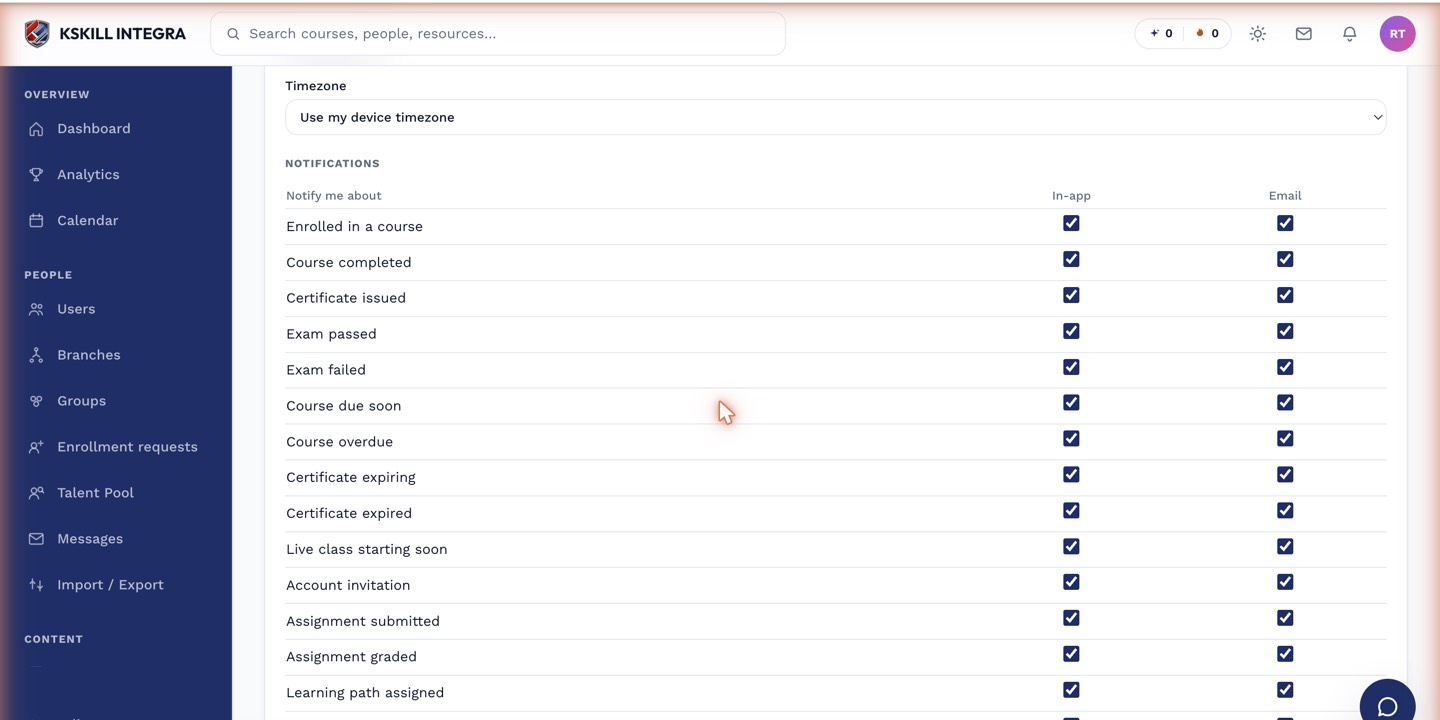
The preferences table is the per-user matrix of every event by every channel.
Step 2 — Check spam and quotas
Emails may be in spam or blocked by your provider's rules. Whitelist the sender domain. If your mailbox is full, delivery bounces silently — the LMS retries a few times then gives up. Free up space and ask for a resend.
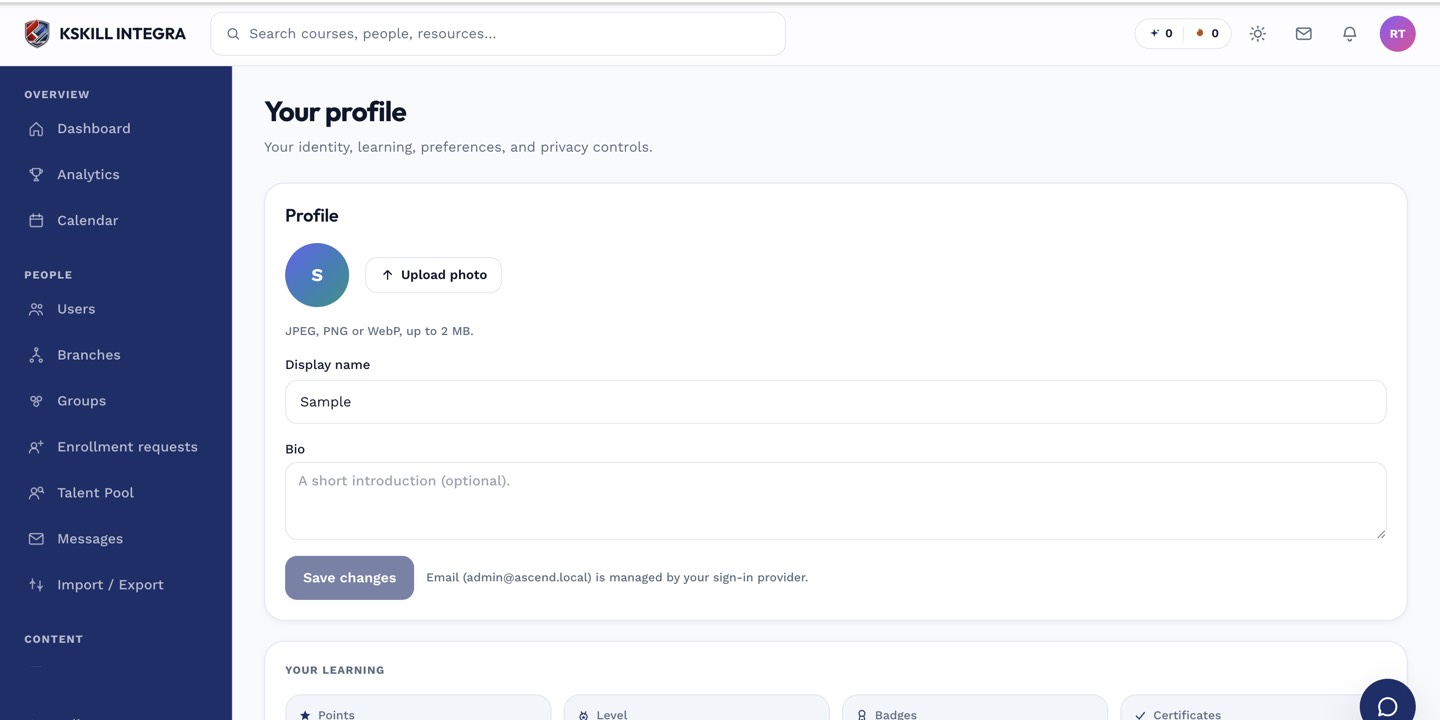
The account settings page is where a learner controls their own personal data.
Step 3 — Escalate stuck events
If several users report missing notifications for the same event, ask your admin to check email delivery logs. Persistent failures usually point at SPF/DKIM configuration or a broken webhook route.
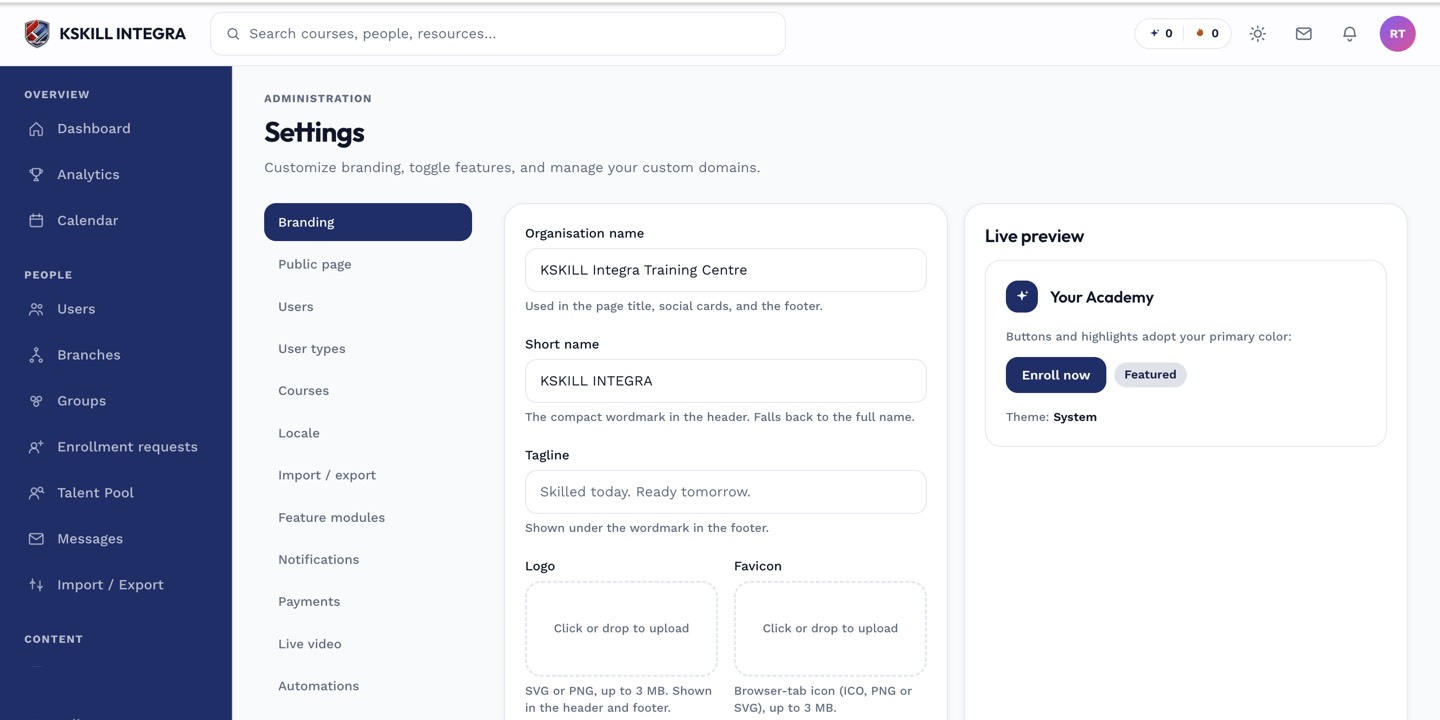
The Settings page is the single home for every tenant-level toggle.
Notes
- Slack notifications require the Slack integration to be connected — check the Slack card if messages are missing.
- For time-sensitive events, in-app notifications are more reliable than email.