Reset SCORM registrations
A stuck SCORM registration can lock a learner out of retaking a course. This article covers resetting one.
Before you start
You need the Admin role. Resetting deletes the learner's progress on that SCORM only; other units are untouched.
Step 1 — Open the learner profile
Open People → Users, click the learner, and switch to their Courses tab. Click the course containing the stuck SCORM.
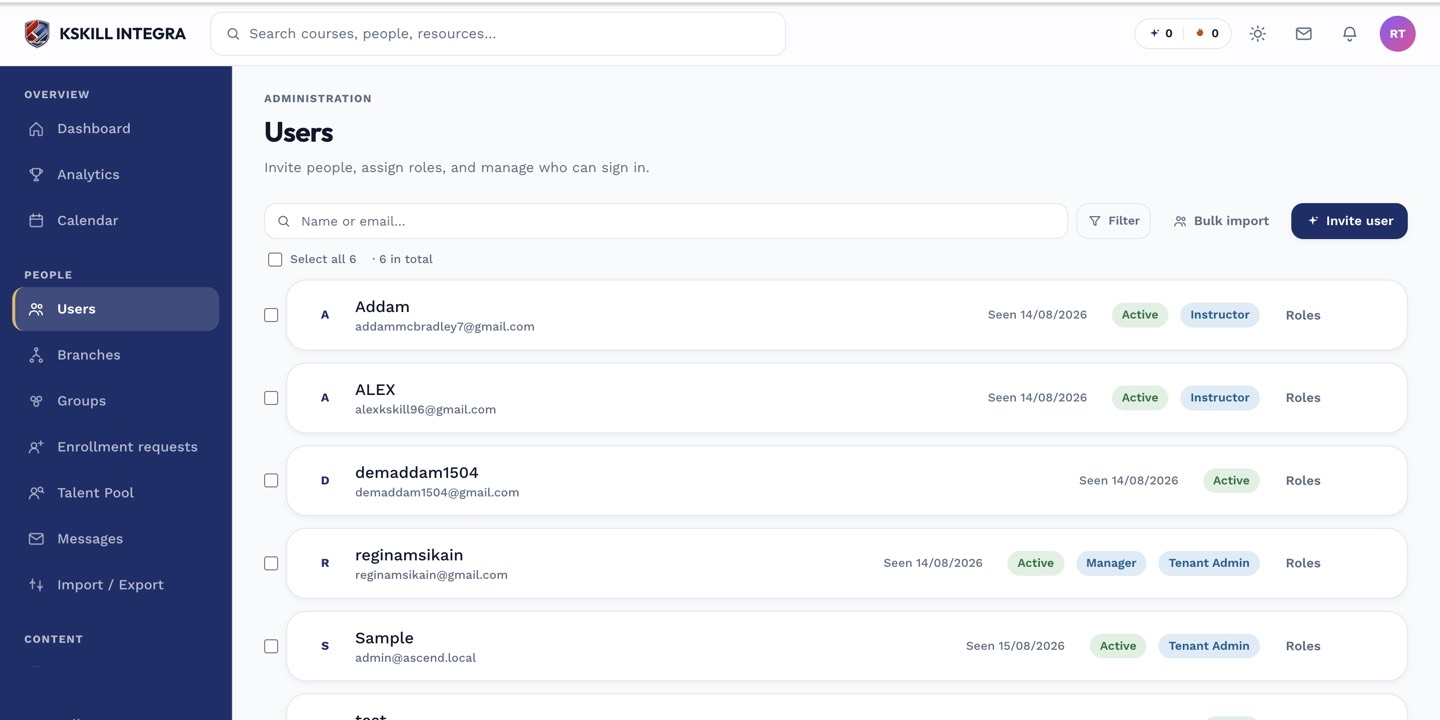
The Users list is the entry point for every person-related admin task.
Step 2 — Reset the registration
The per-course view lists every unit with its state. Find the SCORM unit, hover the row, click the overflow menu, and pick Reset registration. Confirm. The learner's SCORM bookmark and score are cleared.
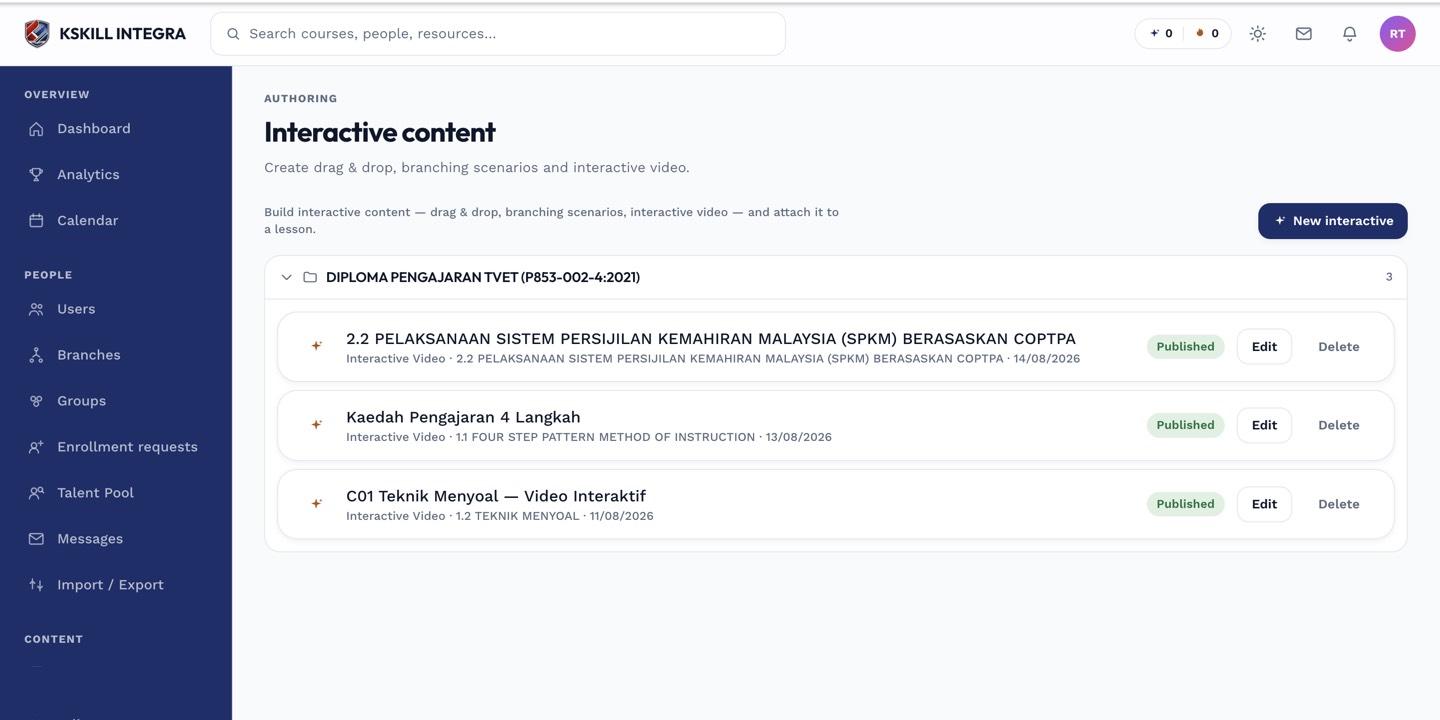
The interactive-content library is where uploaded H5P and SCORM packages are managed.
Step 3 — Ask the learner to retry
Send the learner a quick message telling them to reload the course and reopen the SCORM. They start fresh — the package should behave normally now. If it sticks again, escalate to your admin who can look at the SCORM logs.
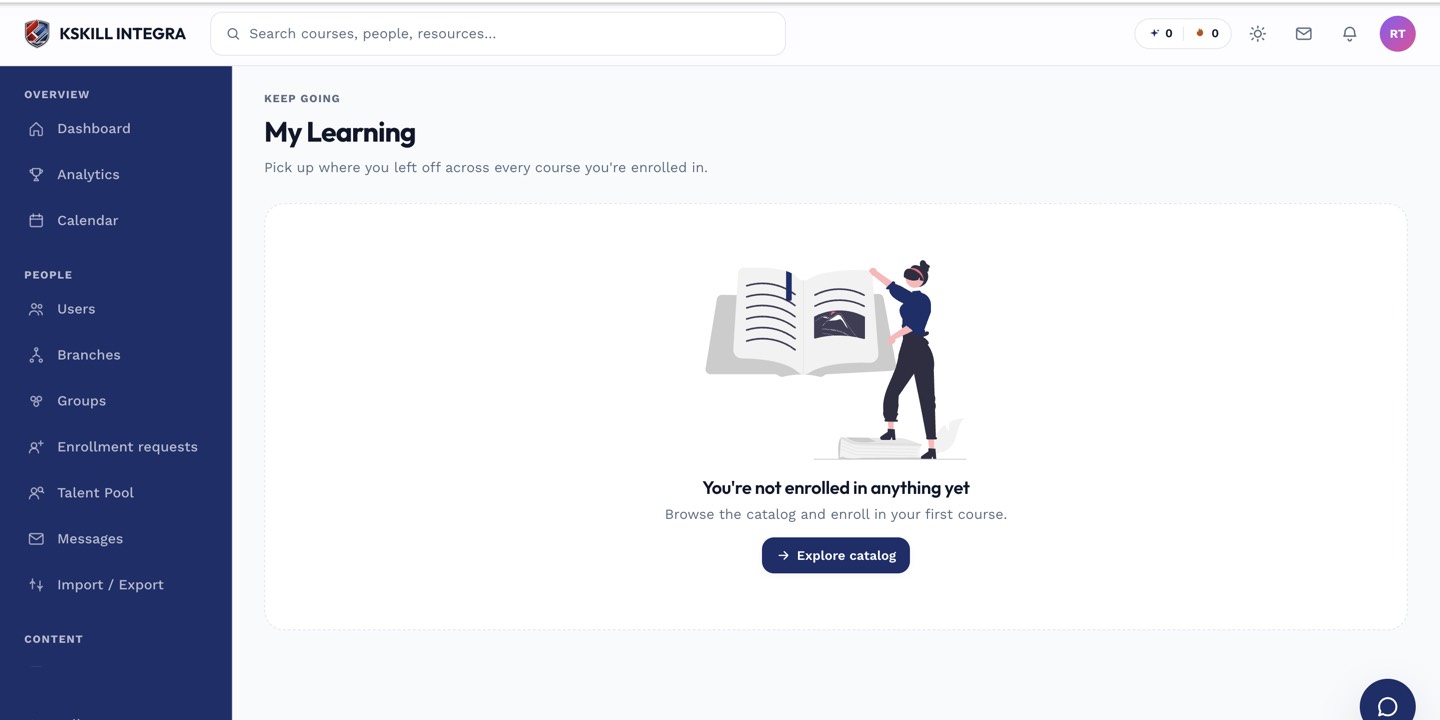
My Learning is the learner's default landing page — every enrolled course is one click away.
Notes
- Reset is per-registration, not per-package — other learners are unaffected.
- Persistent stuck states usually point at a bug in the SCORM package itself, not the LMS.