Session management
This article covers active session lifetime, forcing sign-out, and reading the session list.
Before you start
You need to be signed in. Admins can view and end any user's sessions from their profile.
Step 1 — See your active sessions
Open Account settings and switch to Security. The Active sessions card lists every device you are signed in on — browser, OS, city, last activity.
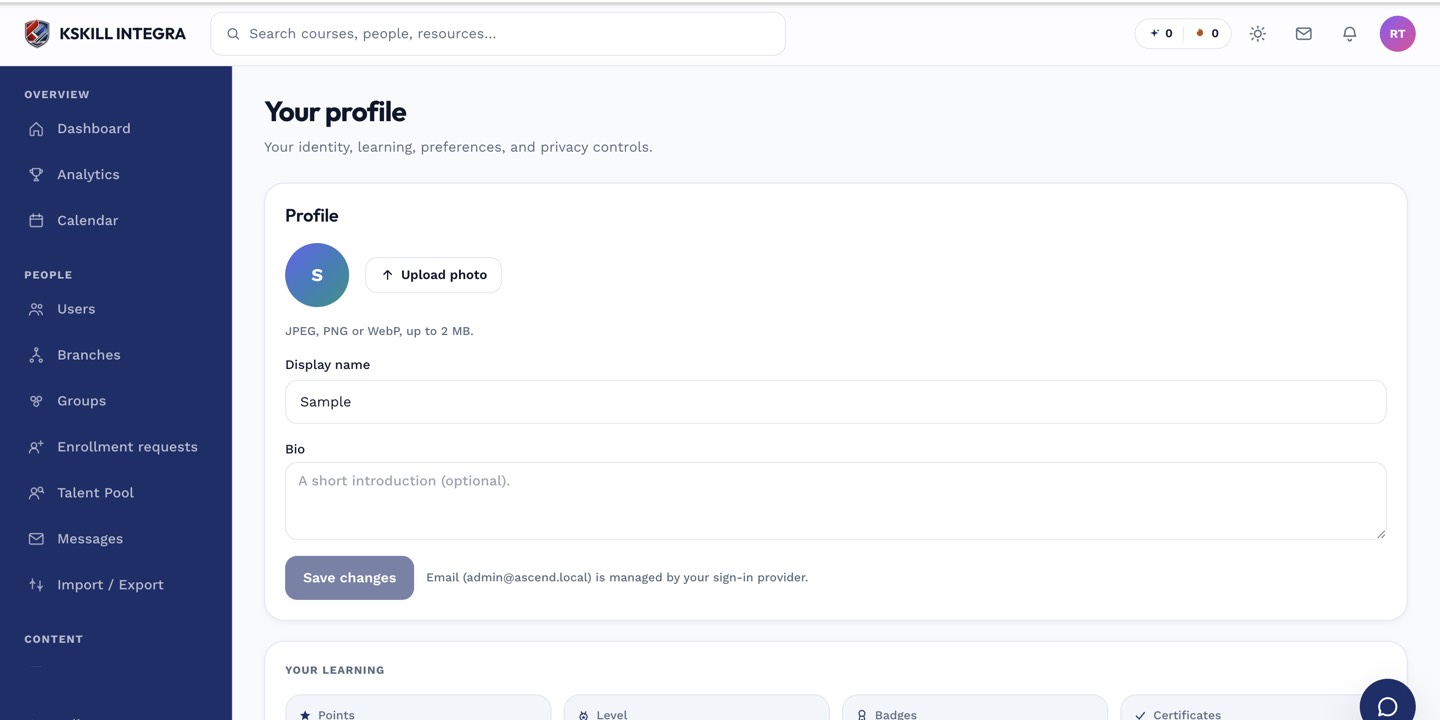
The account settings page is where a learner controls their own personal data.
Step 2 — End a session you don't recognise
Click End session next to any row you don't recognise. That session is signed out immediately. Consider changing your password if you had to end an unfamiliar session.
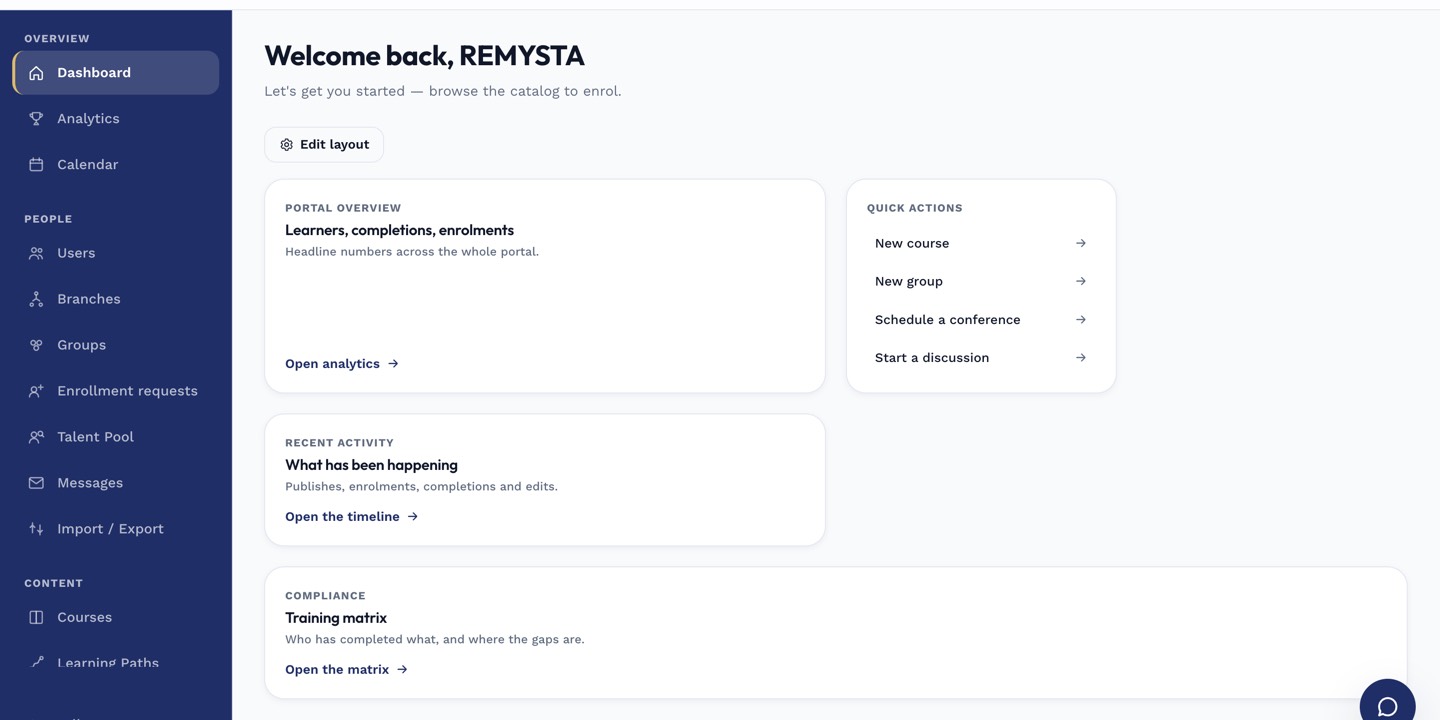
The left rail is the anchor for every admin task; every screen you visit starts with a click here.
Step 3 — Admin: force sign-out for another user
If you are an admin, open People → Users, click the user, and pick End all sessions from the overflow menu. They are signed out from every device on their next request. Useful after a role change or a suspected leak.
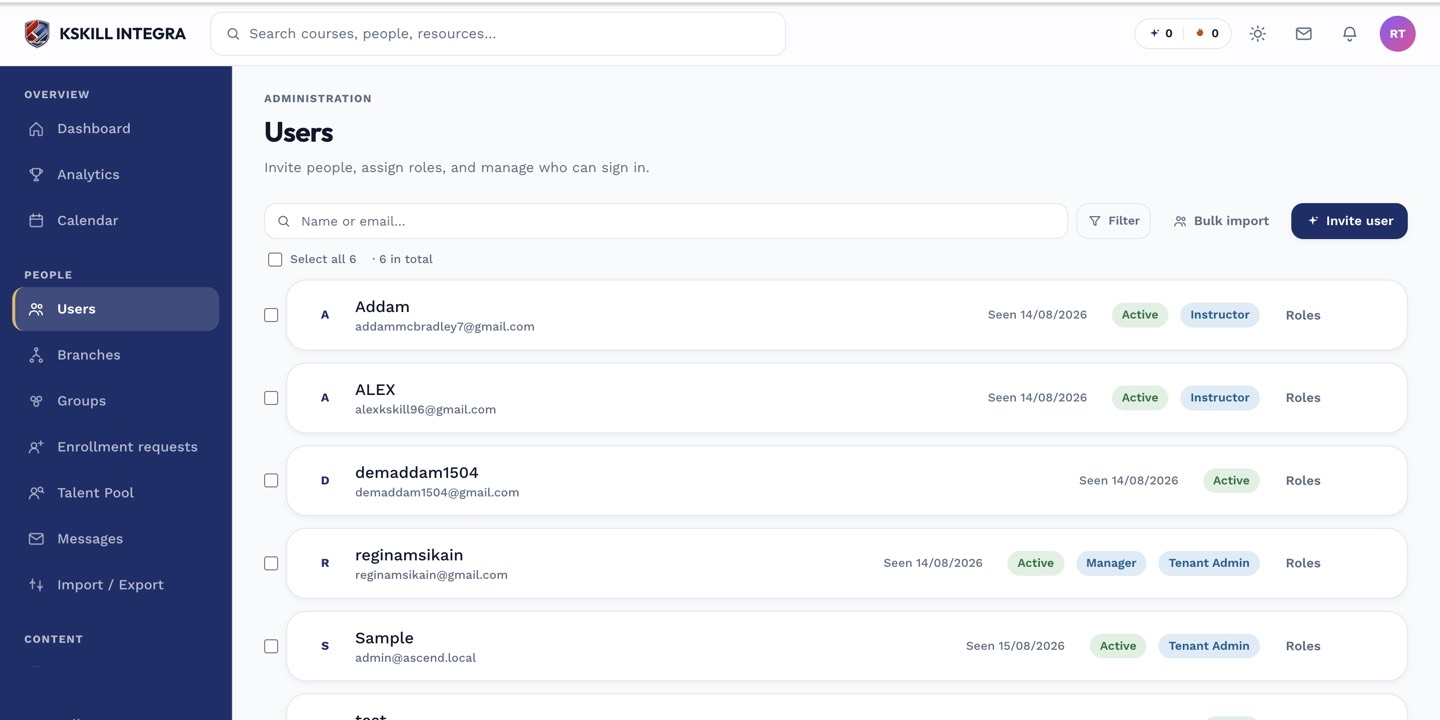
The Users list is the entry point for every person-related admin task.
Notes
- Session length defaults to 8 hours but is configurable in Security settings.
- SSO sessions expire when your identity provider says they do; the LMS respects the upstream lifetime.