Two-factor authentication (2FA)
Two-factor authentication (2FA) adds a code from your phone on top of your password. This article covers turning it on.
Before you start
You need to be signed in. You need an authenticator app installed on your phone — Google Authenticator, Authy, 1Password.
Step 1 — Open Security settings
Click your profile picture and pick Account settings. Switch to the Security tab. The 2FA card is at the top.
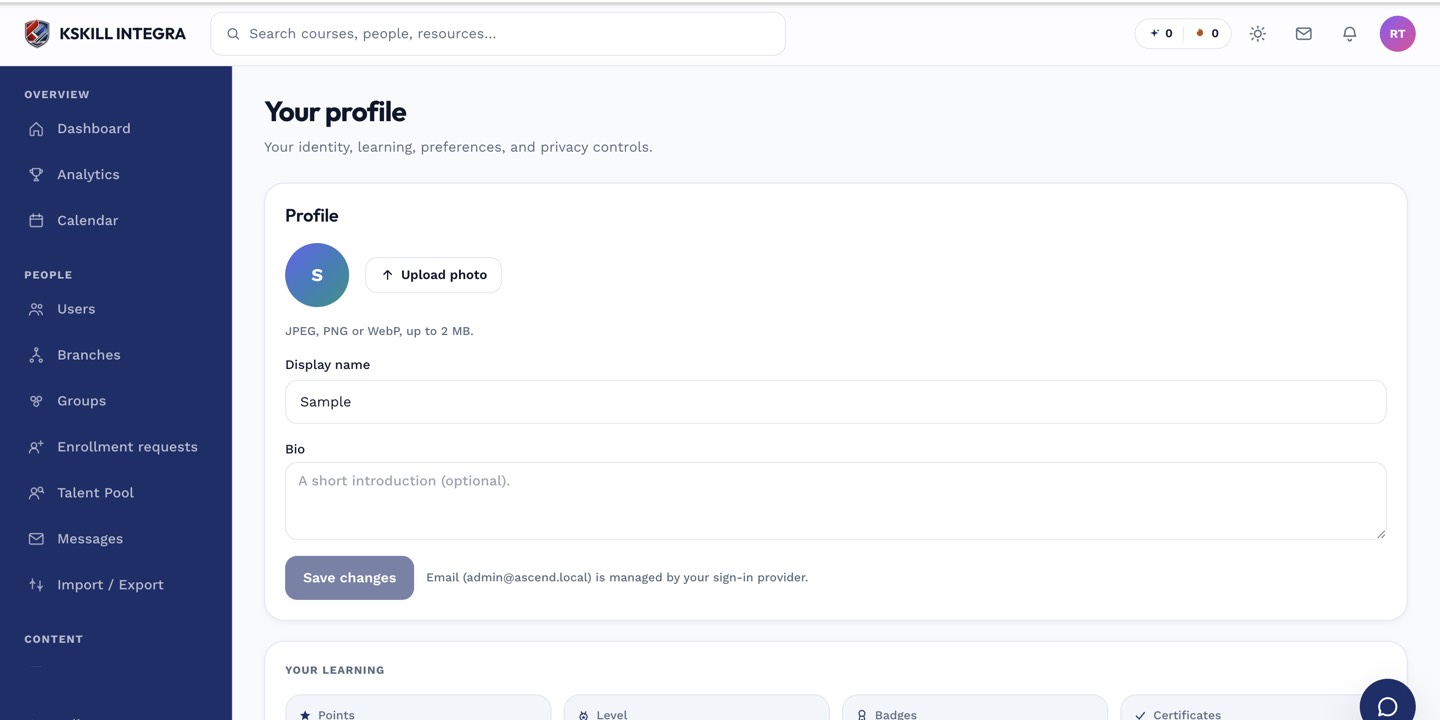
The account settings page is where a learner controls their own personal data.
Step 2 — Enrol your authenticator
Click Enable 2FA. Scan the QR code with your authenticator app. Enter the six-digit code the app produces. Save. Store the recovery codes shown next — you need them if you lose your phone.
The account settings page is where a learner controls their own personal data.
Step 3 — Sign in with 2FA next time
The next sign-in asks for your password and then the current six-digit code. The code changes every 30 seconds. Fresh device? You will be prompted; trusted device? The prompt is skipped for a period your admin sets.
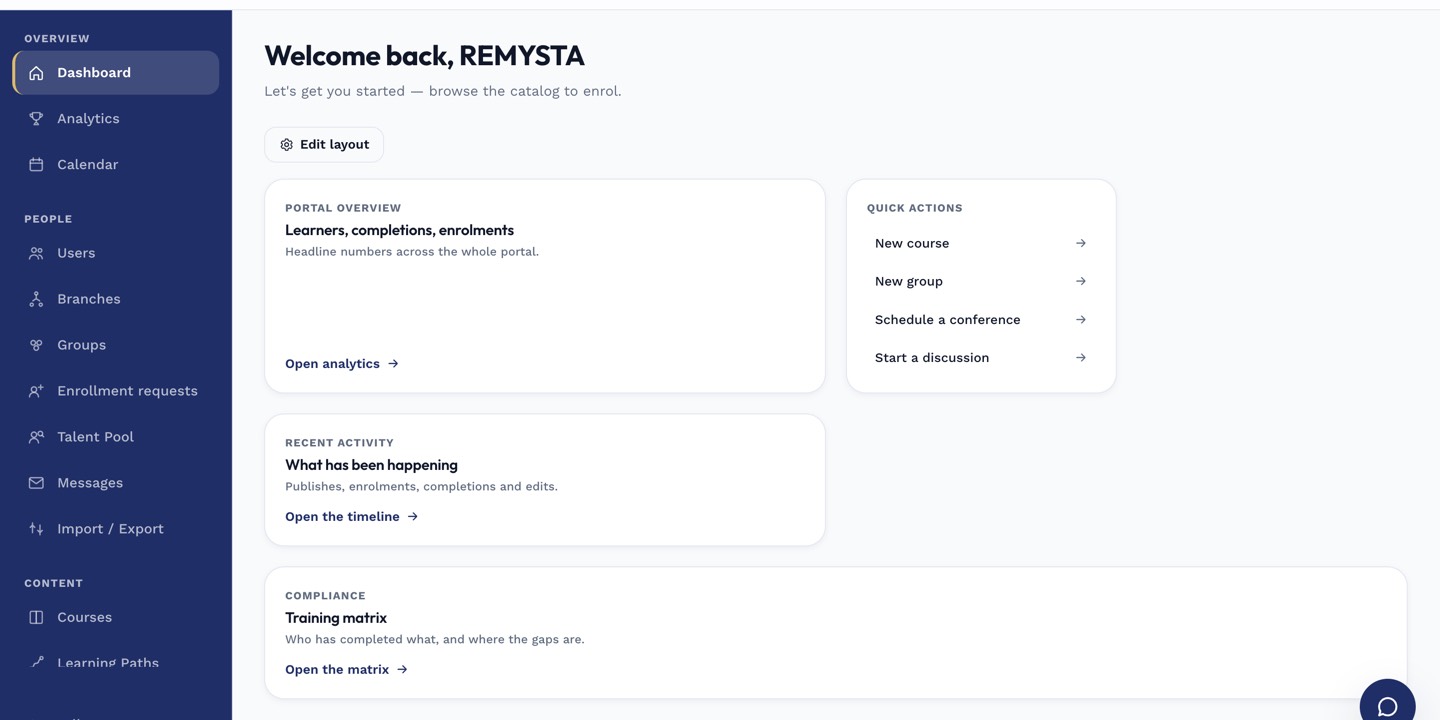
The left rail is the anchor for every admin task; every screen you visit starts with a click here.
Notes
- Recovery codes are single-use — cross each one off as you use it.
- Admin accounts should always have 2FA on; some tenants enforce it via policy.