Skill endorsements
Endorsements let peers vouch for a colleague's skill. This article covers giving and receiving them.
Before you start
You need to be signed in. Endorsements work between users who have interacted (co-enrolled, co-instructed, co-cohort).
Step 1 — Endorse a peer
Open a peer's profile from any of the surfaces that show it (discussion thread, leaderboard, cohort roster). Pick Endorse skill. Choose one of their held skills and confirm. The endorsement is visible on their profile.
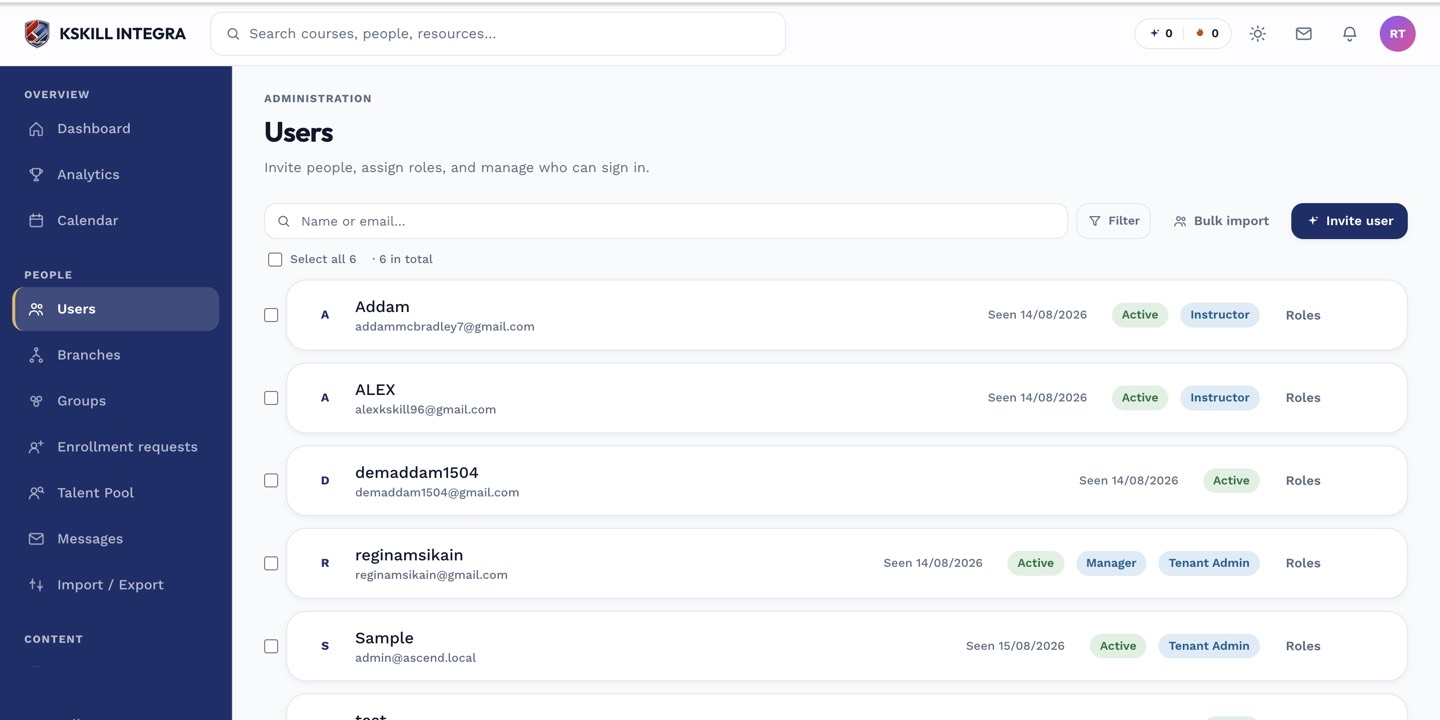
The Users list is the entry point for every person-related admin task.
Step 2 — Receive an endorsement
Endorsements land on your Skills page with the endorser's name. They don't upgrade the skill level; they add social proof. Recruiters and internal reviewers can see the endorsement count per skill.
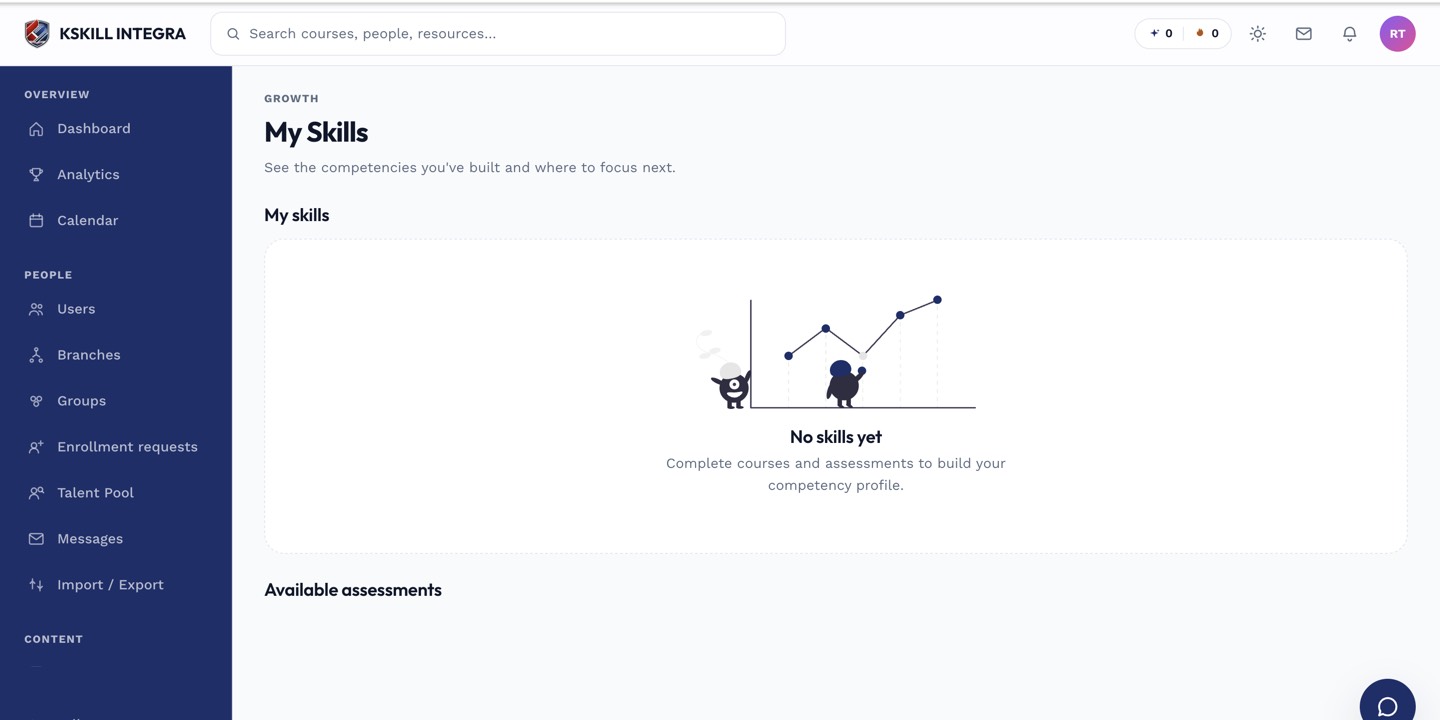
My Skills is the learner's own view of what they have proven so far.
Step 3 — Remove an endorsement
Endorsers can remove their endorsement from the same profile. Recipients can remove any received endorsement they don't want visible from their own Skills page. Removals are silent — the ex-endorser isn't notified.
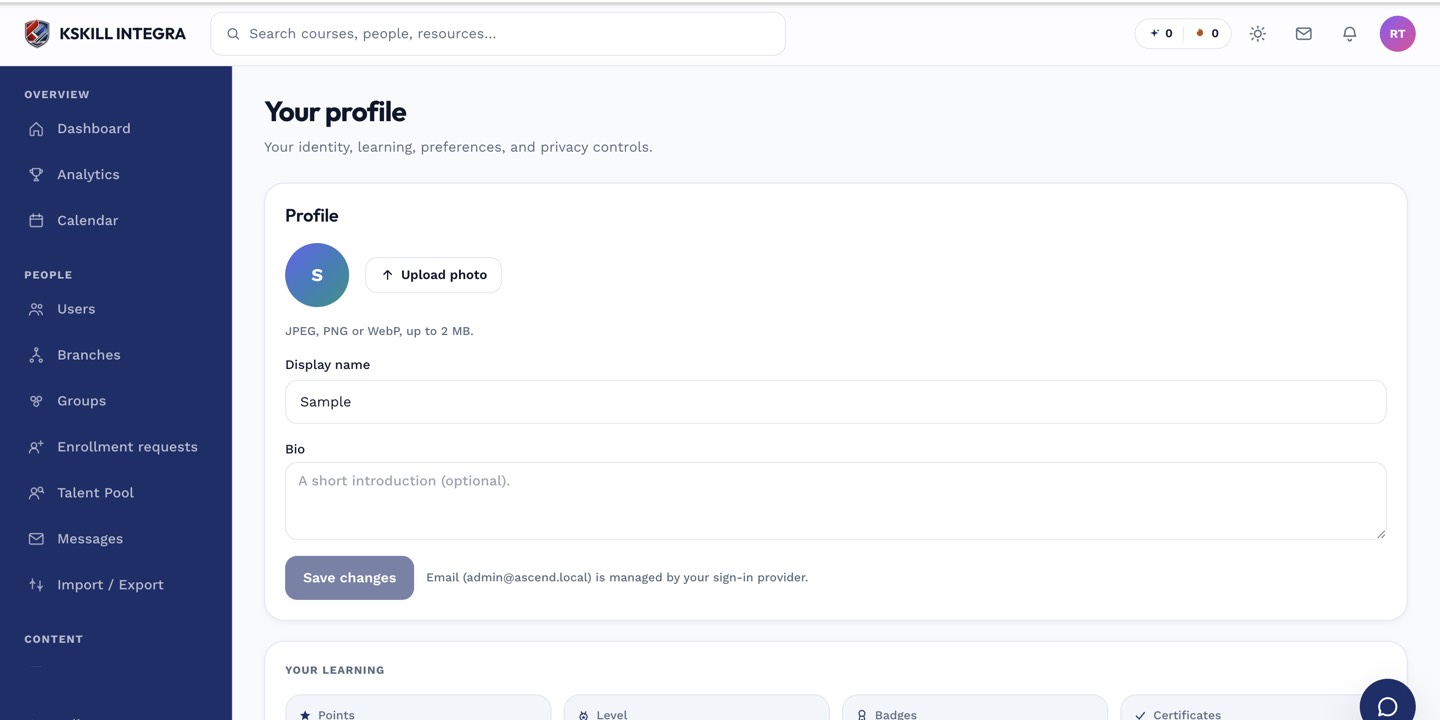
The account settings page is where a learner controls their own personal data.
Notes
- Endorsements are social proof, not credentials — they don't grant skills or upgrade levels.
- For proper attestation, use a reviewer decision instead.