How Skills work in KSKILL Integra
Skills are the atomic units of capability on your tenant. A skill is granted, tracked over time, and expires when appropriate. This tour walks the model.
Before you start
You need the Admin role to configure the skills taxonomy. Learners can view their own skills without any special role.
Step 1 — Open the Skills manager
Open Content → Skills. The list shows every skill your tenant tracks, grouped by category, with a count of holders per skill. Click any skill to open its detail — courses that grant it, holders, and edit controls.
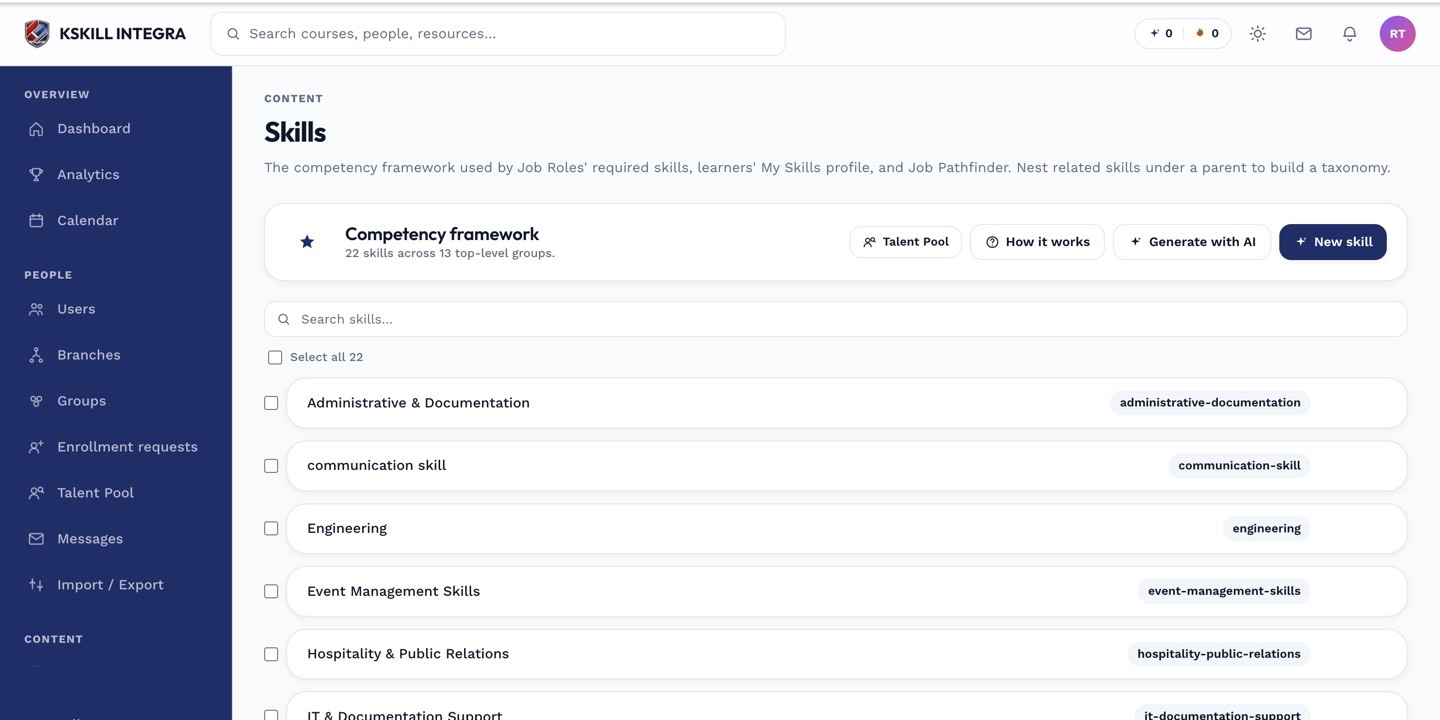
The Skills manager is the source of truth for every skill your tenant tracks.
Step 2 — Understand grants and expiration
A skill is granted by one of three paths — course completion, exam pass, or reviewer decision. Skills granted by self-assessment expire on a schedule; reviewer and course grants stay durable. The three-path model is documented in Skills settings.
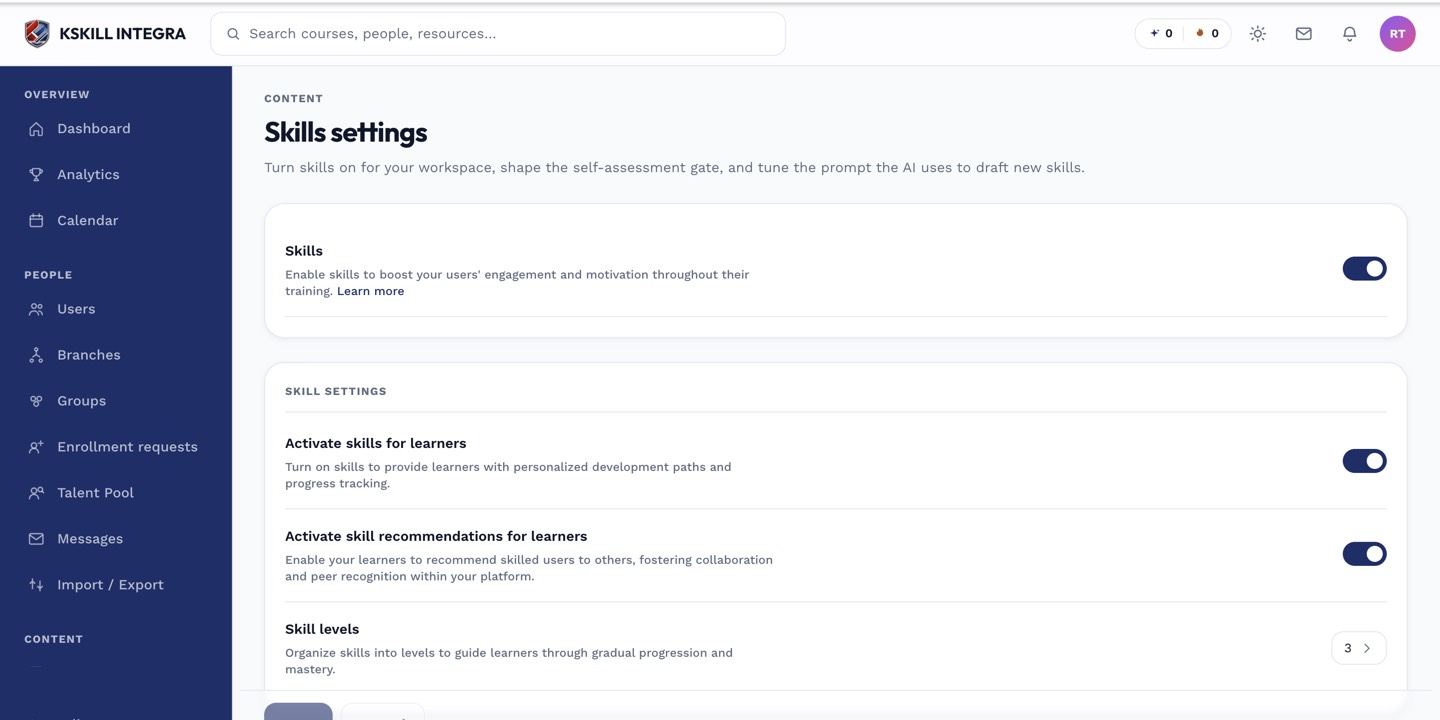
The Skills settings page controls the AI instruction, expiration defaults and taxonomy rules.
Step 3 — See the learner view
Learners open My Skills to see everything they have proven. Each skill shows the grant source, the date, and the expiration if any. This is the same page the Talent Pool searches when you look for people by capability.
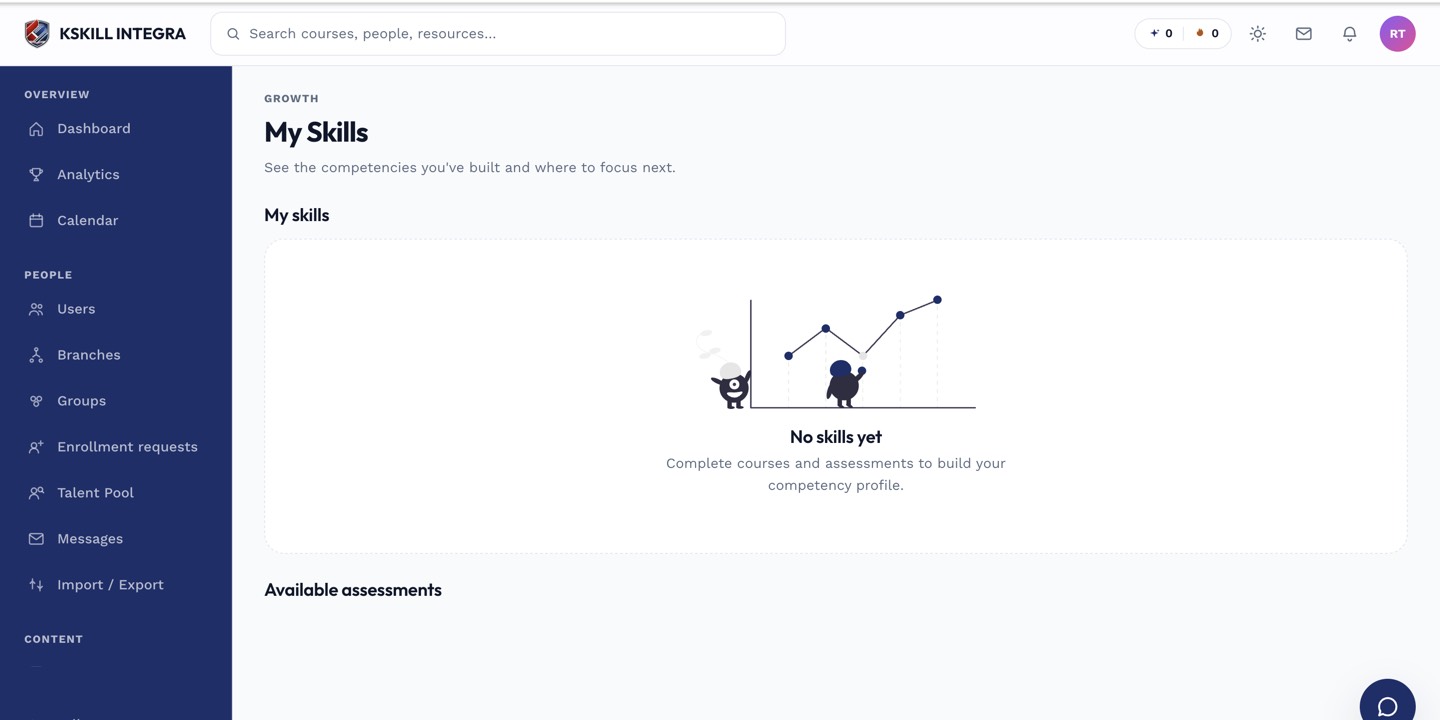
My Skills is the learner's own view of what they have proven so far.
Notes
- Skills are tenant-wide — every course and every user sees the same taxonomy.
- The AI-generated skill definitions feature can seed a whole taxonomy from a short prompt.