Slow loading pages
Slow pages come from three places — the network, the browser or the server. This article walks the fixes.
Before you start
You need to be experiencing slow load times.
Step 1 — Test your connection
Run a quick speed test. If your download is under 5 Mbps, the LMS will struggle regardless. Video-heavy pages need more bandwidth than text-heavy ones. Move closer to the router or switch to Wi-Fi.
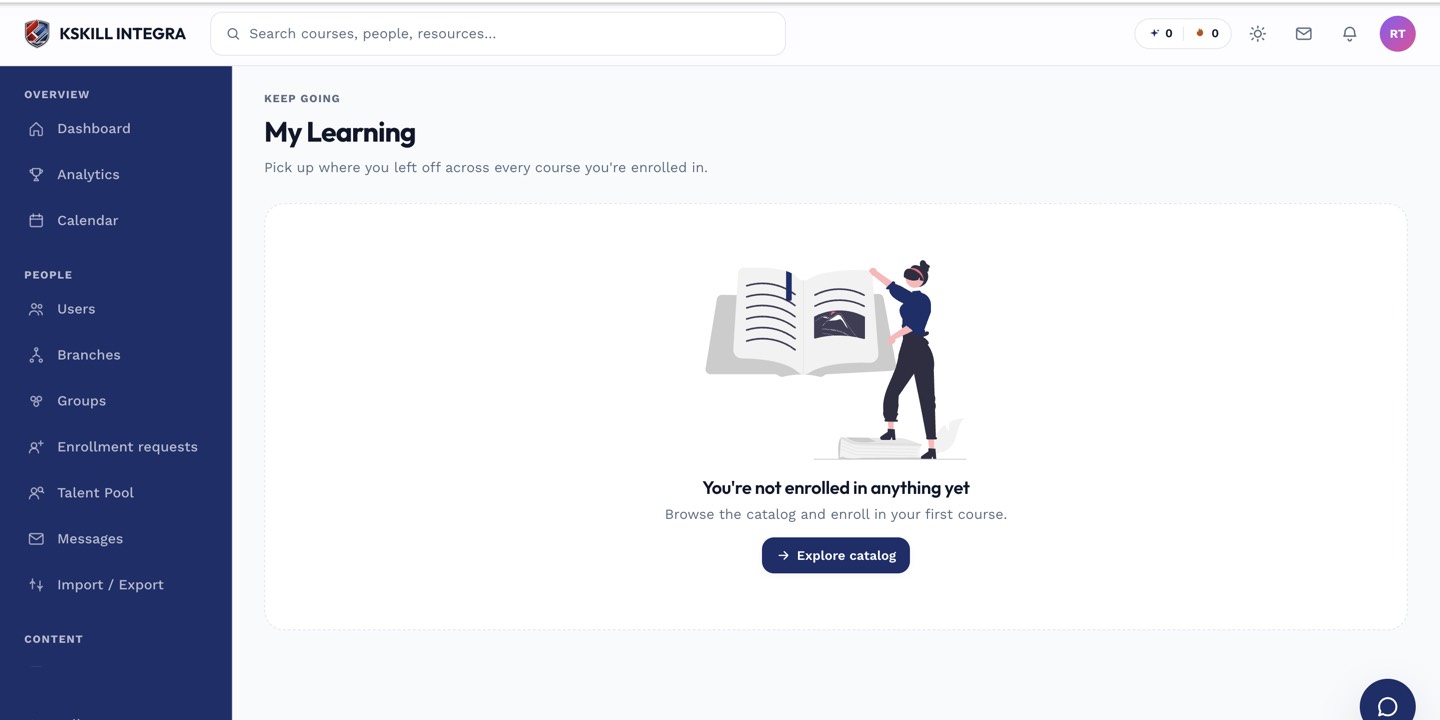
My Learning is the learner's default landing page — every enrolled course is one click away.
Step 2 — Clear browser cache
Corrupted cache can slow every page. Clear the LMS domain's cache in your browser settings, or open the LMS in an incognito window to test without cache. If incognito is fast and normal is slow, cache was the problem.
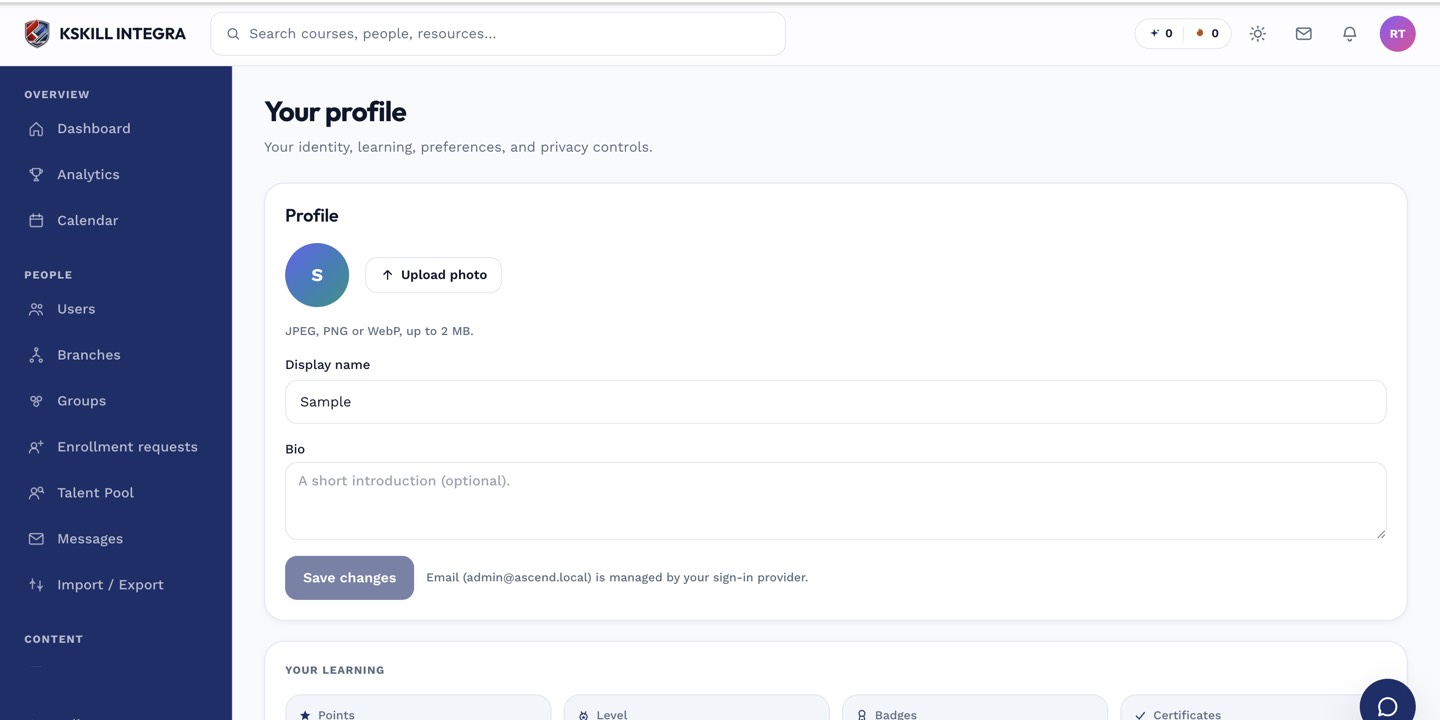
The account settings page is where a learner controls their own personal data.
Step 3 — Report if pattern is broad
If everyone in your tenant reports slowness at the same time, the server is under load. Ask your admin to check the platform status page. Persistent slowness for one user usually points at their local network or device.
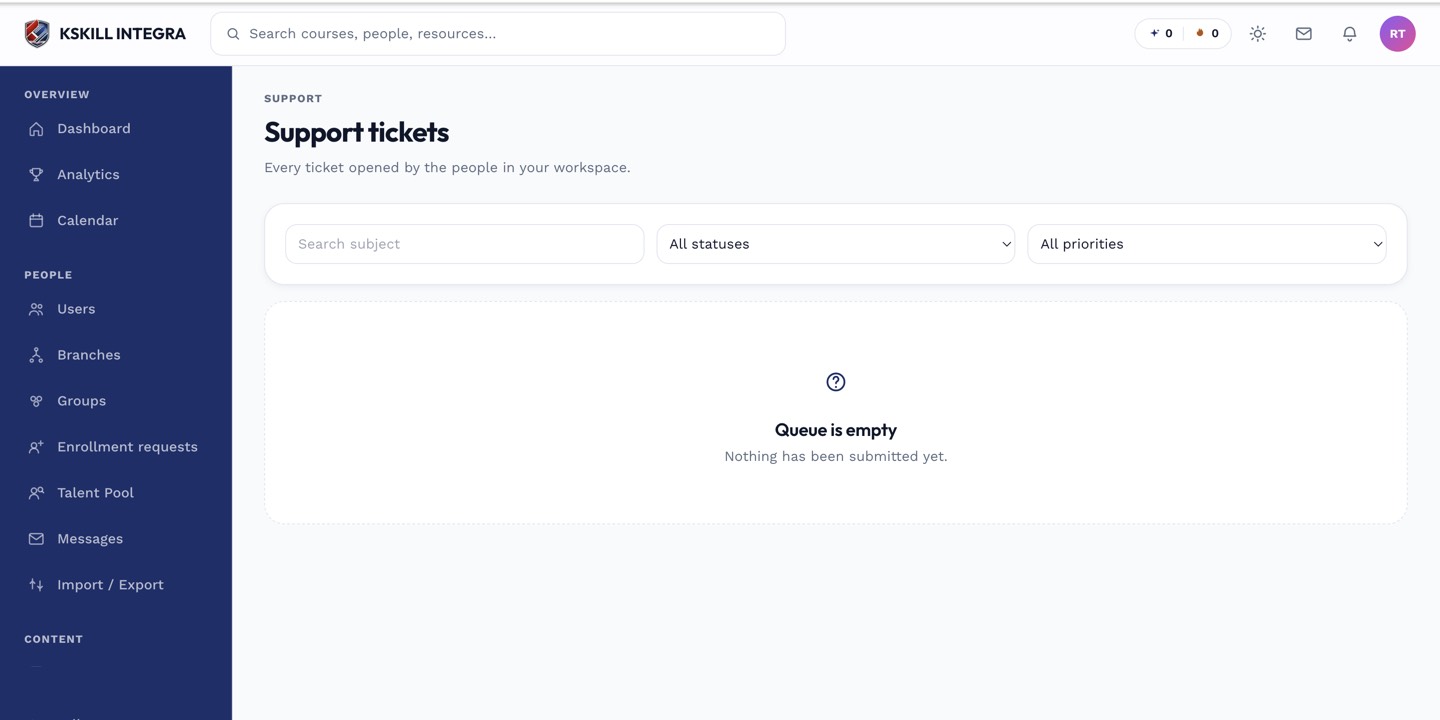
The admin queue is where every open ticket for the tenant lands.
Notes
- Some pages (analytics with big date ranges) are inherently heavy; narrow the range for speed.
- For corporate networks, ask IT whether the LMS domain is being proxied — proxies can slow assets.