Troubleshooting: Why Can't I See Analytics Data?
You've connected GA4 and expected to see numbers in Google Analytics, but the dashboard there looks empty or much lower than expected. Here's the order to check things in.
1. Confirm the Measurement ID is saved correctly
Open Settings → Analytics and double-check the GA4 Measurement ID matches your property exactly (format G-XXXXXXXXXX). A typo here means the tag never talks to the right property.
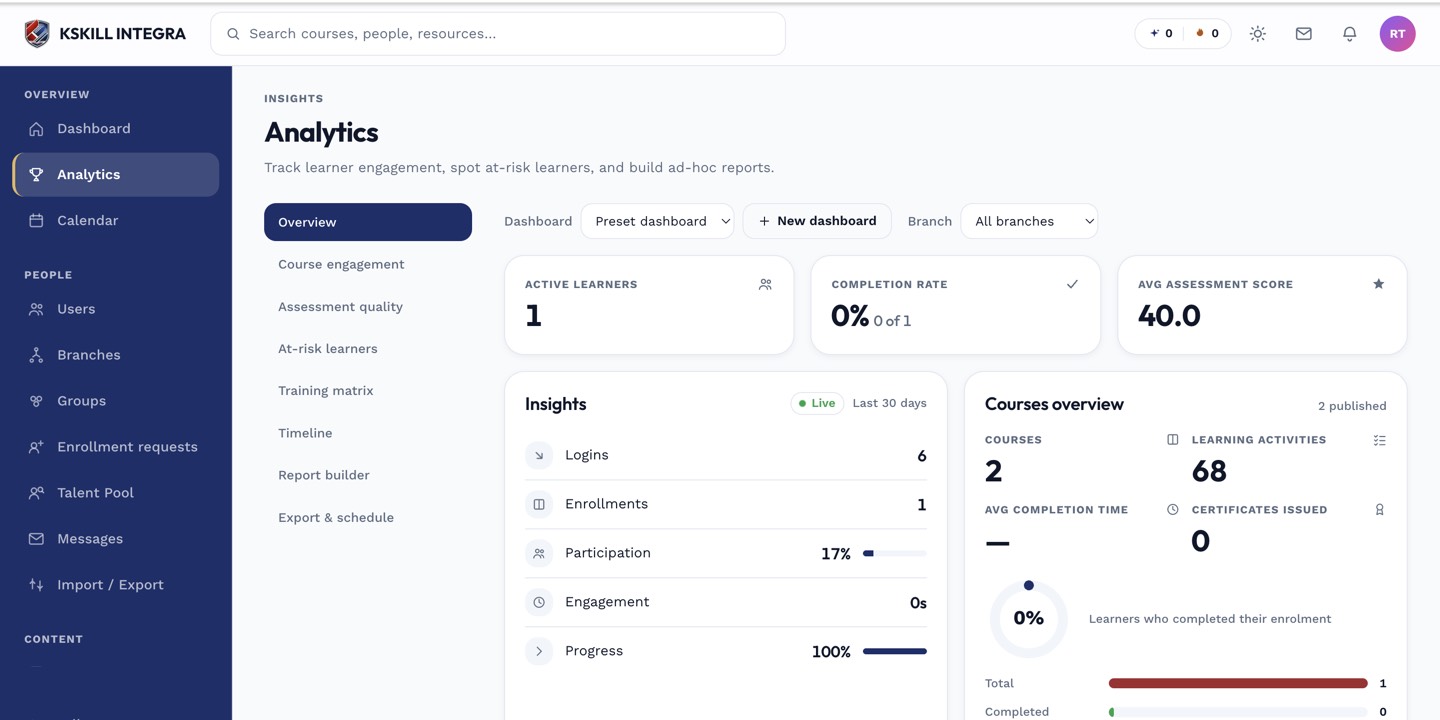 Verify the ID character-for-character against your Google Analytics property settings.
2. Remember the cookie consent gate
This is the most common cause. The GA4 tag always loads, but it does not store or send real data unless the visitor accepts non-essential cookies on your cookie banner. If you're testing by visiting your own site and declining cookies, you won't show up in GA4 — that's expected behavior, not a bug. See how the cookie banner gates your analytics data.
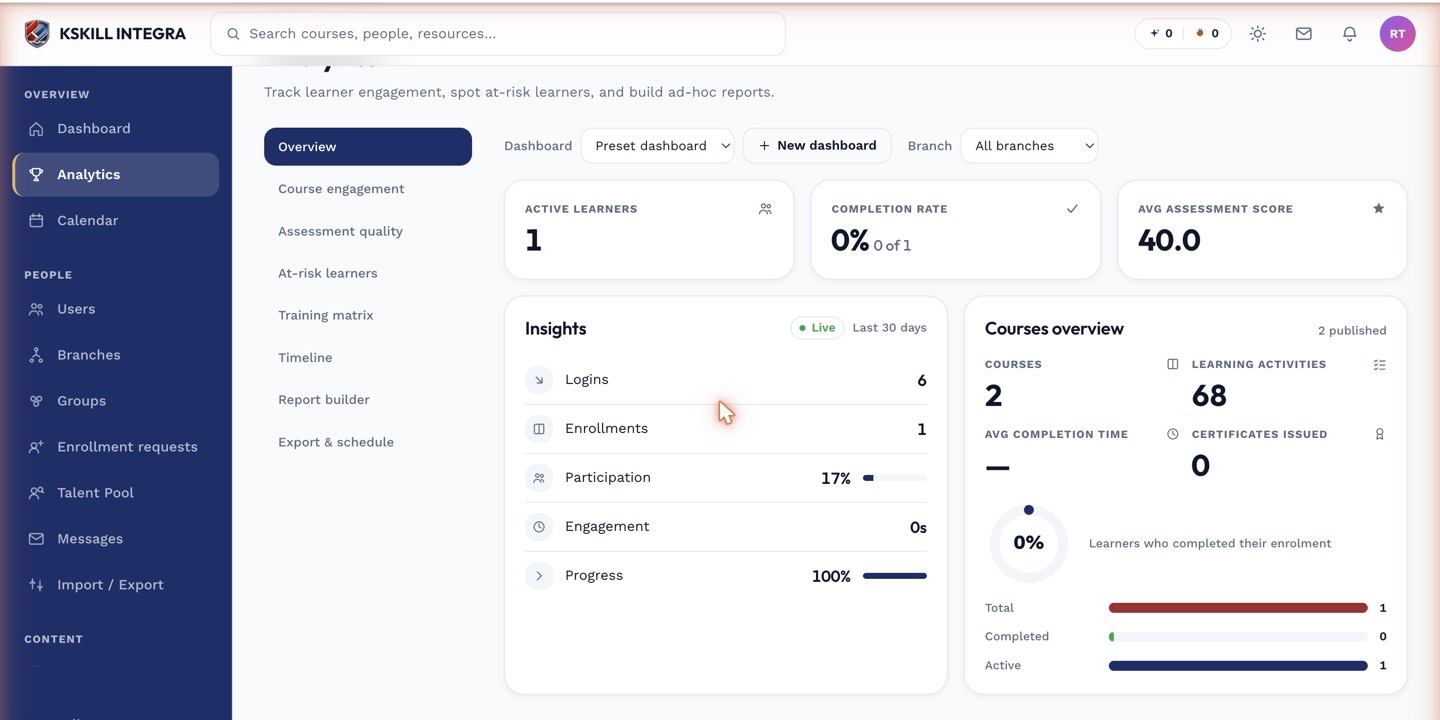 Try accepting the cookie banner yourself before assuming the integration is broken.
3. Give it time
Google Analytics reporting isn't instant — real-time reports update quickly, but standard reports can take up to 24-48 hours to populate fully.
4. Check you're looking at the right property
If your organization has multiple GA4 properties, make sure you're viewing the one whose Measurement ID matches what's saved in Settings → Analytics.
Still stuck?
If the ID is correct, you've accepted cookies yourself, and you've waited a day with no data, contact support with your GA4 property ID and the date/time of a test visit.