Troubleshooting: Payment Not Going Through
A learner reports checkout failing, or an admin sees an order stuck in a pending state. Here's a practical checklist before escalating.
1. Confirm a gateway is actually active
Open Settings → Payments and confirm one gateway shows as active, not just saved. Saving credentials without clicking Activate leaves checkout with nothing live. See payments settings overview.
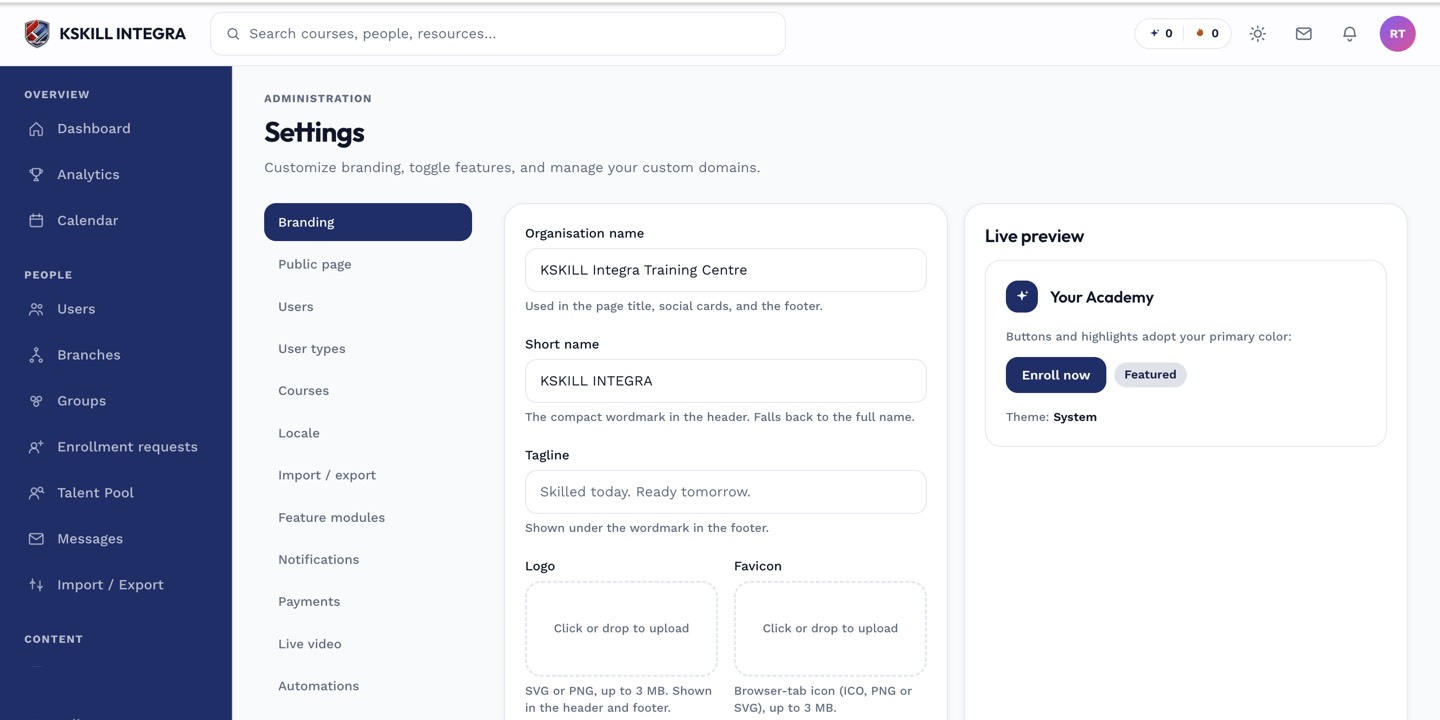 A saved-but-not-activated gateway won't process any checkouts.
2. Check the credentials are actually valid
A masked "On file" credential can still be an expired or wrong key. Use the eye icon to check the hint against what you expect, and if in doubt, re-paste fresh keys from your Stripe or Billplz dashboard and save again. See why credentials are write-only.
3. For Stripe: check the specific decline reason
Card declines (insufficient funds, bank block, expired card) are outside the platform's control — the learner needs to try a different card or contact their bank. Check the order's status detail for the decline reason Stripe returned.
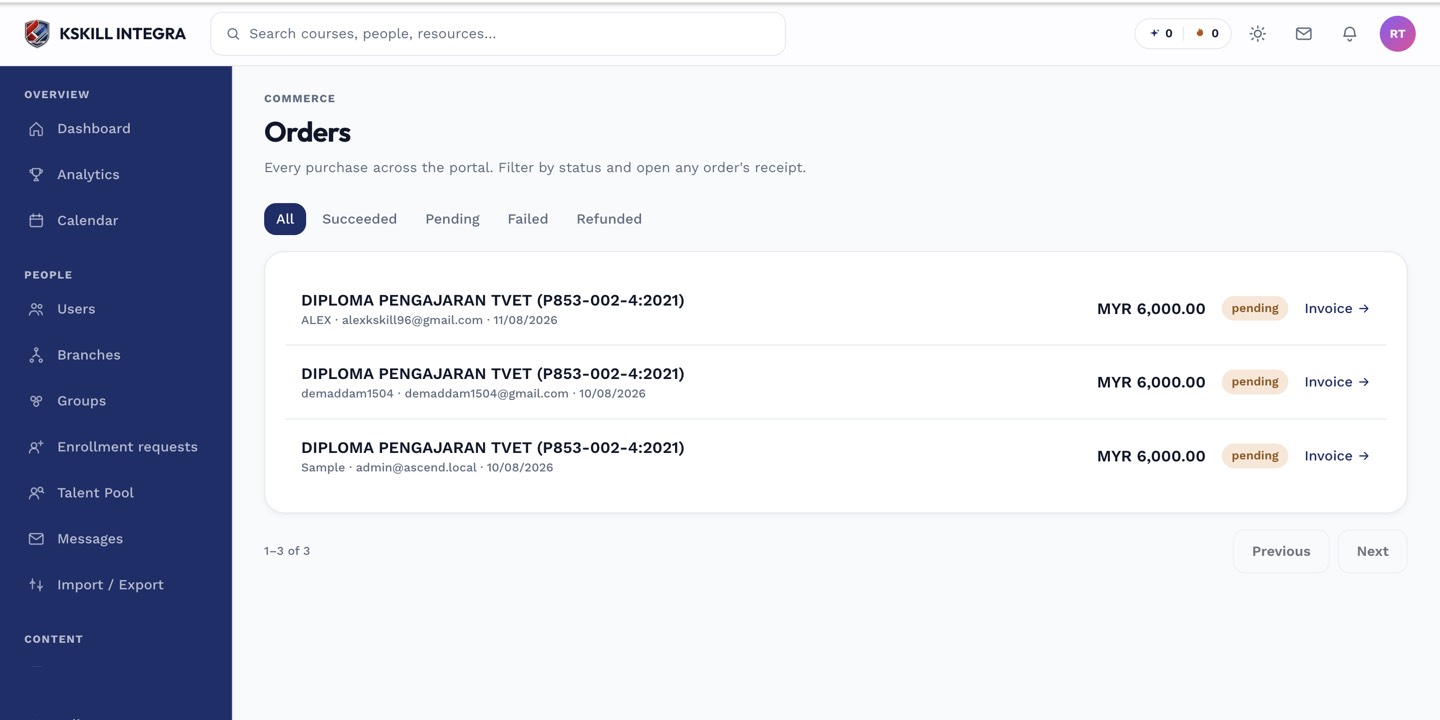 Order detail surfaces the gateway's own reason for a failed charge.
4. For Billplz: confirm the redirect completed
Billplz checkouts redirect the learner off-site to the hosted bill page and back. If a learner closes the tab mid-payment, or the redirect back fails, the order can be left pending even though no money moved. Ask the learner to retry checkout from the beginning rather than refreshing mid-flow.
5. Installment-specific issues
If this is a recurring installment charge rather than an initial checkout, see how Stripe installment auto-debit and retries work and what happens when a plan defaults — a suspended enrollment after 3 failed retries is expected behavior, not a bug.
Notes
Billplz card tokenization is not a live auto-charge path yet — if a recurring Billplz charge appears to "not go through," that's expected; see Billplz recurring card settings.