AI credits and limits
Every AI generation consumes credits. This article covers reading your balance and setting limits.
Before you start
You need the Admin role. Credits are a per-tenant budget your platform provider sets.
Step 1 — Open AI Credits
Open Configuration → Settings and pick AI Credits. The page shows your current balance, the burn rate over the last 30 days, and the top consumers by feature and by user.
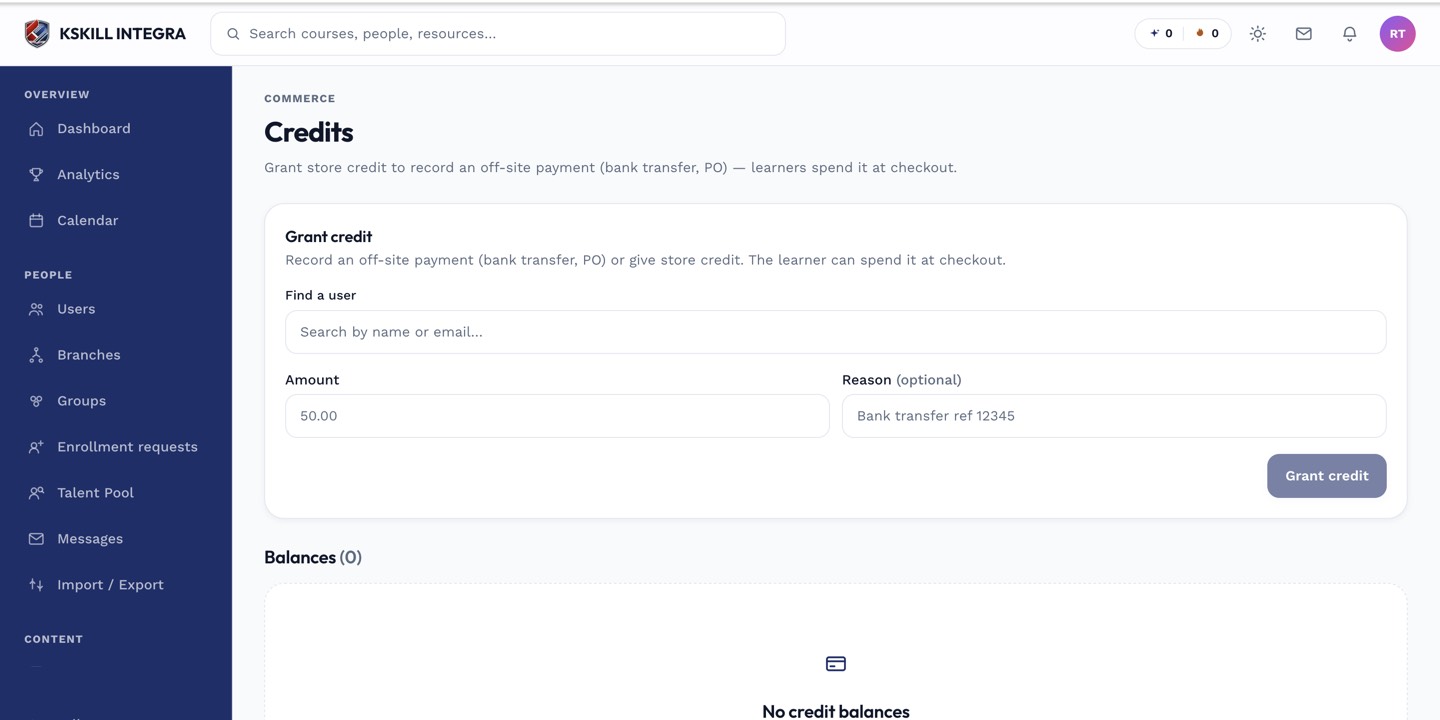
The credits page tells you exactly how much AI capacity remains and where it went.
Step 2 — Set per-user limits
The Limits section lets you cap monthly spend per user or per feature. Useful when a few power users would otherwise drain the whole budget. Save and the caps enforce on the next generation.
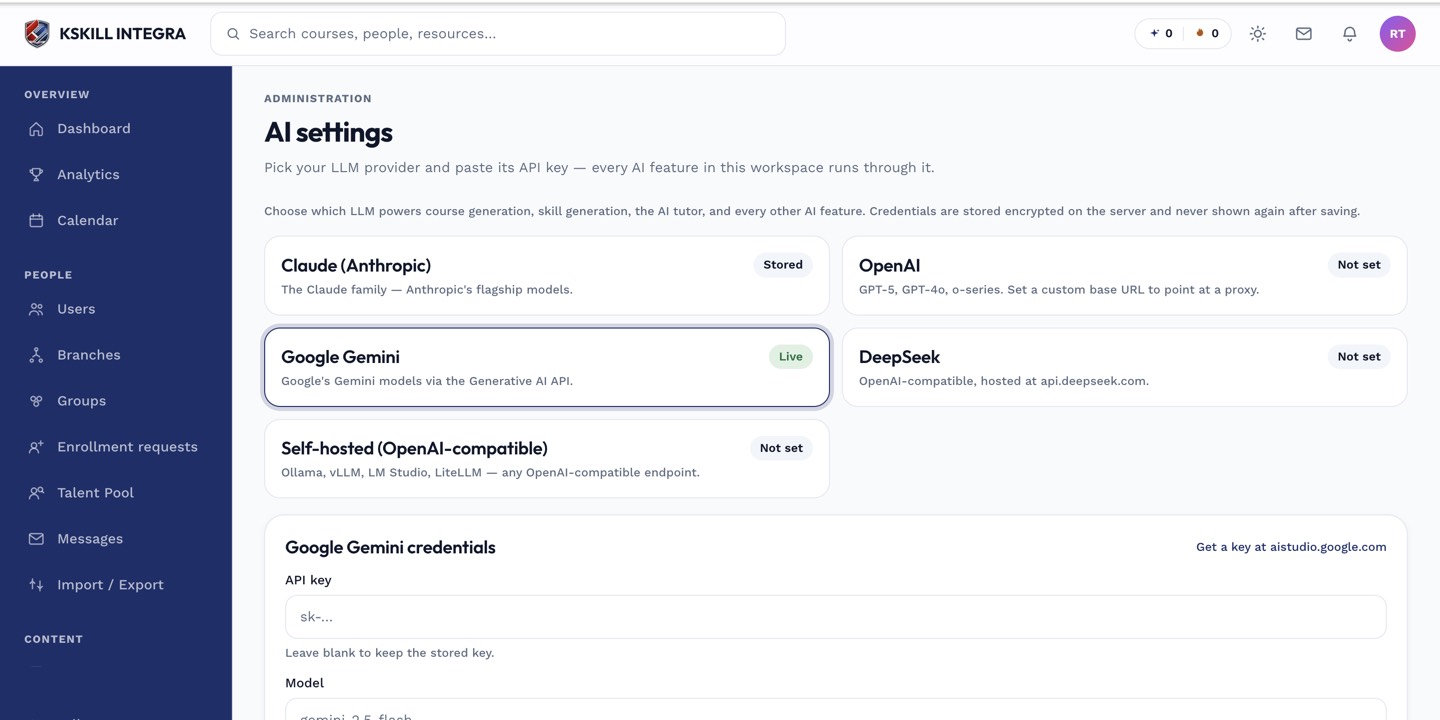
The AI settings page is where every AI-powered feature gets its credentials.
Step 3 — Top up when needed
When you're running low, click Top up credits. The platform routes you to purchase more from your provider. New credits appear on the balance within a few minutes of payment clearing.
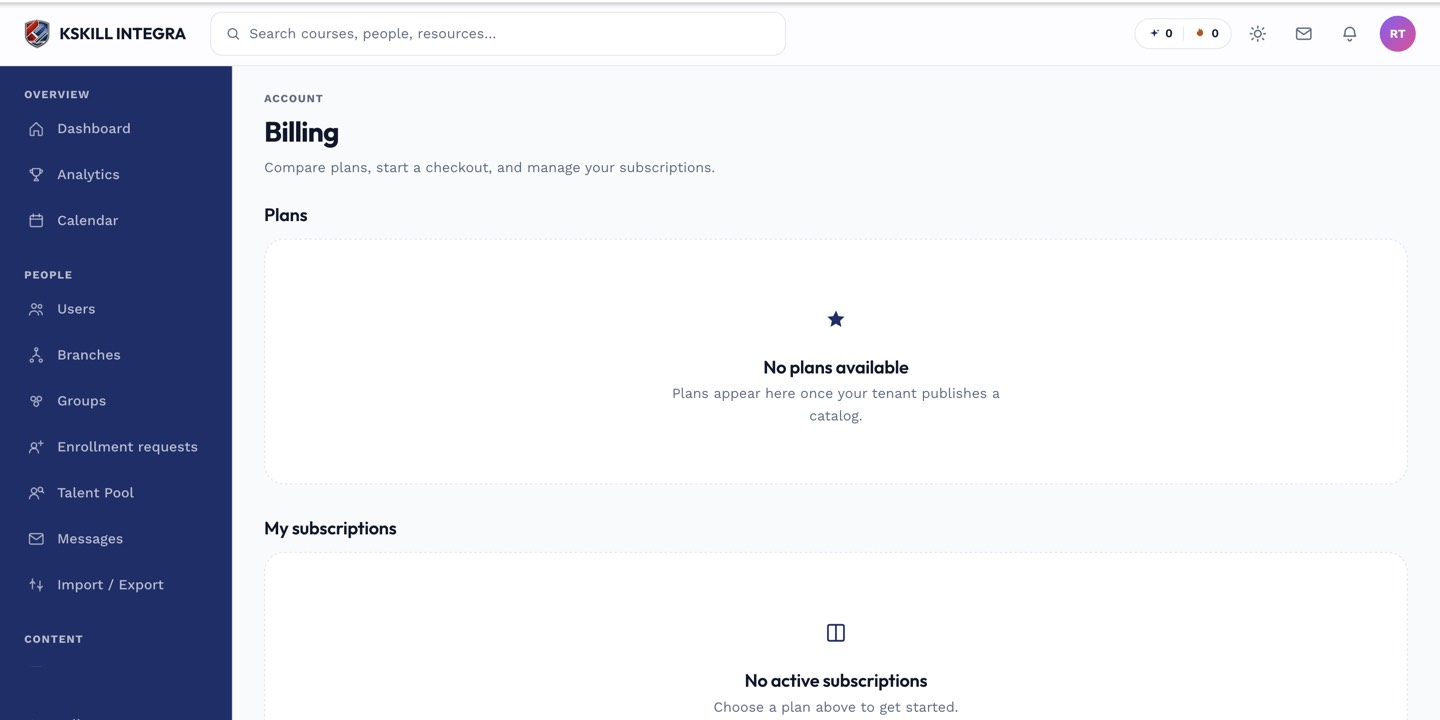
The billing surface reconciles what learners paid against what the tenant collected.
Notes
- Rate-limited generations return a friendly error to the user rather than silently failing.
- For unlimited use, ask your platform provider about switching to a bring-your-own-key plan.