Generate a course outline with AI
The AI course generator drafts a full outline — sections, units, suggested lesson types — from a short prompt. This article covers using it.
Before you start
You need the Admin or Instructor role and an AI provider configured.
Step 1 — Start a new course with AI
Open Content → Courses and click New course. In the drawer, pick AI instead of Manual. Enter a title and a short prompt describing the audience and goal. Click Draft outline.
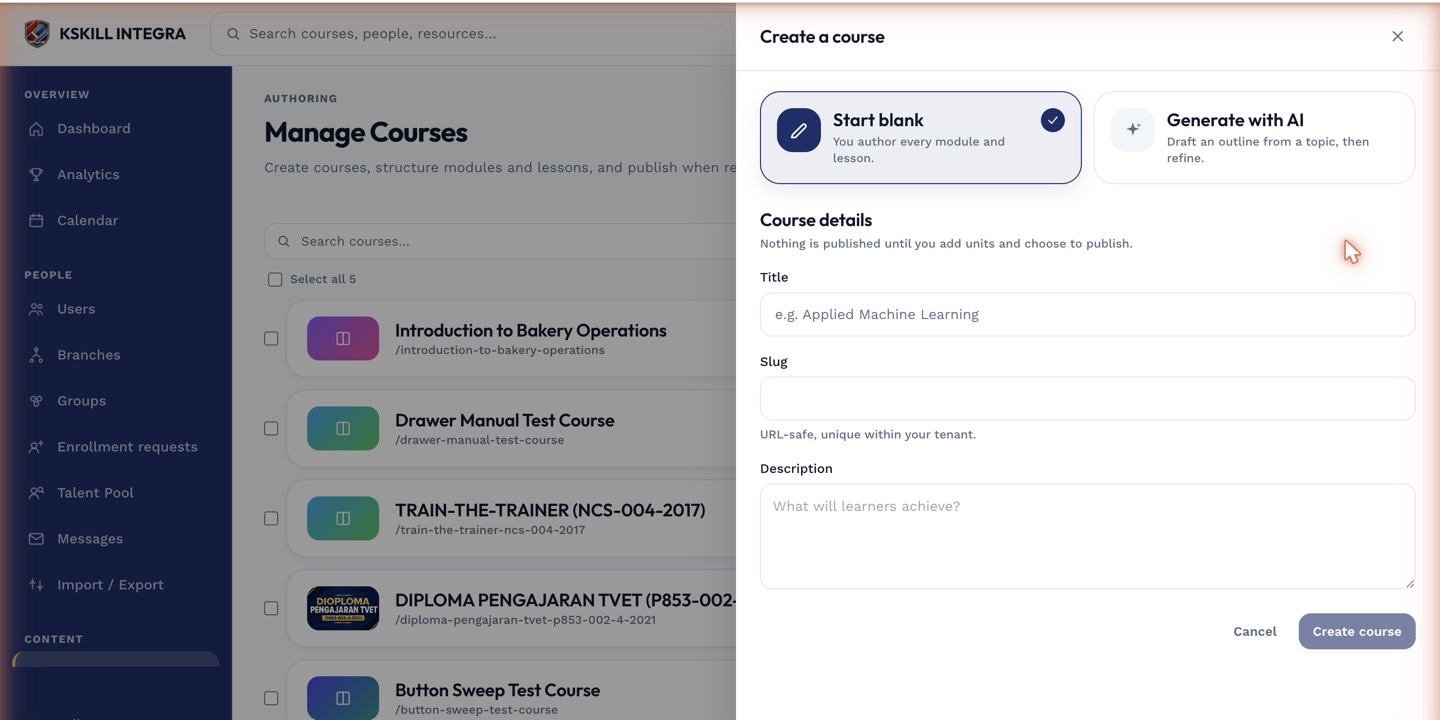
The drawer is the same one every course-creation flow lands on.
Step 2 — Review the draft
The generator queues the job and shows a progress indicator. When it finishes, the outline appears in the editor with sections, unit titles and suggested lesson types. Edit any of it before saving; nothing is committed until you accept.
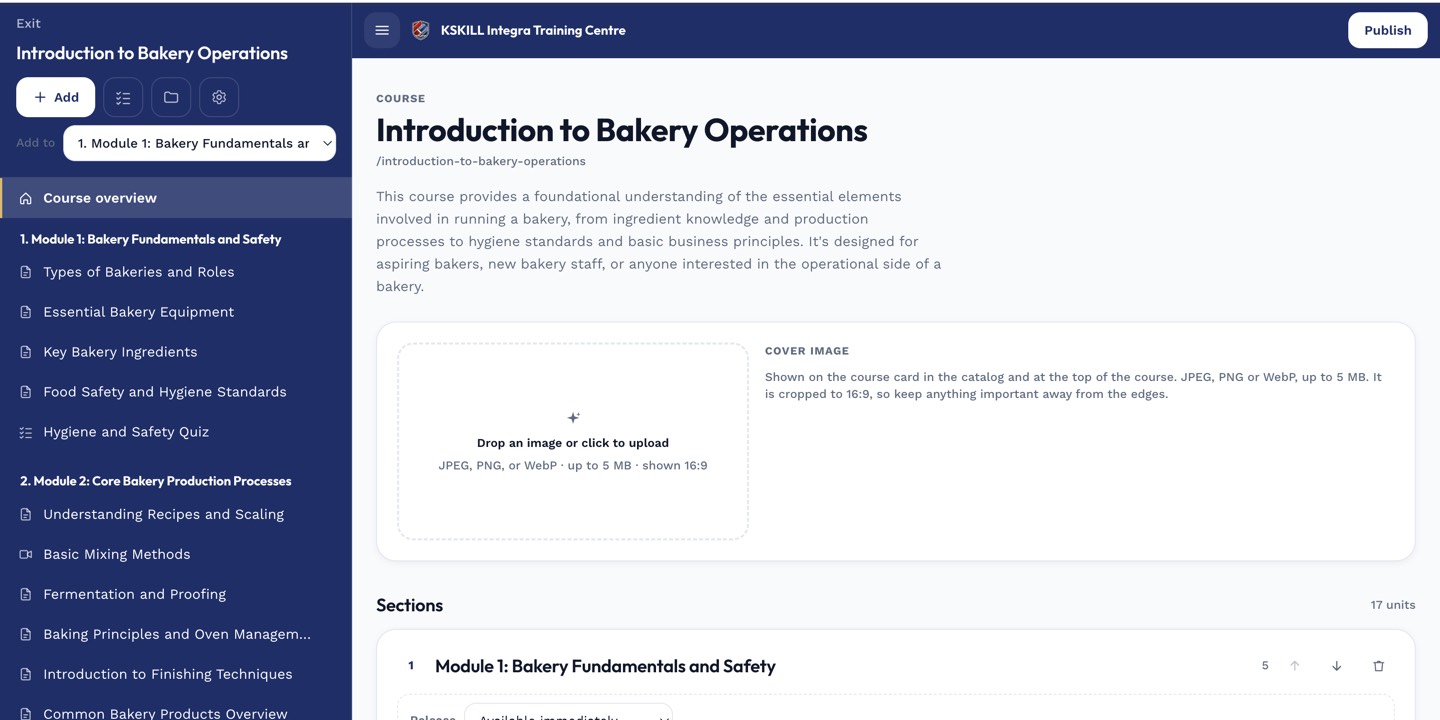
The editor shows sections and units together so you can drag either one to reorder.
Step 3 — Apply and refine
Click Apply to keep the outline. Now flesh out each unit — the generator only proposes the shape, not the full content. Use the per-unit AI helpers (lesson content, quiz questions) to fill the details.
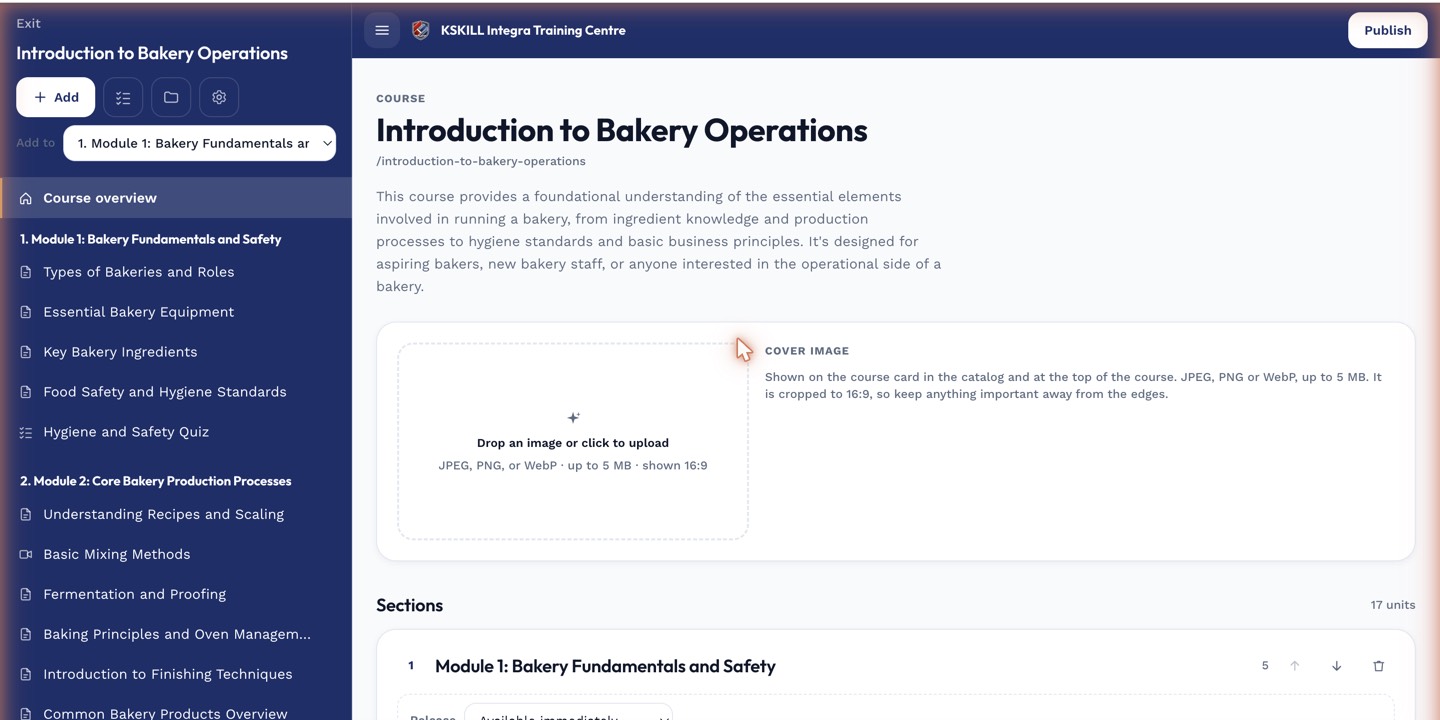
The editor is where sections and units live — everything you configure per-course starts here.
Notes
- The generator uses the tenant's AI instruction as a standing prompt — tune it under Settings → AI.
- For technical content, seed the prompt with sample terminology so the outline matches your voice.