Generate lesson content with AI
The AI lesson generator drafts a full text lesson from a topic and audience. This article covers using it.
Before you start
You need the Admin or Instructor role and an AI provider configured.
Step 1 — Add a Text unit
Open the course editor and add a Text unit. The empty editor has a Generate with AI button at the top. Click it to open the prompt drawer.
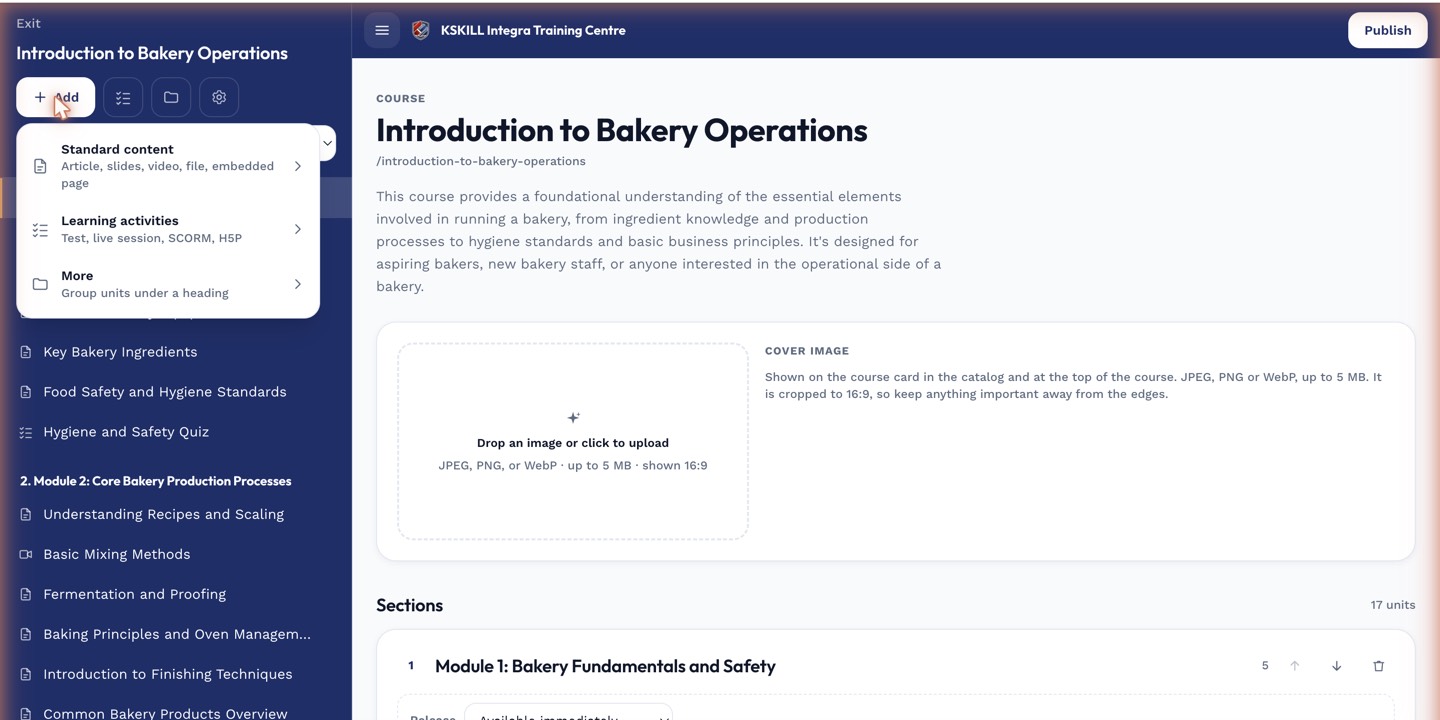
The lesson-type picker is the same one whichever section you add into.
Step 2 — Prompt and generate
Write a short prompt — topic, audience, length, tone. Add source material (a document, a URL, or free text) if you want the generator to draw from specific facts. Submit. The generator queues the job and returns a draft when done.
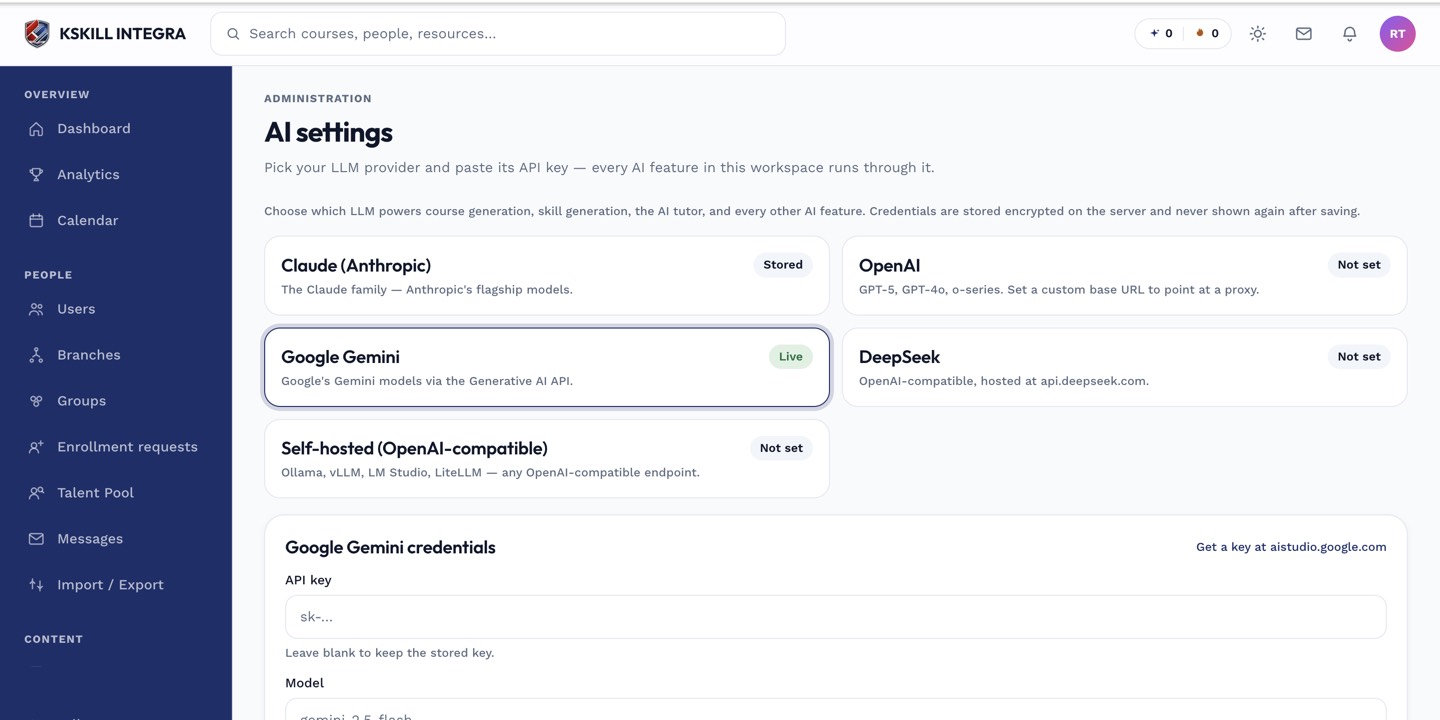
The AI settings page is where every AI-powered feature gets its credentials.
Step 3 — Edit and publish
The draft lands in the text editor. Read it end-to-end and edit for voice, accuracy and any hallucinated claims. Apply and save. Never publish an unread AI draft — the reputational cost of one bad lesson outweighs the time saved.
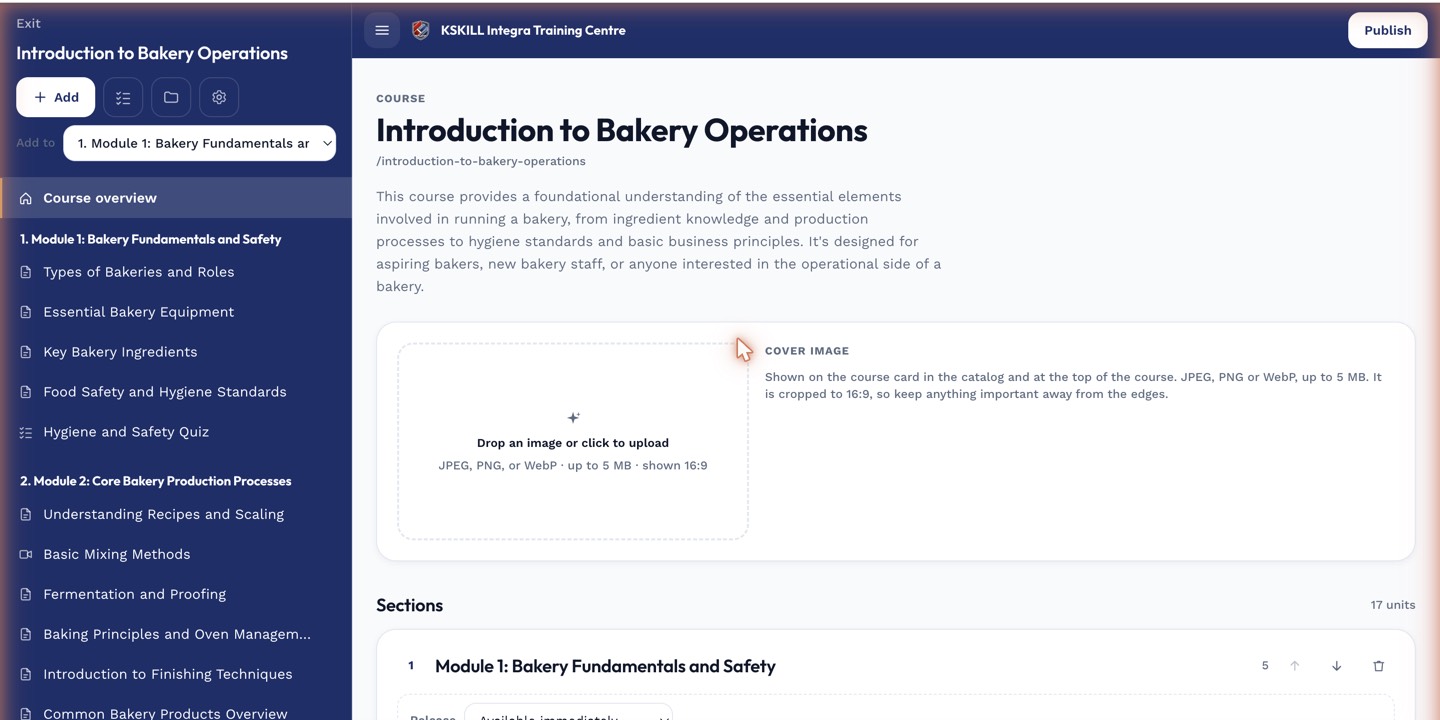
The editor is where sections and units live — everything you configure per-course starts here.
Notes
- The generator respects your tenant's AI instruction — encode voice rules there rather than repeating in every prompt.
- For factual accuracy, always give the generator source material rather than free-text prompts.