Certificate expiration and renewal
Certificates can expire on a schedule. This article covers configuring expiration and how renewal works.
Before you start
You need the Admin role.
Step 1 — Set expiration on the course
Open the course, switch to the Certificates tab, and pick an expiration policy — Never, After N days, or On a fixed date. Save. Every future completion issues a certificate with that expiration.
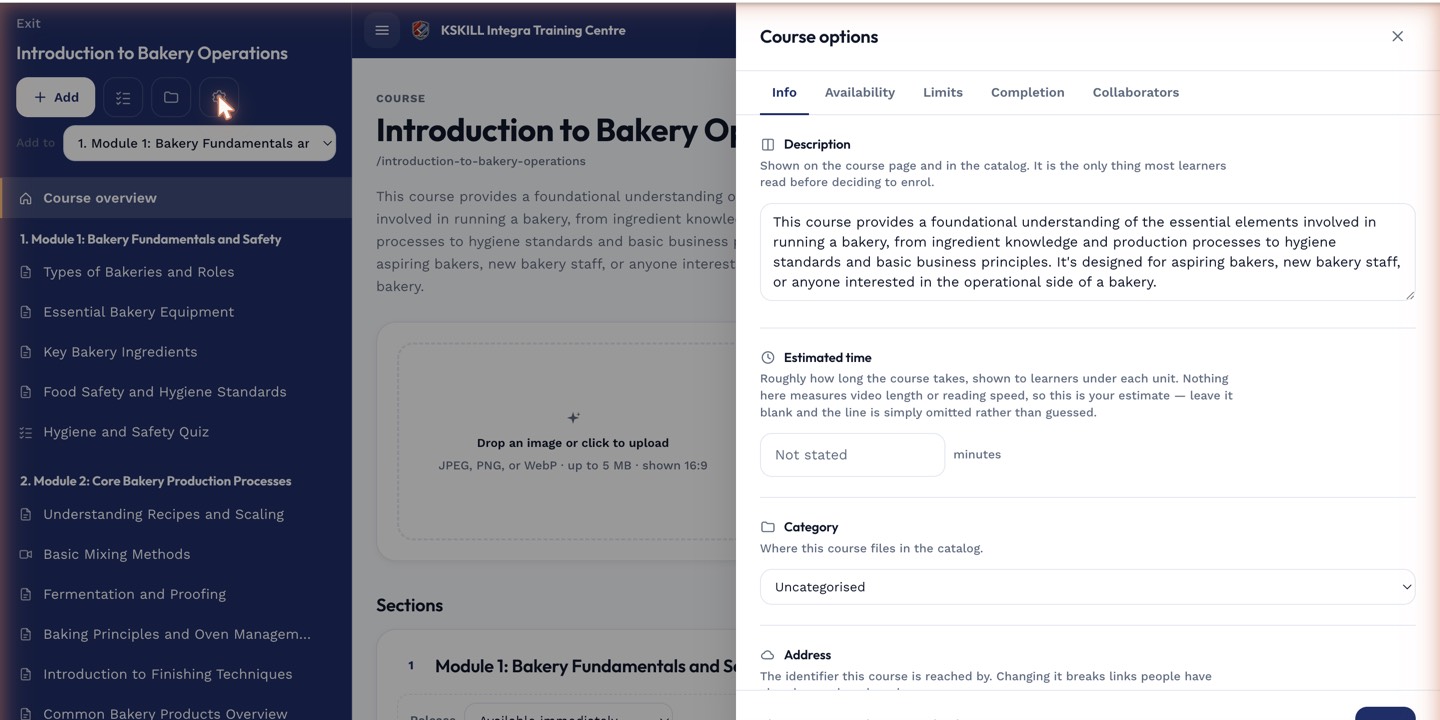
The options drawer is where every per-course rule lives — visibility, price, completion criteria, expiration.
Step 2 — How renewal fires
As an expiration date approaches, the holder gets a reminder notification. Retaking and re-completing the course renews the certificate with a fresh date. The old certificate is superseded but stays in the audit log.
Certificates land here the moment a learner completes the course that issued them.
Step 3 — Mass renewal via course expiration
If you tie course expiration to certificate expiration, the flow is automatic — expired courses require the learner to redo the units, which re-issues the certificate. This is the compliance-training pattern.
My Learning is the learner's default landing page — every enrolled course is one click away.
Notes
- Expired certificates hide from the learner's wall but stay in the audit log.
- Re-award via Mass re-award only affects existing certificates; it doesn't change future issuance.