The Custom /checkout Page: Stripe vs Billplz
Learners complete purchases on your own branded /checkout page — not a generic third-party page. What that page looks like depends entirely on which gateway is active.
Shared layout
Regardless of gateway, /checkout shows an Order Summary card (course, price, any deposit/installment breakdown) and a Payment card, both styled with your tenant's logo and color scheme.
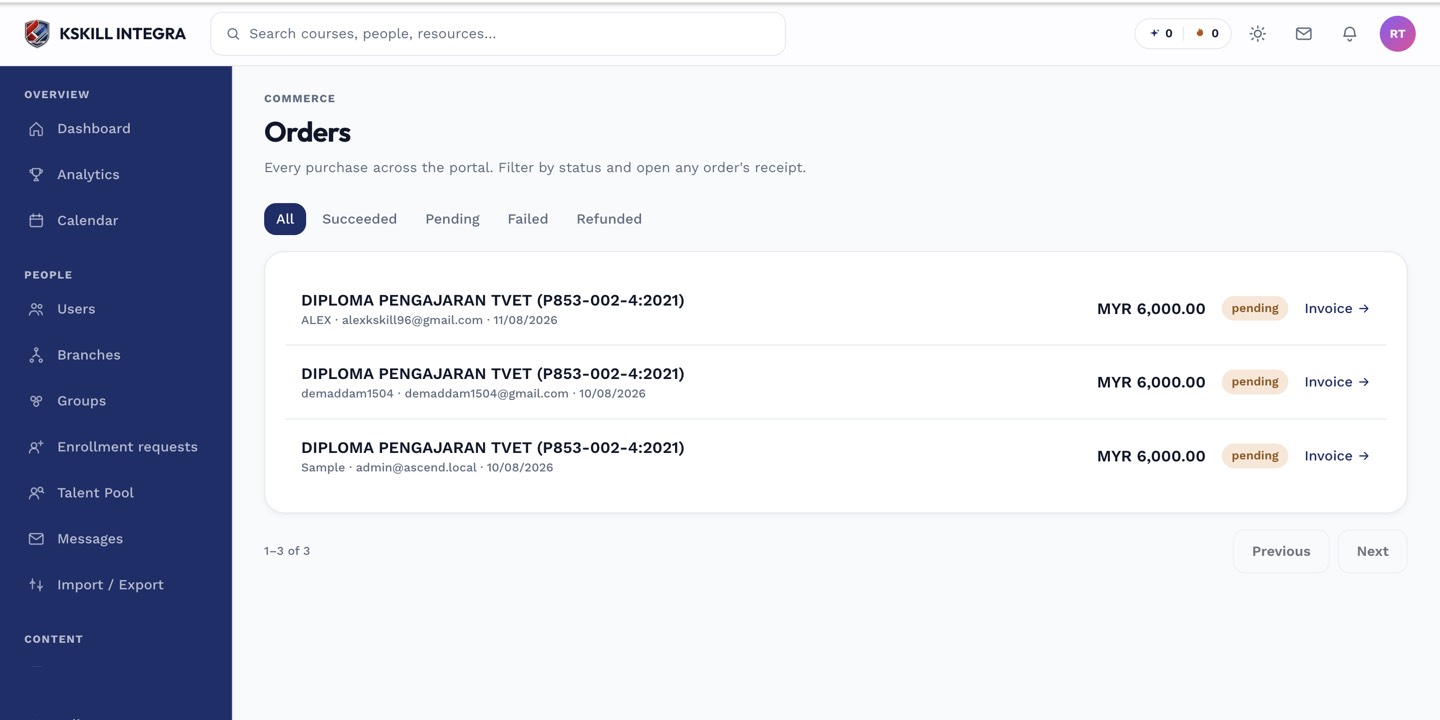 The Order Summary card always reflects your tenant's branding, whichever gateway is active.
The Stripe path
When Stripe is active, the Payment card renders Stripe's Payment Element inline. Card entry, wallet buttons, and confirmation all happen without the learner leaving your domain.
The Billplz path
When Billplz is active, the Payment card instead shows a Continue to secure payment button. Clicking it redirects the learner to Billplz's own hosted bill page to complete FPX or card payment, then returns them to your site once the payment settles.
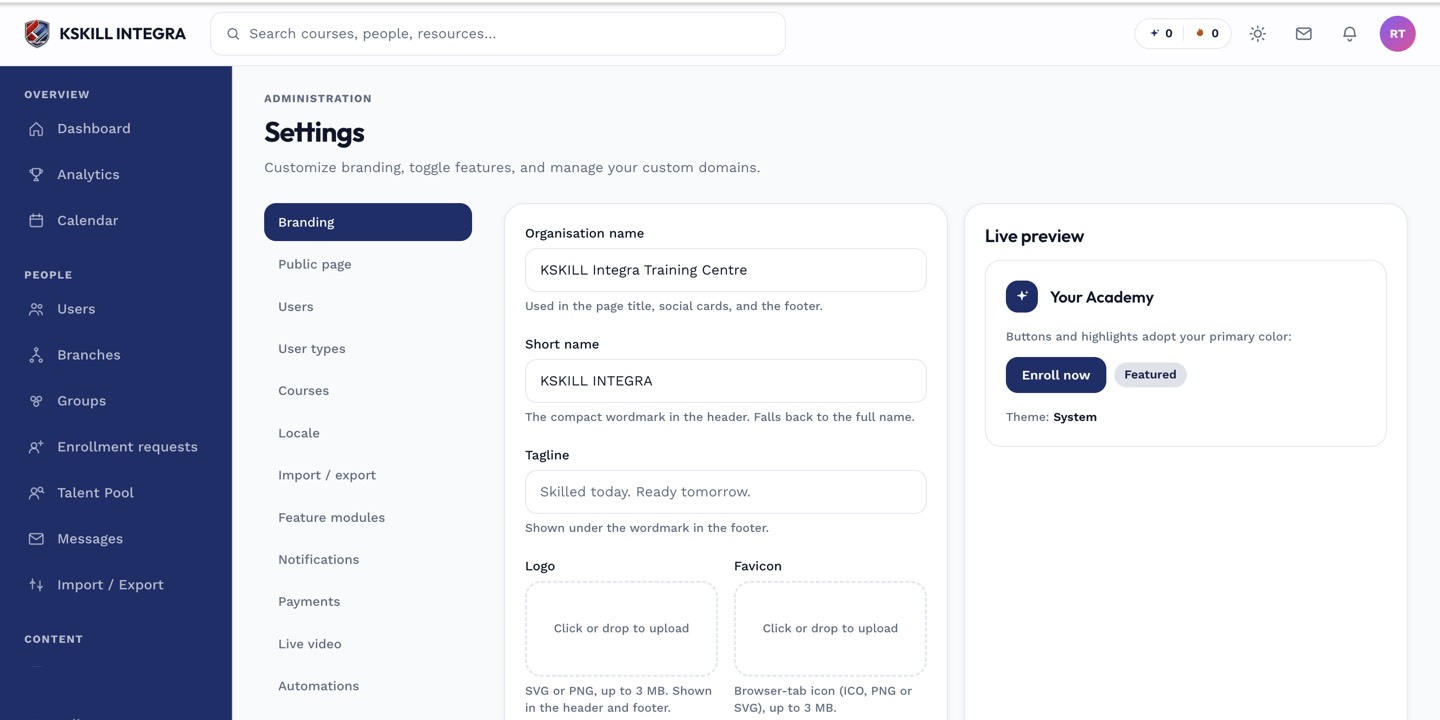 Whichever gateway is marked active in Payments settings is what /checkout renders for every learner.
Notes
You can't show both payment options side by side on /checkout — only one gateway is active tenant-wide (or per-branch, if branch overrides are enabled).