How to contact support
This article covers the three ways to reach support, and when each is the right choice.
Before you start
Any signed-in user can open a ticket. Live chat is only available if your tenant has enabled it under support settings.
Step 1 — Open the help panel
Every page has a small ? icon top right that opens the help panel. Search the KB first — most common questions have a step-by-step article with screenshots. If nothing matches, click Contact support at the bottom to open a ticket.
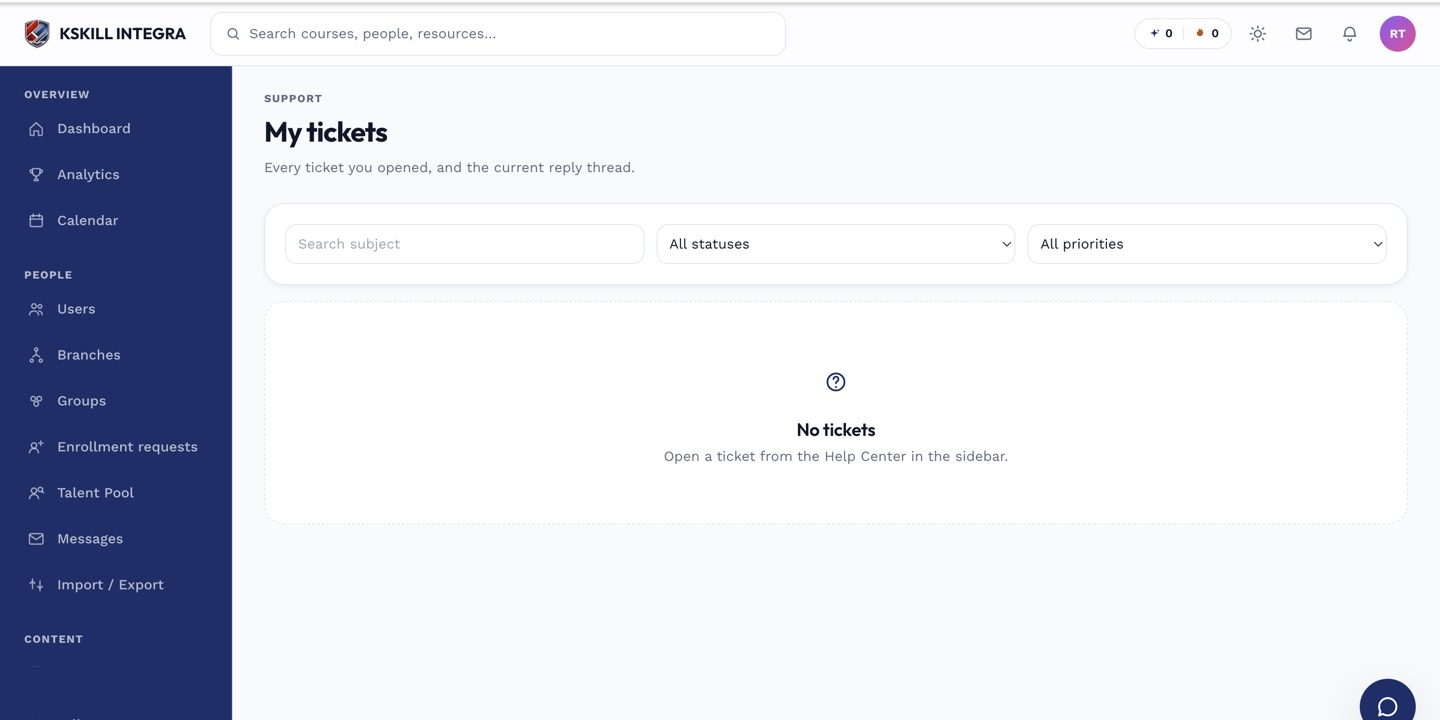
The learner ticket list shows every conversation with support in one thread view.
Step 2 — File a ticket
Fill in a short subject, describe what happened, and drop in a screenshot if you have one. Support gets it within seconds and replies inside the same ticket. You will see the reply in your inbox and (if you have notifications on) by email.
The learner ticket list shows every conversation with support in one thread view.
Step 3 — Use live chat if available
If your tenant has enabled live chat, a chat bubble appears bottom-right of every page. Click it to open a real-time conversation with a support agent — perfect for a quick question that would otherwise become a long ticket thread.
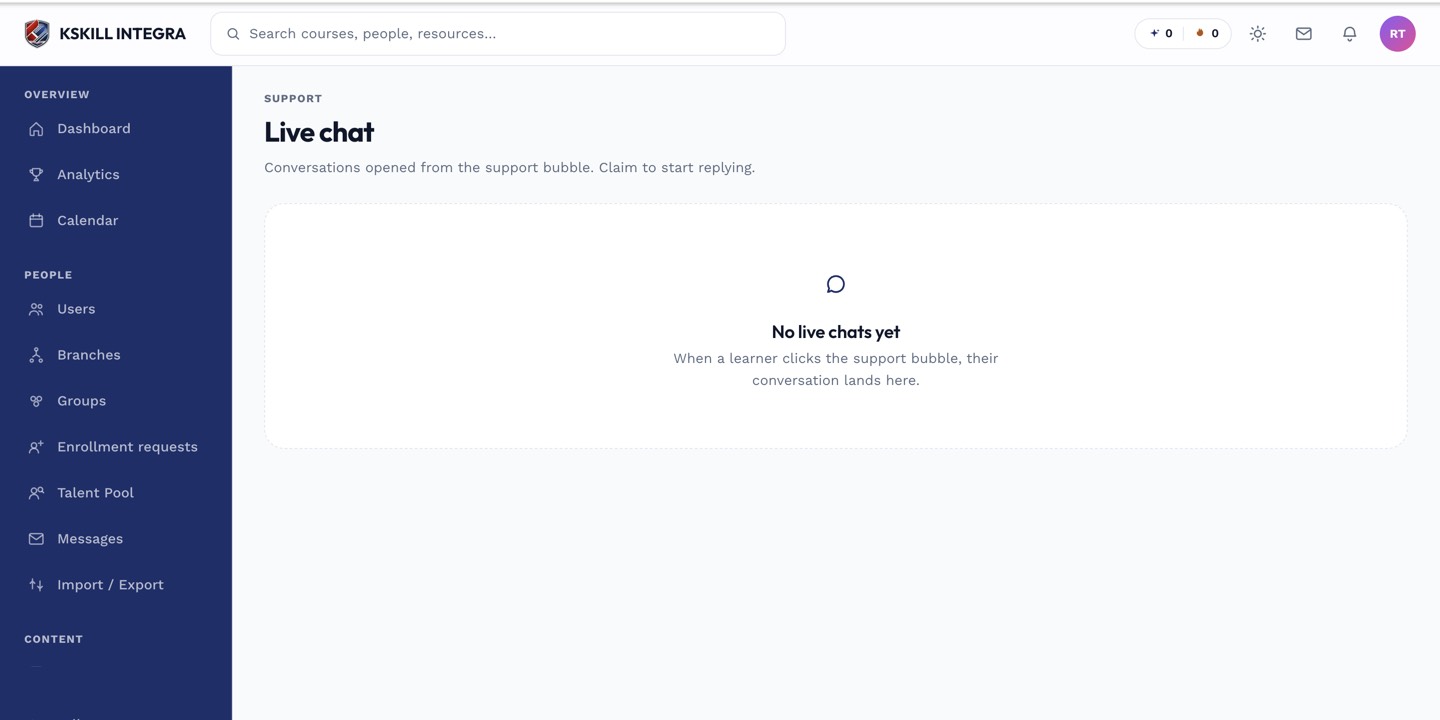
The live-chat agent inbox is where support staff pick up real-time conversations.
Notes
- Attach screenshots. A picture cuts a three-round back-and-forth into one reply.
- If your admin has configured an account manager card, their name and contact appear at the top of the help panel.