Getting started as a learner
Your dashboard is the launch pad. This tour points at the four surfaces every new learner returns to: My Learning, Catalog, My Skills and the calendar.
Before you start
You need an activated account. If you have not set a password, open the invite email from your admin and click the link inside.
Step 1 — Open My Learning
My Learning is your default landing page. Every course you are enrolled in shows up as a card with a progress bar. Click any card to jump straight back to the last unit you visited — the platform remembers the exact video timestamp or slide you left off on.
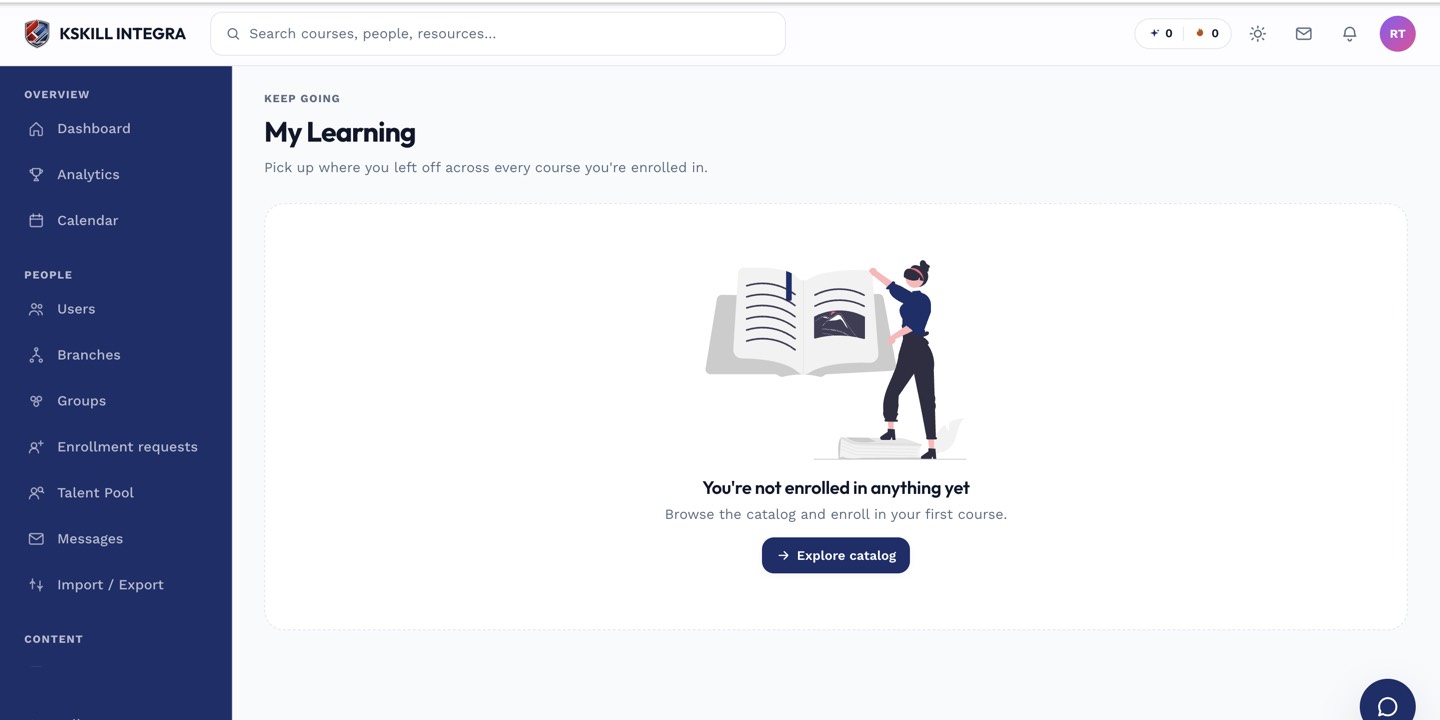
My Learning is the learner's default landing page — every enrolled course is one click away.
Step 2 — Browse the catalog
Open Catalog from the sidebar to see everything you are allowed to self-enrol into. Filter by category, tag or level and click Enrol on anything that looks useful. The course appears on My Learning the moment you enrol.
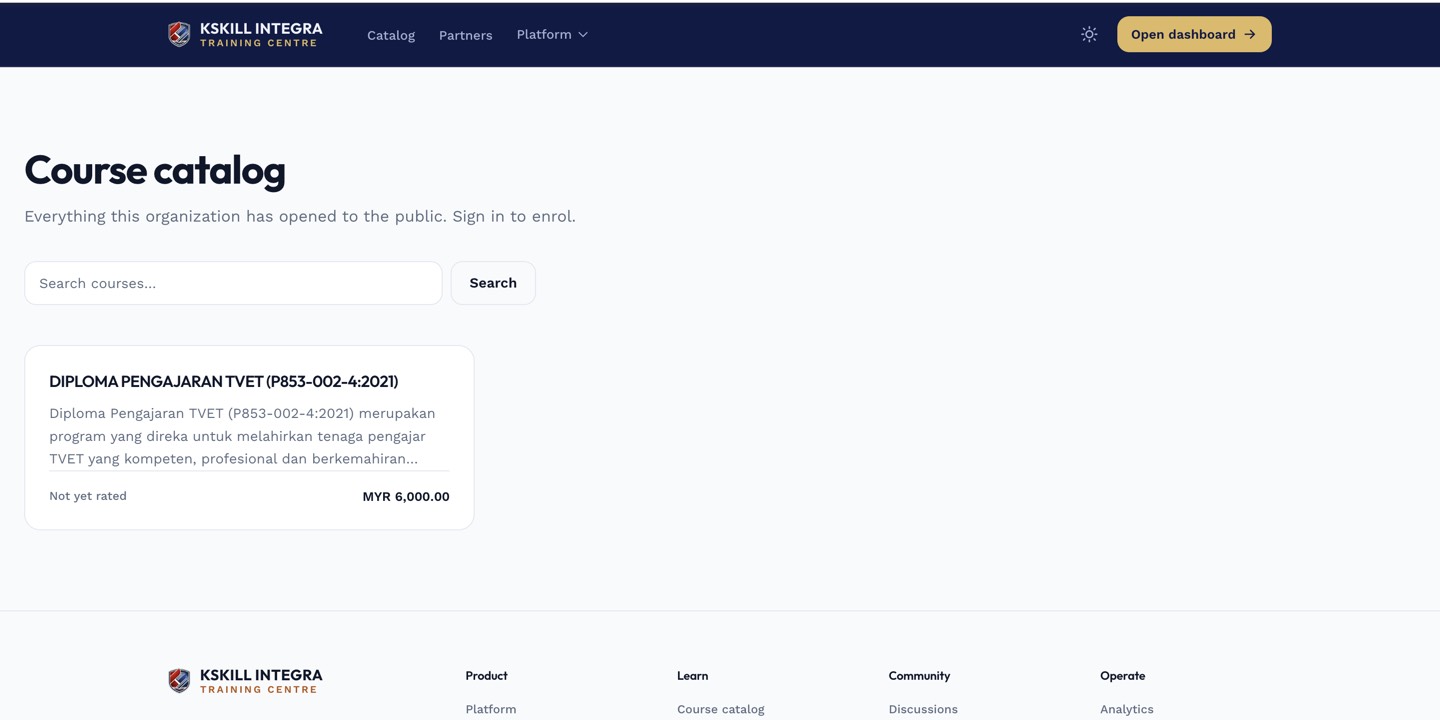
The catalog is the learner-facing shelf of everything a learner is allowed to self-enrol into.
Step 3 — Check your calendar and skills
Open Calendar to see every scheduled live class, cohort milestone and deadline. Open My Skills to see what you have already proven and what you are still working toward. Both pages update in real time as you progress.
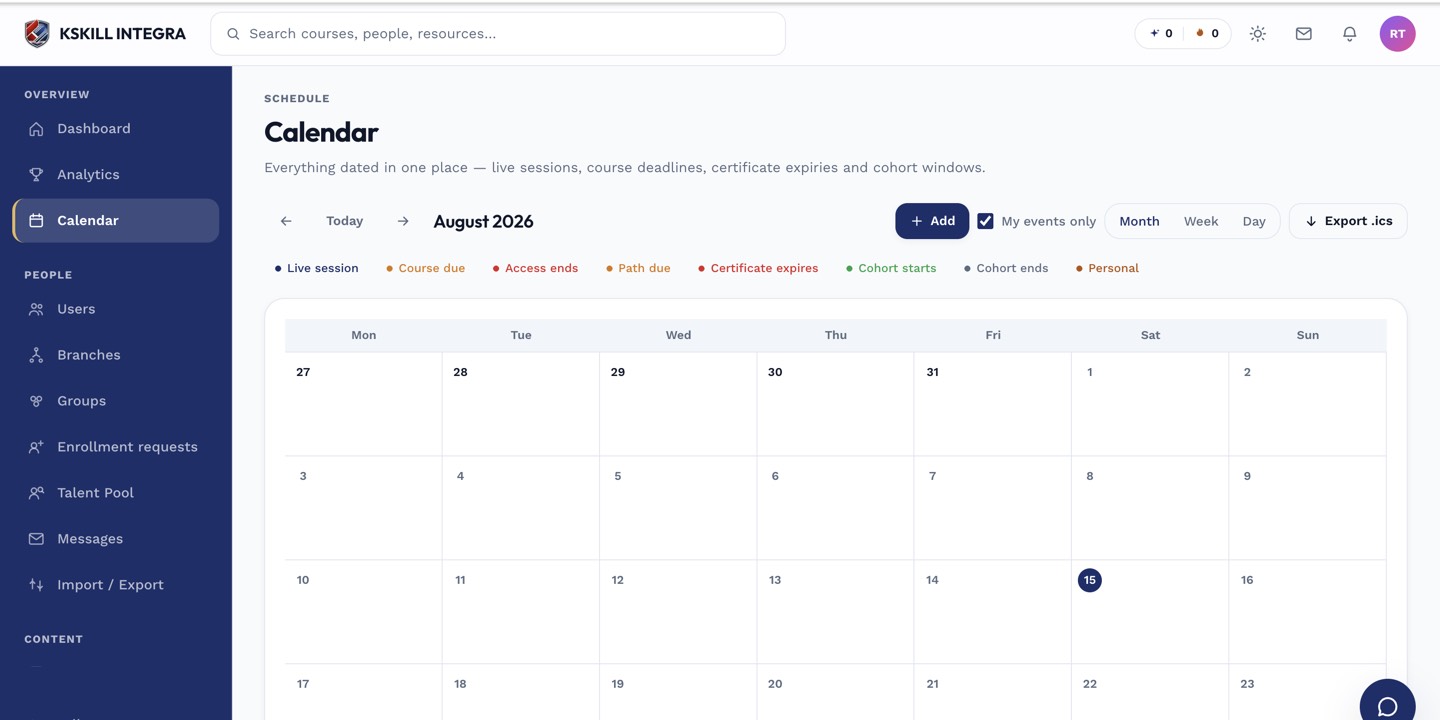
The calendar shows every scheduled live class, deadline and cohort milestone.
Notes
- Every screen has a small ? icon top right that opens the relevant KB article without leaving the page.
- Your profile picture in the top-right corner opens account settings, notification preferences and sign-out.