CSV templates catalog
The platform ships CSV templates for every bulk import. This article covers finding and using them.
Before you start
You need the Admin role.
Step 1 — Open the templates page
Open Configuration → Settings and pick CSV templates. The page lists every supported import — users, enrolments, completions, skills, groups — with a download link for each template.
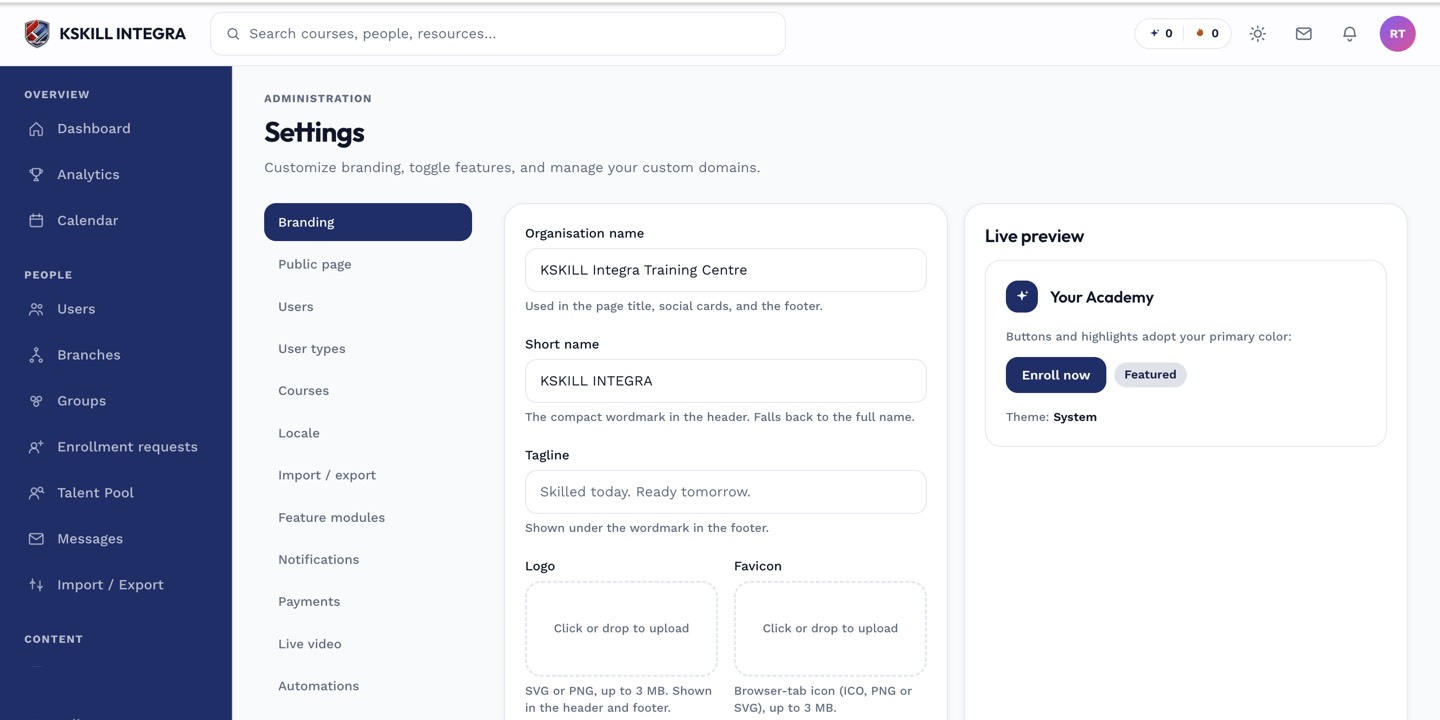
The Settings page is the single home for every tenant-level toggle.
Step 2 — Download and populate
Click Download template next to the import you want. The CSV opens in Excel with the required headers on row 1 and a sample row on row 2 as an example. Delete the sample and paste your data below.
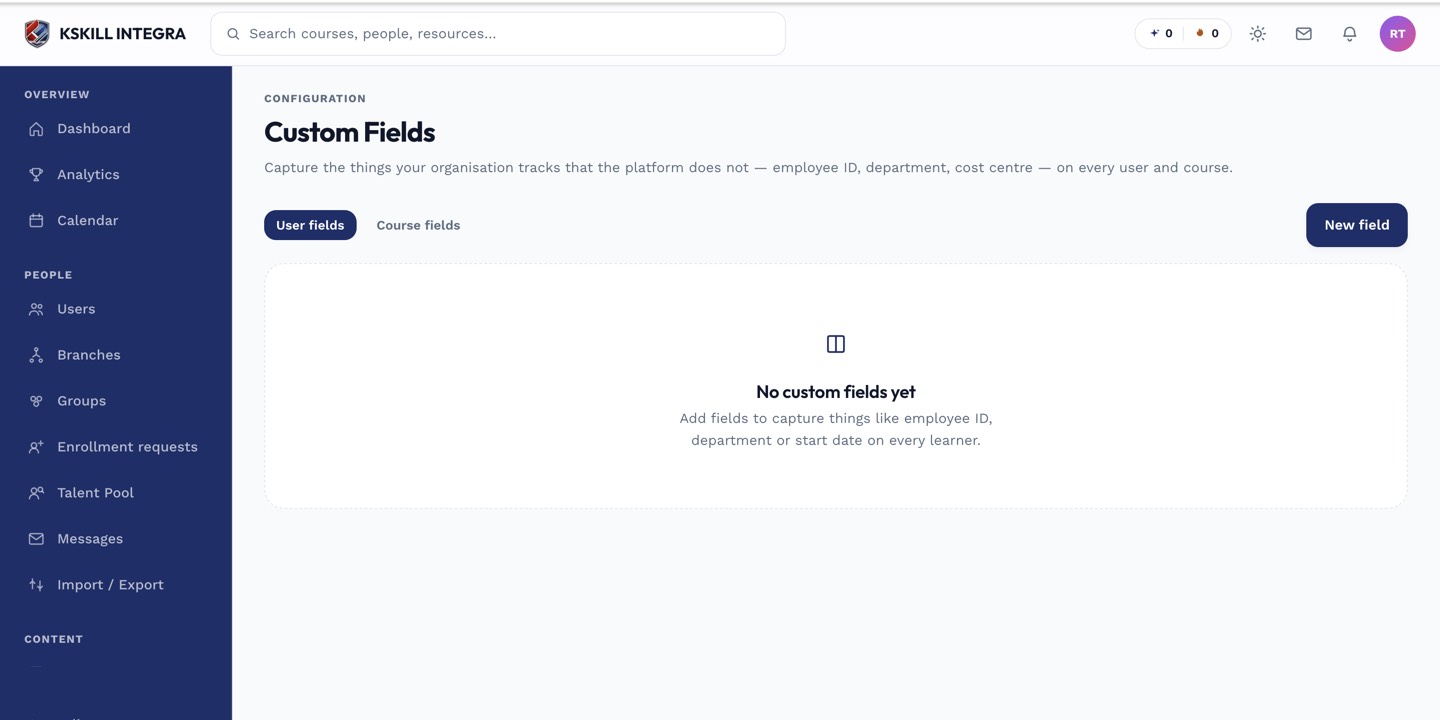
Custom fields extend the built-in profile so you can capture the columns your CSV imports need.
Step 3 — Import via the target page
Each import runs from its target page — users on Users, enrolments on Enrolments, and so on. Upload your populated CSV and confirm. The error report is your reconciliation tool.
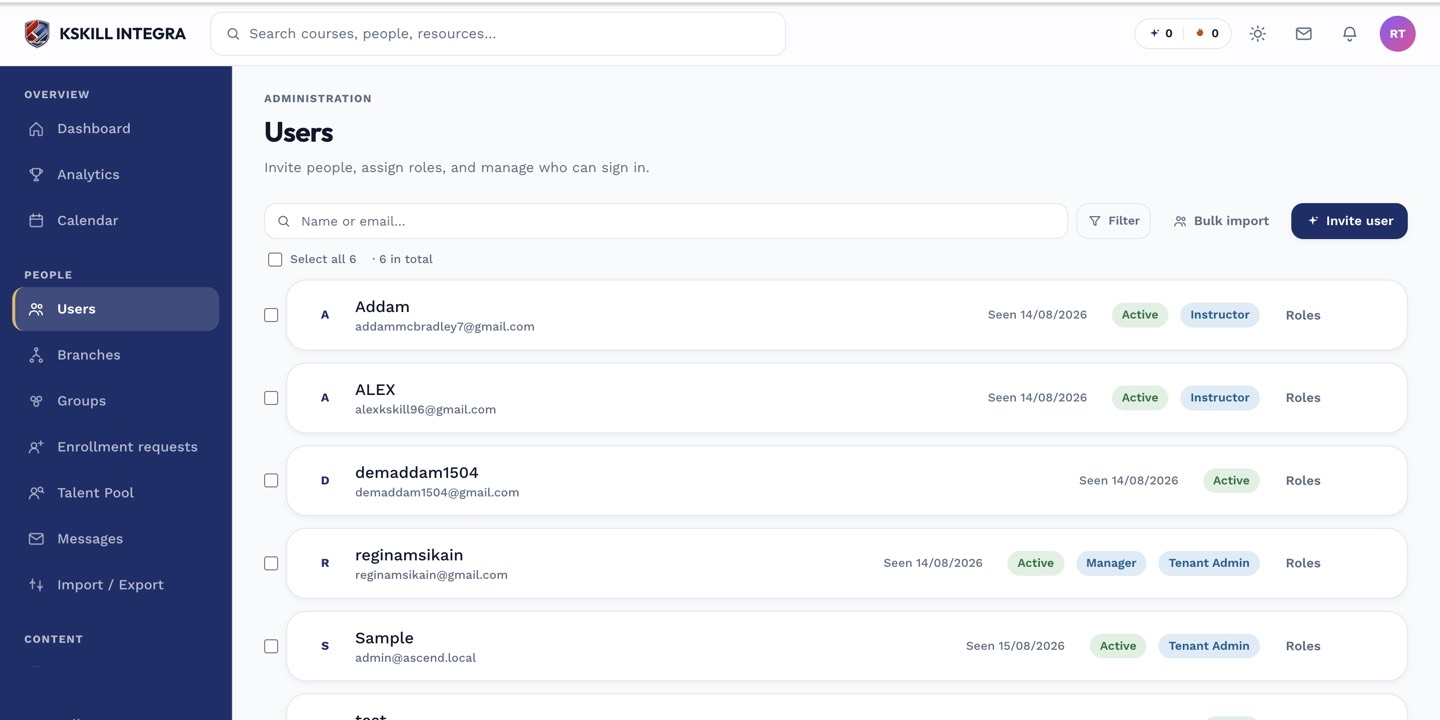
The Users list is the entry point for every person-related admin task.
Notes
- Always start from the current template — column requirements change with new releases.
- Save as UTF-8 to avoid non-ASCII character issues.