Data export for GDPR
The GDPR export gathers everything the platform holds about a user into one ZIP. This article covers running it.
Before you start
You need the Admin role. The export can take a few minutes for active users with lots of history.
Step 1 — Open the user profile
Open People → Users, click the user, and pick GDPR → Export all data from the overflow menu.
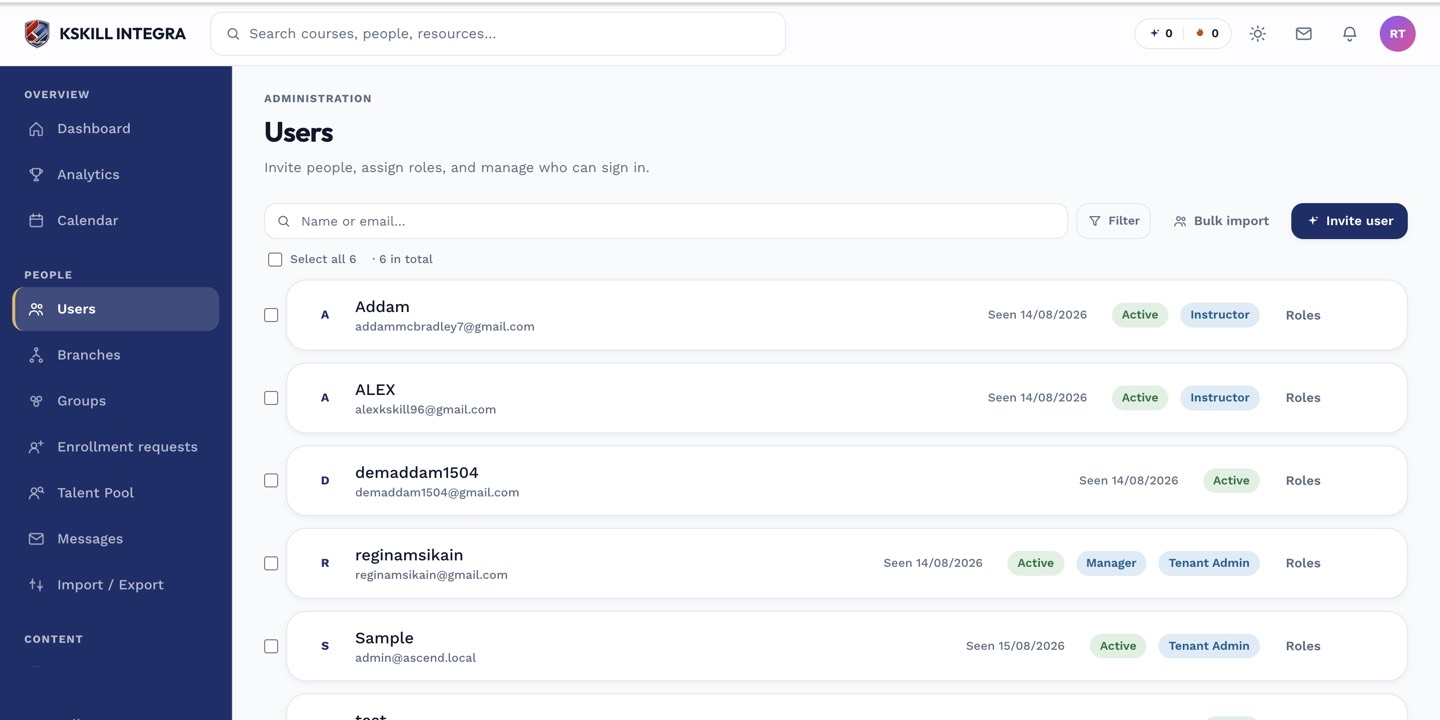
The Users list is the entry point for every person-related admin task.
Step 2 — Run the export
Confirm the export. The platform queues a job that gathers profile, enrolments, submissions, messages, audit entries and certificates. When done, it emails a signed download link to the requester (usually the admin acting on behalf of the user).
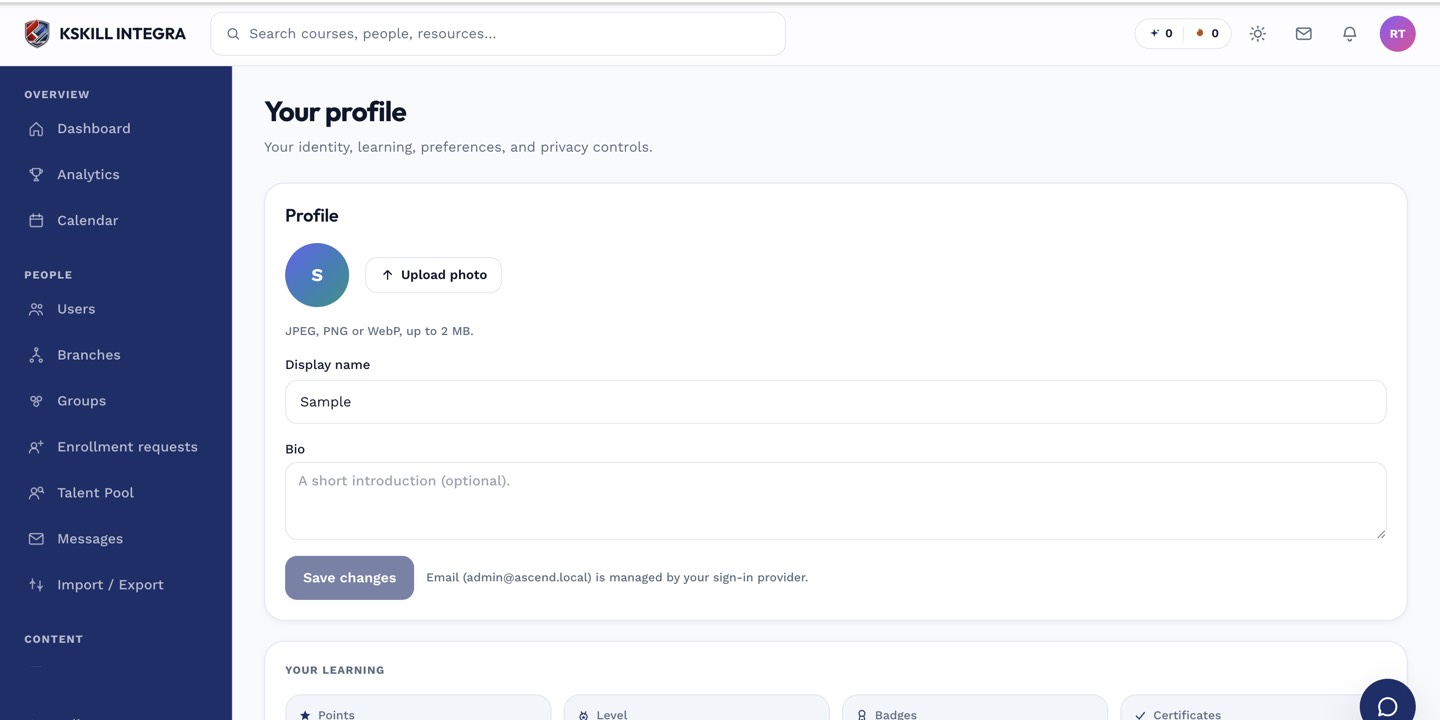
The account settings page is where a learner controls their own personal data.
Step 3 — Deliver to the requester
The link expires in 24 hours. Forward it to the data subject through a secure channel. If they can't download in time, run the export again — the underlying data doesn't change between exports.
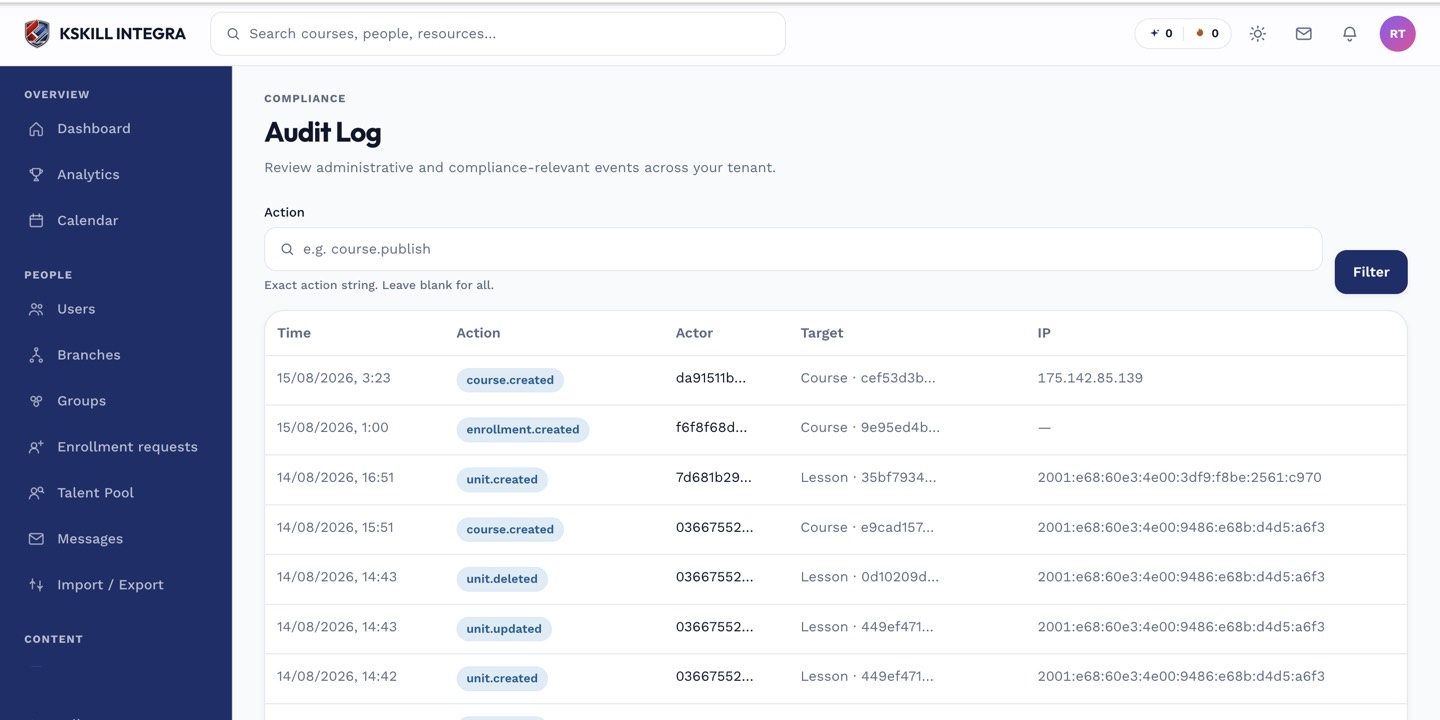
The audit log is your immutable record of who did what.
Notes
- Users can request their own export from account settings if you've enabled the self-service surface.
- Legal holds override export — held records are always included regardless of retention.