Enrol in a course from the catalog
The catalog is the fastest way to enrol yourself in an optional course. This article covers browsing, filtering and enrolling.
Before you start
You need to be signed in. A course only appears in your catalog if the admin has marked it Public in catalog for your branch.
Step 1 — Open the catalog
Open Catalog from your sidebar. Every self-enrollable course shows as a card with its cover image, category, level and rating. Use the filter chips at the top to narrow by category, level or price.
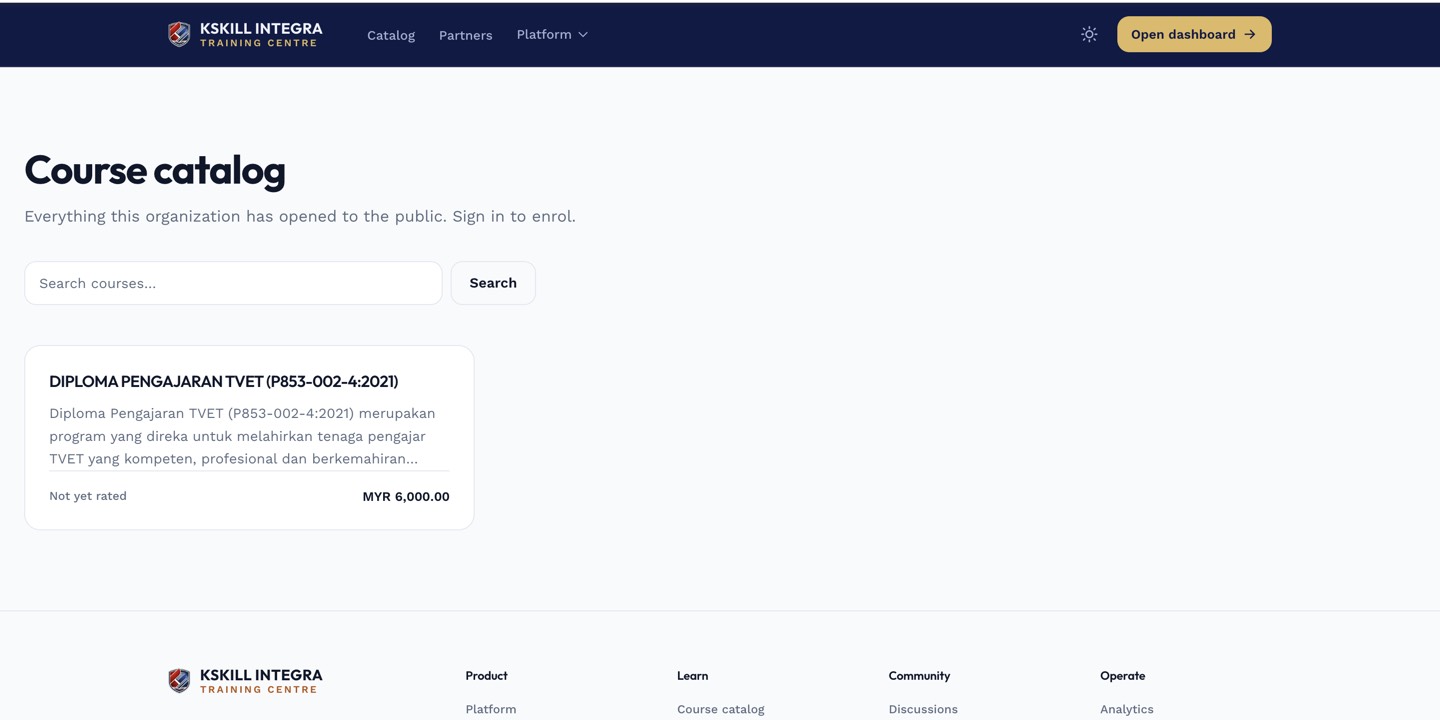
The catalog is the learner-facing shelf of everything a learner is allowed to self-enrol into.
Step 2 — Preview the course
Click a card to open its landing page — description, syllabus, instructor and any preview units the author enabled. Nothing enrols you until you actively click the button on this page.
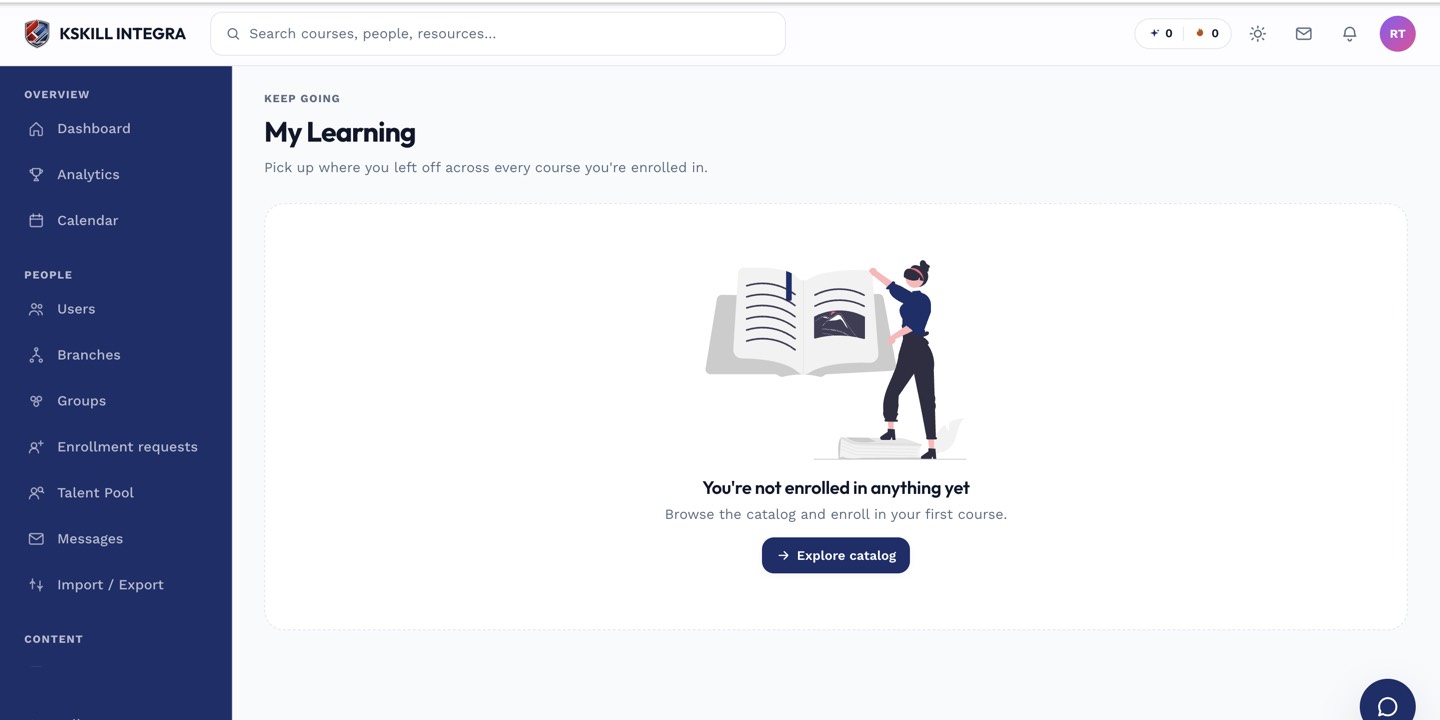
My Learning is the learner's default landing page — every enrolled course is one click away.
Step 3 — Enrol and start
Click Enrol. Free courses drop you straight into the first unit. Paid courses take you to checkout first. Either way, the course appears on My Learning the moment you finish, ready for you to continue any time.
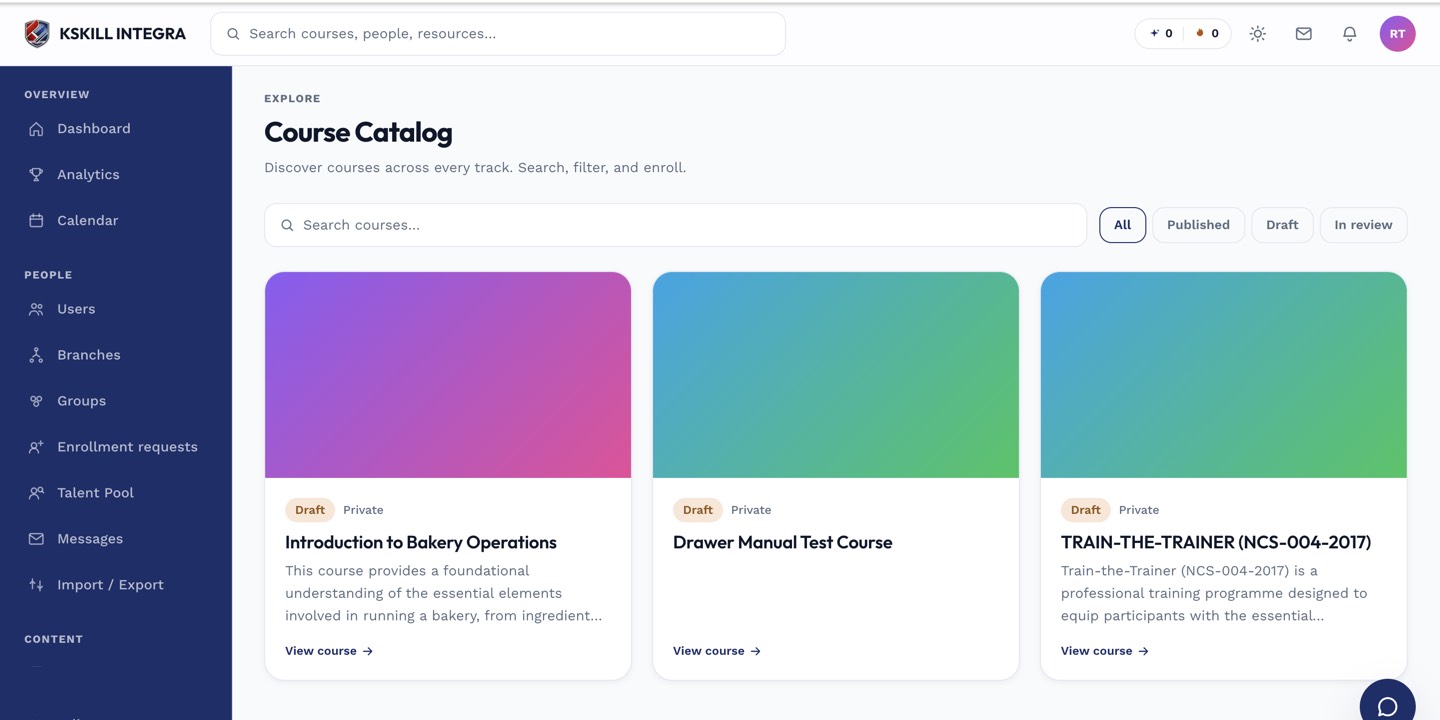
My Courses is the learner's grid of everything they are currently enrolled in.
Notes
- If the course has a prerequisite you haven't finished, the Enrol button is disabled and the missing prerequisite is called out.
- Some courses need admin approval to enrol — the button says Request enrolment instead.