Notification preferences (learner)
Every notification the platform can send you — a graded assignment, a new message, an upcoming live class — has a preference switch. Notification preferences let you choose which of these you actually want to receive, and on which channel.
Where to find it
Open your account menu and choose Notification preferences. You will see a list of events grouped by area — courses, messages, support, billing — each with a toggle per channel (in-app, email, and any others your tenant has enabled).
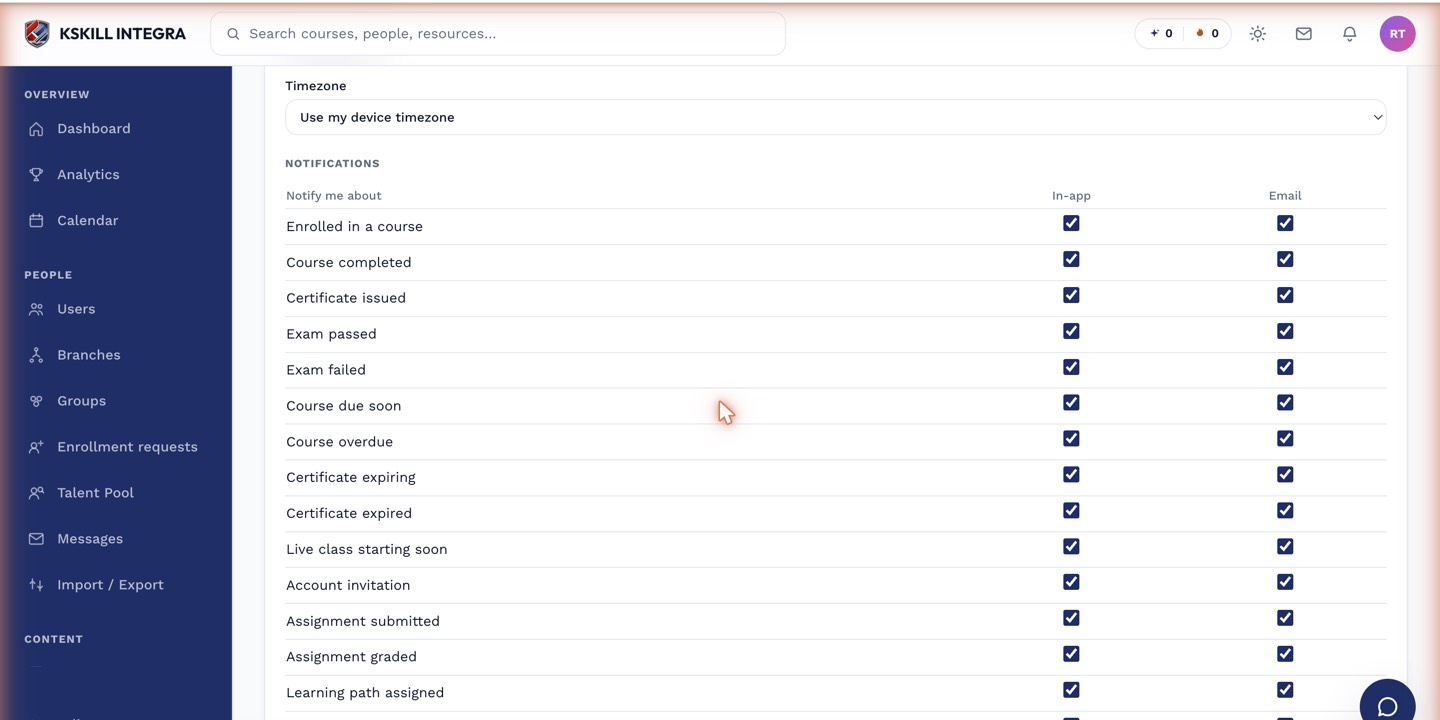 Each row is one event; each column is one delivery channel.
What you can control
- Turning a channel on or off for a specific event, such as email for new messages but not in-app.
- Muting events you don't care about, like course reminders, while keeping others, like payment receipts.
- Reviewing billing-related events if your course access is on an installment plan — see the installment payment events for what those three specifically mean.
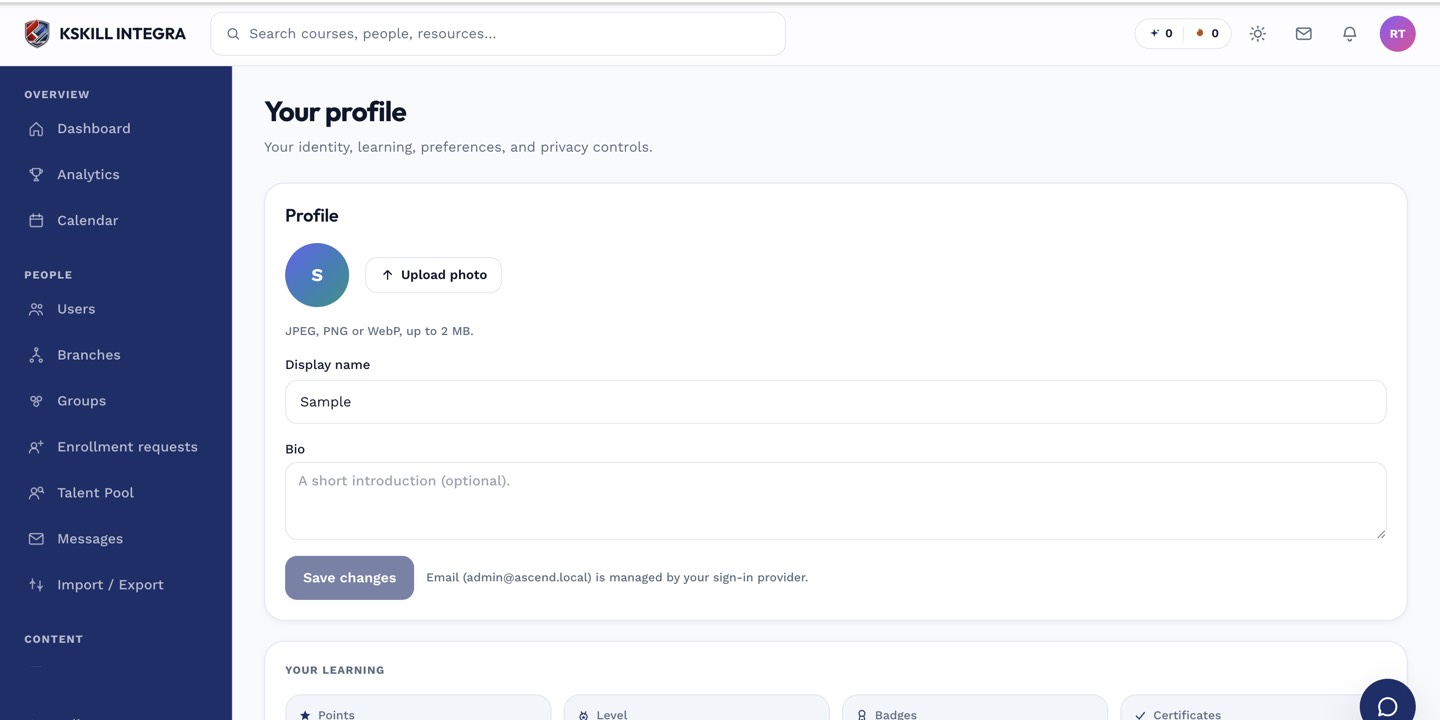 Notification preferences live alongside your other account settings.
Notes
Turning a preference off stops delivery to you personally — it does not change whether the event fires at all. If your tenant admin has not created a notification rule for a given event yet, you won't see it here because there is nothing to subscribe to. See how admins configure notification rules for the other half of the picture.