Play a video lesson
Video lessons play in-browser without extra plugins. This article covers the controls and how progress is tracked.
Before you start
You need to be enrolled in the course. Videos work on any modern browser — Chrome, Firefox, Safari, Edge.
Step 1 — Open the video unit
The video unit shows a player with the standard play, pause, seek and volume controls. Captions (where authored) appear via the CC icon; playback speed is under the gear icon. The whole toolbar auto-hides after a few seconds so it does not sit over the content.
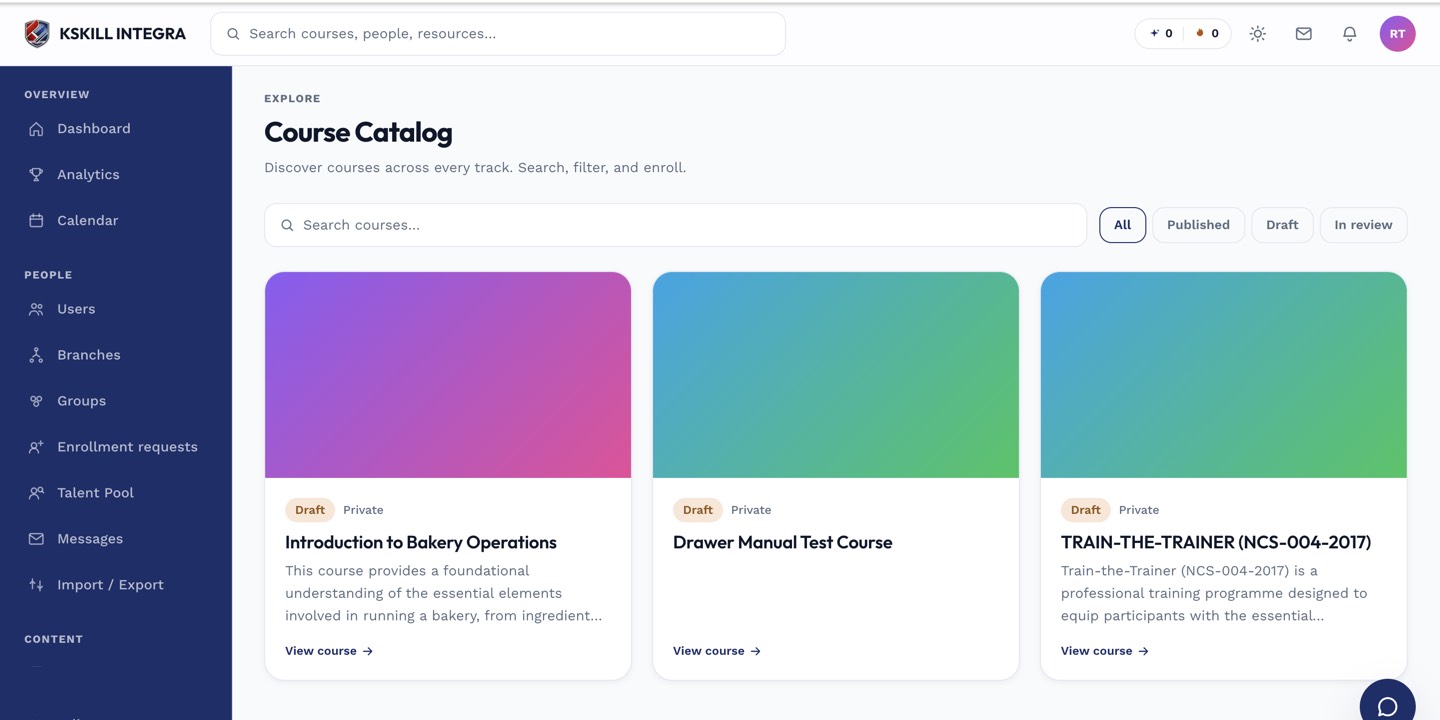
My Courses is the learner's grid of everything they are currently enrolled in.
Step 2 — Watch to completion
The unit counts as complete when you have watched enough of the video — usually 90% by default. You can seek forward, but the completion threshold requires the video to have been rendered. Some authors block skipping entirely; you'll see the seek bar greyed out.
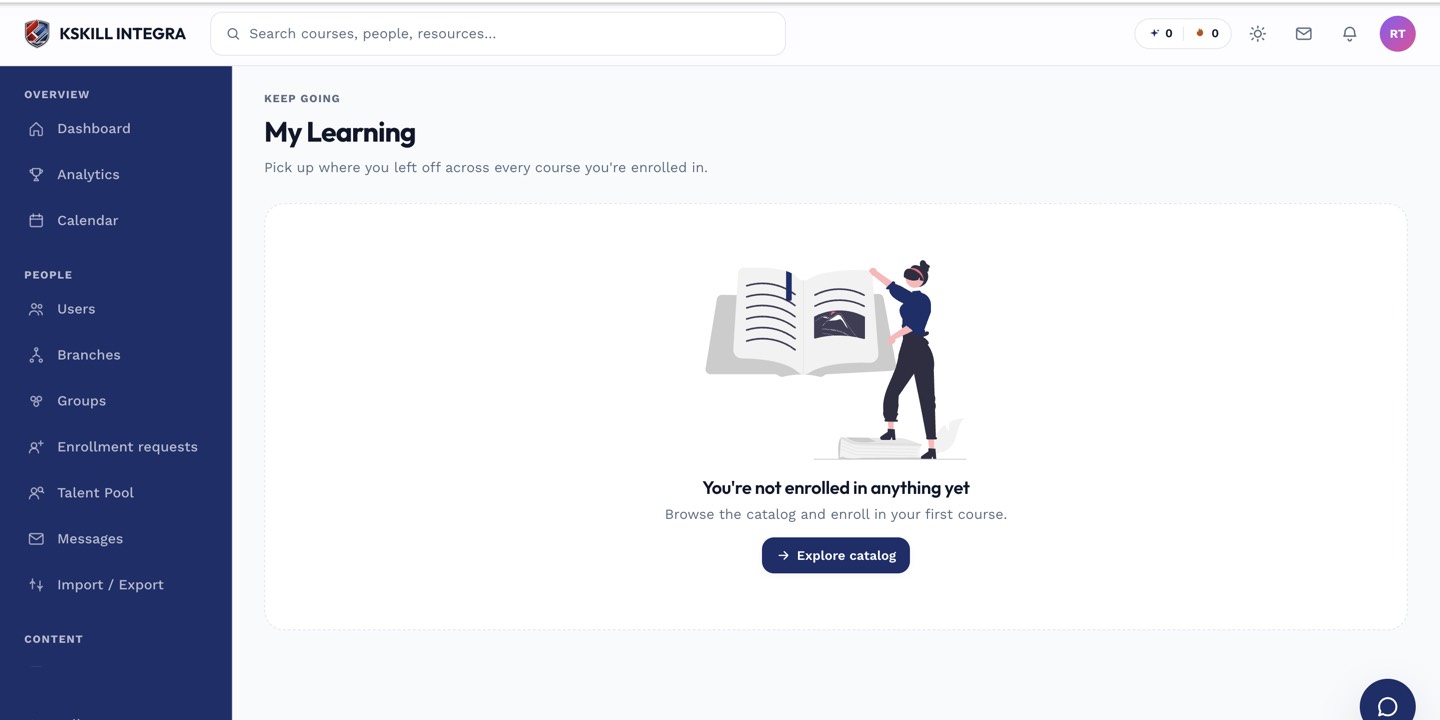
My Learning is the learner's default landing page — every enrolled course is one click away.
Step 3 — Resume if you leave
Close the tab and come back later; the video resumes at your last position. Bookmarks sync so switching from laptop to phone continues where you left off. If the resume is off by a few seconds, that is a hard-crashed session — nothing lost otherwise.
My Learning is the learner's default landing page — every enrolled course is one click away.
Notes
- Videos with captions are strongly encouraged for accessibility — ask the author if a lesson has none.
- Downloads are disabled by default; if you need offline viewing, ask your admin whether they enable it per course.