Report permissions
Report visibility is scoped by role and branch. This article covers who sees what and how to check before you share a link.
Before you start
You need the Admin role. Instructors see reports scoped to branches they belong to.
Step 1 — Understand the scopes
Admins see every report across every branch. Branch admins see their branch. Instructors see courses and learners in their branch. Learners see only their own progress. The scoping is enforced server-side — no way to leak.
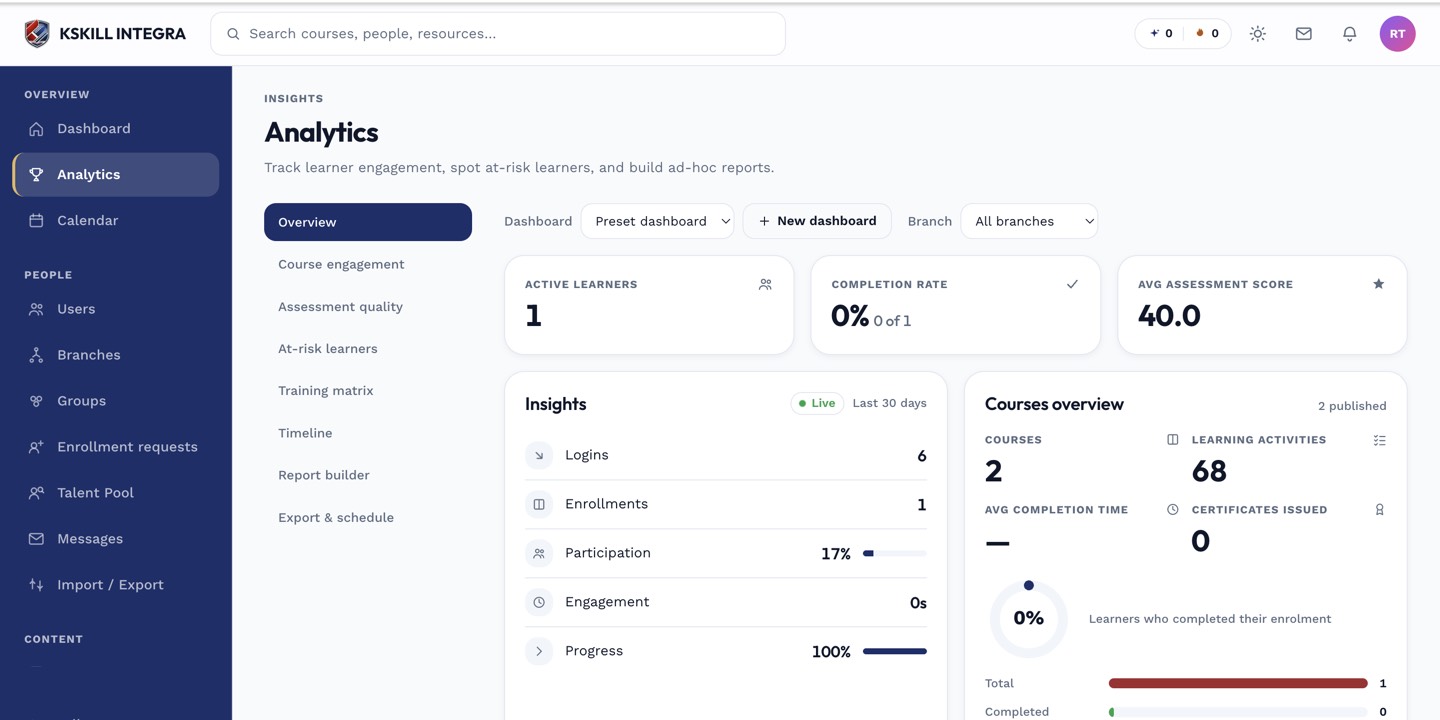
The Overview tab is the one everyone lives in — the deeper tabs answer sharper questions.
Step 2 — Share a saved dashboard
When you share a saved dashboard, the recipient sees it through their own scope — a branch admin viewing a tenant-wide dashboard sees only their branch's slice. This is by design; do not assume everyone sees the same numbers.
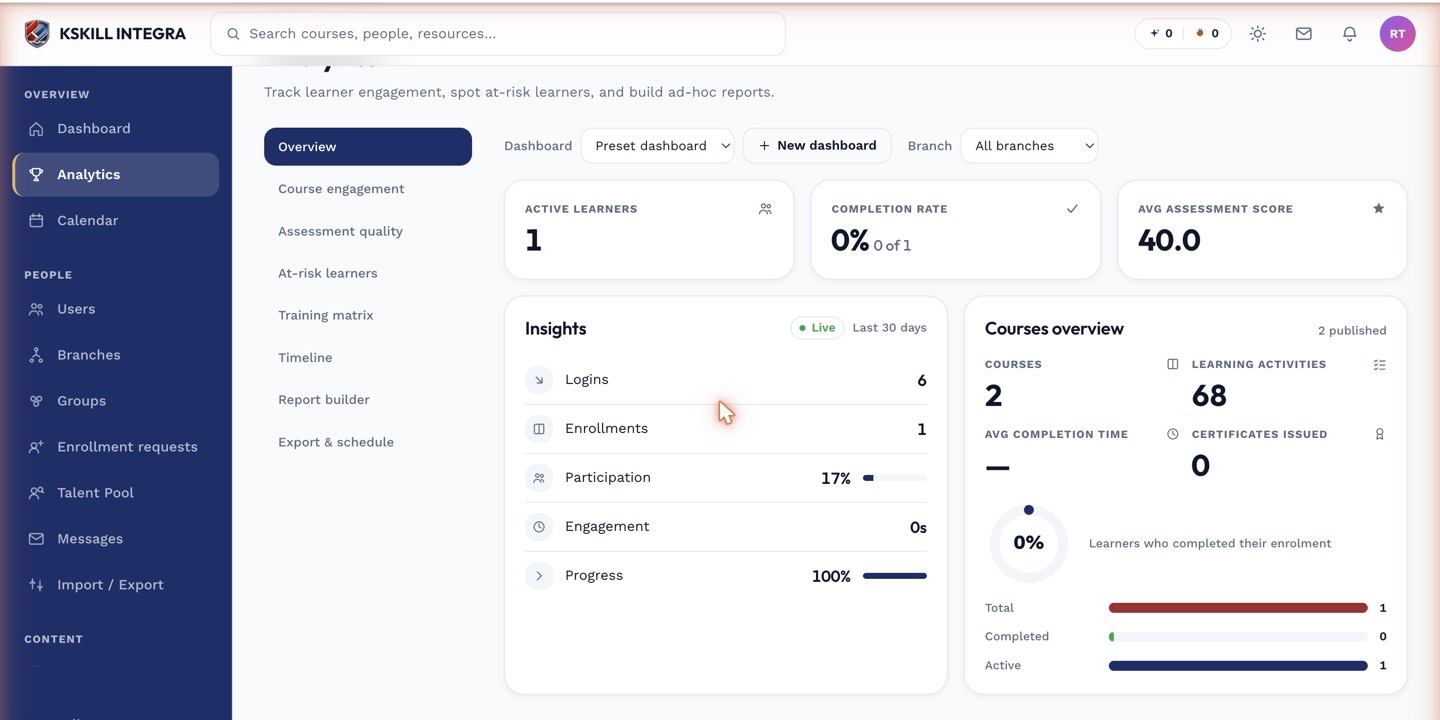
The detail panels give you the breakdown behind each KPI tile.
Step 3 — Verify with a test account
For sensitive reports, sign in as a test instructor account and open the link. Confirm they see what you expected — no leakage, no missing rows. Fix the scope in the dashboard's filters if the picture is wrong.
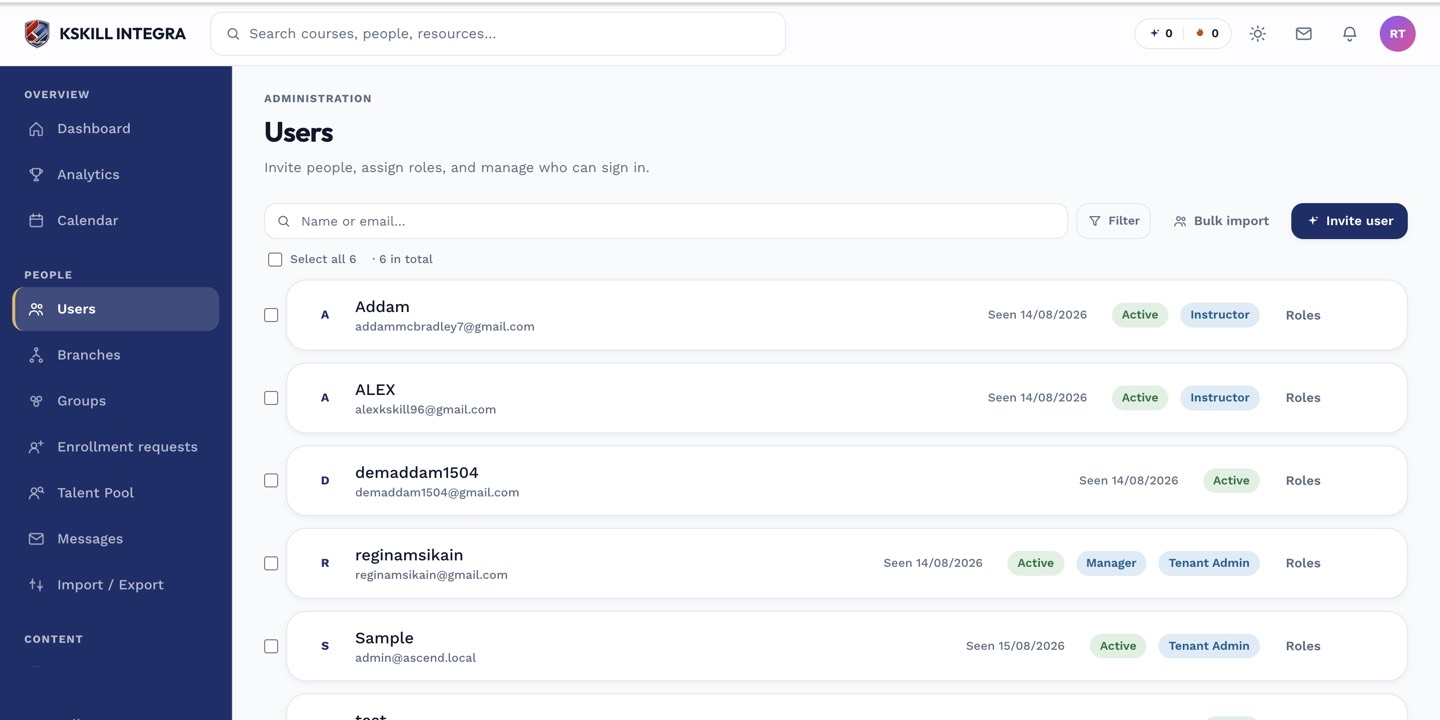
The Users list is the entry point for every person-related admin task.
Notes
- The API respects the same scoping as the UI.
- For a full cross-tenant view, use a super-admin account on the platform side.