Send a direct message
This article covers sending a direct message to one recipient.
Before you start
You need to be signed in. The recipient must be a user you are allowed to message.
Step 1 — Open Messages
Open Messages from your sidebar and click New message in the header.
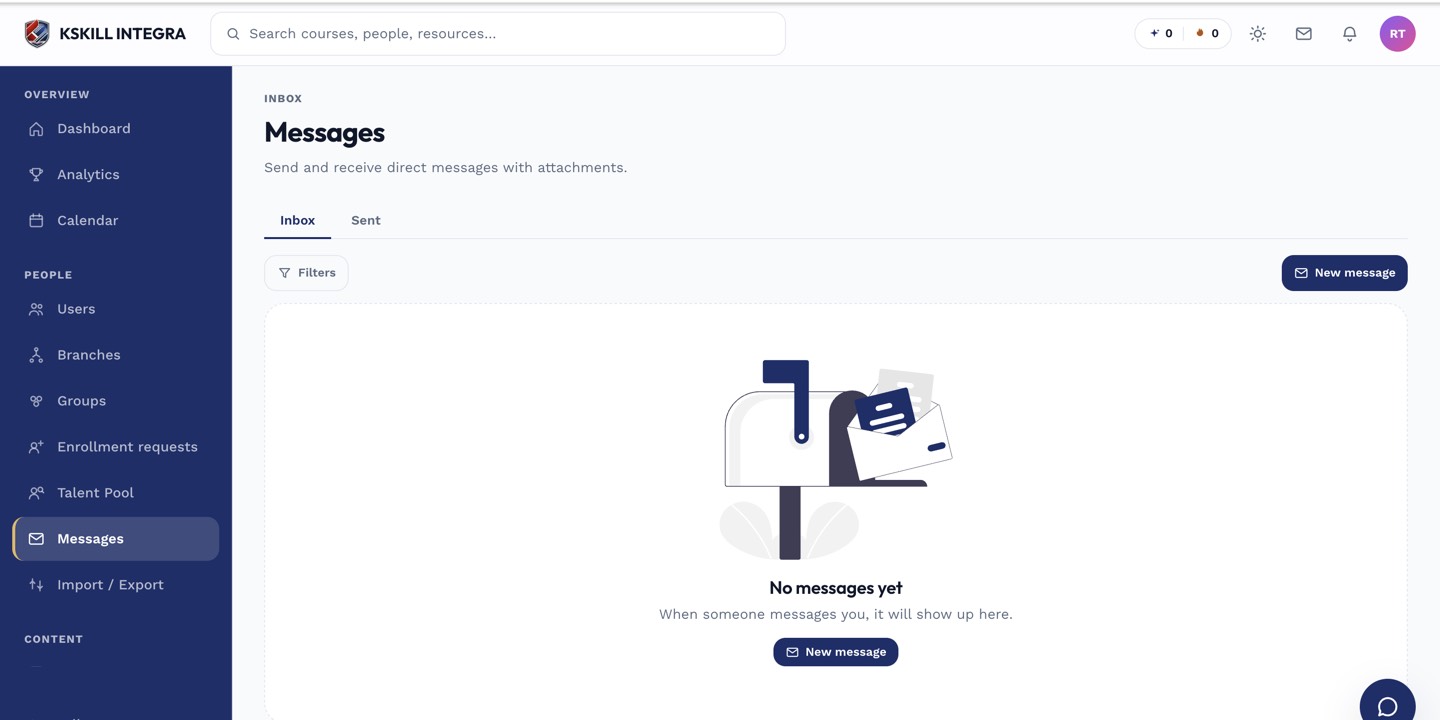
The inbox is where every direct message and broadcast lands.
Step 2 — Pick the recipient
Search by name or email in the recipient picker. Only users you're allowed to message appear (usually anyone in your enrolled courses plus instructors). Pick one and confirm.
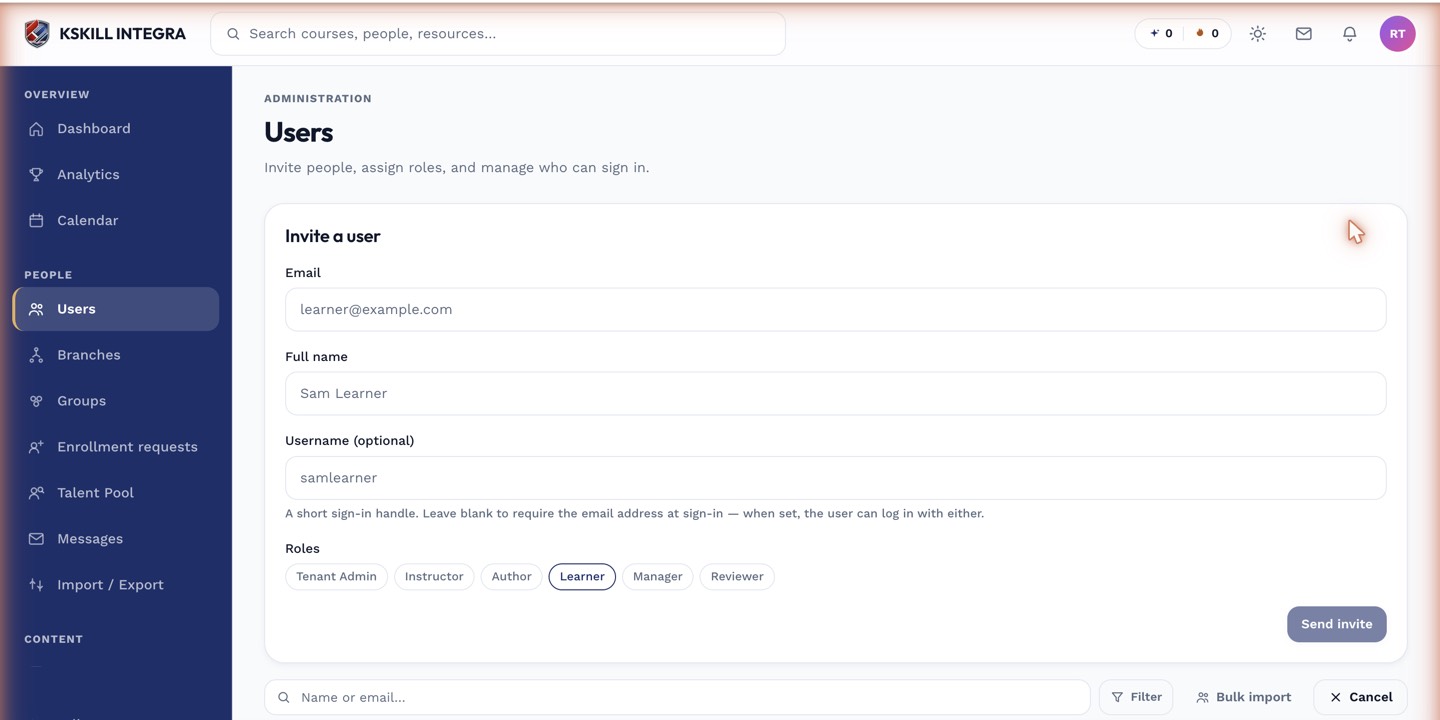
The invite drawer is the same shape whichever role you assign.
Step 3 — Write and send
Type your message. Rich text, code blocks and file attachments are supported. Send. The recipient sees the message immediately in-app and (if their prefs allow) via email.
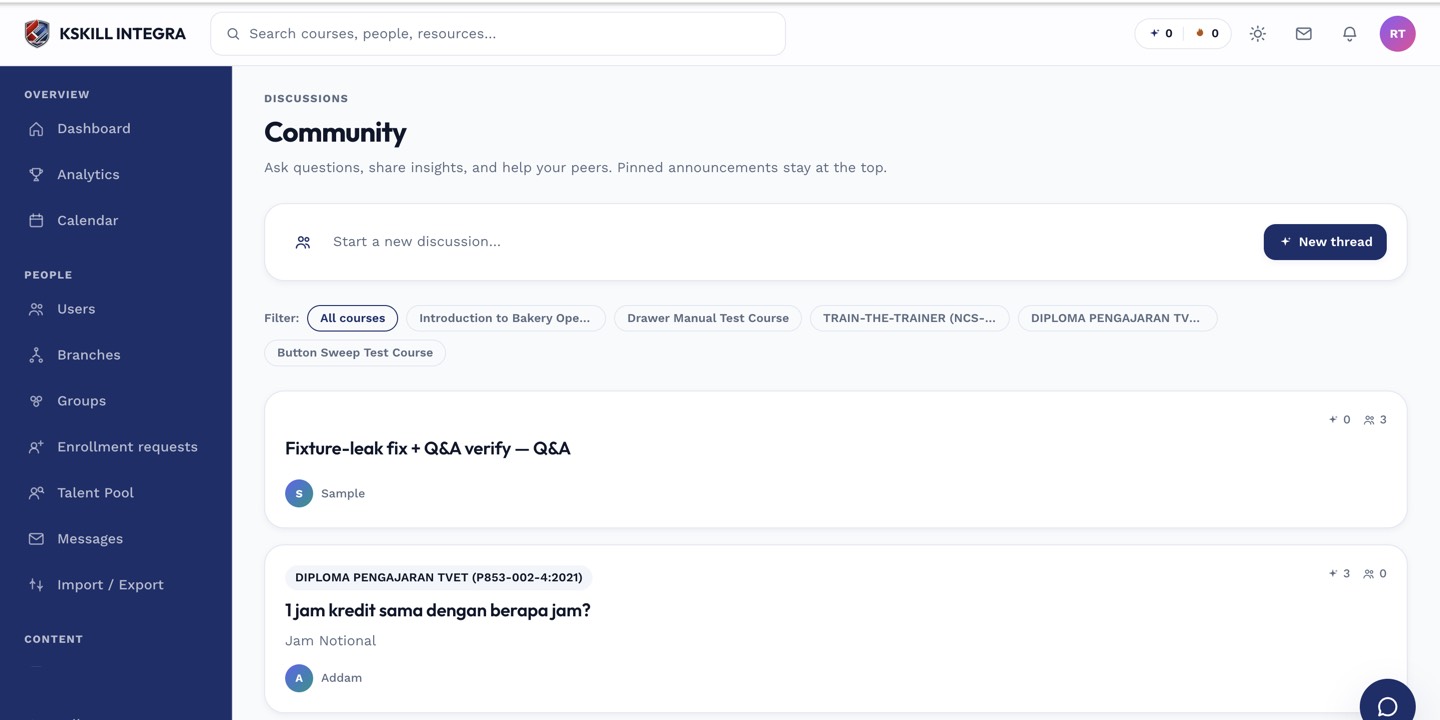
The community surface hosts open-ended discussion outside any single course.
Notes
- Replies land in the same thread — no need to start a new message for follow-ups.
- Attachments count against your account storage quota.