Set up payments (Billplz or Stripe)
If you sell courses or subscription plans, you need a payment provider connected. KSKILL Integra ships with Billplz (best for Malaysia) and Stripe (best for international).
Before you start
You need the Admin role. Create the merchant account with your provider first — the LMS does not sign you up.
Step 1 — Open Payments
Open Configuration → Settings. Scroll to the Payments card, or use the sidebar within Settings to jump straight to it. Everything about how learners pay lives on this one page.
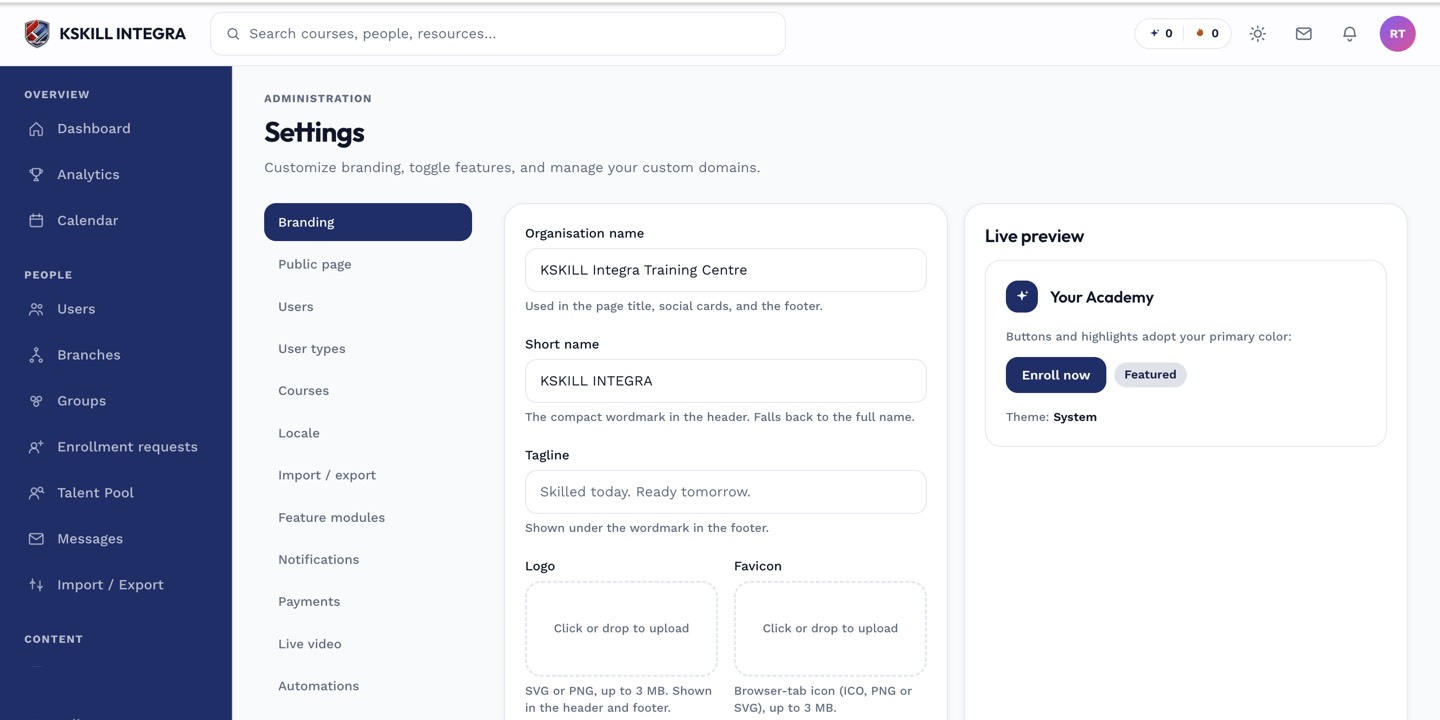
The Settings page is the single home for every tenant-level toggle.
Step 2 — Enter your credentials
Pick Billplz for MYR + FPX, or Stripe for cards worldwide. Paste the API key + Collection ID (Billplz) or Publishable + Secret keys (Stripe). Set the default currency, save, then click Test connection. The platform hits the provider's identity endpoint and reports back within seconds.
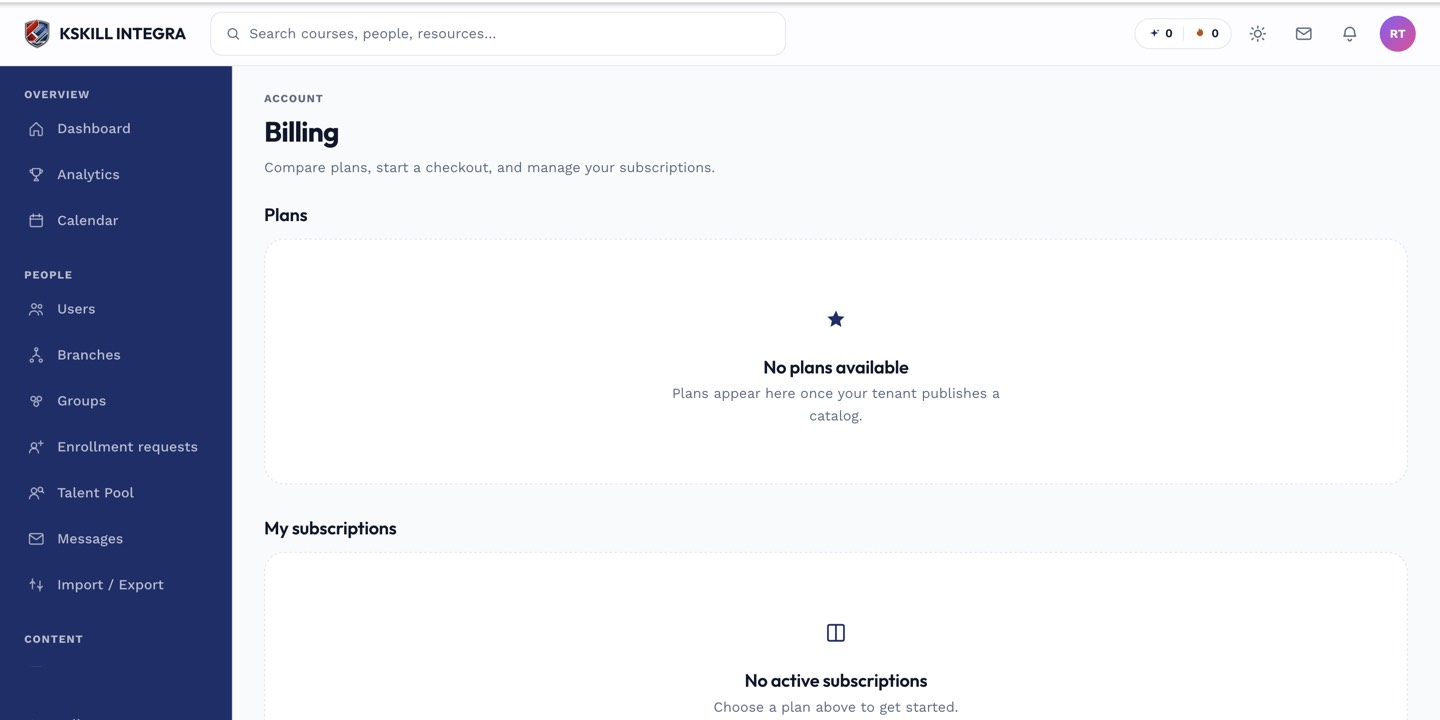
The billing surface reconciles what learners paid against what the tenant collected.
Step 3 — Review your orders
Once a payment provider is connected, every checkout lands in Configuration → Orders. The Orders page is the ledger of every purchase made on the tenant — refunds and webhook failures are visible there too.
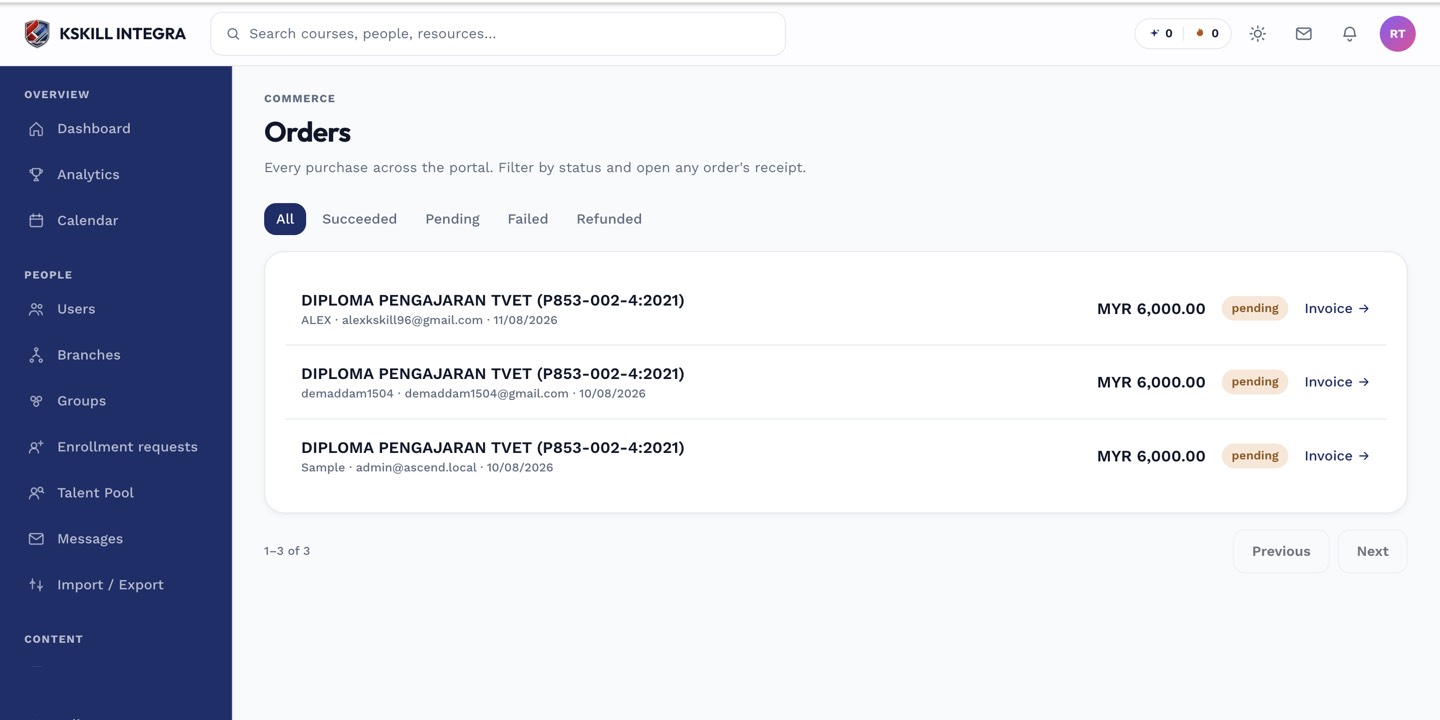
The Orders page is the ledger of every purchase made on the tenant.
Notes
- Per-branch override is available if the branchPaymentSplit flag is on — route Malaysia sales through Billplz and international through Stripe from one install.
- Failed webhooks show up on the Payments card with a retry button.