Training matrix report
The training matrix maps role skills to per-user completions. This article covers reading the grid and finding gaps.
Before you start
You need the Admin role, plus job roles and skills configured.
Step 1 — Open the report
Open Configuration → Analytics and switch to the Training matrix tab. Users are rows; role-required skills are columns. Each cell shows whether the user holds that skill (green), is close (amber) or is missing it (red).
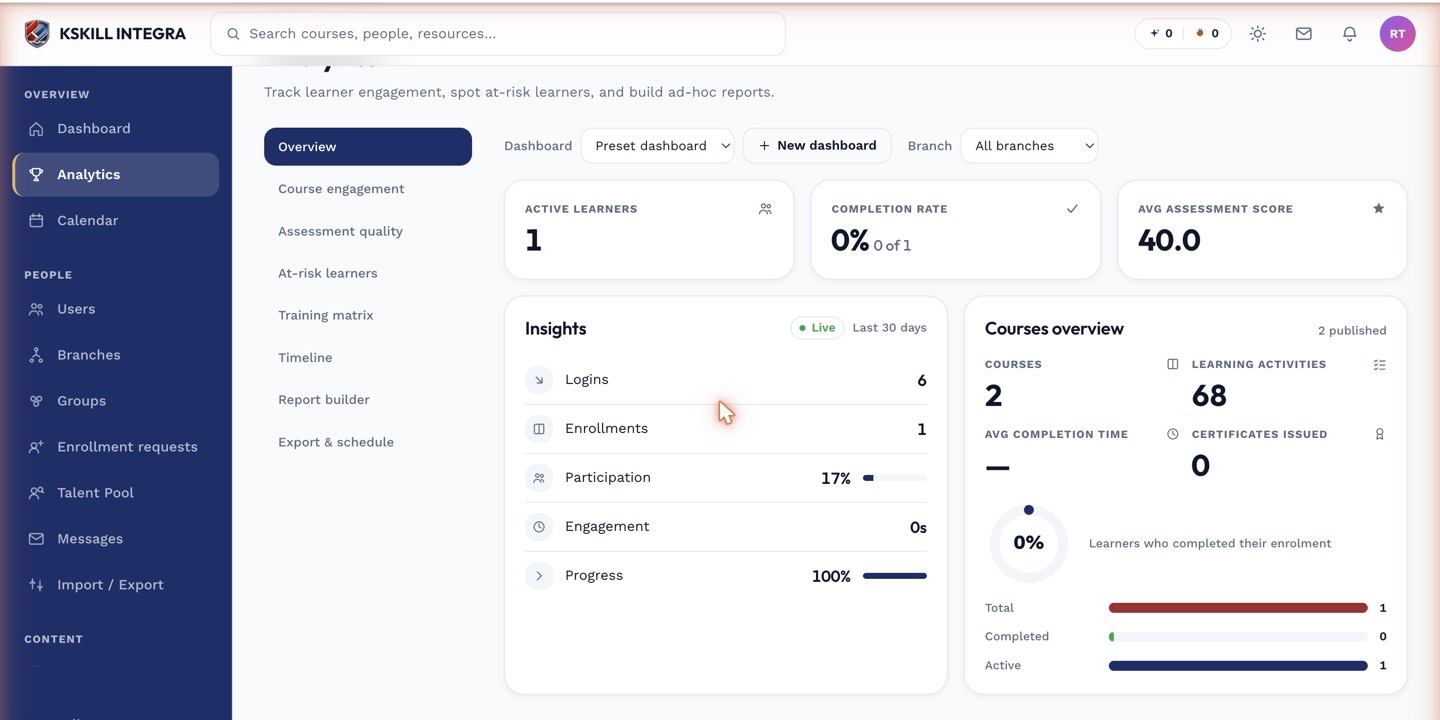
The detail panels give you the breakdown behind each KPI tile.
Step 2 — Filter by role or branch
Use the filters at the top to scope to one job role or one branch. This is how you answer 'is my sales team fully trained on the new product?'. Export the filtered grid to CSV for the audit trail.
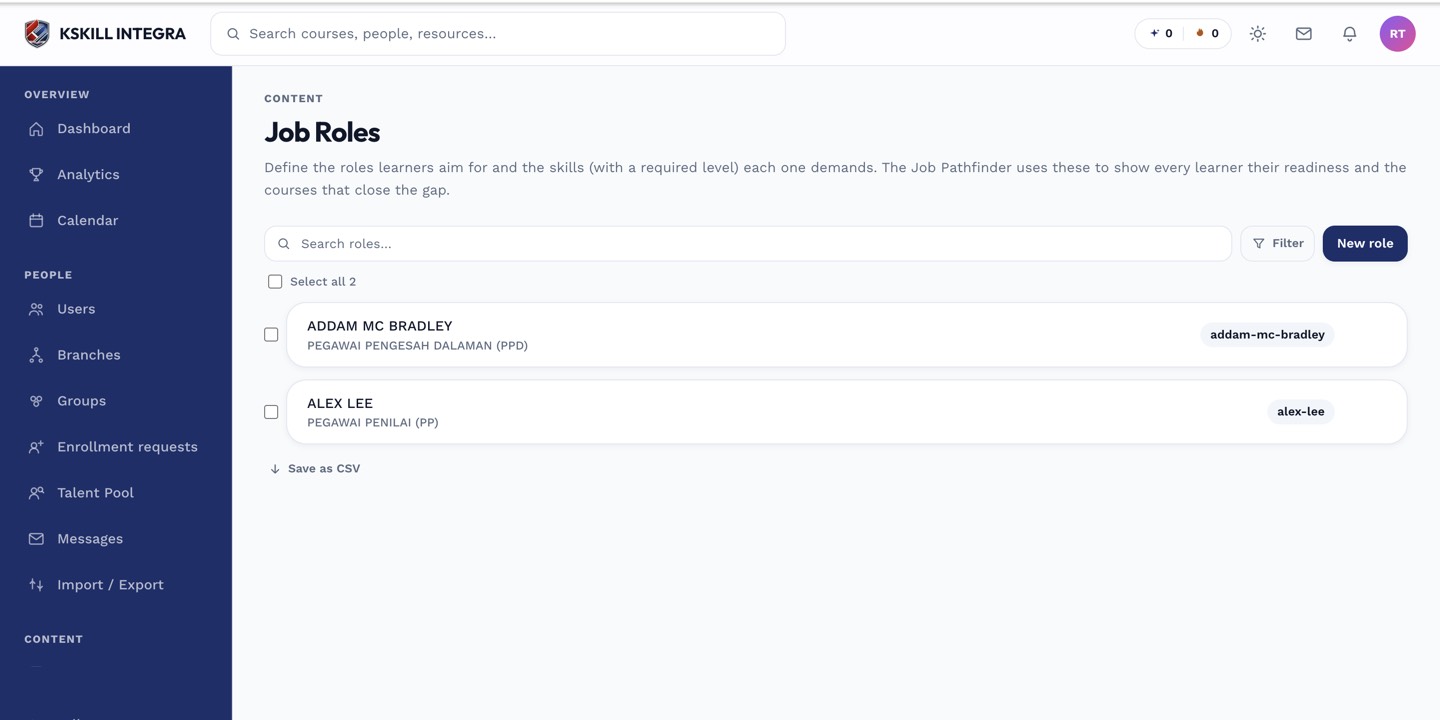
Job roles let you name a target skill mix once and reuse it everywhere.
Step 3 — Close the gaps
Click any red cell to open the matching learner and skill. From there, you can grant the skill, enrol the learner in a granting course, or route them to a self-assessment. The matrix updates in real time as grants land.
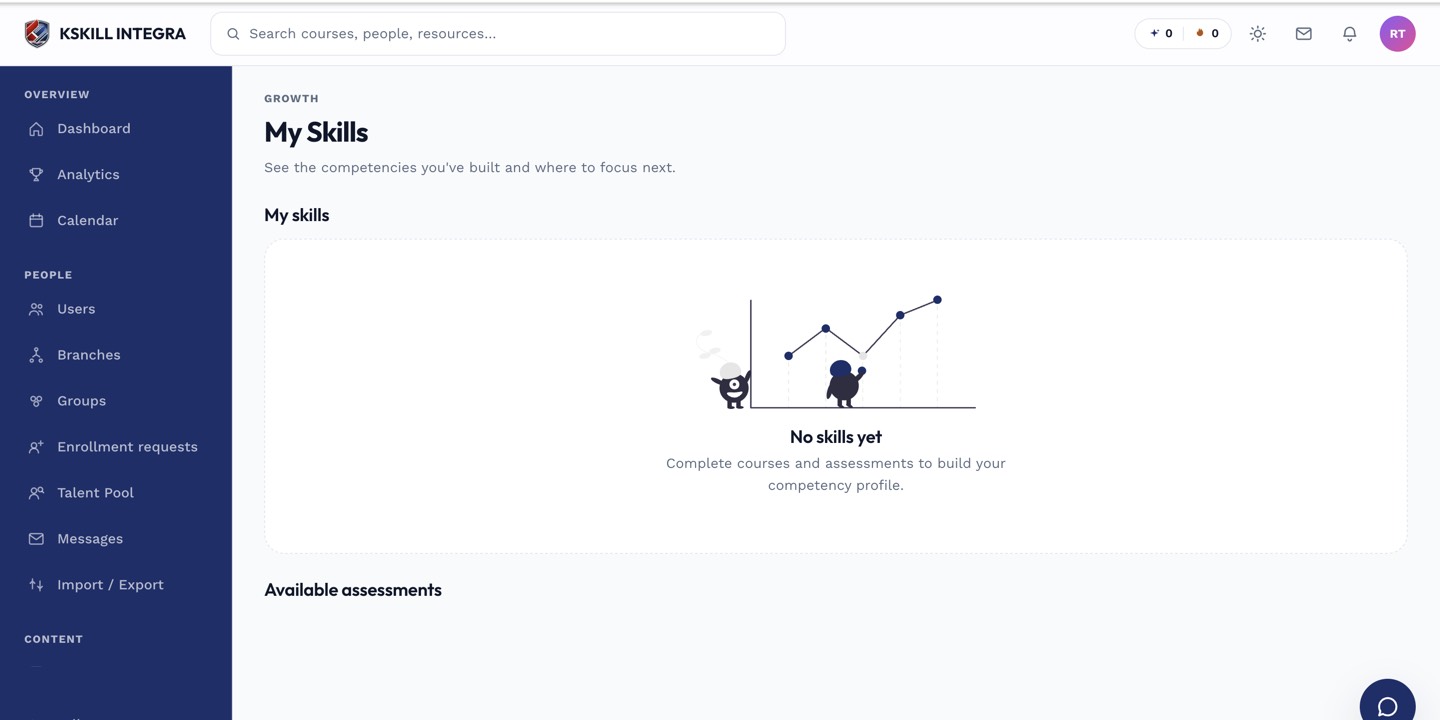
My Skills is the learner's own view of what they have proven so far.
Notes
- Perfect scores are rare — aim for high green, low red, and steady progress.
- For a compliance audit, filter by branch and export the filtered grid as PDF.