Update your notification preferences
Your preferences decide what fires into your inbox and what stays in-app. This article covers the per-event matrix.
Before you start
You need to be signed in. Some events are mandatory (compliance reminders, say) — you cannot switch those off.
Step 1 — Open Notifications
Click your profile picture and pick Account settings. Switch to the Notifications tab. Every event the platform fires is listed with per-channel toggles — email, in-app, and (if enabled) Slack.
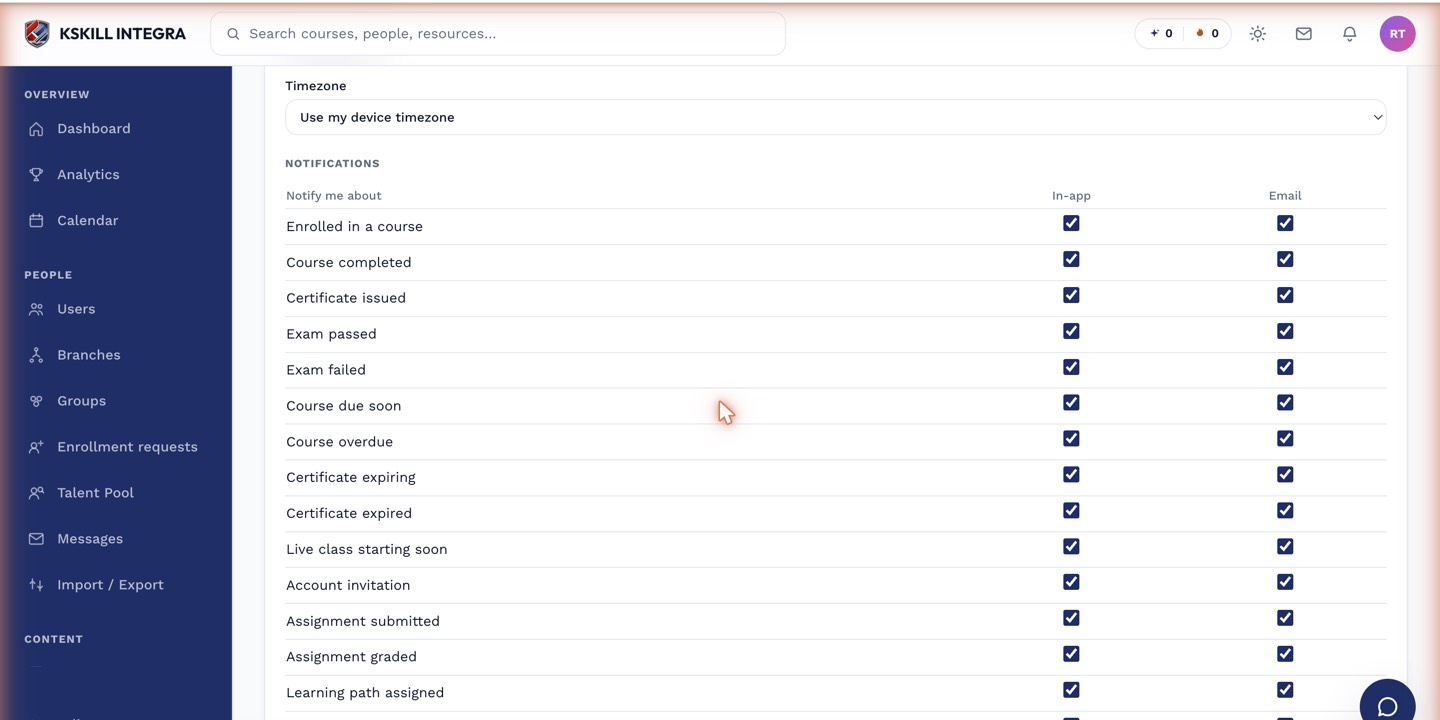
The preferences table is the per-user matrix of every event by every channel.
Step 2 — Tune per event
For each event type, flip the channels you care about on and the noisy ones off. Common tuning: leave enrolment and grading on for email, turn discussion replies off unless it is a course you are actively following.
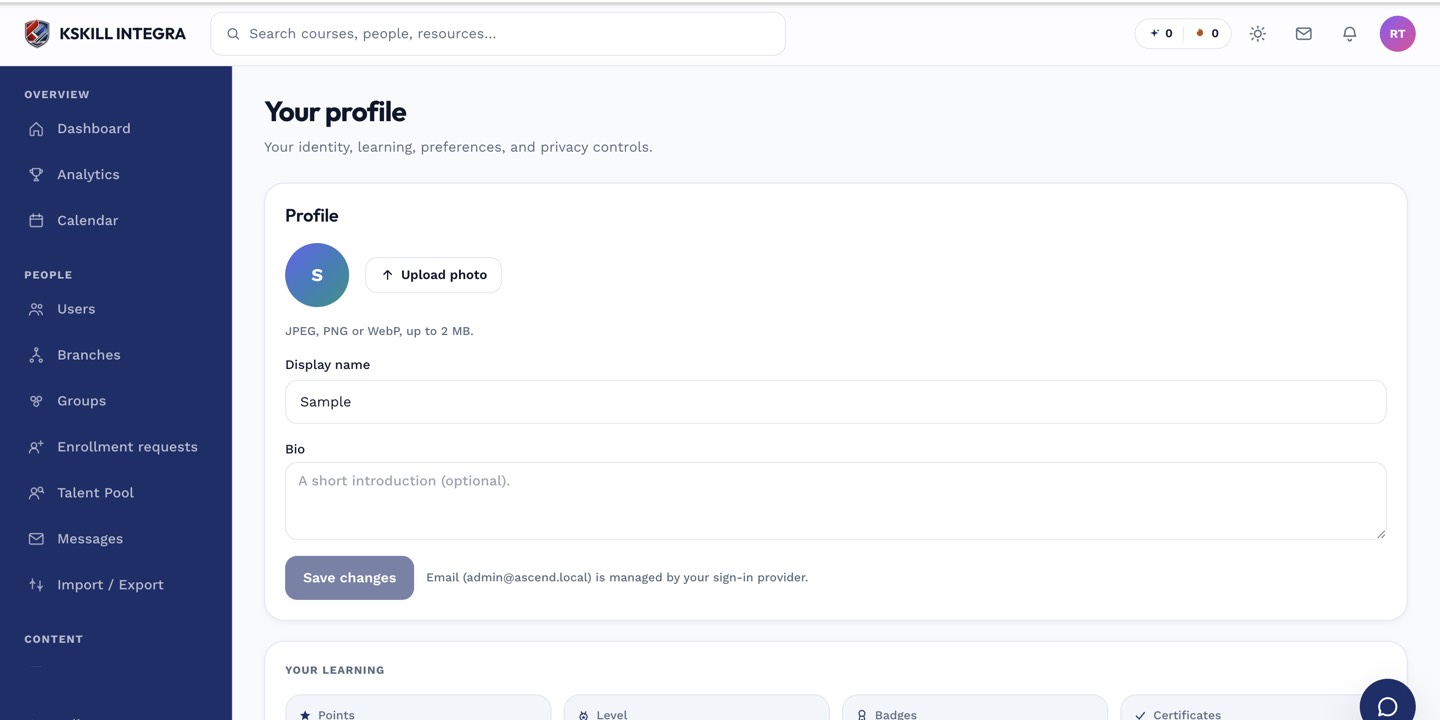
The account settings page is where a learner controls their own personal data.
Step 3 — Watch for mandatory events
Some events are locked — the toggle is greyed out and a tooltip explains why. These are usually compliance reminders your admin has forced. You get them regardless; the toggle is cosmetic.
The preferences table is the per-user matrix of every event by every channel.
Notes
- In-app notifications persist in the bell menu until you dismiss them.
- For a per-tenant tune-up, ask your admin — some events shouldn't be turned on at all for your role.