Add users to a Group
Once a Group exists, add members and every attached course auto-enrols them. This article covers three ways to add members.
Before you start
You need the Admin role. Auto-enrol should be on in the group's Info tab if you want the courses to fire automatically.
Step 1 — Open the group's Users tab
Open People → Groups, click the group, and switch to the Users tab. The list shows every current member with their role and enrolment count in this group's courses.
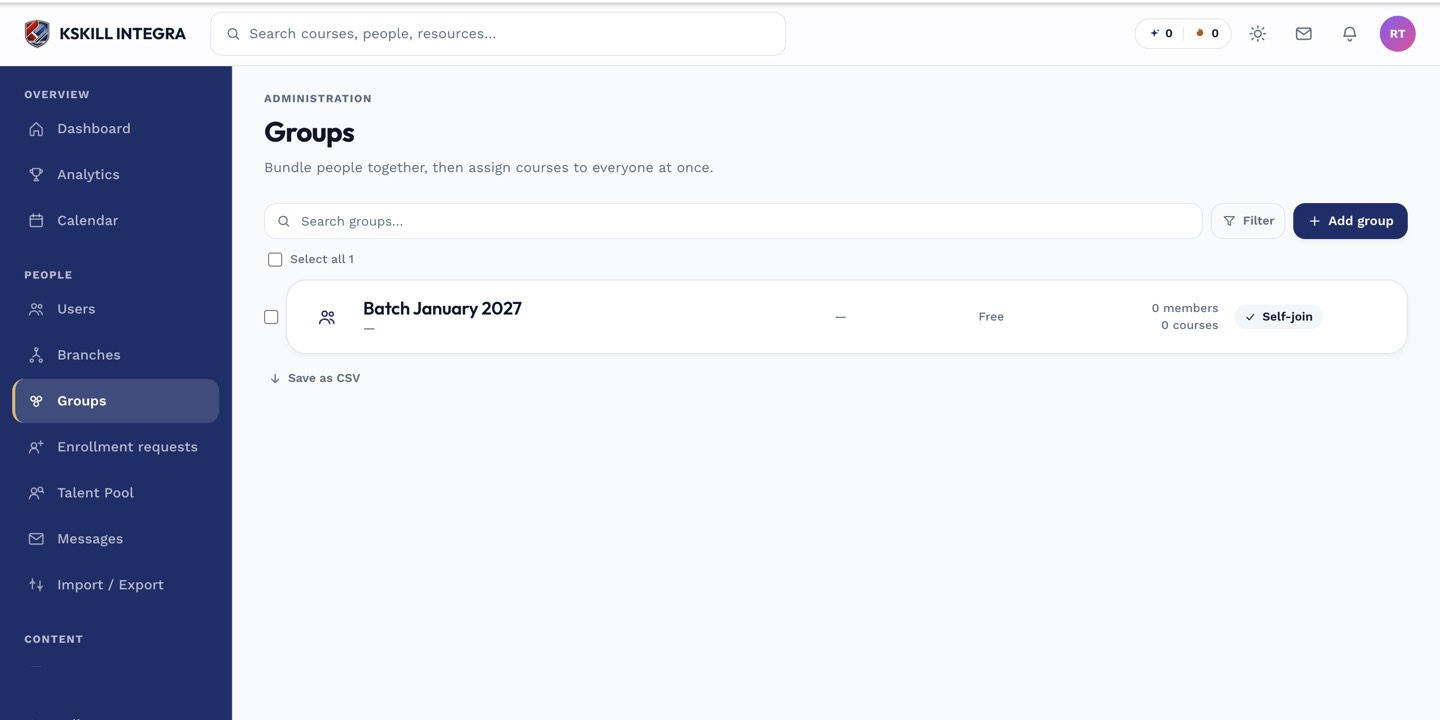
Every group management task starts from this list.
Step 2 — Add users one at a time or in bulk
Click Add users to open the picker drawer. Search by name or email and select as many as you like. Confirm and every selected user is added at once. If auto-enrol is on, they are enrolled in every attached course within seconds.
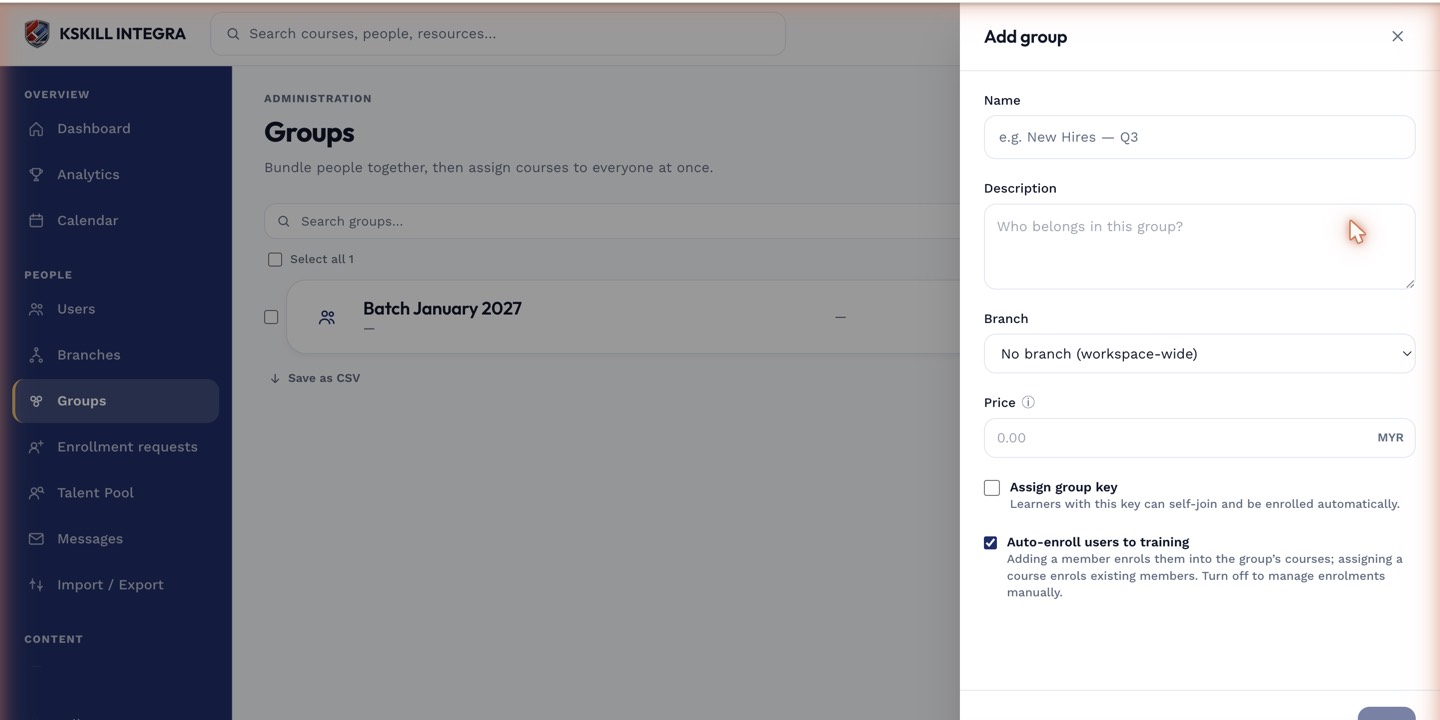
The drawer collects the metadata that decides how the group behaves.
Step 3 — Let learners join with a code
Every group has an optional join code on the Info tab. Turn it on and share the short string. Learners open My groups from their sidebar, click Join a group and paste the code. Turn the code off any time to close the group.
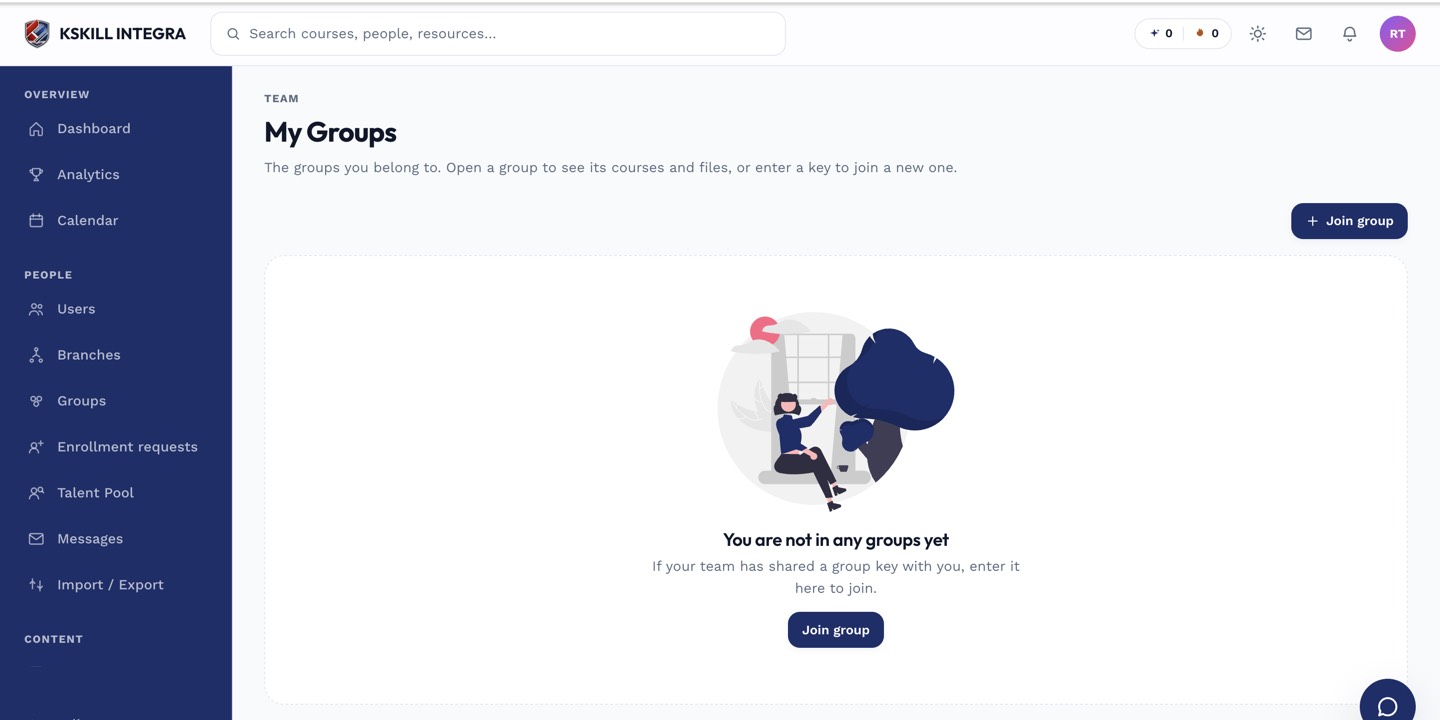
My Groups is the learner's roll-up of every group and cohort they belong to.
Notes
- Removing a user from a Group also unenrols them from every course attached to it, unless they were separately enrolled.
- You can also add users from the user profile's Groups tab — same picker, opposite direction.