Assign courses to a Group
Attaching a course to a Group is how you bulk-enrol a whole department. This article covers attaching, detaching and choosing auto-enrol vs manual.
Before you start
You need the Admin role. The Group must already exist.
Step 1 — Open the group's Courses tab
Open People → Groups, click the group, and switch to the Courses tab. The list shows every currently-attached course, with the enrolment count per course scoped to this group.
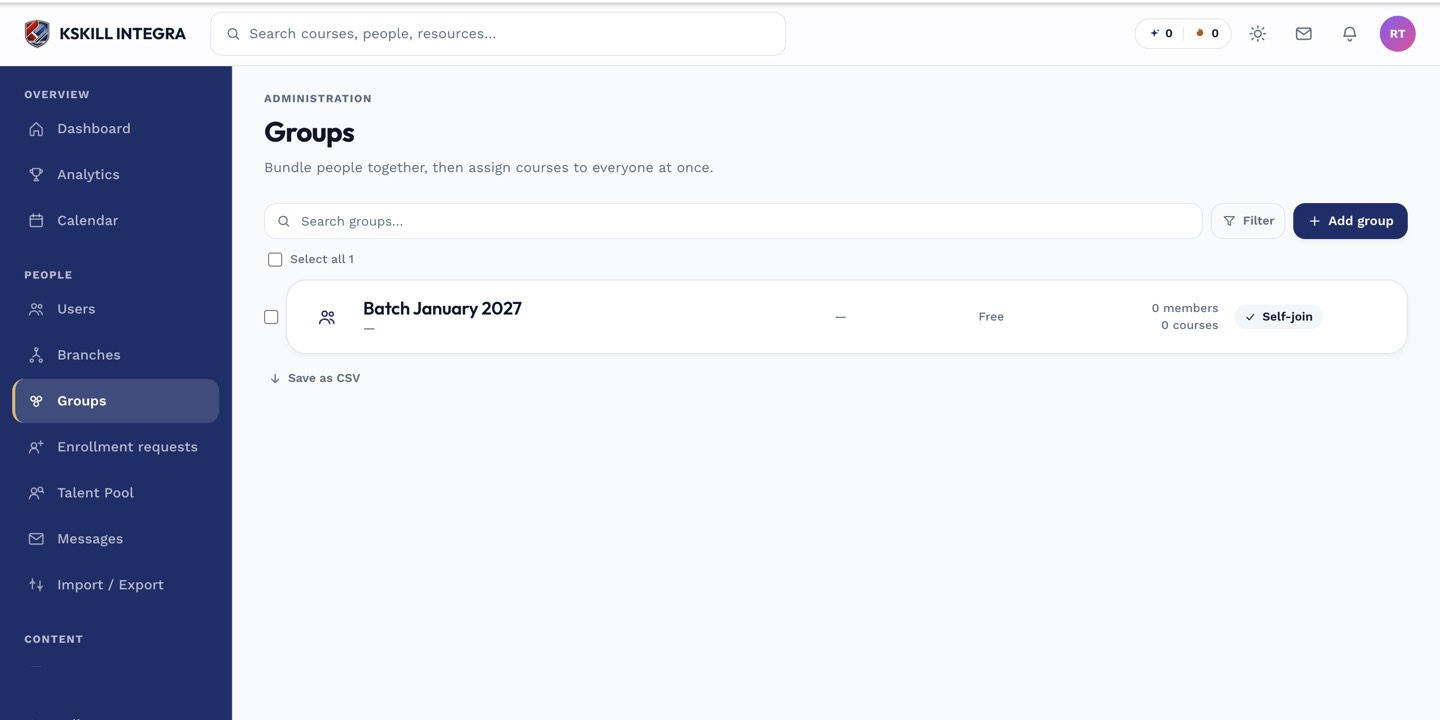
Every group management task starts from this list.
Step 2 — Attach one or more courses
Click Add courses. Pick as many as you like from the picker drawer and confirm. If Auto-enrol is on in the group's Info tab, every current member is enrolled at once and every future member is enrolled on join.
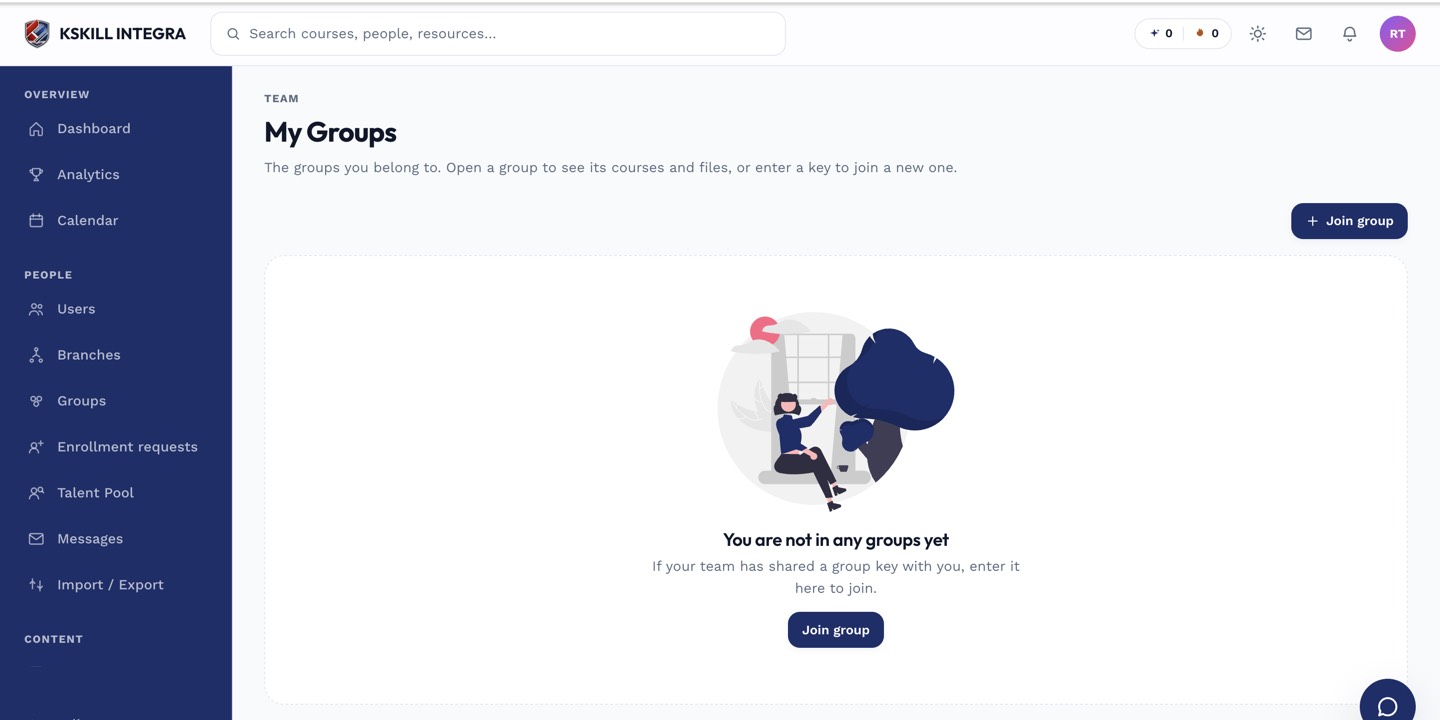
My Groups is the learner's roll-up of every group and cohort they belong to.
Step 3 — Detach if things change
Hover a course row and click the overflow menu. Pick Detach. Current enrolments are removed but historical progress is preserved in the audit log — you can still report on who did what while they had access.
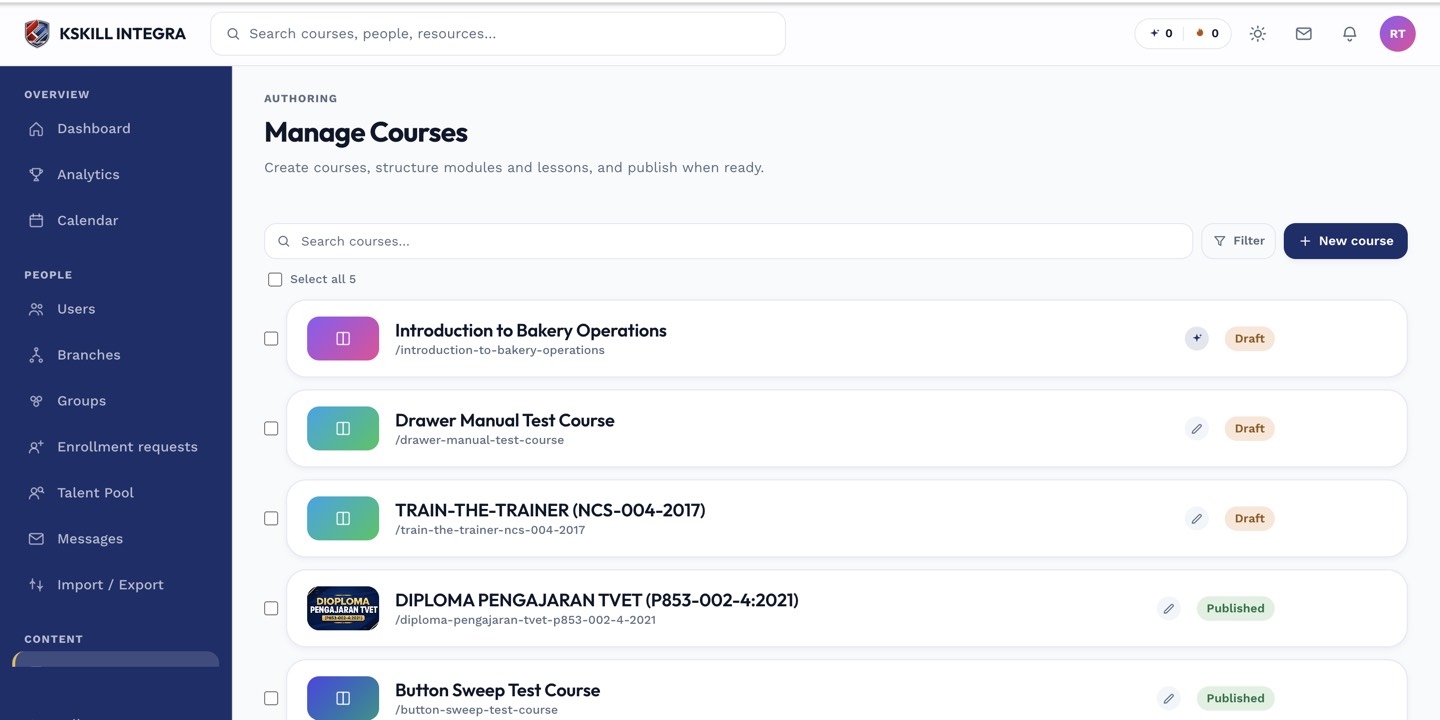
The Manage Courses screen is the launch pad for anything course-related.
Notes
- Auto-enrol only fires when the group-to-course relationship exists. Attaching without auto-enrol just lists the course as an option.
- For time-limited access, use a Cohort instead of a Group.