Cohort schedule and dates
Cohorts have a schedule with start, mid-point and end dates. This article covers setting each and what happens at each.
Before you start
You need the Admin role or Cohort facilitator on the target cohort.
Step 1 — Set the dates
Open the Cohort detail page and switch to the Timeline tab. Set the start date, the end date, and any scheduled live sessions in between. The mid-point is calculated automatically or can be pinned to a specific day.
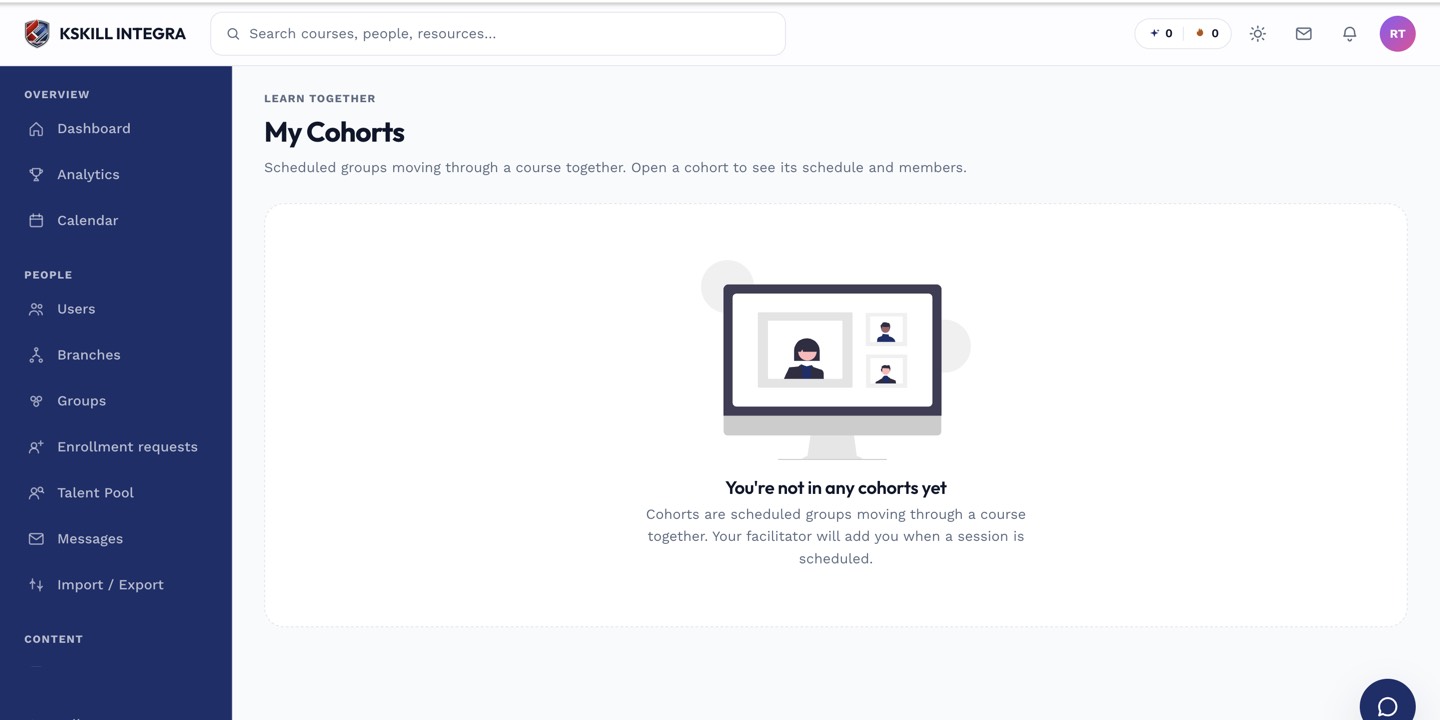
The learner cohorts view shows every scheduled intake the learner belongs to.
Step 2 — What fires at each milestone
On start-date, members get a kick-off notification and (if configured) can start the course. On mid-point, a check-in notification asks how they're doing. On end-date, the cohort auto-closes and completion certificates issue.
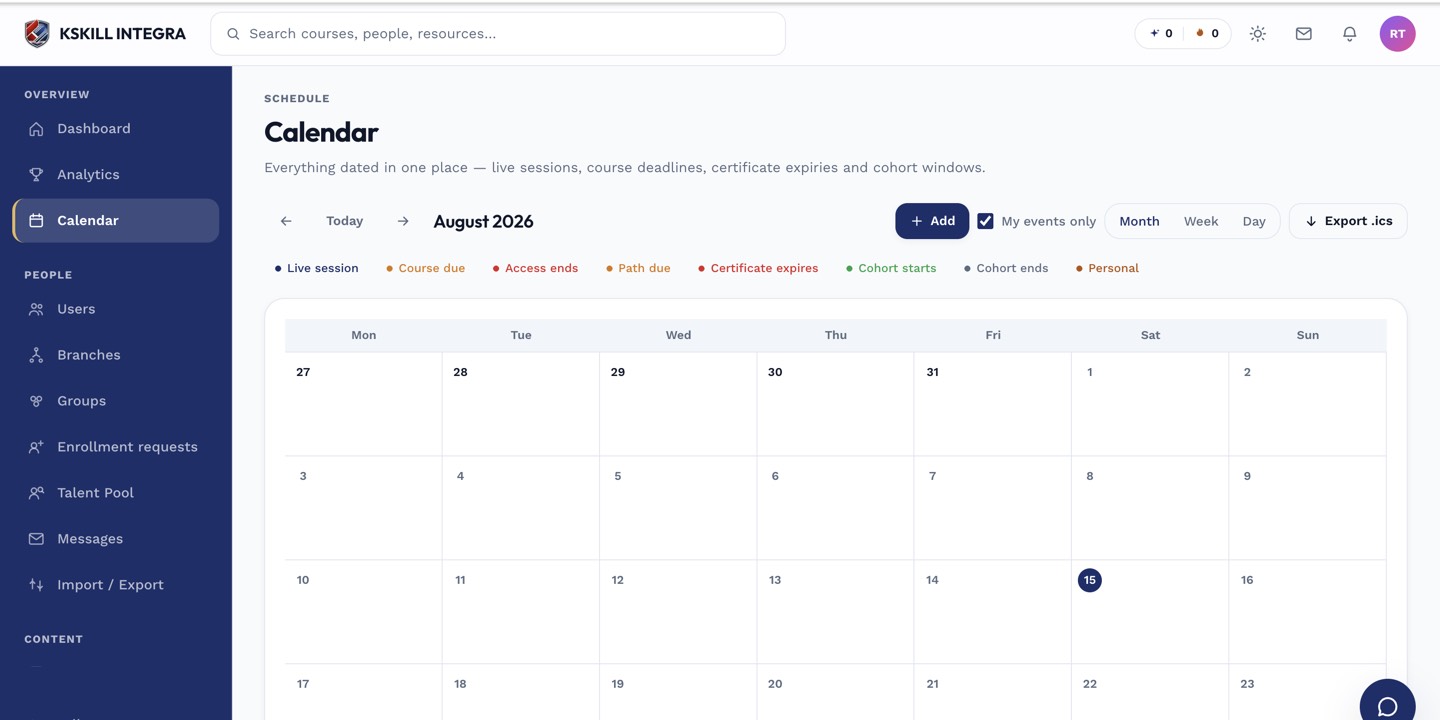
The calendar shows every scheduled live class, deadline and cohort milestone.
Step 3 — Extend or close early
The header has an Extend action that pushes the end date and re-schedules the mid-point. Close early jumps straight to the end-date behaviours regardless of calendar. Use both sparingly — silent schedule drift confuses learners.
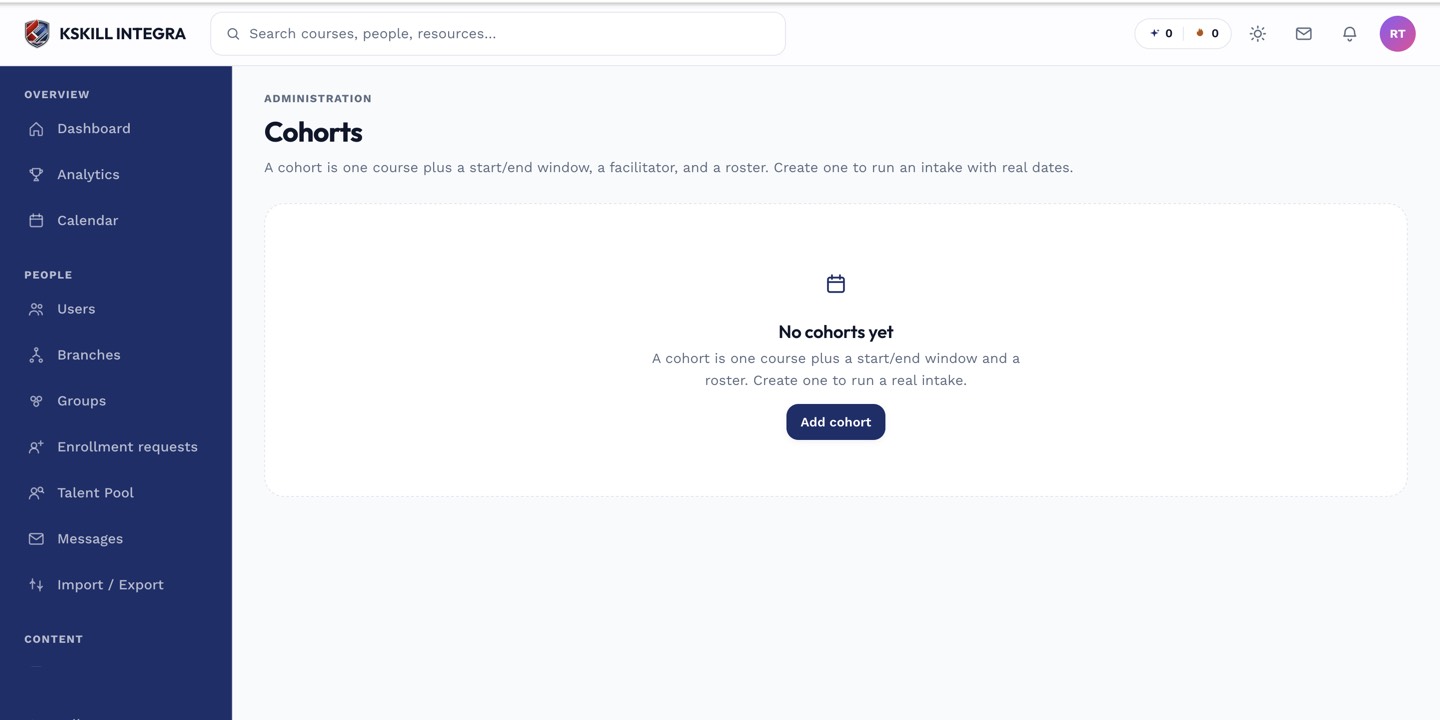
Cohorts are the time-boxed cousin of Groups — same drawer patterns, added dates.
Notes
- Members can't start early unless you enable it — the wait creates the shared 'intake' feel.
- Every schedule change fires a notification to members so nobody misses it.