Answer support tickets
Support tickets from learners land in the admin queue. This article covers picking one up and closing it out.
Before you start
You need the Admin role or the support-agent capability.
Step 1 — Open the admin queue
Open Configuration → Support. The queue lists every open ticket with the requester, subject, priority and time-since-open. Newest and most-urgent tickets sort to the top.
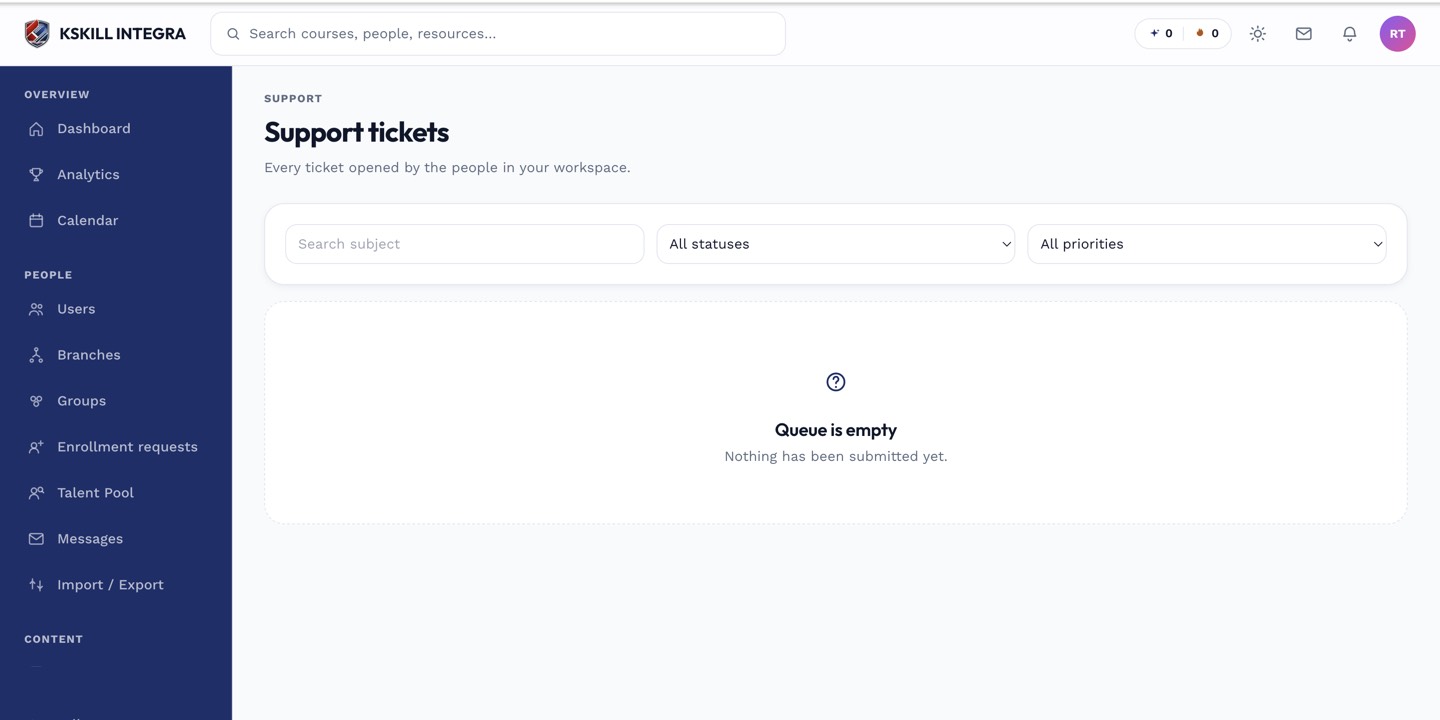
The admin queue is where every open ticket for the tenant lands.
Step 2 — Reply and update status
Click a ticket to open the thread. Type a reply. Change the status (waiting on requester, in progress, resolved) as you work. The requester sees your reply in-app and gets an email if their preferences allow.
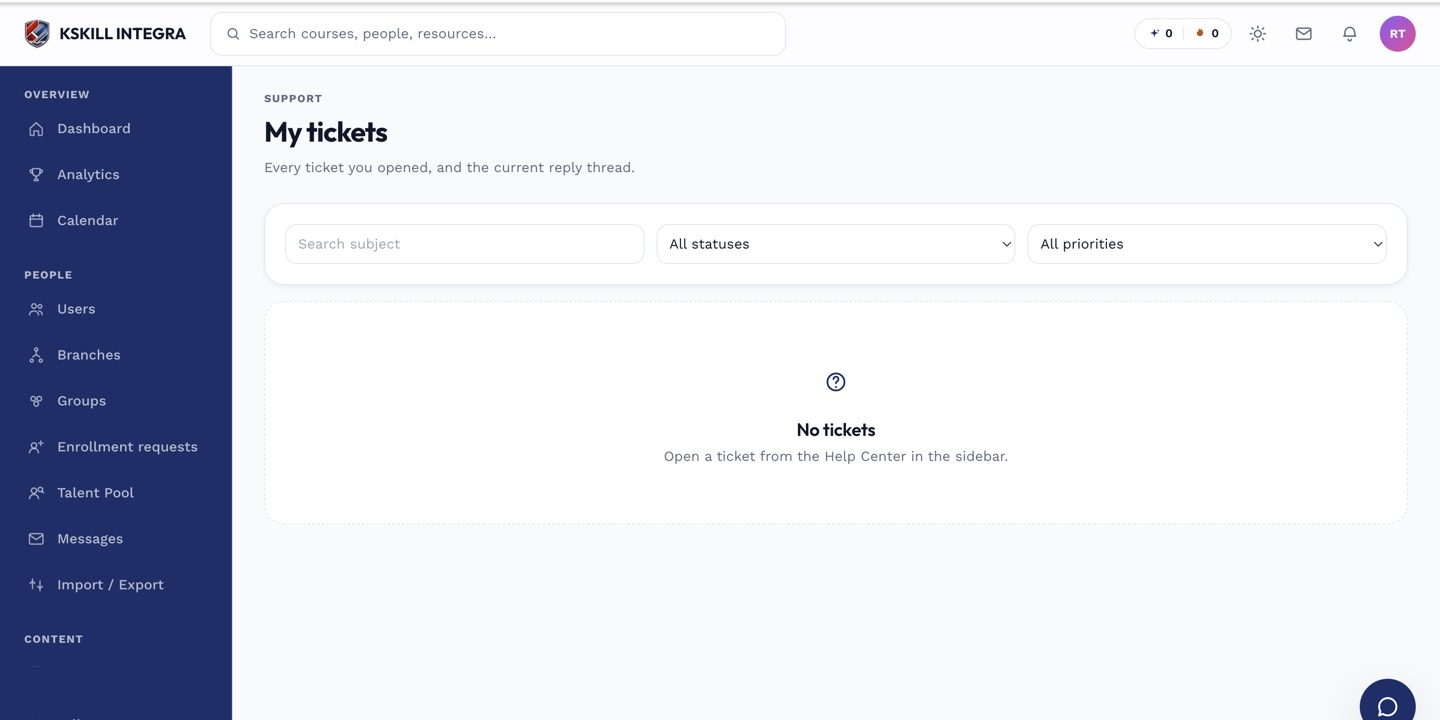
The learner ticket list shows every conversation with support in one thread view.
Step 3 — Close or escalate
When resolved, close the ticket. If you can't fix it, escalate to platform support with a clear description of what you tried. The requester is kept in the loop either way.
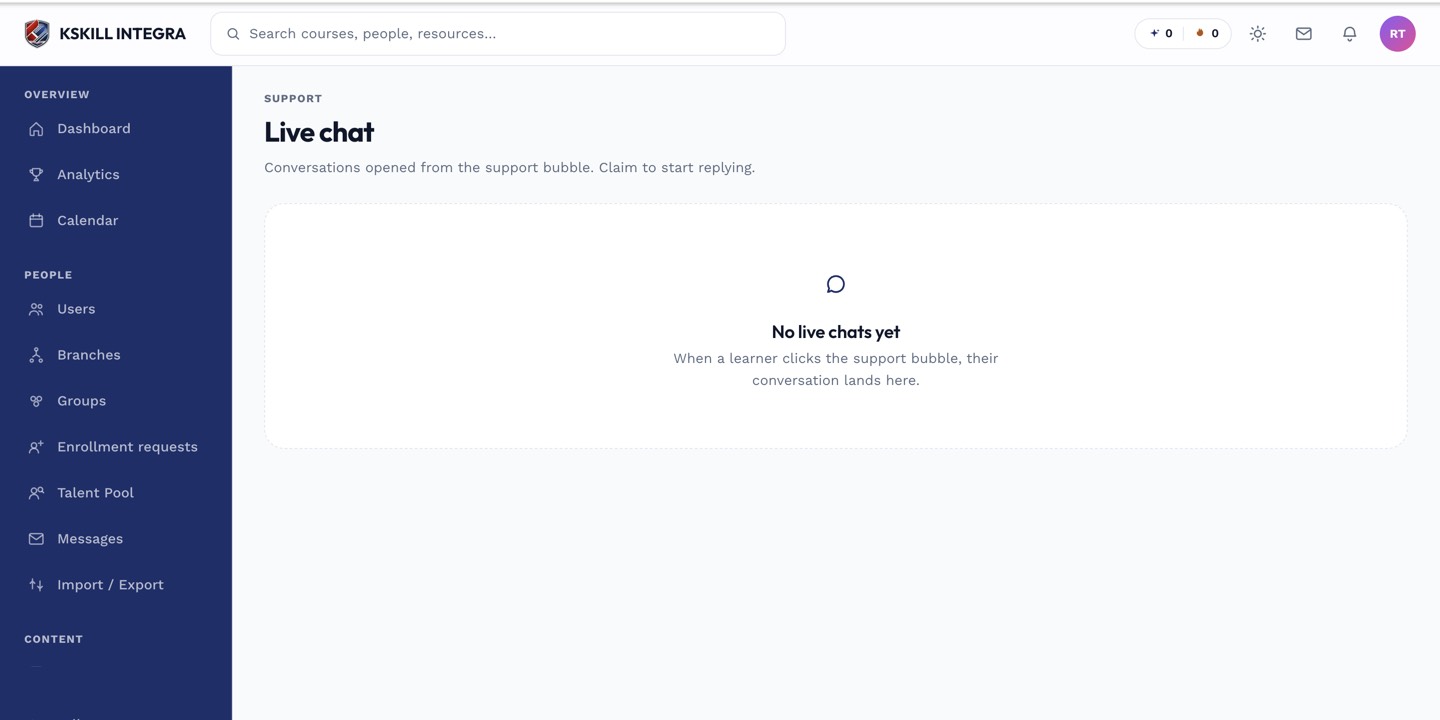
The live-chat agent inbox is where support staff pick up real-time conversations.
Notes
- Response-time SLAs are per-tenant — check yours before letting a ticket sit.
- Templated replies live in the tenant's support settings for common issues.