Managing Cohort Members and the Roster Cap
GroupsUpdated September 24, 2026
The Members tab is where you add or remove people from a cohort after it's created, and where an optional learner cap can keep the roster from growing past a set size.
Adding and removing members
- Open the cohort from Manage → Cohorts and go to the Members tab.
- Click Add member and search for the user.
- Adding a member immediately auto-enrolls them into the cohort's course.
- Removing a member takes them off the roster; it does not retroactively undo progress they've already made in the course.
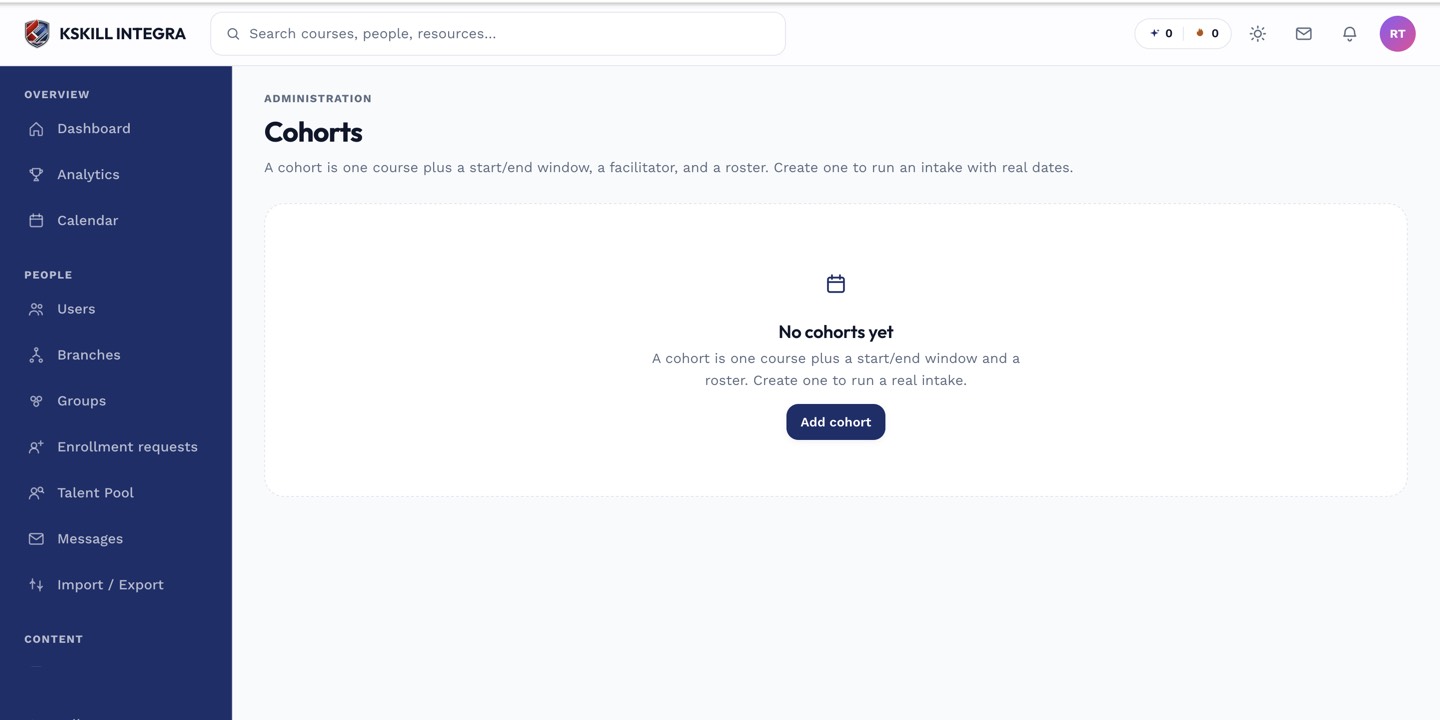 The Members tab lists everyone currently on the cohort's roster.
The learner cap
If you set a learner cap when creating (or later editing) the cohort, the roster can't grow past that number. Once the cap is reached, further add attempts are blocked until someone is removed or the cap is raised — useful for cohorts tied to a facilitator's realistic class size or a physical/virtual session limit.
 Once a cohort hits its learner cap, the add-member flow blocks further additions.
Notes
If a course otherwise requires approval to join, adding someone directly to a cohort roster is still how you get them in — cohort membership is an admin action, not a self-enrollment path.
What next?
#cohorts#members#roster#capacity#enrollment