Create a Group
A Group is a permanent collection of users. Attach a course to it and every current and future member auto-enrols. Groups are the fastest way to onboard a whole department.
Before you start
You need the Admin role. If you also want to sell the group as a package, enable the paid-group feature first under Settings.
Step 1 — Open Manage Groups
Open People → Groups. The list shows every group with its owner, member count and attached courses. Click Add group in the top right to open the drawer.
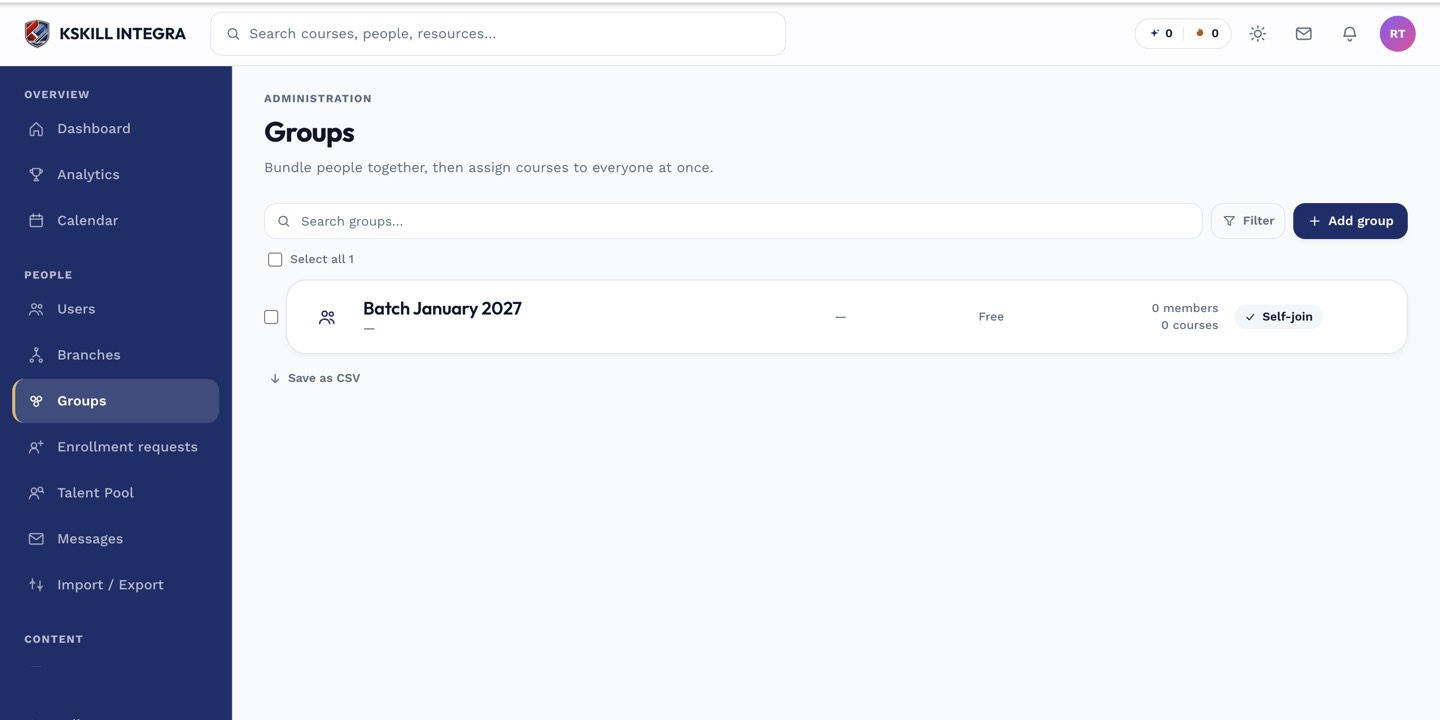
Every group management task starts from this list.
Step 2 — Fill the drawer
Enter a name (for example Sales team) and a short description shown to learners who join via a code. Pick an Owner who gets elevated rights within the group without needing full admin. Turn Auto-enrol on to add new members to every attached course automatically. Click Save.
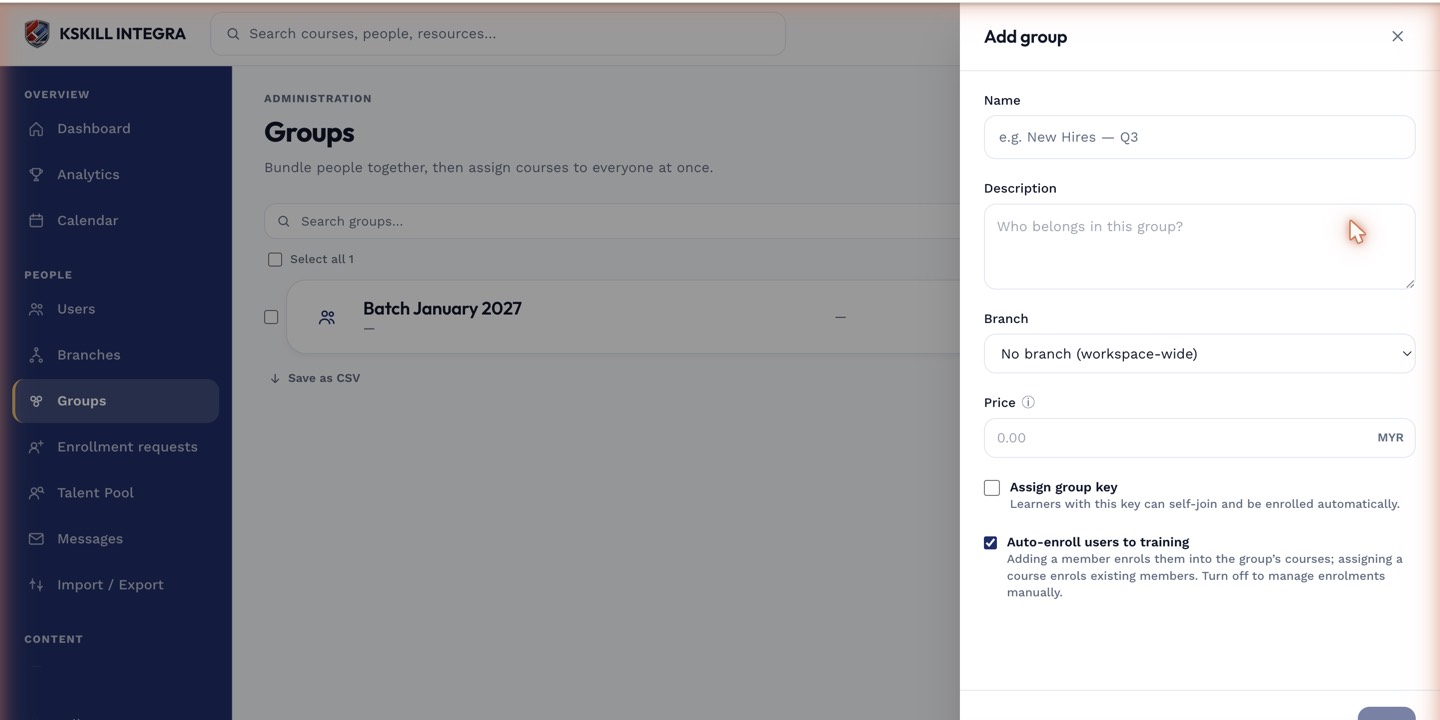
The drawer collects the metadata that decides how the group behaves.
Step 3 — Attach courses
The group detail page has five tabs — Users, Courses, Learning paths, Files and Info. Open the Courses tab and attach one or more. From that moment, every new member auto-enrols in every attached course. This is how you enrol an entire department in an hour.
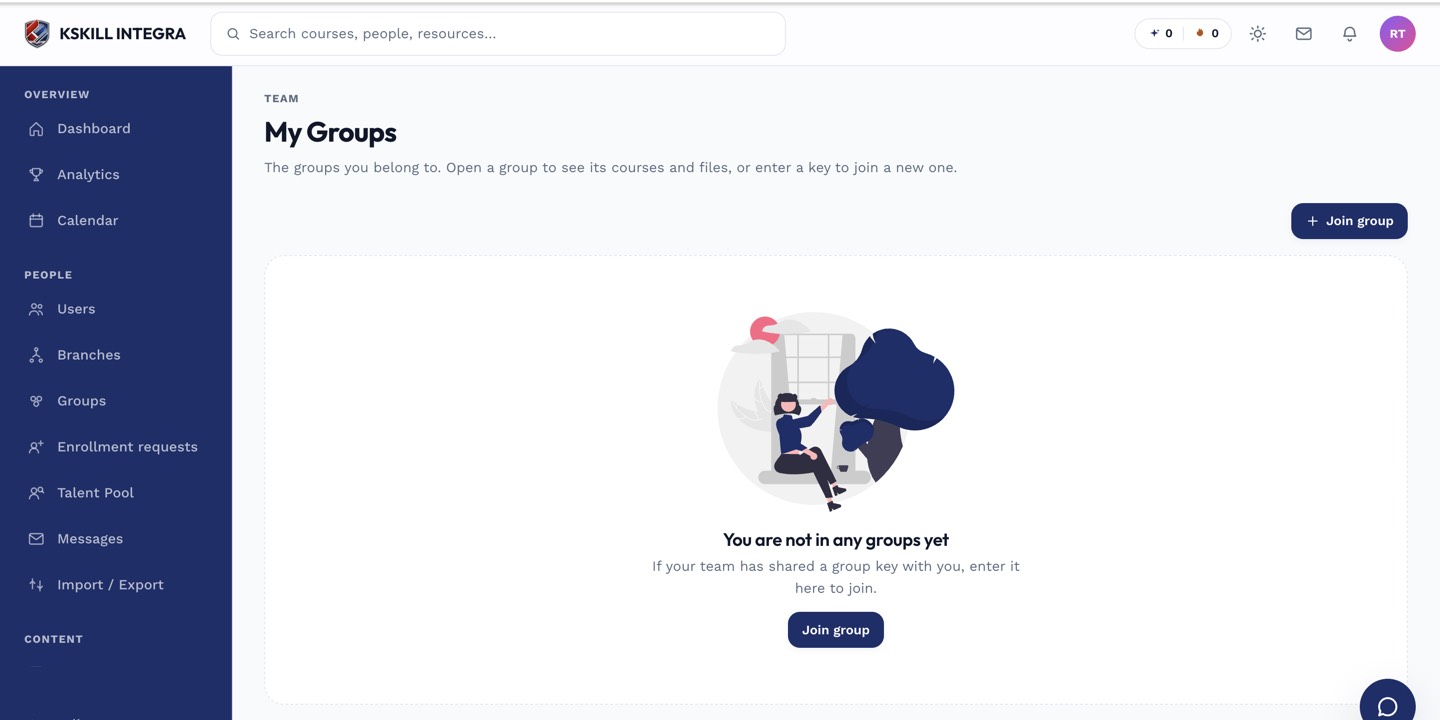
My Groups is the learner's roll-up of every group and cohort they belong to.
Notes
- Every group has an optional join code on the Info tab — share it and learners join themselves.
- Groups are permanent. If you need a start/end date, create a Cohort instead.